
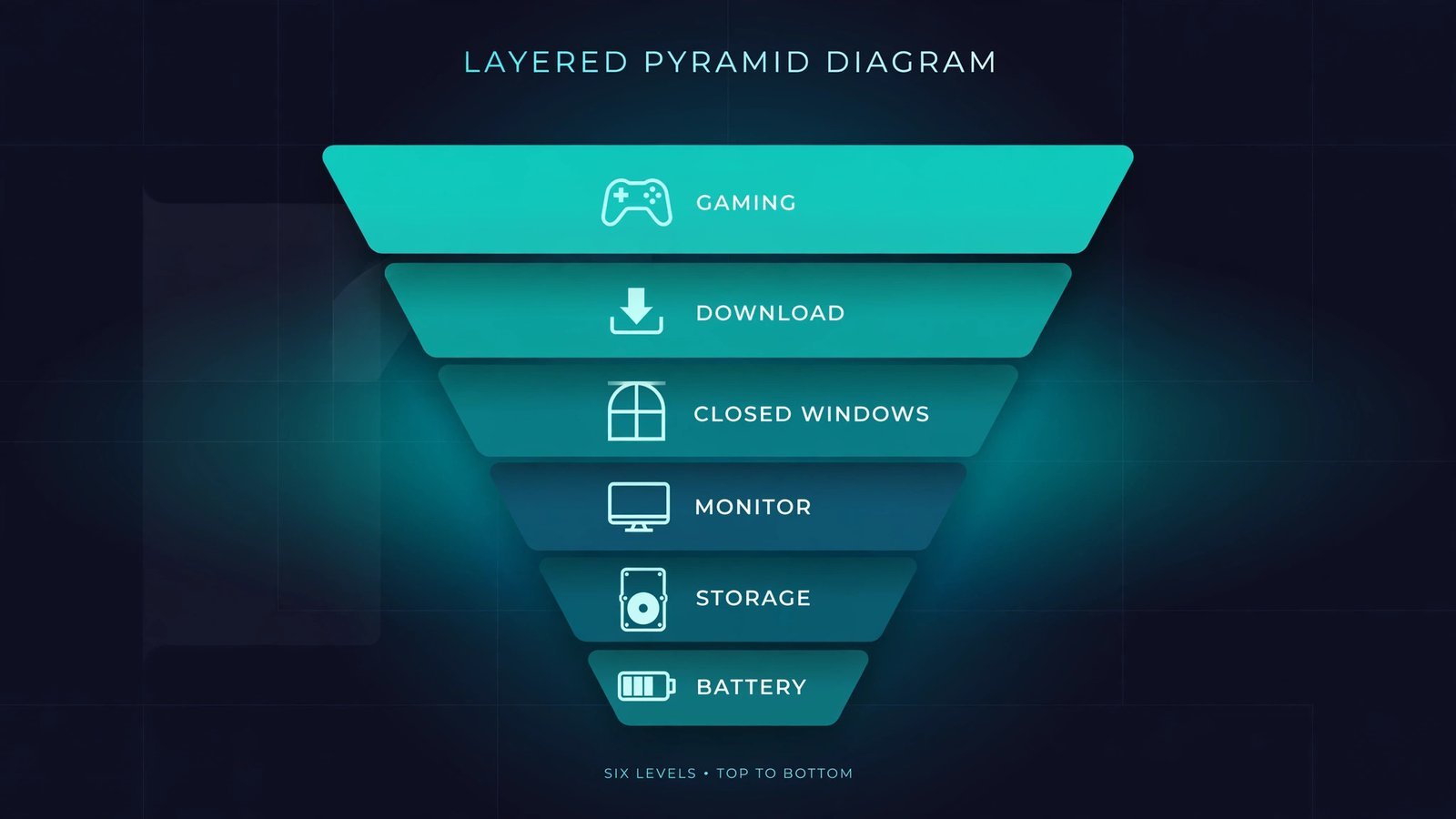
This guide covers the macOS gaming optimizations that actually move the needle: Game Mode, system and game updates, background apps, display refresh rate and resolution, free storage, power settings, and external display notes. Verified on macOS Tahoe 26, October 2026.
Quick answer: Turn on Game Mode (it engages automatically in full screen on macOS Sonoma 14 and later), update macOS and the game itself, and close background apps. Those three deliver most of the improvement; everything below is fine-tuning.
Note: Be realistic about the hardware. Macs are not gaming-first machines: many demanding titles have no Mac-native version, and even optimized settings won’t turn an ultrabook-class GPU into a gaming rig. These tweaks help most with frame stability and input latency in games that already run on your Mac.
Use Game Mode
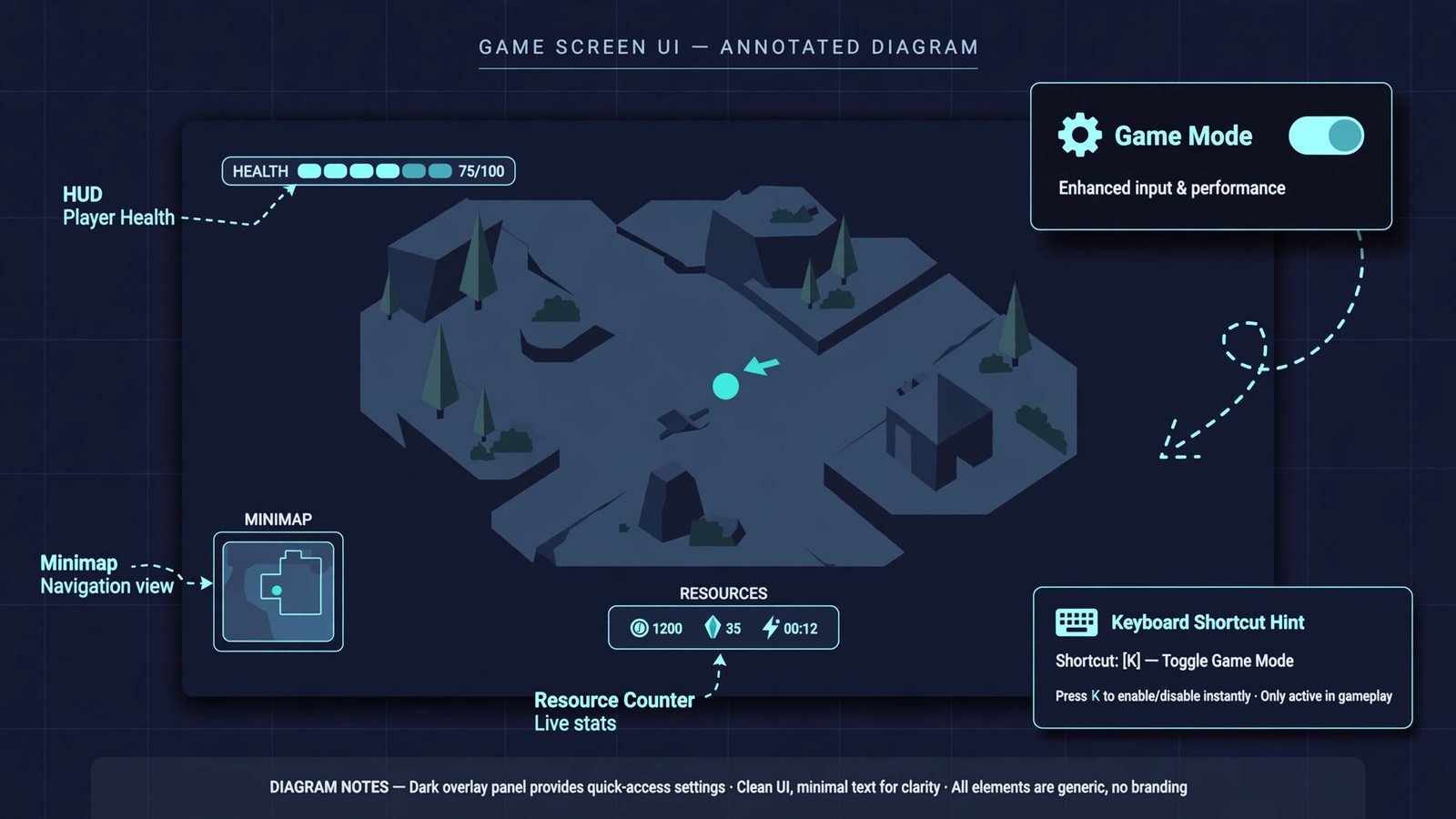
Game Mode gives your game highest-priority access to the CPU and GPU, throttles background tasks, and doubles the Bluetooth sampling rate to cut input and audio latency on wireless controllers and AirPods. Requirements: a Mac with Apple silicon and macOS Sonoma 14 or later, and a game running in macOS’s built-in full-screen mode (the green window button, not a borderless window the game draws itself).
- Launch the game and switch it to full screen via the green button in the window corner. Game Mode engages automatically, you’ll see a game controller icon appear in the menu bar.
- To confirm or toggle it on macOS Tahoe 26 or later: while in full screen, press Command-Esc to open Game Overlay (or click the Game icon in the menu bar), click Settings, then click Game Mode.
- On macOS Sequoia 15 or Sonoma 14: click the Game menu in the menu bar and choose Turn Game Mode On.
Note: If you ever switched Game Mode off for a game, it stays off for that game until you flip it back, even after relaunching. If the controller icon never appears in the menu bar, the game isn’t using system full-screen mode, so Game Mode never engaged; toggle the green button and check again.
Update macOS and your games
Apple ships gaming improvements in OS updates, macOS Tahoe 26 brought Metal 4 and MetalFX frame interpolation, which uses AI to generate extra frames. Game developers patch performance too.
- Open System Settings → General → Software Update and install any available macOS update.
- Update the game itself through Steam, the App Store, or its launcher, check for pending updates before troubleshooting anything else.
Close background apps
Every open app competes for the same CPU, GPU, and memory. Game Mode throttles background tasks, but quitting them outright is stronger.
- Quit browsers, streaming apps, and anything syncing (cloud backup, photo libraries) before launching the game.
- Open Activity Monitor (Applications → Utilities) and sort by % CPU to spot anything hogging resources; quit it from the app itself rather than force-quitting.
Tune display settings
Refresh rate is how many times per second your display redraws (measured in Hz), higher means smoother motion. Resolution scaling renders the game at a lower internal resolution and upscales it, trading sharpness for frames.
- Go to System Settings → Displays and set Refresh Rate to your display’s maximum (e.g., 120Hz on ProMotion displays).
- In the game’s graphics settings, lower the render resolution or enable upscaling (MetalFX Upscaling where offered) before touching other quality sliders, resolution is the single biggest frame-rate lever.
- Reduce shadow quality and anti-aliasing next; these cost the most GPU time for the least visible gain.
Note: On an external display, use a direct cable connection and match the game’s output to the display’s native refresh rate. Adapters and docks can silently cap you at 60Hz.
Free up storage
macOS needs breathing room for swap and shader caches. A nearly full drive causes stuttering that no settings tweak will fix.
- Go to System Settings → General → Storage to see what’s eating space.
- Keep at least 15–20% of the drive free. Offload large files you don’t need mid-session, and keep games on the internal SSD rather than an external drive where possible.
Set power mode for performance
Low Power Mode extends battery life by capping performance, the opposite of what you want while gaming.
- Go to System Settings → Battery and set Low power mode to Never while gaming (on battery, expect shorter play time).
- Whenever possible, play plugged in, sustained performance is better on adapter power.
Note: Game Mode and Metal 4 features require Apple silicon. On older Intel Macs, the remaining optimizations in this guide still apply, but expectations should be lower, and newer AAA titles increasingly ship Apple-silicon-only.
Settings reference
| Setting | Where to find it | What it does |
|---|---|---|
| Game Mode | Automatic in full screen; toggle via Command-Esc → Game Overlay → Settings (Tahoe 26+) | Prioritizes game CPU/GPU access; halves Bluetooth latency |
| Refresh rate | System Settings → Displays | Smoother motion at higher Hz |
| Render resolution / upscaling | In-game graphics settings | Biggest single frame-rate lever |
| Software Update | System Settings → General → Software Update | Delivers Metal and driver-level gaming improvements |
| Low power mode | System Settings → Battery | Set to Never while gaming to avoid CPU caps |
| Free storage | System Settings → General → Storage | Prevents stutter from a full drive; keep 15–20% free |
If your Mac still feels slow outside games, see our Mac speed-up tips and Mac customization guide. Dealing with freezes mid-game? Here’s how to fix a frozen MacBook.
Read next: Most powerful prebuilt gaming PCs, for the titles your Mac simply can’t run, this is what real gaming hardware looks like.

- How to Turn Off App Suggestions on Your Android Home Screen - October 25, 2026
- How to Stop Android Auto-Connecting to Open Wi-Fi Networks - October 24, 2026
- How to Stop iPhone Apps Asking for Ratings and Reviews - October 23, 2026