
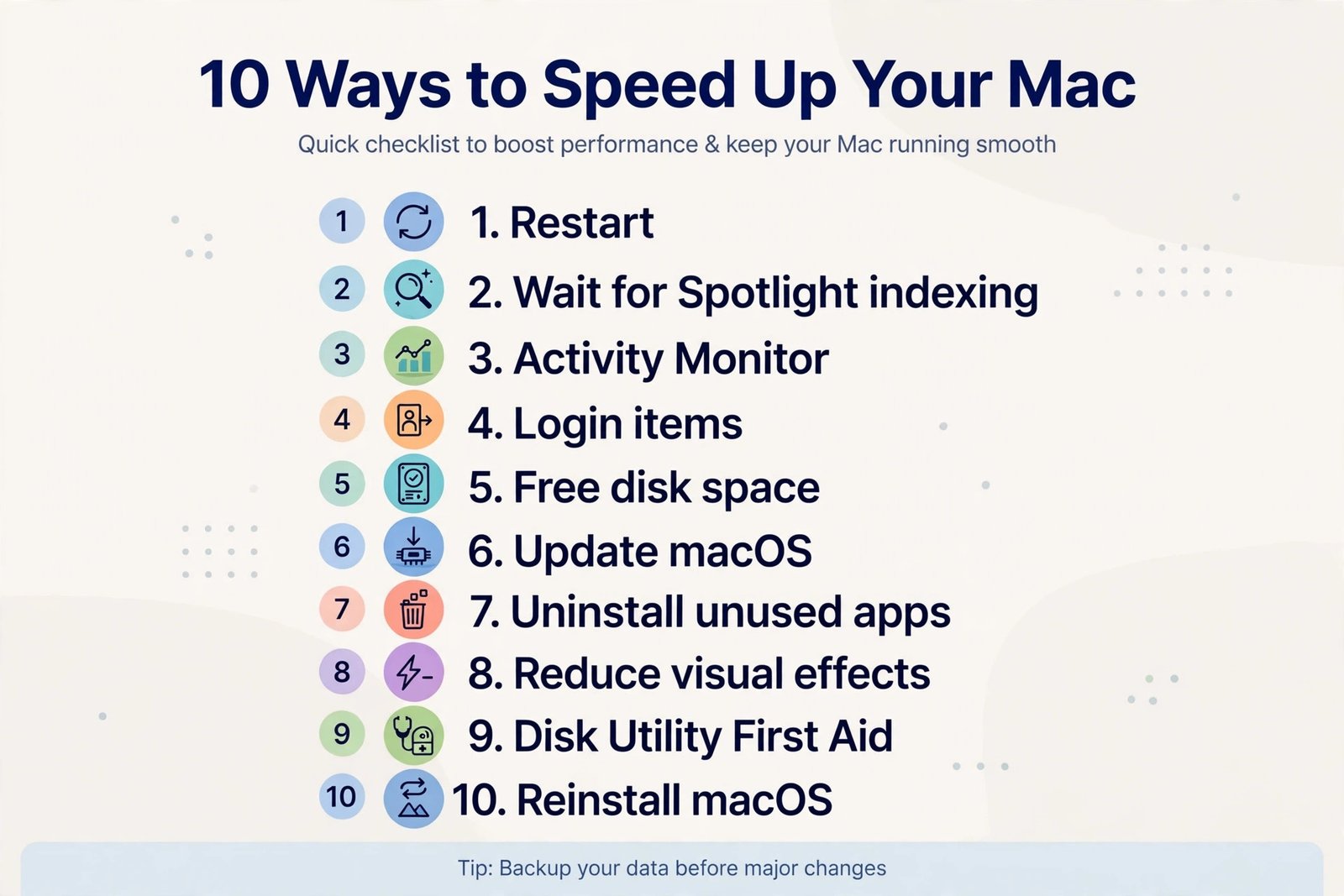
A slow Mac is rarely dying. It is usually distracted: a dozen helpers loading at startup, Spotlight rebuilding its index after an update, or one app quietly eating all your memory. Every one of those causes is fixable in minutes, and none requires buying software. Here are the 10 fixes that work on macOS Tahoe, ordered by how often they actually solve the problem.
Key Takeaways
- Slow right after an update? That is almost always Spotlight indexing. Give it a day before you change anything.
- The biggest speed gains come from three places: Activity Monitor, Login Items, and free disk space.
- On Apple Silicon Macs, NVRAM resets itself on restart. Do not follow old guides that tell you to hold Option+Command+P+R.
Start With the Two-Minute Fixes
Before touching any settings, do the obvious things people skip. Restart your Mac. A restart clears temporary memory, kills stuck background processes, and is the single fastest fix for a machine that has been awake for weeks. Close apps you are not using, and count your browser tabs. A browser with 40 tabs open is one of the most common memory hogs on any Mac. If only your browsing feels slow, our guide on how to fix a slow web browser digs deeper.
1. Wait Out Spotlight Indexing After an Update
When this works: your Mac turned sluggish right after installing a macOS update. This is the number one cause of “my Mac is slow after Tahoe” complaints, and it fixes itself.
After a major update, macOS re-indexes your drive for Spotlight search. That indexing can run for hours or even a day on a large drive, and it spikes CPU usage the whole time. Open Activity Monitor from Applications > Utilities and look for mds or mdworker near the top of the CPU tab. If you see them, the honest fix is patience. Avoid heavy tasks until they settle, then judge the speed again.
2. Find the Culprit in Activity Monitor
When this works: everything is slow, not just one app, and you have no idea why.
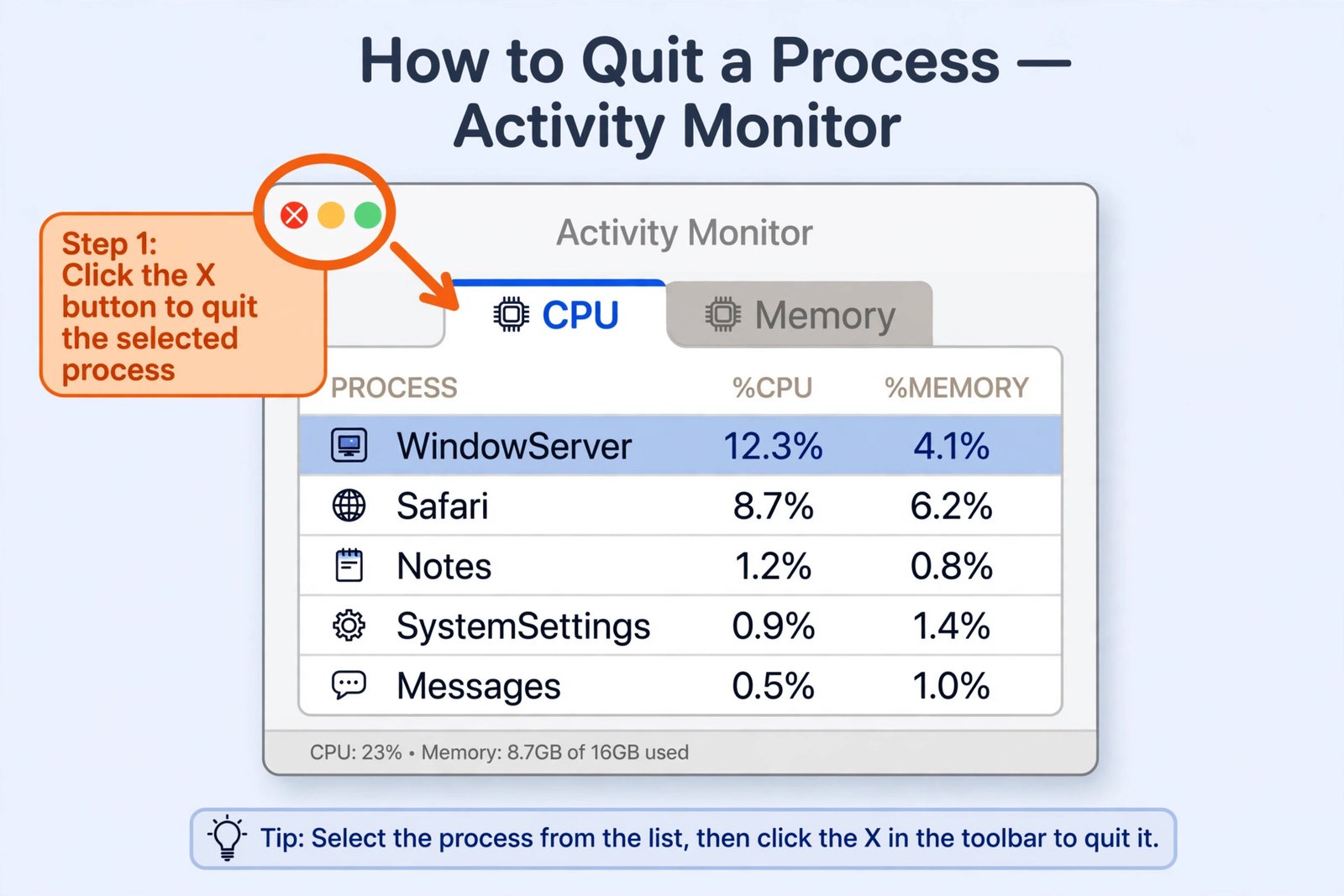
- Step 1: Open Activity Monitor from Applications > Utilities.
- Step 2: Click the CPU tab, then click the % CPU column to sort by usage.
- Step 3: Do the same on the Memory tab. An app sitting above 80% CPU, or flagged “Not Responding” in red, is your suspect.
- Step 4: Select it, click the X button in the toolbar, and choose Quit or Force Quit.
You should now see the load drop immediately. Do not quit processes you do not recognize if they belong to macOS itself. System processes restart on their own. If it is an app you barely use, consider deleting it outright.
3. Remove Unnecessary Login Items
When this works: your Mac is slow from the moment it boots, and the menu bar fills with icons you never asked for.
Apps love adding themselves to startup, and major macOS updates sometimes re-enable items you previously turned off. Each one consumes memory and CPU from the first minute.
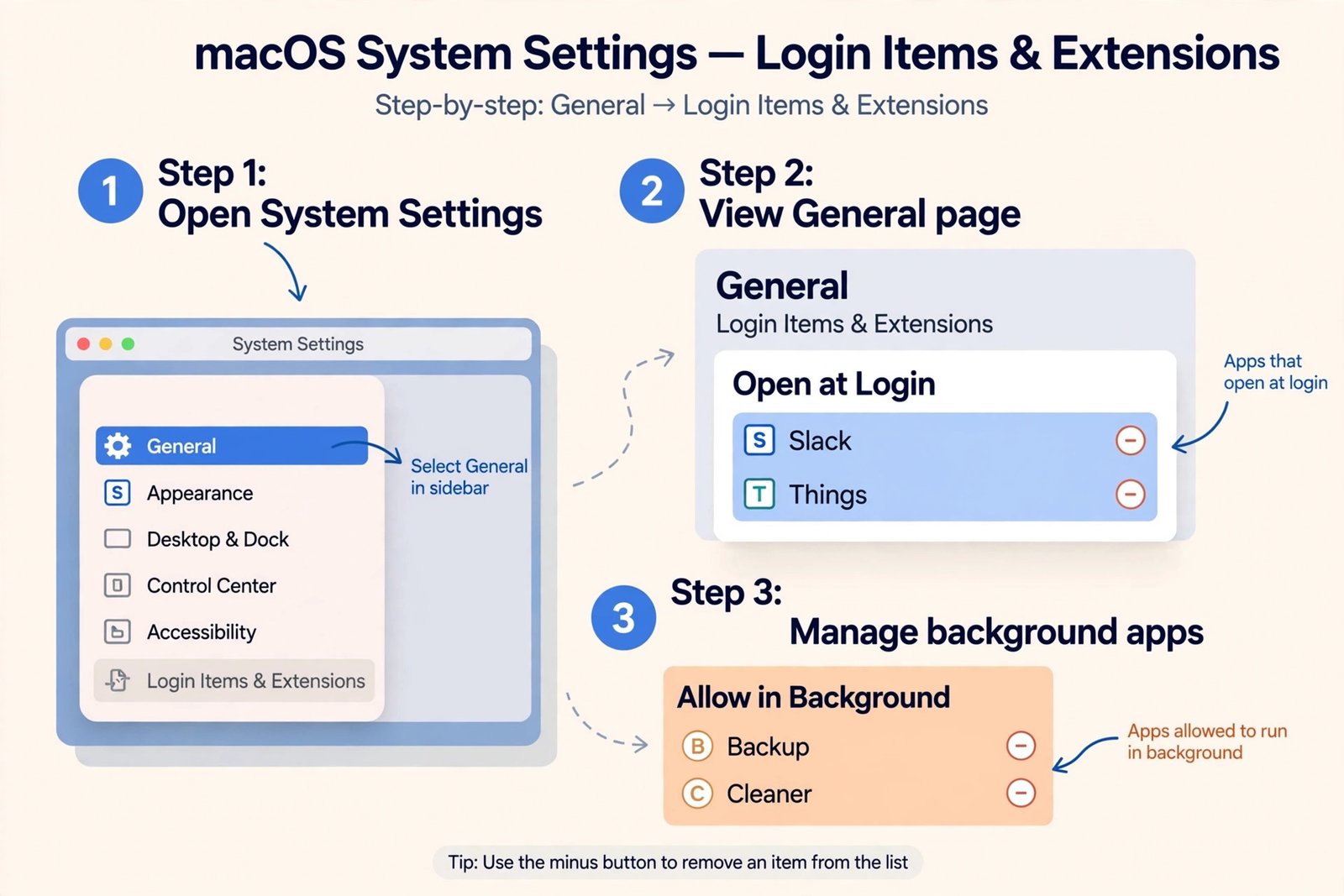
- Step 1: Open System Settings > General > Login Items & Extensions.
- Step 2: Under Open at Login, select anything you do not need immediately and click the minus button.
- Step 3: Check the Allow in the Background list too, and switch off helpers for apps you rarely open.
You should notice a faster boot and a calmer menu bar. Keep anything related to security software or backup tools, and remove the rest.
4. Free Up Disk Space
When this works: your drive is nearly full. macOS needs breathing room for virtual memory and temporary files.
Open System Settings > General > Storage and look at the breakdown. Aim to keep at least 10 to 20 percent of your drive free. The Recommendations section offers built-in options: store files in iCloud, empty the Trash automatically, and review large files. Move big video projects and old backups to an external drive. If that drive refuses to show up, see how to fix an external hard drive that is not mounting on Mac.
5. Update macOS and Your Apps
When this works: slowness appeared after a Tahoe update, or apps feel laggy while the system is fine.
Apple ships performance fixes in point releases, so check System Settings > General > Software Update. As of October 2026, macOS Tahoe is at version 26.7.1 with further updates in testing. Then update your apps in the App Store, and check developer websites for anything installed from outside the store. Older apps that are not optimized for Tahoe, especially Electron-based ones, are a known source of UI lag.
6. Uninstall Apps You Never Use
When this works: you have apps installed “just in case” that run helpers in the background.
Open the Applications folder and be honest. If you have not opened an app in six months, drag it to the Trash, then empty the Trash. Some apps leave support files behind in the Library folder, so for a truly clean removal, use the app’s own uninstaller if it has one. Removing the app also removes its login items and background helpers, which is where the speed gain comes from.
7. Reduce Visual Effects
When this works: animations stutter, windows lag when dragging, and your Mac has an older GPU or integrated graphics.
Go to System Settings > Accessibility > Display and turn on Reduce Transparency and Reduce Motion. This eases the load on the graphics chip with barely any visible difference in daily use. If you push your Mac hard with games, our guide on how to optimize your Mac for gaming covers the heavier performance settings.
8. Run Disk Utility First Aid
When this works: apps crash randomly, files take strangely long to open, or the Mac beach-balls during disk access.
- Step 1: Open Disk Utility from Applications > Utilities.
- Step 2: Select your startup disk (usually called Macintosh HD) in the sidebar.
- Step 3: Click First Aid, then Run. Let it finish before judging the result.
First Aid checks and repairs file system issues that can slow everything down. It takes a few minutes and does not delete your data.
9. About That NVRAM Reset Trick
When this works: almost never on a modern Mac, which is worth saying because old guides still recommend it for everything.
Resetting NVRAM (holding Option+Command+P+R at startup) only applies to Intel Macs. On Apple Silicon Macs, including every MacBook sold since late 2020, NVRAM resets itself on a normal restart, so the key combination does nothing. Restarting your Mac already accomplished what those guides promise. If you own an older Intel Mac with genuine hardware quirks like wrong startup volume or odd display behavior, the key combination is still valid for you. For everyone else, skip it and spend the time on tips 2 and 3 instead.
10. Reinstall macOS as a Last Resort
When this works: nothing above helped, and the system itself feels corrupted rather than merely slow.
Start in macOS Recovery. On Apple Silicon, shut down, then press and hold the power button until startup options appear, and choose Options. On Intel, restart and hold Command+R. Choose Reinstall macOS. This reinstalls the system without touching your files, and it often clears deep-seated slowness that no settings tweak can reach. Back up with Time Machine first anyway, because “non-destructive” is a plan, not a guarantee.
Match the Symptom to the Fix
| Symptom | Most likely cause | Try first |
|---|---|---|
| Slow right after updating macOS | Spotlight re-indexing | Tip 1: wait it out |
| Slow from boot, menu bar full of icons | Too many login items | Tip 3: trim login items |
| One app beach-balls constantly | Memory leak or outdated app | Tip 2: Activity Monitor, then Tip 5: update it |
| Everything lags, drive nearly full | No room for virtual memory | Tip 4: free up space |
| Animations stutter on an older Mac | GPU strain from visual effects | Tip 7: reduce transparency and motion |
What to Do If Nothing Helped
If all ten tips left your Mac slow, stop tweaking and start diagnosing. Repeated beach balls with a clicking drive sound can mean failing storage, and constant overheating with the fans at full speed can mean dust or a battery issue. Run Apple Diagnostics by starting up while holding the D key, or press and hold the power button and then Command+D on Apple Silicon, and follow the on-screen prompts. Take the reference code it gives you to Apple Support. A Mac that is slow because of hardware will not be fixed by software, no matter how many settings you change.
For a deeper walkthrough of Tahoe-specific slowdowns with screenshots of each step, MacPaw’s macOS Tahoe speed-up guide is a solid companion, and Apple’s Activity Monitor documentation explains exactly what the Quit and Force Quit buttons do to a running process.

- How to Fix Windows 11 Search Not Finding Files - October 24, 2026
- How to Fix Windows 11 Clock Showing the Wrong Time - October 23, 2026
- How to Fix File Explorer Slow to Open in Windows 11 - October 22, 2026