
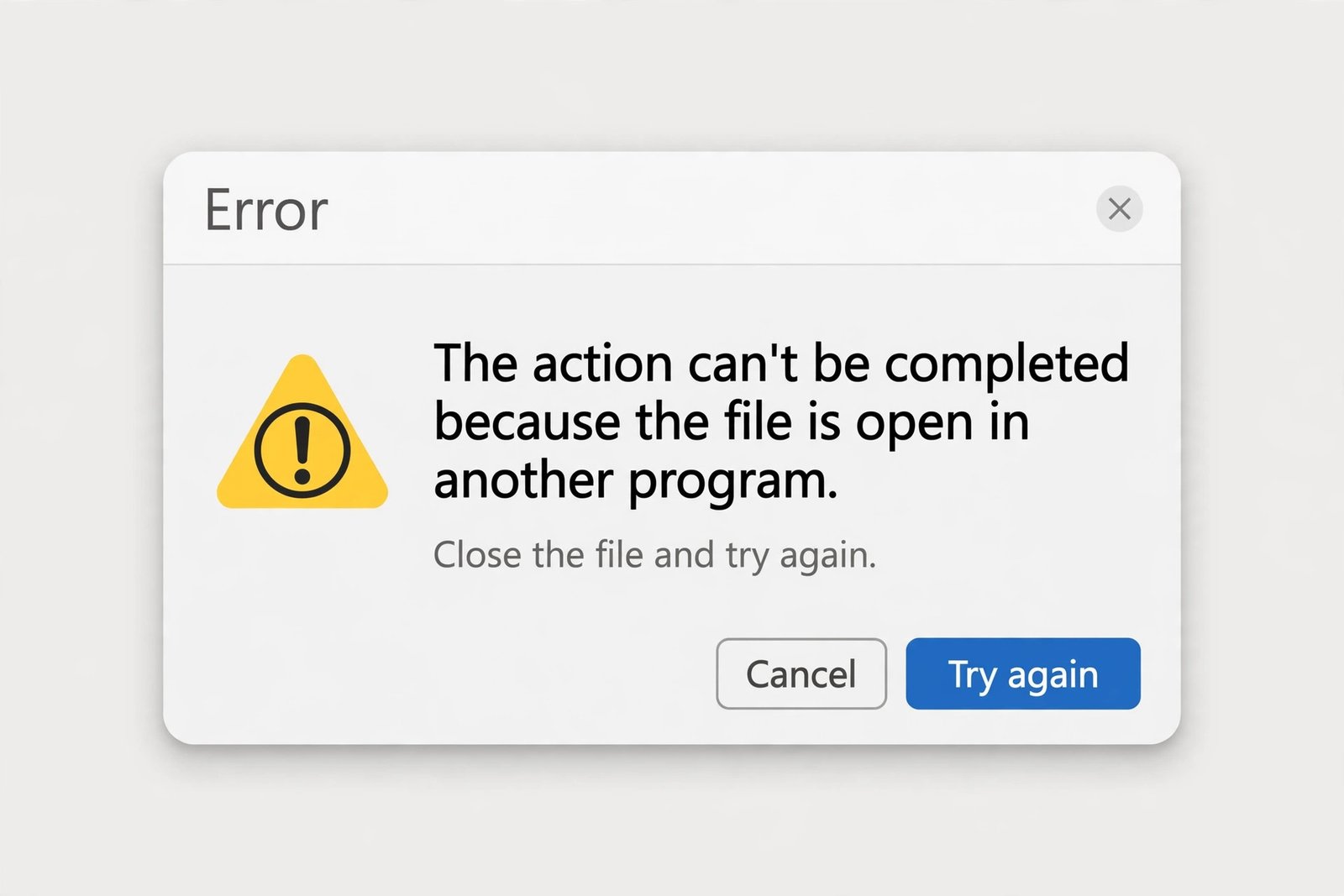
You try to delete, rename, or move a file, and Windows stops you cold: “The action can’t be completed because the file is open in another program.” Sometimes it even names the program. Sometimes it does not. Either way, the fix is to find whatever is holding the file and let go of it safely. Here is how, from the obvious to the detective work.
Why This Happens
Windows locks a file while any program is reading or writing it, which protects you from corrupting data mid-save. The annoyance is that the lock often comes from something you cannot see: a preview in File Explorer, a sync app uploading in the background, or a program that did not close cleanly. The usual suspects are File Explorer’s preview pane, OneDrive or Dropbox syncing the folder, an Office app running in the background, a media player, or antivirus scanning the file.
Try the Quick Fixes First
- Close the obvious app. If you just edited the file, make sure its program is fully closed, not just minimized. Check the system tray for apps running in the background.
- Close every File Explorer window showing that folder, and turn off the Preview pane (View > Show > Preview pane). Previews are one of the most common invisible locks.
- Pause cloud sync. If the file sits in OneDrive, Dropbox, or Google Drive, pause syncing for a few minutes and try again.
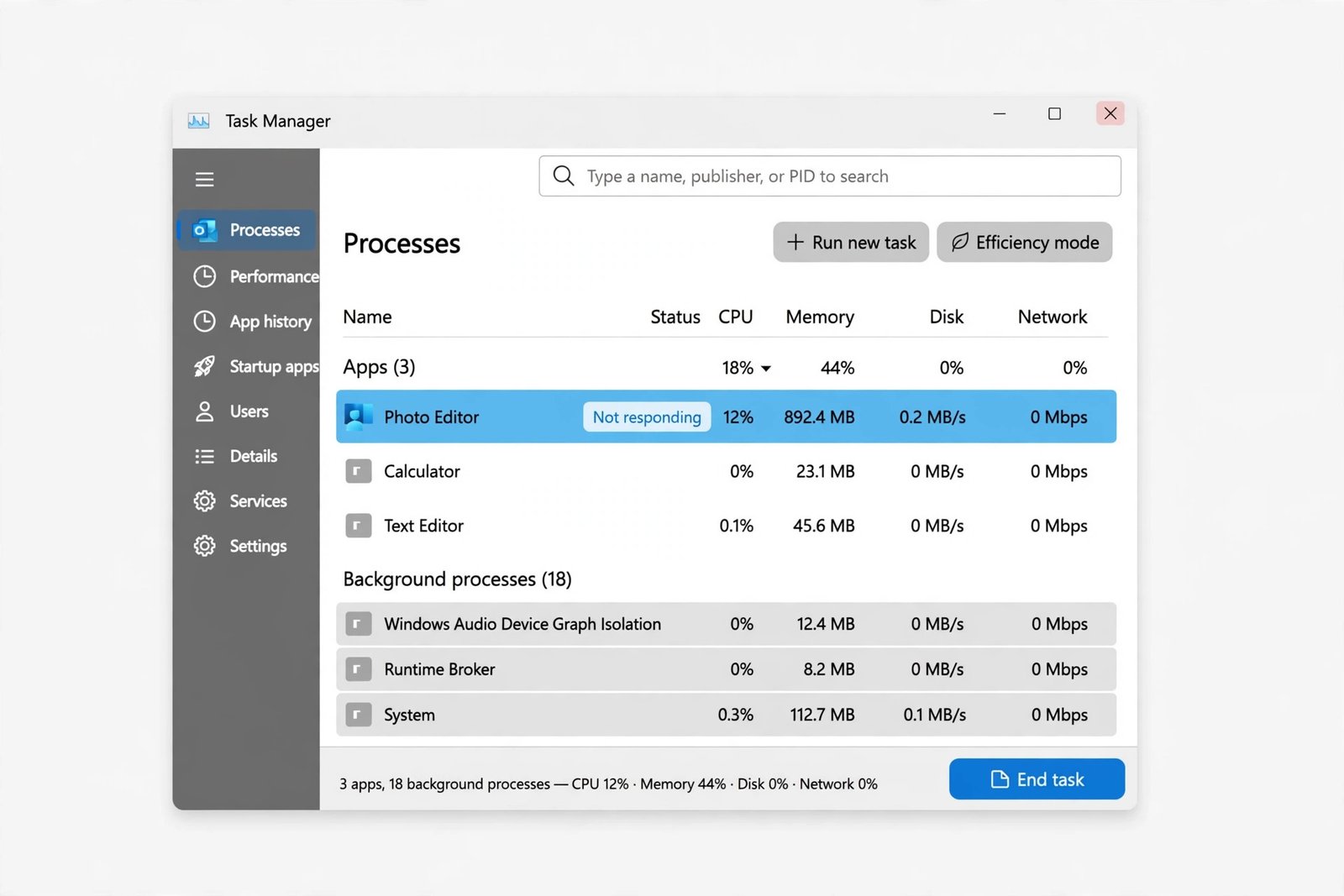
- Restart Windows Explorer. Press Ctrl + Shift + Esc, find Windows Explorer in the process list, right-click it, and choose Restart. Your taskbar will blink and come back.
Find the Locking Program With Resource Monitor
When the quick fixes fail, Windows has a built-in detective tool. Resource Monitor can search for exactly which process has your file open.
- Press Windows + R, type resmon, and press Enter.
- Go to the CPU tab and expand Associated Handles.
- In the Search Handles box, type the file or folder name and press Enter.
- Resource Monitor lists every process holding that file. Right-click each one and choose End Process.
- Try your delete, rename, or move again.
A word of caution: only end processes you recognize. If a system process holds the file, ending it can cause instability, so restart the PC instead in that case.
Use PowerToys File Locksmith
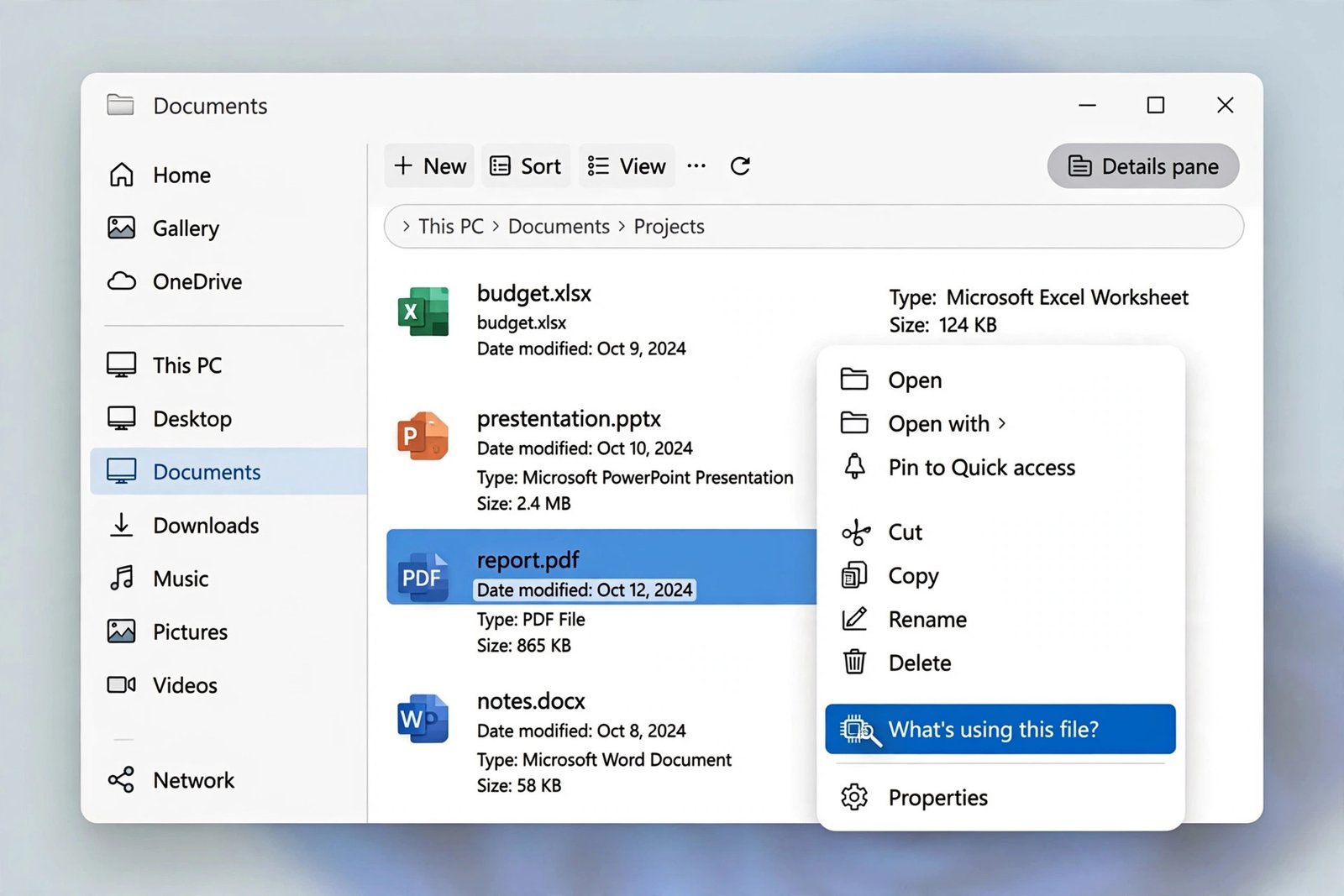
Microsoft’s free PowerToys includes a tool called File Locksmith that does the same detective work with less effort. After installing PowerToys, right-click any locked file in File Explorer and choose What’s using this file? It shows the locking processes and lets you end them from the same window. It is the friendliest option for anyone who finds Resource Monitor intimidating.
When the Lock Will Not Budge
- Restart the PC. A reboot closes every handle cleanly. If the file still will not move afterward, the lock is being recreated at startup.
- Try Safe Mode. Boot into Safe Mode, where only essential drivers load, and perform the file operation there. Third-party apps cannot lock the file if they never start.
- Do a clean boot. Type msconfig in the Run dialog, hide all Microsoft services, disable the rest, and disable startup items in Task Manager. Restart and test. If it works, re-enable items one by one to find the culprit.
- Use the Command Prompt. As a last resort for deleting, open Command Prompt in the file’s folder and run del filename.extension. This bypasses Explorer’s locks, but deletion is permanent, so double-check the name first.
How to Prevent It
- Close programs when you are done with a file instead of leaving them minimized for days.
- Keep the File Explorer preview pane off unless you actively use it.
- Use Safely Remove Hardware before unplugging USB drives, so no half-written file stays locked.
- Let cloud sync finish before renaming or moving files inside synced folders.
For more detail on the Resource Monitor method, see the Techbloat walkthrough and The Windows Club guide, which also covers the Microsoft Edge variant of this error. Related reading on this site: the best apps to open RAR files, how to clear the cache on Windows 11, and how to add or remove startup programs.

- How to Fix Windows 11 Search Not Finding Files - October 24, 2026
- How to Fix Windows 11 Clock Showing the Wrong Time - October 23, 2026
- How to Fix File Explorer Slow to Open in Windows 11 - October 22, 2026