
Key facts
- Tamper Protection blocks permanent changes. You must turn it off first, or Group Policy and registry edits will be silently ignored.
- The permanent route needs Windows 11 Pro, Enterprise, or Education. The Group Policy Editor (gpedit.msc) is not included in the Home edition.
- The temporary toggle turns itself back on. Real-time protection re-enables after a while or a restart, so it is only useful for short tasks.
- Running with no antivirus is a high-risk setup. Only disable Defender permanently when another trusted antivirus is installed or the PC is isolated from the internet.
There are only a few good reasons to turn off Microsoft Defender: you are switching to a third-party antivirus that needs a clean install, you are testing software that Defender keeps flagging, or you are working on an isolated lab machine. This guide shows two methods: a temporary real-time protection toggle that turns itself back on, and a permanent Group Policy change for Pro and Enterprise editions.
- Turn off real-time protection temporarily in Windows Security
- Disable Microsoft Defender permanently with Group Policy
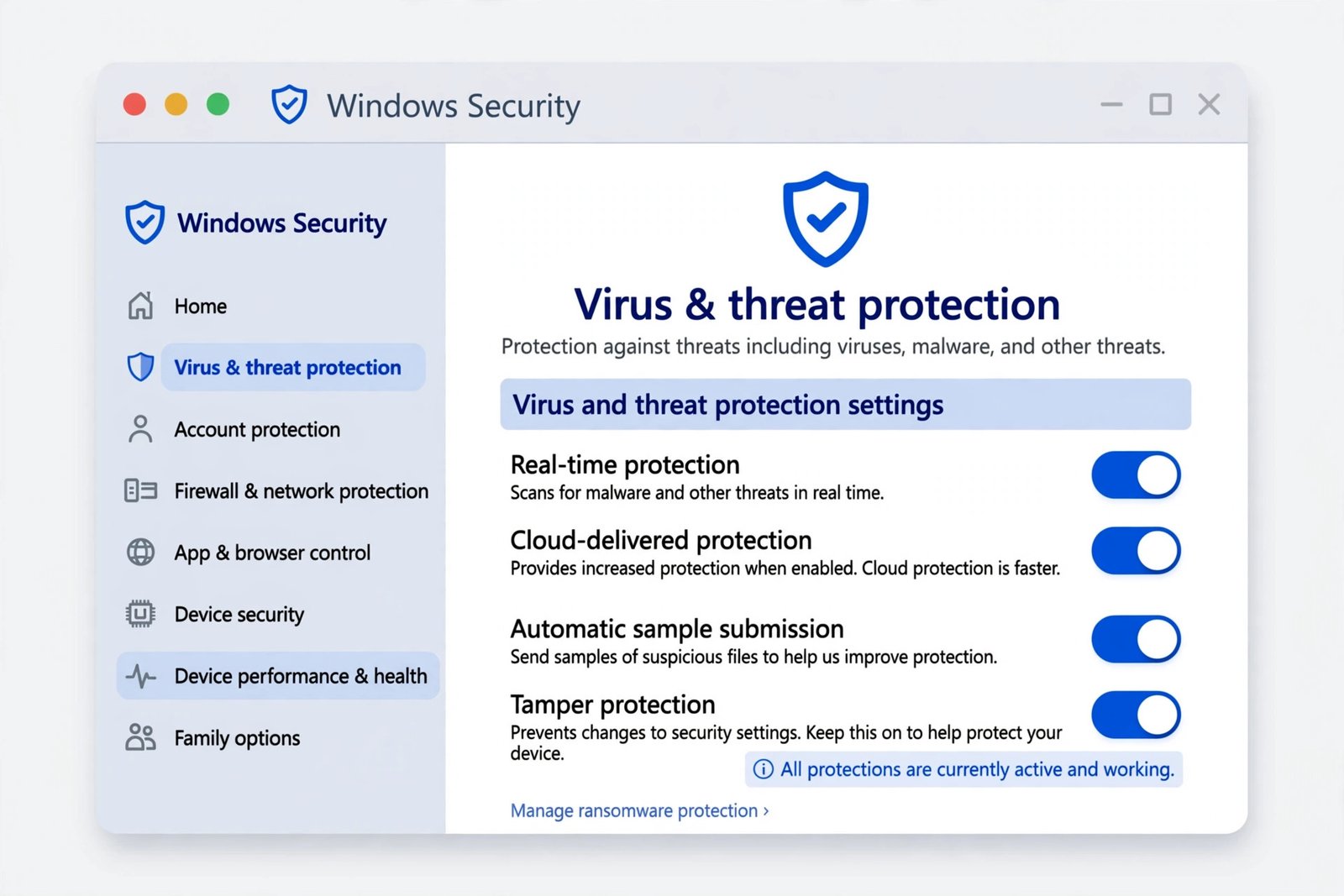
Turn off real-time protection temporarily in Windows Security
This is the right choice for short tasks like installing a program Defender flags or running a specific executable. Protection switches back on by itself, so there is nothing to undo.
- Step 1: Open Windows Security from the Start menu (or the shield icon in the taskbar).
- Step 2: Click Virus & threat protection.
- Step 3: Under Virus & threat protection settings, click Manage settings.
- Step 4: Toggle Real-time protection to off. Confirm the prompt with Yes.
Windows will show a warning that your device may be vulnerable. That is expected. Finish your task promptly, then toggle real-time protection back on yourself rather than waiting for Windows to do it.
Disable Microsoft Defender permanently with Group Policy
This route survives restarts and is meant for managed PCs or machines that will run a different antivirus. It only works on Windows 11 Pro, Enterprise, and Education editions.
Warning: Disable Tamper Protection first (below), or Windows will silently block the policy change. Never leave a daily-use PC with no antivirus and Tamper Protection off.
- Step 1: Open Windows Security > Virus & threat protection > Manage settings and toggle Tamper Protection off. Confirm with Yes.
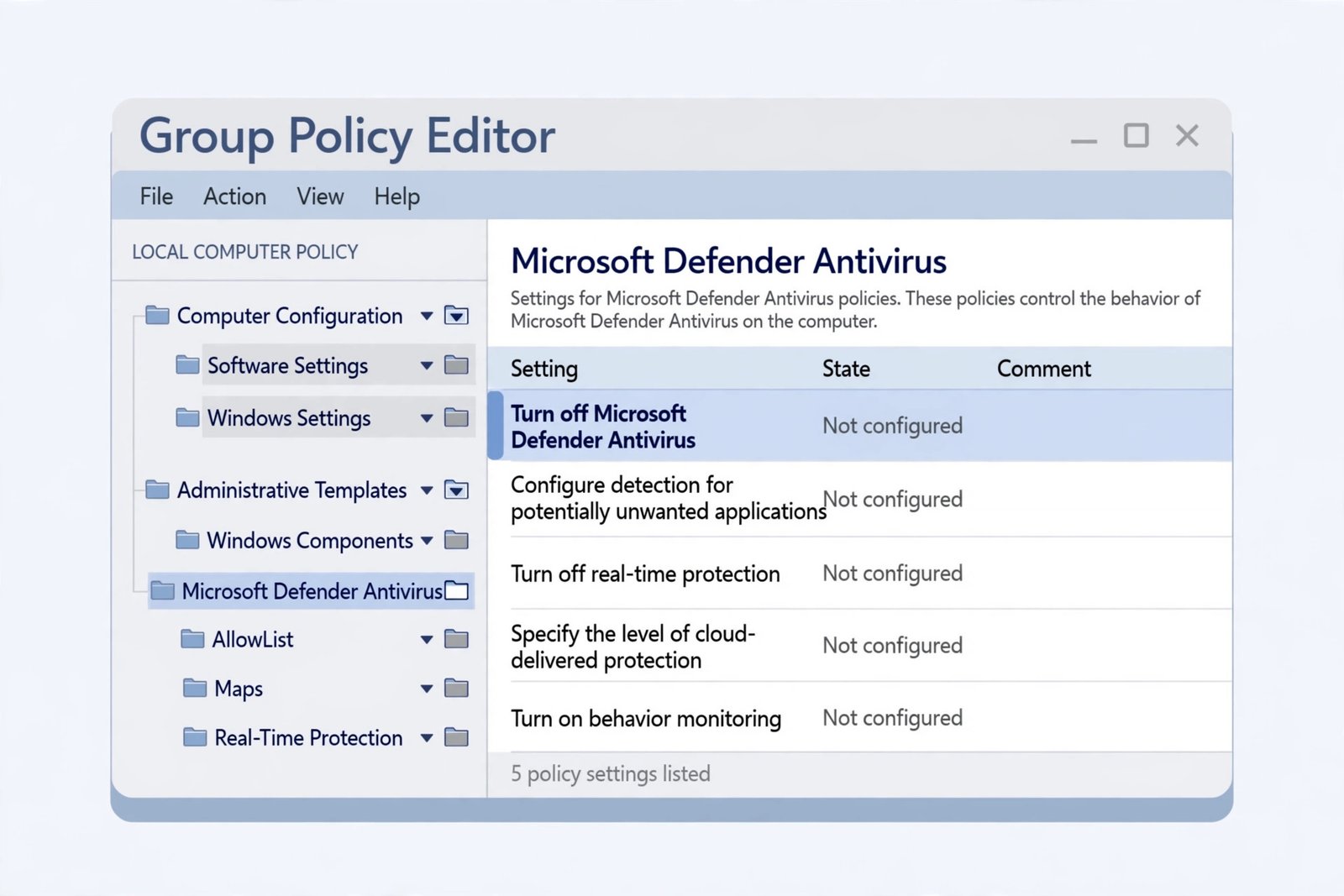
- Step 2: Press Win + R, type gpedit.msc, and press Enter to open the Local Group Policy Editor.
- Step 3: Navigate to Computer Configuration > Administrative Templates > Windows Components > Microsoft Defender Antivirus.
- Step 4: Double-click Turn off Microsoft Defender Antivirus in the right pane.
- Step 5: Select Enabled (yes, enabling this policy disables the antivirus), click Apply, then OK.
- Step 6: Restart your PC. Defender will not run real-time protection after the reboot.
To reverse this, return to the same policy, set it to Not Configured (or Disabled), reboot, and turn Tamper Protection back on immediately in Windows Security. If your PC is enrolled in Intune or Defender for Endpoint, expect centralized policies to override this local change; that is by design, and fleet-wide changes belong in your MDM console.
What if you have Windows 11 Home?
Home does not include the Group Policy Editor, and there is no officially supported way to permanently kill Defender on it. Tamper Protection blocks the registry tricks that used to work, and many of them break with updates anyway. The supported path is simple: install a reputable third-party antivirus, and Defender steps aside into passive mode on its own. You get the protection you want without fighting the operating system.
Our Take
For most people, the temporary toggle is the only one they will ever need. Use it to get a flagged installer through, then turn protection back on. The permanent Group Policy route makes sense only when another antivirus is taking over or the machine is isolated. If you are removing preinstalled software and scripts keep getting flagged, our guide to removing bloatware from Windows 11 covers the safer workflow.
Do not disable Defender to make games run faster, to stop update notifications, or because a forum post told you antivirus is unnecessary. Real-time protection is the difference between a blocked threat and a silent infection, and understanding what that trade-off means is worth five minutes with our overview of the advantages and disadvantages of cybersecurity. If you do not have a specific, controlled reason, leave Defender alone.

- How to Stop Your Laptop Screen from Dimming Automatically in Windows 11 - November 6, 2026
- How to Turn Off Quick Share on a Samsung Galaxy Phone - November 5, 2026
- How to Turn Off iPhone Keyboard Clicks and Haptic Feedback - November 4, 2026