
Your laptop screen keeps dimming on its own, and the brightness slider is not the problem. Three separate Windows 11 features can dim the screen without asking: adaptive brightness for lighting changes, content adaptive brightness, and Battery Saver. Each one has its own switch, and turning off the wrong one changes nothing. This guide shows you how to tell which one is dimming your screen, then turn that one off.
Which kind of dimming is it
Watch the screen for a minute before changing anything. If it brightens and dims as you move between a bright room and a dark one, that is the ambient light sensor at work. If it dims when a dark video or a dark app fills the screen and brightens again on a white page, that is content adaptive brightness. If it only dims after you unplug the charger, that is Battery Saver. Matching the pattern to the cause saves you from turning off every setting and hoping.
| What dims the screen | When it happens | Where to turn it off |
|---|---|---|
| Adaptive brightness (ambient light) | Room lighting changes | Settings, System, Display, Brightness |
| Content adaptive brightness (CABC) | Dark images or video on screen | Settings, System, Display, Brightness |
| Battery Saver | On battery, usually below 20 percent | Settings, System, Power and battery |
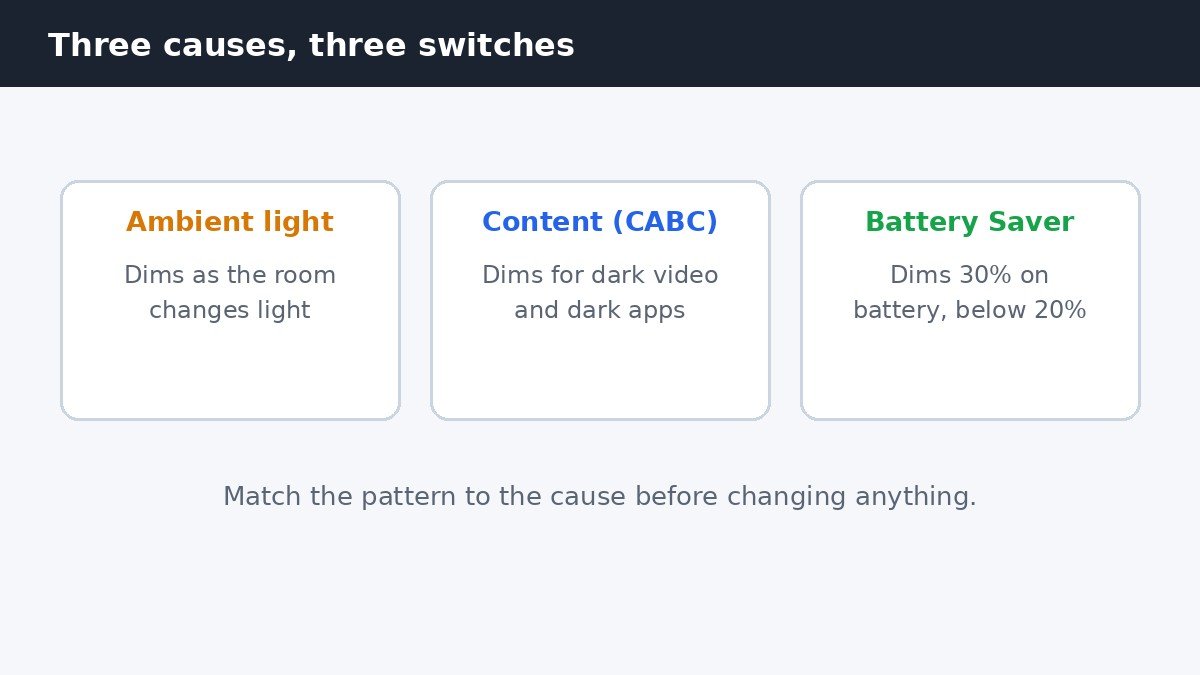
The first two causes live on the same Settings page, which is why they get confused. The third is a power setting that has nothing to do with light or content, and it catches people who only dim when they unplug. Start with the cause that matches what you see, and check the others only if the dimming continues.
Turn off adaptive brightness for lighting changes
- Open Settings, then go to System, then Display.
- Expand the Brightness section if it is collapsed.
- Uncheck Change brightness automatically when lighting changes.
- Set the brightness slider to the level you want and leave it there.
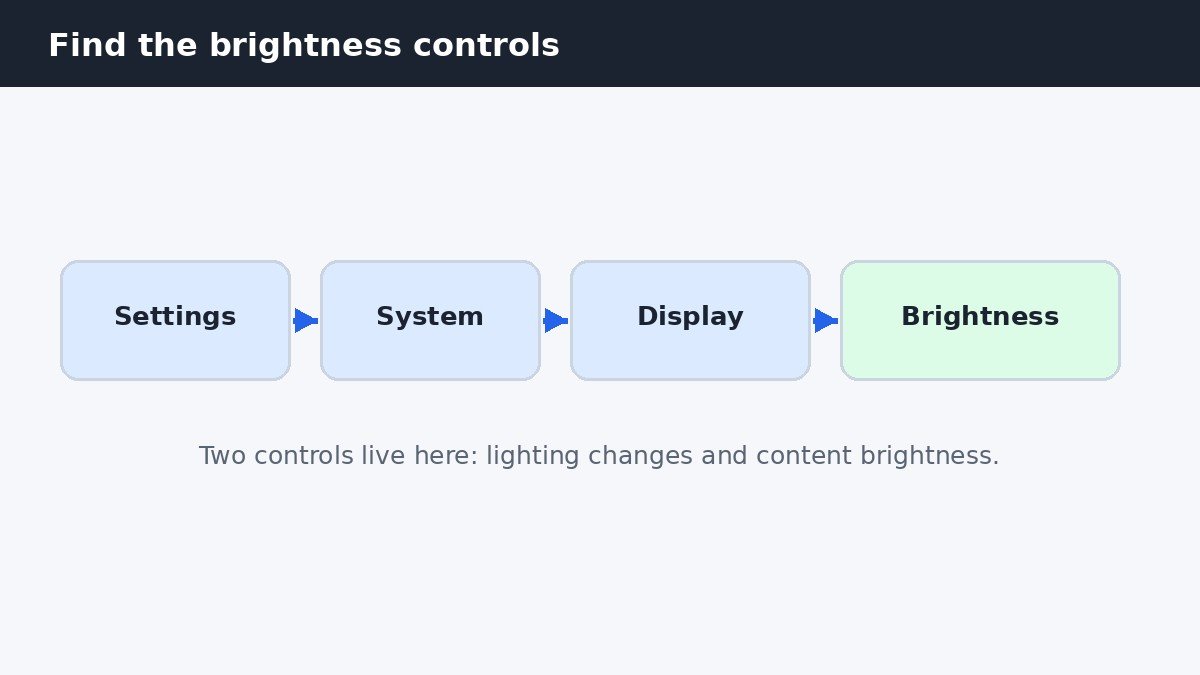
The checkbox only appears on laptops with an ambient light sensor, which is most modern laptops but not all of them. If the checkbox is missing, your laptop has no sensor for Windows to read, and this cause is already ruled out for you. If the brightness slider itself is missing from the Display page, that is a separate problem: our guide to fixing a missing brightness slider in Windows 11 walks through the driver fixes for that one.
Turn off content adaptive brightness
Content adaptive brightness control, often shortened to CABC, watches what is on the screen and lowers the brightness and contrast for dark content. It is the one that makes a video look washed out when a bright scene follows a dark one. On the same Display page, in the same Brightness section, find Change brightness based on content and set the dropdown to Off. The dropdown has three choices: Off, On battery only, and Always. On battery only is the default on most laptops, so the dimming often starts the moment you unplug, which makes it look like a battery problem when it is not.
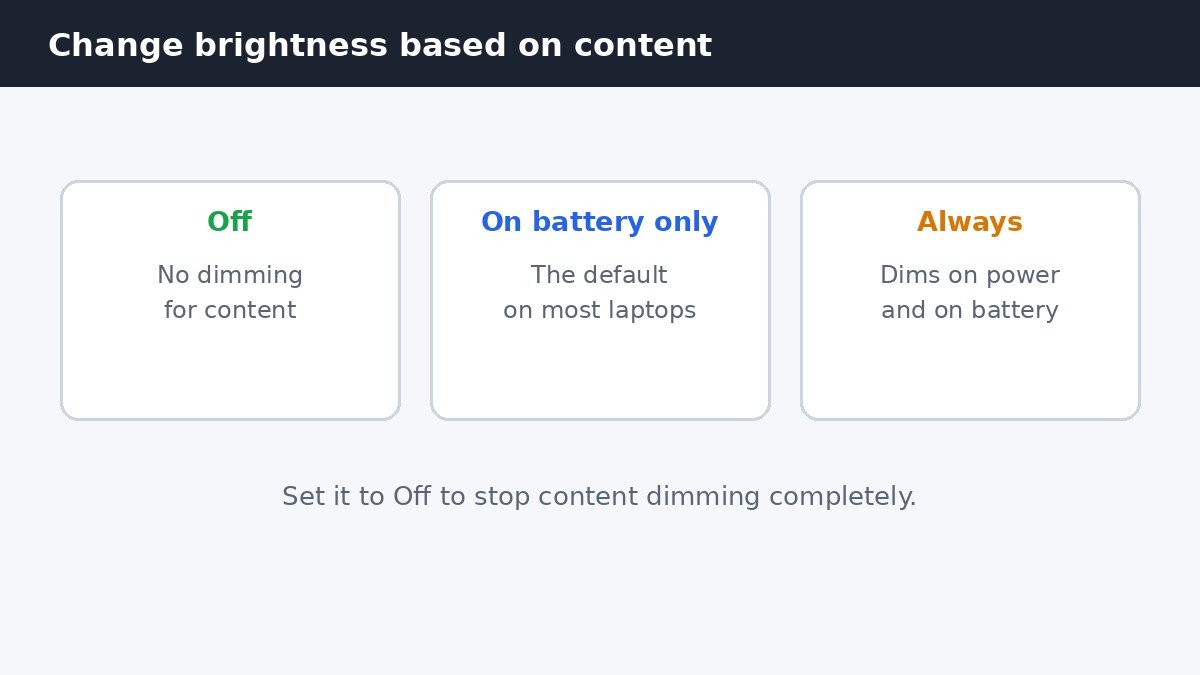
Not every laptop shows this dropdown. CABC needs the laptop maker to enable it for that display, so on some machines it simply is not there. A missing dropdown means the feature is not supported on your hardware, not that the setting is hidden somewhere else. If your screen still dims with both Windows controls off, the dimming is happening below Windows, in the display driver, which is the next section.
Stop Battery Saver from dimming the screen
Battery Saver lowers the screen brightness by 30 percent by default when it turns on, and it turns on automatically when the battery drops to 20 percent. Open Settings, then System, then Power and battery, and open the Battery Saver section. Turn off Lower screen brightness when using battery saver if you want the screen to stay at full brightness while saving battery in other ways. You can also change the Turn battery saver on automatically at level, or set it to Never if you would rather manage the battery yourself. The brightness change from Battery Saver is instant and obvious, so if your screen dims the moment the battery icon changes, this is the cause.
When neither toggle appears: the driver is doing it
Some laptops dim the screen through the graphics driver, and no Windows setting can stop it. On Intel laptops, open the Intel Graphics Command Center, go to System, then Power, and turn off Display Power Savings. On AMD laptops, open AMD Software, go to the display settings, and turn off the equivalent power saving option for the display. These driver settings survive Windows updates and sometimes come back after a driver update, so if the dimming returns after months of calm, check the driver panel before changing anything in Windows. A laptop maker utility, such as the one from Dell, HP, or Lenovo, can also control the panel brightness, so check its power settings too if the driver panel shows nothing.
Check the fix and put it back if you want it
Test the fix the way the dimming used to happen. Move the laptop between a bright room and a dark one, play a dark video, then unplug the charger and watch the screen for a minute. If the brightness holds steady through all three, the job is done. To put any of it back, return to the same setting and turn it on again: the ambient light checkbox, the content dropdown set to On battery only, or the Battery Saver brightness option. Microsoft documents both Windows controls on its change display brightness and color in Windows support page.
Automatic dimming is a power saving feature, not a fault, which is why it is so hard to find: the setting that controls it depends entirely on which of the three causes is dimming your screen. Once you know the cause, the fix is one checkbox or one dropdown, and the screen stays where you put it.

- How to Stop Your Laptop Screen from Dimming Automatically in Windows 11 - November 6, 2026
- How to Turn Off Quick Share on a Samsung Galaxy Phone - November 5, 2026
- How to Turn Off iPhone Keyboard Clicks and Haptic Feedback - November 4, 2026