
How to Stop Phone Link From Opening on Startup in Windows 11
Phone Link is the app that connects your phone to your Windows 11 PC. It mirrors your texts, calls, notifications, and photos so you can answer messages and check your phone without picking it up. It is genuinely useful when you want it, but annoying when it launches itself every time you sign in, whether you asked for it or not.
Phone Link keeps launching for two reasons. First, it registers itself as a startup app, so Windows opens it at sign in. Second, the cross-device setting that lets your PC reach your phone can wake the app in the background even after you turn off the startup entry. This guide covers three levels of quiet, from stopping the auto start to removing the app entirely. Pick the level that matches how done you are with it.
Key Takeaways
- To stop Phone Link from opening on startup, go to Settings > Apps > Startup and turn the Phone Link toggle Off. The app stays installed and still works when you open it manually.
- If it keeps reopening, the cross-device access is still on. Go to Settings > Bluetooth & devices > Mobile devices, remove your phone, and turn off the “Allow this PC to access your mobile devices” switch.
- To remove Phone Link completely, go to Settings > Apps > Installed apps, click the three-dot menu next to Phone Link, and choose Uninstall.
Method 1: Stop Phone Link From Opening on Startup
This is the lightest fix and the right one if you still use Phone Link sometimes. It stops the app from launching when you sign in, while leaving everything else alone. The app keeps working normally whenever you open it yourself.
- Press Windows + I to open Settings.
- Click Apps in the left sidebar, then select Startup.
- Find Phone Link in the list of startup apps.
- Switch its toggle to Off. The change applies the next time you sign in.
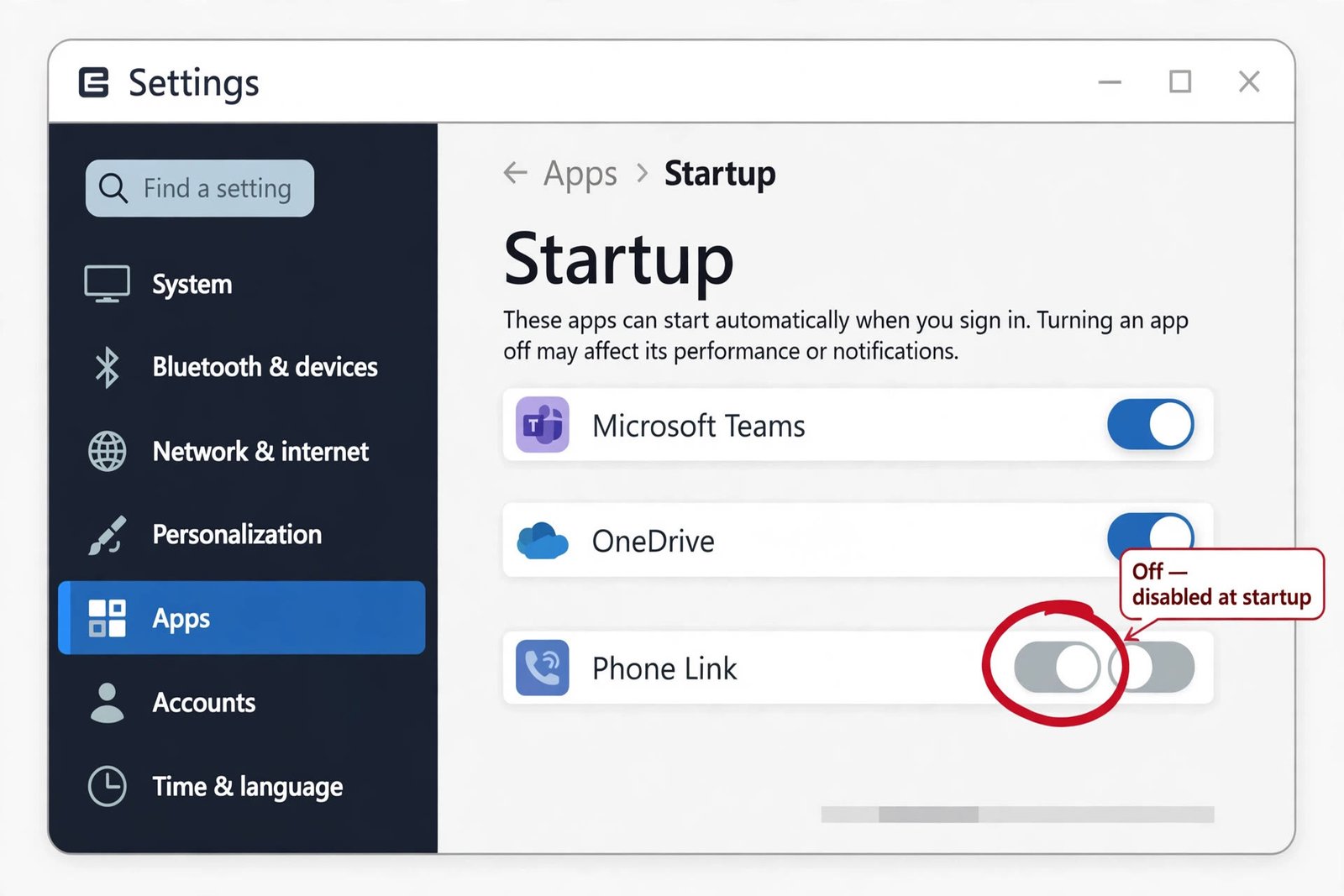
What stays working: everything. Your phone stays linked, notifications and messages keep syncing when the app is open, and you can launch Phone Link from the Start menu any time. You can also do the same thing from Task Manager. Right-click Start, open Task Manager, go to the Startup apps tab, select Phone Link, and click Disable.
If other apps bother you at sign in too, our guide on how to stop Microsoft Edge from opening on startup uses the same Startup page, and our walkthrough of how to add or remove startup programs in Windows 11 covers every method in one place.
Method 2: Disconnect Your Phone and Turn Off Mobile Device Access
Method 1 is not always enough. If Phone Link still reopens or keeps syncing in the background, the cross-device access in Windows is waking it up. This method cuts the PC to phone connection, which is also the right step if you are changing phones or no longer want the PC to reach your phone at all.
Unlink the phone
- Open Settings with Windows + I.
- Click Bluetooth & devices, then select Mobile devices.
- Click the Manage devices button to see your linked phones.
- Select your phone and choose Remove, then confirm.
Turn off the master switch
- Back on the Mobile devices page, turn off Allow this PC to access your mobile devices.
- With this switch off, Phone Link can no longer pull notifications, messages, or photos from your phone, even if it opens.
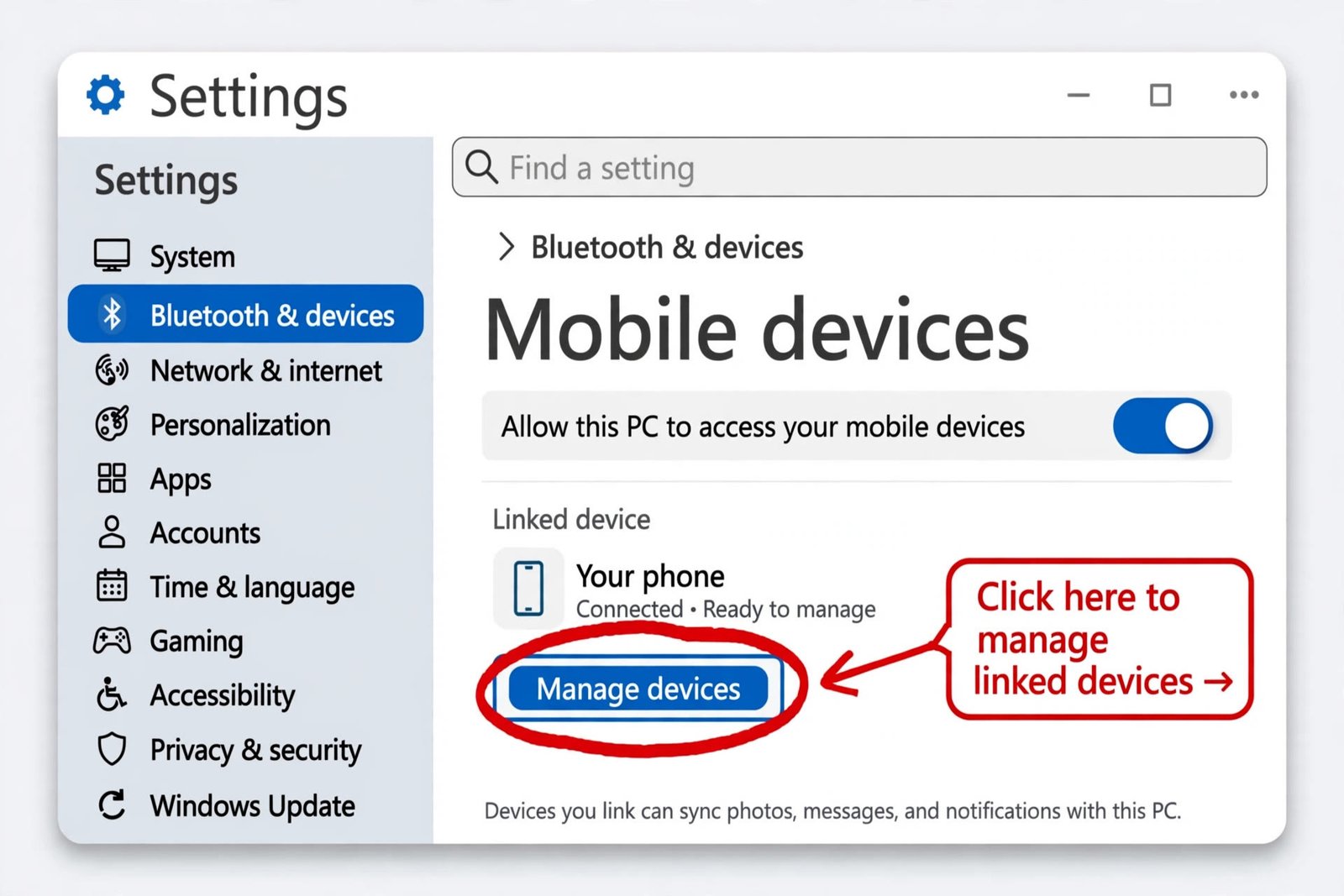
What stays working: the Phone Link app remains installed, but it has no phone to talk to. Syncing stops immediately and your phone is unaffected. Nothing is deleted from the phone itself. If you change your mind, relink the phone later and everything works again. Microsoft documents the Mobile devices page in its Manage Mobile devices in Windows support article.
Method 3: Uninstall Phone Link Completely
If you never use Phone Link and want it gone for good, uninstall it. On current Windows 11 builds, including 26H2, Phone Link can be removed through Settings on most systems. On some builds it is listed under System Components, in which case the Uninstall option may be greyed out, and you should stick with Method 1 or 2 instead.
- Open Settings with Windows + I and go to Apps > Installed apps.
- Type Phone Link in the search box at the top.
- Click the three-dot menu next to Phone Link and choose Uninstall, then confirm.
- Check that Phone Link no longer appears in the app list or the Start menu.
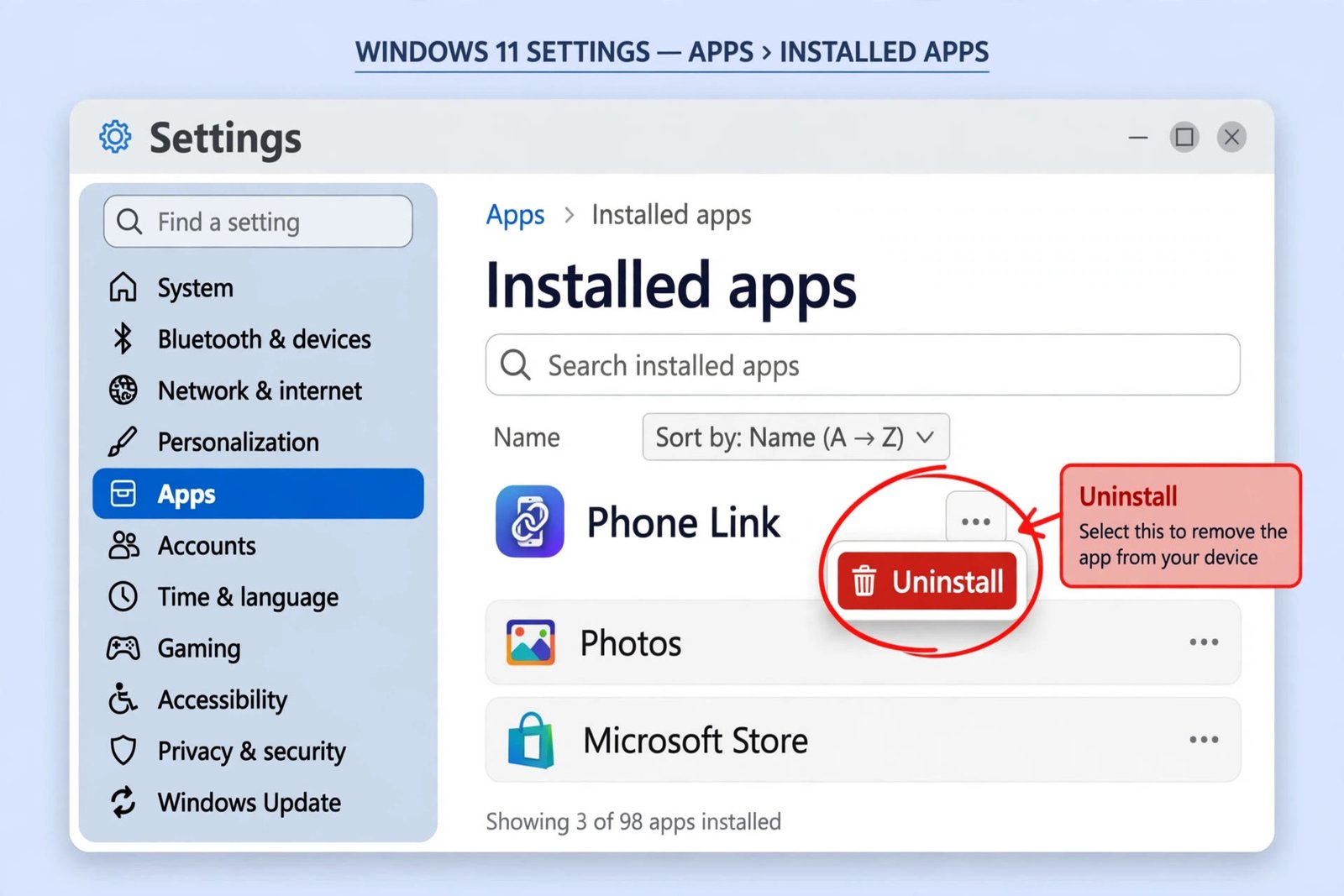
What stays working: nothing Phone Link related. All pairing data and cached content are removed with the app. If you ever want it back, reinstall it free from the Microsoft Store and pair your phone again. If the Uninstall option is greyed out on your PC, that is by design, not a bug. Here is our broader guide on how to remove bloatware from Windows 11 safely if you are clearing out other preinstalled apps too.
What You Lose With Each Method
Use this comparison to decide how far to go. Each step builds on the last, and all three are reversible if you change your mind.
| Method | Stops opening on startup | Stops phone syncing | App still usable manually |
|---|---|---|---|
| 1. Turn off startup toggle | Yes | No | Yes |
| 2. Unlink phone, turn off access | Yes | Yes | Yes, but with no phone linked |
| 3. Uninstall the app | Yes | Yes | No, reinstall to use it again |
iPhone vs Android: How the Disconnect Differs
Phone Link has supported both Android and iPhone since iOS support rolled out in 2023, but the two links are not equal, so disconnecting feels different on each.
With an Android phone, the link is deep. Phone Link syncs texts, calls, notifications, and recent photos, and on supported devices it can mirror apps on your PC screen. Android phones usually pair through the Link to Windows app and work best when both devices are on the same Wi-Fi network. Unlinking an Android phone therefore stops a lot: message sync, notification mirroring, photo access, and any app streaming all go away at once.
With an iPhone, the link is narrower. Because of Apple’s platform limits, Phone Link on iOS covers calls, messages, and notifications only. It cannot mirror the iPhone screen, browse the camera roll, or access files. Pairing an iPhone also requires Windows 11, Bluetooth Low Energy, and iOS 15 or later. So if you are unlinking an iPhone, you lose call handling and message replies from the PC, but photos and files were never part of the deal. Microsoft lists the requirements for both platforms in its Phone Link requirements and setup article.
Phone Link Still Opening After This?
Three things are worth checking. First, some Windows feature updates re-enable startup entries, so revisit Settings > Apps > Startup after a major update. Second, Phone Link has its own in-app setting. Open the app, click the gear icon, and under General look for “Start Phone Link when I sign in to Windows” and switch it off, since the in-app option and the Windows startup list can disagree. Third, if the app is running right now, open Task Manager, find Phone Link under Processes, and select End task to stop it immediately.
Most people only need Method 1. If Phone Link keeps finding a way back, Method 2 cuts the connection it needs, and Method 3 removes it from the PC entirely. Start light and go as far as your patience requires.

- How to Stop Phone Link From Opening on Startup in Windows 11 - October 21, 2026
- How to Turn Off the Snap Layouts Popup When Dragging a Window to the Top in Windows 11 - October 20, 2026
- How to Turn Off Bing Web Results in Windows 11 Start Menu Search - October 19, 2026