
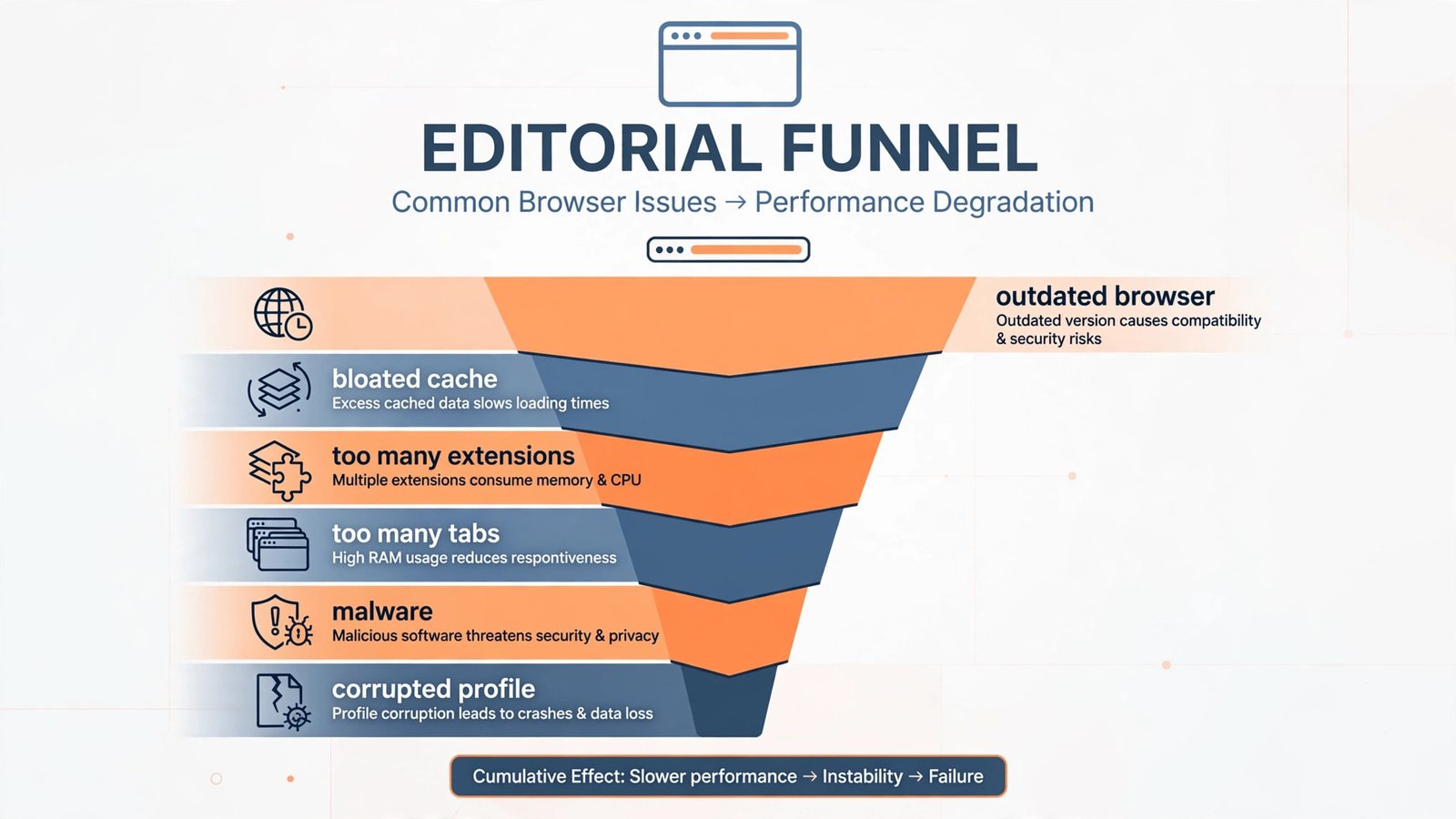
A slow browser is rarely a broken browser. It’s almost always a crowded one: too many extensions, too many tabs, a cache full of months-old junk, or a version that’s quietly out of date. The good news is that the fix is usually boring and fast. Below are seven methods ranked from easiest to most drastic, and in my experience, nine out of ten slowdowns die at method three. Let’s begin with the easiest method.
1. Update your browser
An outdated browser is slower than a current one, full stop: performance fixes ship in nearly every release, and old versions also carry unpatched security holes. This takes sixty seconds and should always be first.
- Chrome: open the three-dot menu, go to Help > About Google Chrome. Chrome checks for updates automatically; select Relaunch when offered.
- Edge: open the three-dot menu, go to Help and feedback > About Microsoft Edge and let it update.
- Firefox: open the menu, go to Help > About Firefox. It updates itself from there.
Also update Windows itself while you’re at it: graphics-driver fixes in Windows updates cure a surprising number of mysterious browser slowdowns.
2. Clear cached images and files
Your browser’s cache speeds up repeat visits, but a bloated or corrupted cache does the opposite: it makes the browser chew through gigabytes of stale files before it ever loads the page. Clearing it is safe and instant.
- Press Ctrl + Shift + Delete in Chrome, Edge, or Firefox. This opens the clear-browsing-data panel directly in all three.
- Choose a time range of All time for a proper clean.
- Check Cached images and files only. Leave passwords and cookies unchecked for now: nuking cookies signs you out of everything, which is rarely the point here.
- Select Clear data and restart the browser.
3. Trim your extensions (the biggest culprit)
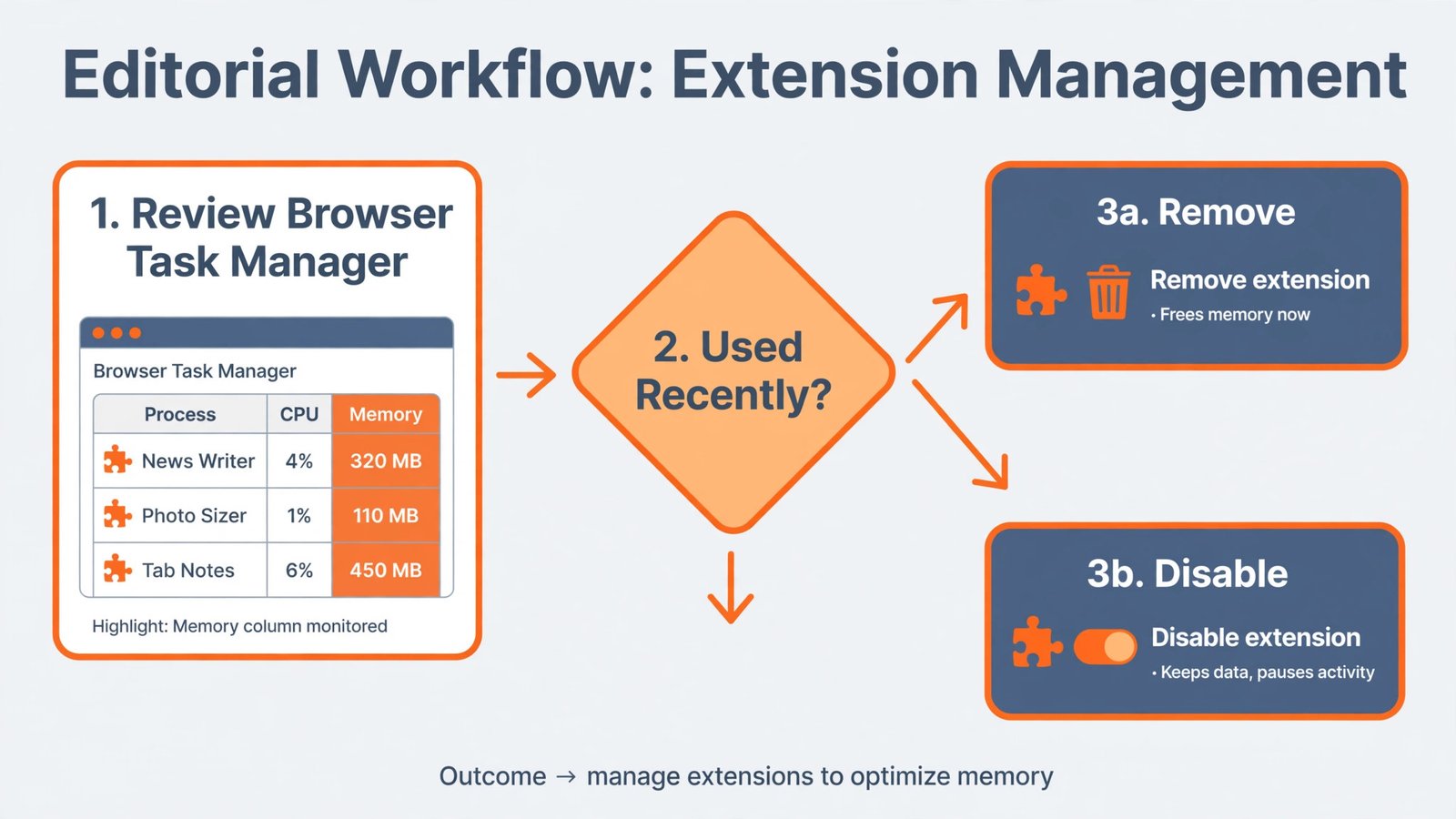
Extensions are the number-one cause of slow browsers, because every one of them runs code on every page you visit. Ten “harmless” extensions can easily cost more performance than fifty open tabs. The fix is a quick audit, and Chrome even has a built-in tool to find the worst offenders.
- Press Shift + Esc in Chrome to open its built-in Task Manager. Sort by Memory and look for extensions eating hundreds of megabytes.
- Open chrome://extensions (or the equivalent Extensions page in Edge and Firefox).
- For each extension, ask: have I used this in the last month? If not, select Remove. If you might need it later, toggle it off instead.
- Restart the browser and feel the difference.
Note: Ad blockers are the exception that proves the rule. A good blocker like uBlock Origin actually speeds pages up by preventing heavy ads from loading at all. If you run one, keep it; just don’t run two. For video-heavy browsing, a dedicated ad blocker for YouTube is worth the slot.
4. Let the browser sleep inactive tabs
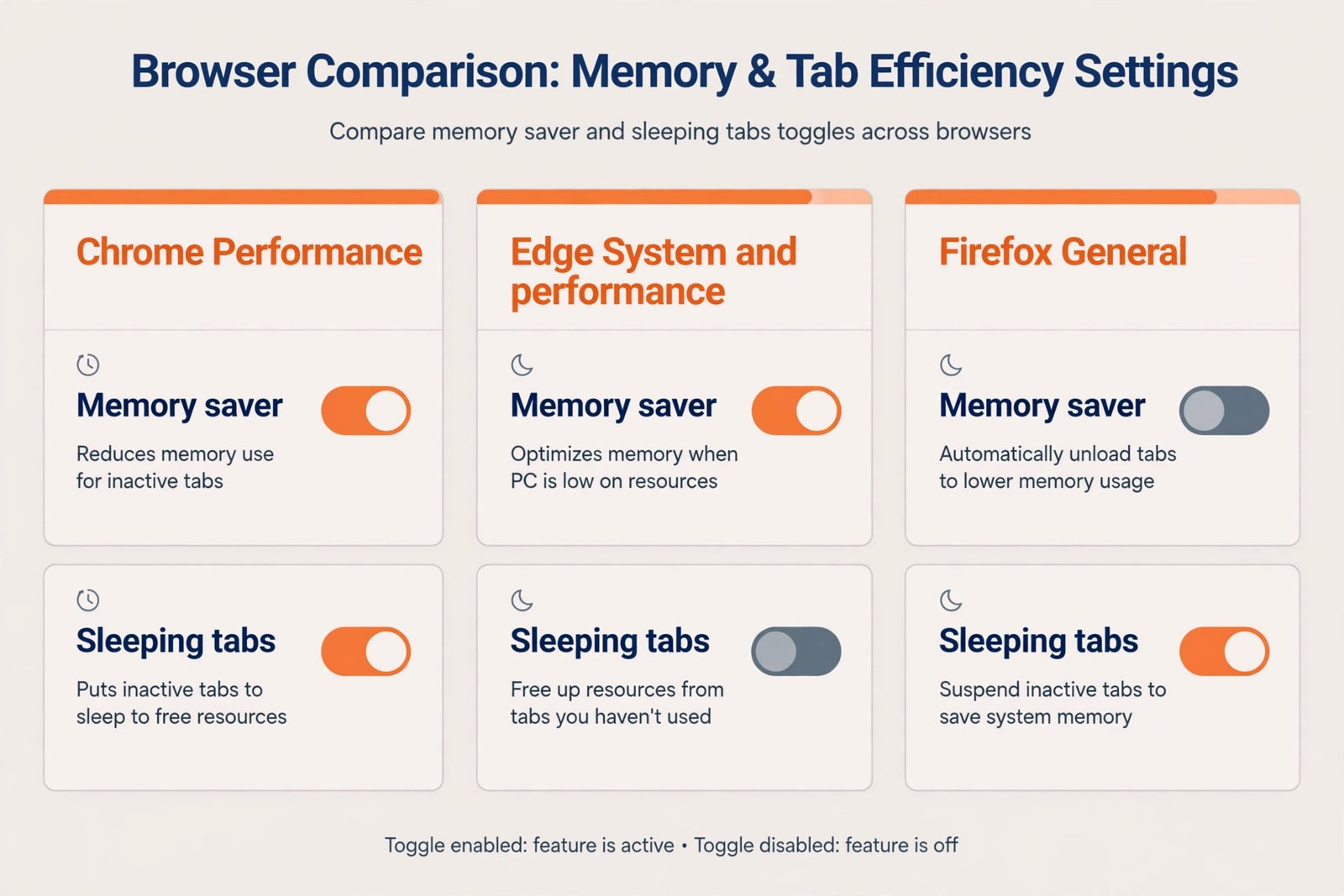
Modern browsers can park tabs you aren’t using, freeing their memory until you click back. This is the single best setting for people who keep forty tabs open “just in case,” and it’s on by default in most browsers now, but worth verifying.
- Chrome: go to Settings > Performance and make sure Memory Saver is on. Preload pages can stay on too; it helps more than it hurts.
- Edge: go to Settings > System and performance and check Save resources with sleeping tabs. Edge also offers an efficiency mode that trades a little speed for battery life.
- Firefox: this is handled automatically; just make sure Use recommended performance settings is on under Settings > General.
5. Check hardware acceleration
Hardware acceleration hands graphics work to your GPU instead of your CPU, which is faster on healthy systems. But on a machine with a buggy graphics driver, it causes exactly the lag you’re trying to fix. So this method goes both directions.
- Chrome/Edge: open Settings > System and find Use hardware acceleration when available.
- Firefox: open Settings > General, uncheck Use recommended performance settings, then toggle Use hardware acceleration when available.
- If your browser is generally slow, make sure the toggle is on. If lag appeared right after a Windows or GPU-driver update, flip it off as a test: if the lag vanishes, the driver is the problem and updating it from the GPU maker’s site is the real fix.
6. Scan for malware and unwanted software
Browser hijackers and adware don’t always announce themselves; sometimes they just make everything sluggish while quietly injecting ads. If the slowdown came with new toolbars, a changed homepage, or pop-ups you didn’t invite, scan before doing anything else.
- Run a full scan with Windows Security (built in) or your antivirus of choice.
- Chrome: go to Settings > Reset settings and look for the cleanup/safety check options, which flag software known to interfere with Chrome.
- Remove anything the scan finds, restart, and retest.
7. Reset to a fresh profile
When nothing above works, the browser’s profile itself may be corrupted: years of accumulated settings, flags, and half-removed extensions that no single toggle can undo. A reset wipes all of that and gives you a like-new browser.
Before you do this, understand what survives. A reset keeps your bookmarks and saved passwords, but it disables all extensions, clears cookies and site data, and restores default settings like the homepage and pinned tabs. If you rely on a complex setup, export your Chrome bookmarks first as insurance. We recommend trying methods 1 through 6 before this one, because the reset is the only step here you can’t easily undo.
- Chrome: go to Settings > Reset settings and select Restore settings to their original defaults, then Reset settings.
- Edge: go to Settings > Reset settings and select Restore settings to their default values.
- Firefox: open the menu, go to Help > Troubleshoot Mode, and select Refresh Firefox in the dialog.
Note: A quick word on the 2026 browser landscape. Arc, the darling of power users a couple of years ago, has been in maintenance mode since May 2025, with its team moving to the AI-first Dia browser. If you’re thinking of switching browsers rather than fixing yours, the real choice today is still Chrome (still above 65% of global traffic), Edge, Firefox, or one of the newer AI browsers like Dia, Perplexity’s Comet, or ChatGPT Atlas. But switching browsers to escape slowness usually just moves your extension pile to a new address; try the methods above first.
If the browser is fast again but the rest of the PC still drags, the problem was never the browser: check what’s launching at startup with our guide to adding or removing startup programs in Windows 11.

- How to Change the Screenshot Save Location on Mac - October 24, 2026
- How to Turn Off Stage Manager on Mac - October 23, 2026
- How to Reset Your Private Space PIN on Android If You Forgot It - October 22, 2026