
My bookmarks bar is basically my second brain, client docs, recipes I’ve actually cooked, that one forum thread I keep going back to. When I switched laptops last month, the thought of losing that collection gave me a genuine stomach ache. Exporting your Chrome bookmarks takes about thirty seconds, and it’s the cheapest insurance you’ll ever buy.
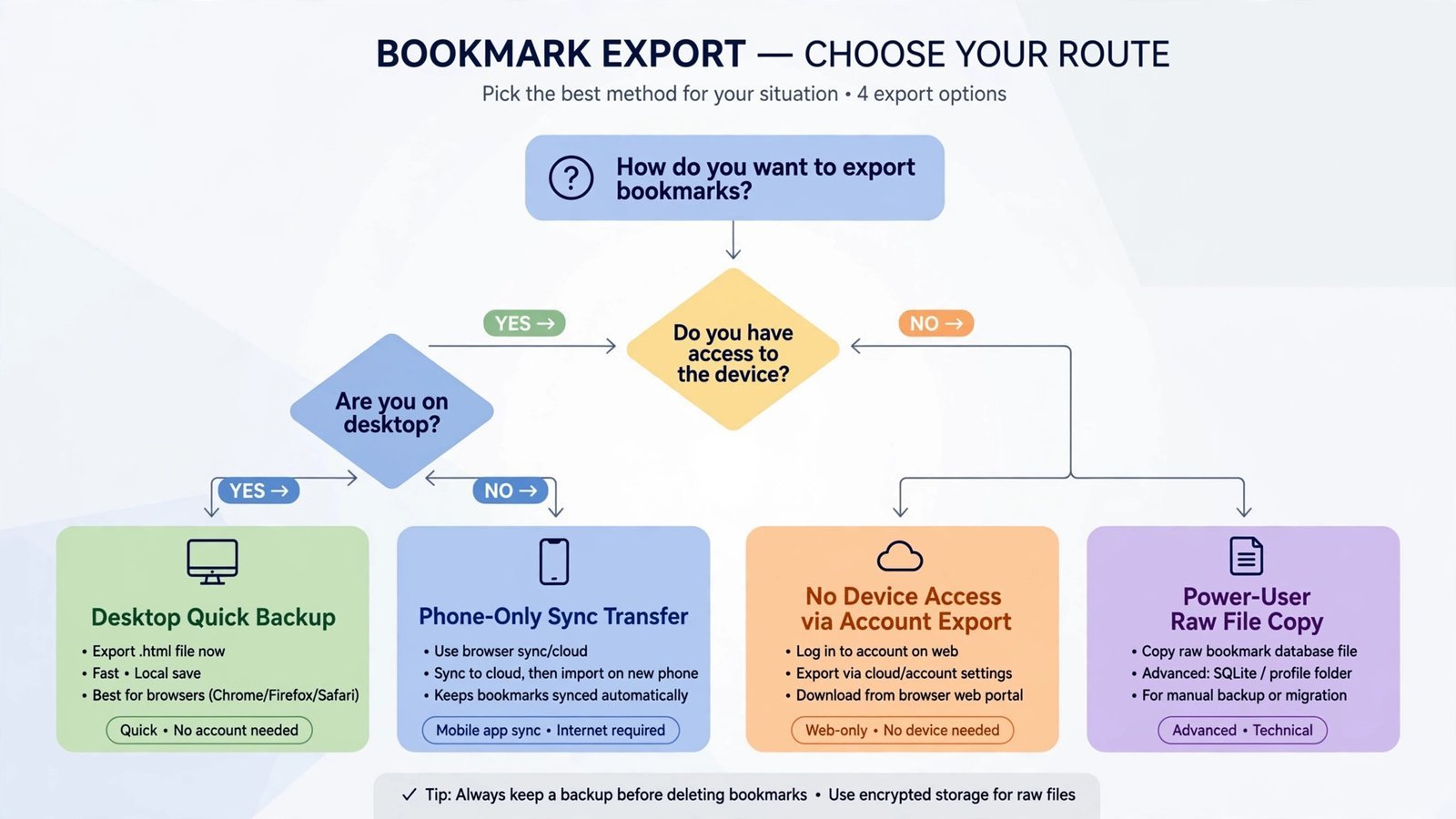
You’ve got six realistic ways to do this: export an HTML file straight from the Bookmark Manager for a quick backup, jump there faster with the chrome://bookmarks shortcut, push your phone’s bookmarks to a desktop through Chrome Sync, pull everything with Google Takeout when you can’t reach the original device, copy Chrome’s raw bookmarks file if you’re a power user, and finally import that HTML file into whatever browser you land on. Pick the one that matches your situation, they all end with the same portable file.
Export from the Bookmark Manager
This is the standard method, and it works on Windows, Mac, and Linux. If you only remember one route, make it this one.
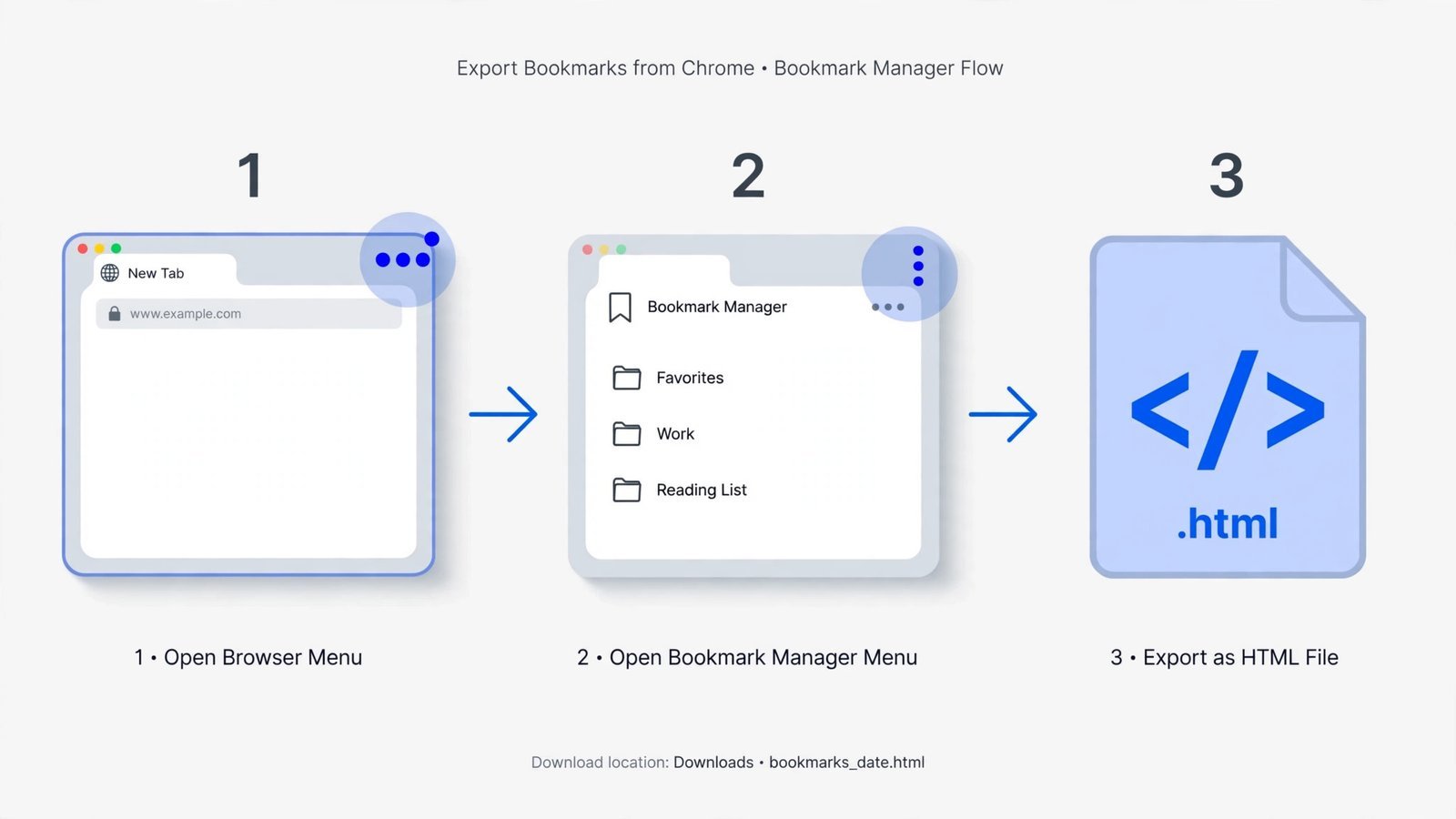
- Open Chrome and press Ctrl + Shift + O (Windows/Linux) or Cmd + Option + B (Mac). Or click the three-dot menu in the top-right corner, hover over Bookmarks and lists, and choose Bookmark Manager.
- Inside the Bookmark Manager, click the three-dot menu near the top-right of the page, not the browser’s main menu, the one inside the manager itself.
- Select Export bookmarks.
- Choose where to save the file and click Save. Chrome names it something like
bookmarks_10_9_26.htmlby default; rename it if you like.
Note: This exports all your bookmarks, there’s no way to export just one folder. It also exports only bookmarks, not passwords, history, or extensions. If Chrome is misbehaving badly enough that you’re exporting before a reset, fix a slow browser first so you don’t carry the problem into a fresh profile.
Jump Straight There with chrome://bookmarks
Same destination, fewer clicks. Type chrome://bookmarks into the address bar and press Enter, this opens the Bookmark Manager directly, skipping the menu navigation entirely. From there, follow the same steps: three-dot menu inside the manager, then Export bookmarks.
Note: This shortcut only works on desktop Chrome. On a phone or tablet there’s no address-bar trick that gets you an export button, mobile Chrome simply doesn’t have one.
Move Bookmarks Off Your Phone with Chrome Sync
Chrome on Android and iPhone has no native export button, which catches a lot of people off guard. The reliable workaround is to let Sync carry your bookmarks to a desktop, then export from there.
- On your phone, open Chrome and sign in with your Google account.
- Go to Settings and make sure Sync is turned on, with Bookmarks included.
- On your desktop, open Chrome signed into the same Google account.
- Wait for the bookmarks to appear, then export them using the Bookmark Manager method above.
Note: Sync can take a few minutes if you have thousands of bookmarks, give it time before exporting, or the file will come out incomplete. And double-check you’re signed into the same account on both devices; mismatched accounts are the most common reason this “doesn’t work.”
Pull Bookmarks with Google Takeout
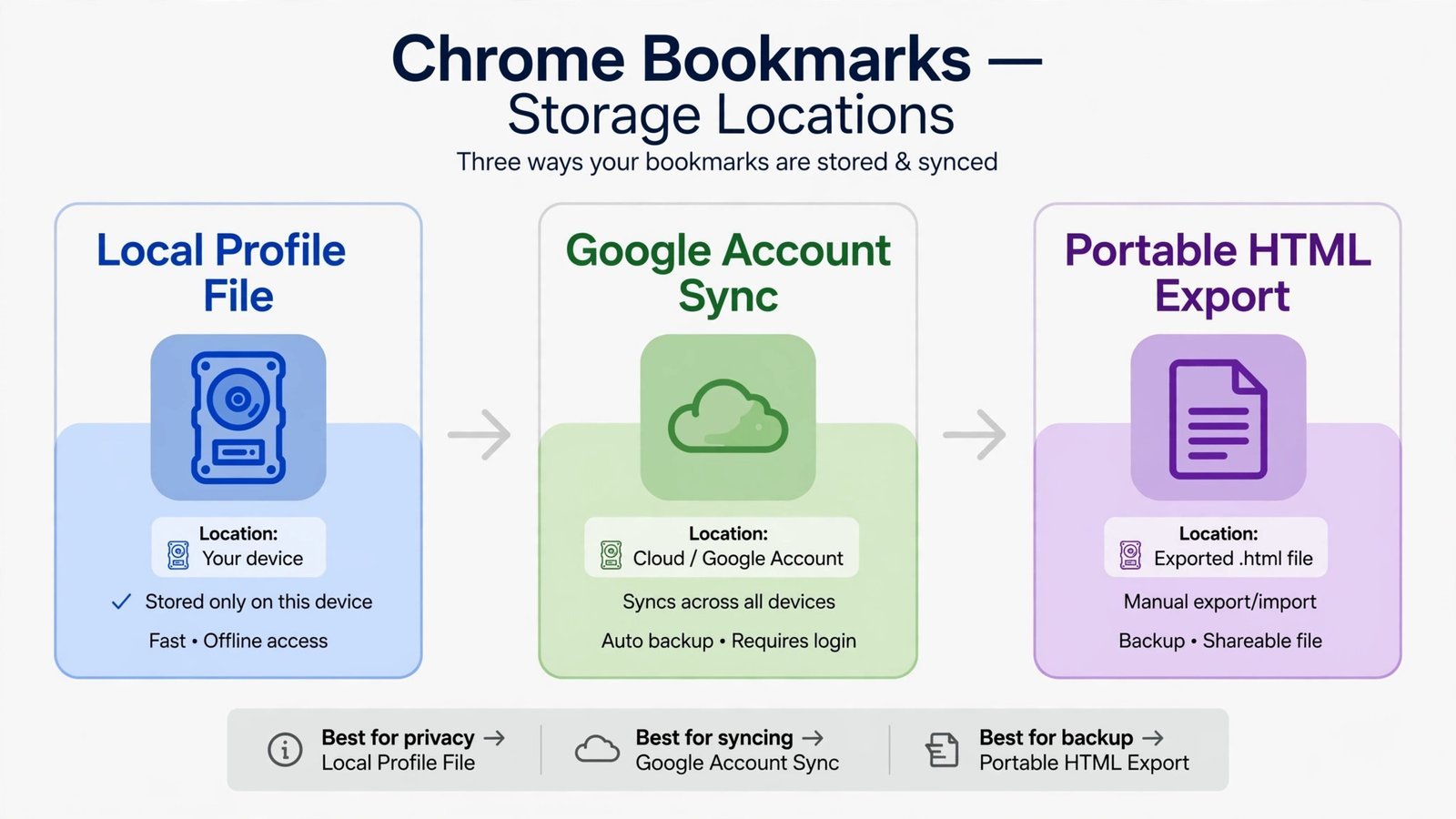
Google Takeout exports your Chrome data straight from your Google account, no access to the original device required. This is the method to reach for when the old laptop is dead, sold, or sitting in a drawer three states away.
- Go to takeout.google.com and sign in.
- Click Deselect all, then scroll down and tick only Chrome.
- Click Next step, choose your delivery method (Send download link via email is simplest), and request the export.
- Google emails you a ZIP file containing a
Bookmarks.htmlfile. Unzip it and you’ve got your bookmarks.
Note: Takeout exports can take anywhere from minutes to hours depending on how much data Chrome has stored, don’t sit there refreshing. Also, this only covers bookmarks synced to your Google account; anything saved in a local-only profile that never synced won’t be in there. Planning to delete your Google account for good? Run a Takeout first, or your synced bookmarks go with it.
Copy Chrome’s Raw Bookmarks File
Under the hood, Chrome keeps your bookmarks in a plain file called Bookmarks (no extension) inside your profile folder. Copying it directly is the power-user backup: no HTML conversion, exact state preserved, and it even works if Chrome itself won’t launch.
| Operating system | Profile folder path |
|---|---|
| Windows | C:\Users\YourName\AppData\Local\Google\Chrome\User Data\Default\ |
| Mac | ~/Library/Application Support/Google/Chrome/Default/ |
| Linux | ~/.config/google-chrome/Default/ |
- Close Chrome completely, copying the file while Chrome is running can grab a half-written copy.
- Open the profile folder for your system (see above).
- Copy both the
Bookmarksfile andBookmarks.bak(Chrome’s automatic one-step backup) to a safe location. - To restore later, close Chrome and copy the files back into the same folder.
Warning: The raw file is JSON, don’t open it in a text editor and start “fixing” things. Chrome overwrites the file on launch and will happily discard your hand edits or, worse, treat the file as corrupt and reset it. Use the HTML export for anything you want to move between browsers or share.
Import the HTML File into Another Browser
Exporting is only half the job if you’re switching browsers. The HTML file Chrome produces is the old Netscape bookmark format, which every major browser still reads.
Back into Chrome (same or new install): open chrome://bookmarks, click the manager’s three-dot menu, choose Import bookmarks, and select your HTML file. Everything lands in a folder called Imported, drag items where you want them afterward.
Into Firefox: press Ctrl + Shift + O to open the Library, click Import and Backup, then Import Bookmarks from HTML. Your Chrome bookmarks appear under a “From Google Chrome” folder.
Into Microsoft Edge: open Settings, go to Profiles → Import browser data, choose Import from file, and select the HTML file.
Into Safari (Mac): go to File → Import From → Bookmarks HTML File and pick the file.
Note: Importing into a profile that already has bookmarks doesn’t deduplicate, you’ll get doubles of everything that overlaps. Import into a clean profile when you can, and clean up with a deduplicator extension afterward if needed.
What’s Actually Inside the Export File
The HTML file contains your folder structure, bookmark titles, URLs, and the date each bookmark was added. It does not contain your browsing history, saved passwords, autofill data, extensions, or open tabs, those live in your profile or your Google account, and they need Sync or a full profile backup to move.
The file is plain HTML, so you can even open it in any browser to browse your bookmarks as a simple web page. Handy in a pinch.
Keep One Copy Somewhere Safe
Do the export once, then put the file somewhere that survives your computer dying, a cloud drive, a USB stick, anywhere but the same disk. Refresh it every few months or before any big change, like when you format your laptop or move machines. Thirty seconds now beats the sinking feeling of a bookmark bar full of nothing.
Read next: your bookmarks transfer, but extensions don’t travel in that HTML file. If you’re setting up a fresh browser anyway, here are the best Chrome extensions for web developers worth reinstalling.

- How to Fix an SD Card Not Detected on Windows 11 - October 25, 2026
- How to Fix Windows 11 Search Not Finding Files - October 24, 2026
- How to Fix Windows 11 Clock Showing the Wrong Time - October 23, 2026