
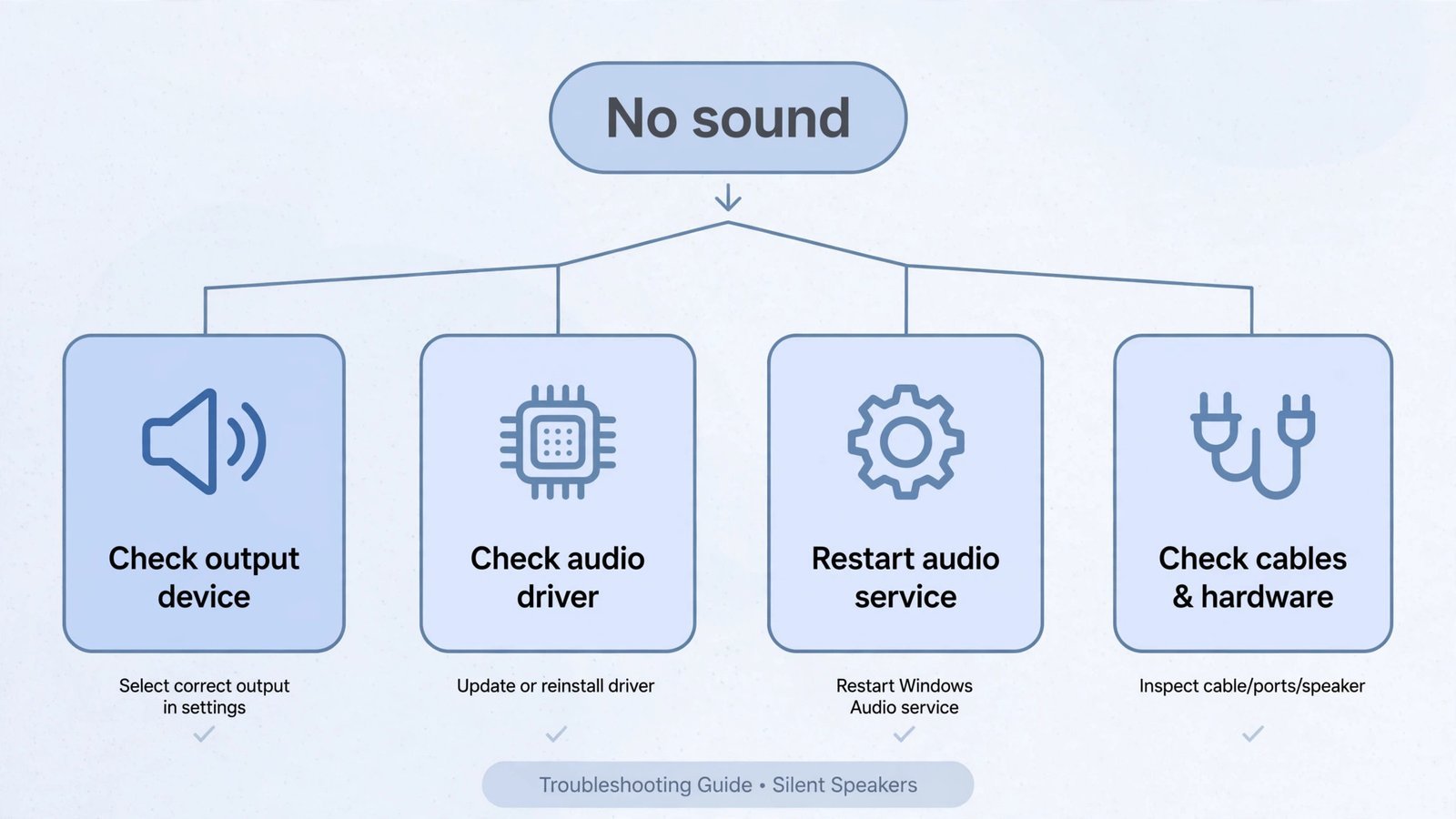
When your computer speakers produce no sound at all, no system beeps, no music, no video audio, the cause sits in one of six places: the wrong output device is selected or something is muted, the audio driver has failed or gone missing, the Windows Audio service has stopped, audio enhancements are mangling the signal, the cable or the speakers themselves have failed, or a Bluetooth speaker is connected but silent. Read this whole guide first, match your symptoms to the right fix, and skip everything that does not apply. This is triage, not a sequence.
First, restart your computer
A restart re-seats the audio driver and the Windows Audio service in one move, and it clears the most common “suddenly silent” state there is. Do this before anything else, if the sound is still gone after the reboot, keep reading.
The six usual causes
- Wrong output device or a muted slider. Windows quietly switches output to a monitor, a headset, or a Bluetooth device you are not using. Or one of the many volume sliders, system, app, or the physical knob, is at zero.
- A broken or missing audio driver. Windows Update sometimes replaces your manufacturer’s audio driver with a generic one that does not know your hardware, and fresh installs often lack a proper driver entirely.
- A stopped Windows Audio service. Two background services do all the audio work. If either stalls, nothing plays even though every setting looks right.
- Audio enhancements gone wrong. Bass boost, virtual surround, and vendor “enhancements” can silence or distort output on some hardware.
- Failed cable or speaker hardware. Loose 3.5mm plugs, dead power adapters, and blown drivers are less common but real.
- A Bluetooth speaker that connects but stays silent. Pairing succeeded, yet Windows is still sending sound somewhere else.
The fixes at a glance
- Check the output device, volume mixer, and mute state
- Check the physical connection and speaker power
- Restart the Windows Audio service
- Run the Windows audio troubleshooter
- Update, roll back, or reinstall the audio driver
- Disable audio enhancements
- Rule out hardware with a second device
- Check for software conflicts
Let us talk about them in detail.
Note: You do not need to do these in order. Each fix below is a standalone procedure, find the one that matches your symptoms and start there.
1. Check the output device, volume mixer, and mute state
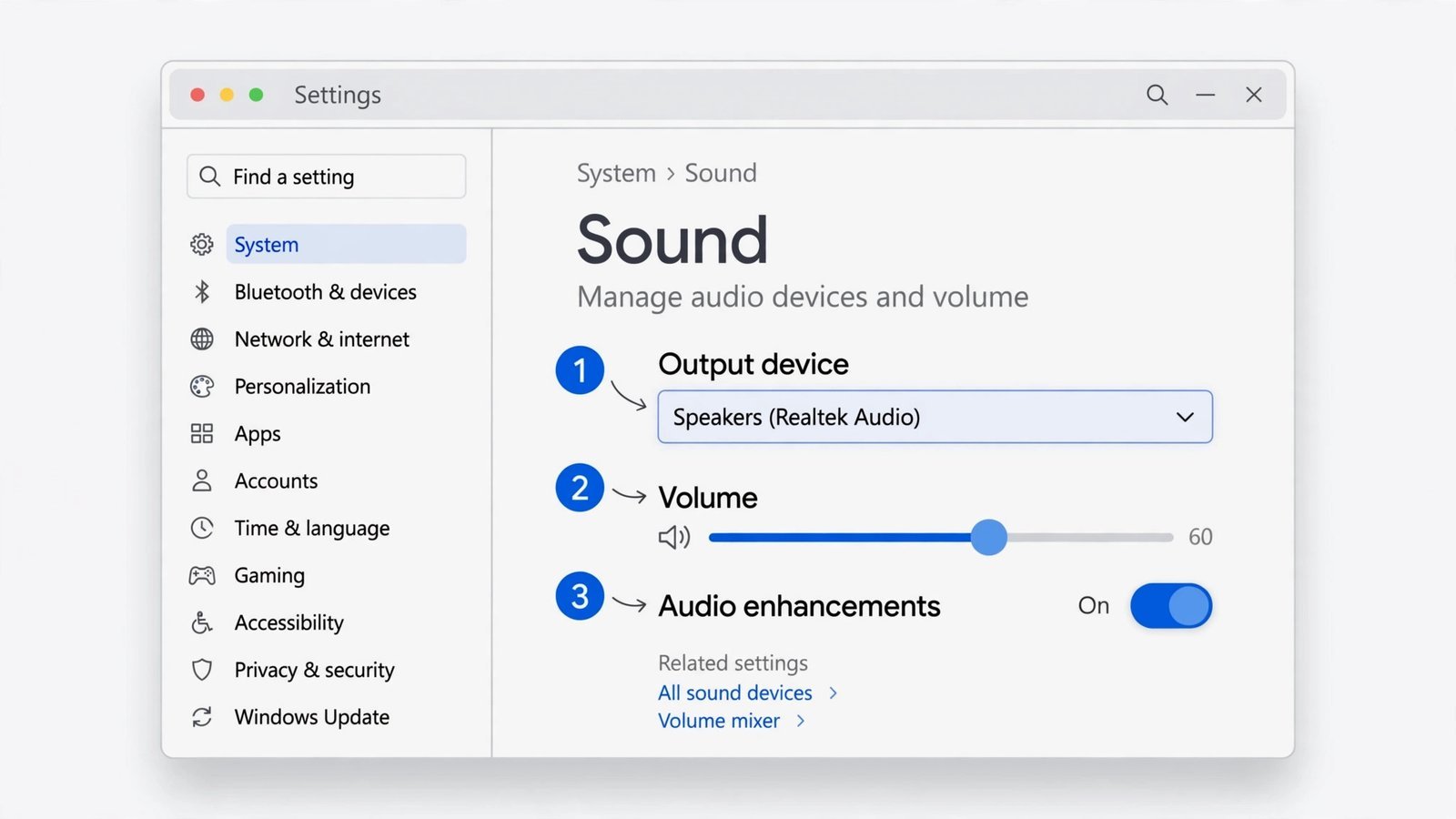
When this works: sound stopped after an update, after plugging in a headset or monitor, or only one app is silent while everything else plays.
Right-click the speaker icon in the taskbar and open Sound settings. Under Output, look at which device is selected, if it names your monitor, a headset, or anything you are not listening through, click the dropdown and choose your speakers. Click Test next to the device name and listen.
Next, open the Volume mixer (same right-click menu). Your system volume might be fine while your browser or media player sits muted at zero. Drag any muted slider up. Also check the physical volume knob on the speakers themselves and, on laptops, the keyboard mute key, it gets hit by accident more often than anyone admits.
If the speakers do not appear in the Output list at all, right-click an empty area of the classic sound panel (More sound settings Playback tab), tick Show disabled devices and Show disconnected devices, then right-click your speakers and choose Enable and Set as default device.
2. Check the physical connection and speaker power
When this works: nothing has changed in software, the speakers were moved or unplugged recently, or there was a power cut.
On desktops, the 3.5mm speaker plug belongs in the green jack, pink is the microphone, blue is line-in, and swapping them is a classic silent-speaker mistake. Push the plug in firmly; a half-seated jack gives you nothing. For USB speakers, try a different USB port, preferably one directly on the computer rather than a hub. If the speakers have their own power adapter, confirm the wall outlet works and look for the small power LED on the speaker.
For a Bluetooth speaker that shows as connected but stays silent: turn Bluetooth off, wait ten seconds, turn it back on, and re-check that the speaker, not another device, is selected under Sound settings Output. Pairing problems and no-sound problems are different animals; if the device already pairs, do not waste time re-pairing it.
If you use USB speakers or a USB headset and Windows does not recognize the device at all, the problem may be the USB layer rather than audio, here is how to fix an unrecognized USB device.
3. Restart the Windows Audio service
When this works: every setting looks correct, the device is selected, volume is up, and still nothing plays, especially right after a Windows update or a sleep/wake cycle.
- Press Windows key + R, type
services.msc, and press Enter. - Scroll to Windows Audio, right-click it, and choose Restart.
- Do the same for Windows Audio Endpoint Builder.
- Right-click each service, open Properties, and confirm Startup type is set to Automatic. If a service shows as Stopped, click Start.
Test your audio immediately after the restart. If sound returns and then dies again after the next reboot, something on startup is killing the service, jump to Fix 8.
4. Run the Windows audio troubleshooter
When this works: you are not sure what is wrong and want Windows to diagnose it before you change settings by hand.
On Windows 11, press Windows key + S, open the Get Help app, type “Fix sound problems” in its search bar, and follow the on-screen steps, Microsoft now routes audio diagnosis through this app, and it checks output selection, driver status, service state, and enhancement conflicts automatically.
On Windows 10 or if you prefer the classic route: open Settings System Troubleshoot Other troubleshooters, click Run next to Playing Audio, and follow the prompts. The troubleshooter either fixes the issue or tells you what it found and could not fix, that message points you at the right fix below.
5. Update, roll back, or reinstall the audio driver
When this works: the troubleshooter blames the driver, sound died right after a Windows update, or Device Manager shows a yellow warning on your audio device.
- Press Windows key + X and open Device Manager.
- Expand Sound, video and game controllers, right-click your audio device (often Realtek(R) Audio or High Definition Audio Device), and choose Update driver Search automatically for drivers.
- Restart the computer and test.
If sound broke because of an update, the new driver is the suspect. Right-click the device, open Properties Driver, and click Roll Back Driver if the button is available. Windows Update has a habit of swapping a manufacturer’s tuned driver for Microsoft’s generic one, which does not carry your model’s speaker configuration.
If updating and rolling back both fail, do a clean reinstall: right-click the device, choose Uninstall device, tick Delete the driver software for this device if offered, and restart. Windows reinstalls a basic driver on boot. Then install the proper driver from your laptop or motherboard manufacturer’s support page for your exact model, that manufacturer driver almost always beats the generic one.
Laptop owners, one specific culprit: many Windows 11 laptops use the Intel Smart Sound Technology controller (under System devices in Device Manager). When that driver breaks, audio vanishes completely. Reinstalling the OEM audio package from your laptop maker’s site is the reliable fix.
If a driver installer itself refuses to run, here is how to fix a driver that will not install, the same general approach applies to audio drivers.
6. Disable audio enhancements
When this works: sound is crackling, distorted, or cutting in and out rather than fully silent, or everything else checks out and the audio still misbehaves.
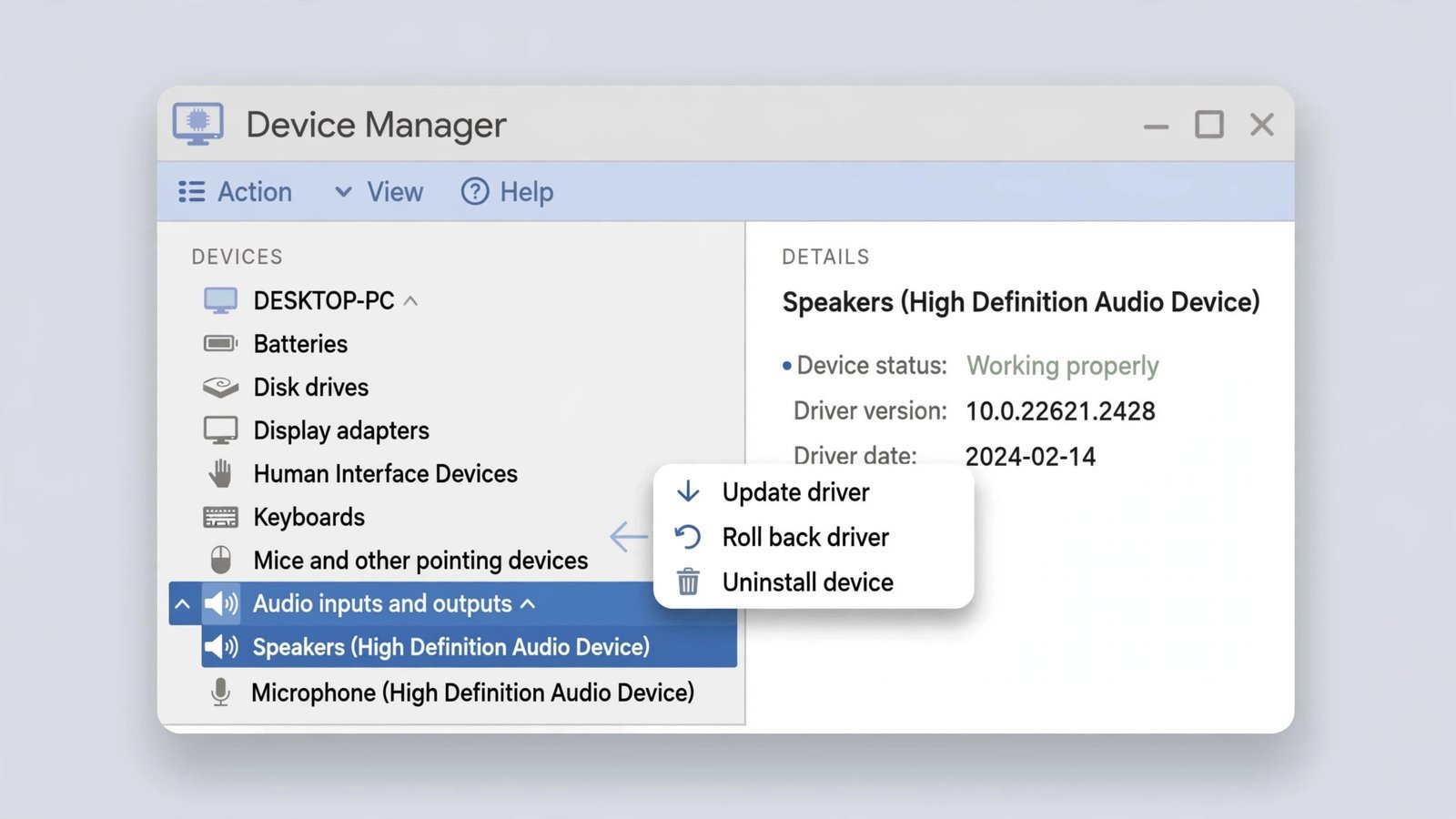
- Right-click the speaker icon, open Sound settings, and click your speaker device.
- Scroll to Audio enhancements and set it to Off.
- For the deeper switch: open More sound settings, go to the Playback tab, right-click your speakers, choose Properties, and on the Enhancements tab tick Disable all enhancements (or Disable all sound effects).
- Click Apply and test.
Vendor audio apps, Realtek Audio Console, Dell/HP/Lenovo audio utilities, apply their own processing on top of Windows’. If disabling Windows enhancements does not help, open the vendor app and turn off its effects too.
7. Rule out hardware with a second device
When this works: you need a yes-or-no answer on whether the speakers themselves are dead.
Plug the speakers into a different device, another computer, a phone with a headphone adapter, a tablet. If they stay silent there, the speakers or their cable have failed and no software fix will save them. If they play fine elsewhere, the problem is your computer’s output, go back to Fixes 1, 5, and 6.
Listen for signs of life: power the speakers on and listen for a small pop or hum, or turn the volume to maximum and put your ear close for faint static. Any of that means the amplifier works and the fault is in the connection. Inspect the cable for fraying where it enters the plug or speaker body; damaged cables on budget speakers usually mean replacement, not repair.
8. Check for software conflicts
When this works: sound works in a clean state but dies in normal use, or the Windows Audio service keeps stopping on its own.
Third-party audio software, virtual audio cables, streaming mixers, aggressive “driver updater” tools, can hijack the audio stack. Think about what you installed shortly before the silence started and uninstall the most recent audio-related suspect first.
For a systematic check, do a clean boot: press Windows key + R, type msconfig, and on the Services tab tick Hide all Microsoft services, then Disable all and restart. If sound works now, re-enable services in small groups until the sound dies again, you have found your culprit.
Your sound is back, keep it that way
Two habits prevent most repeat failures. First, before any major Windows update or driver change, create a restore point (search “Create a restore point” in the Start menu) so you can roll back in minutes if an update kills your audio. Second, get drivers from your PC or motherboard manufacturer’s support page, not from random driver-updater tools, which are a frequent source of the very problem they claim to fix.
While you are at it, it is worth giving Windows itself an occasional tidy, here is how to clear Windows cache safely without breaking anything.
Read next: Best Sound Equalizer for Windows 11, now that your speakers work, make them sound better.
Tested on Windows 11 (25H2) and Windows 10 with Realtek onboard audio, a USB headset, and a Bluetooth speaker, October 2026.

- How to Rebuild the Spotlight Index on Mac - October 25, 2026
- How to Change the Screenshot Save Location on Mac - October 24, 2026
- How to Turn Off Stage Manager on Mac - October 23, 2026