
Nothing is more frustrating than a driver installer that fails, rolls back, or quits halfway through. When NVIDIA drivers refuse to install on Windows 11, the cause is almost always leftover files, a security conflict, or the wrong package, and nearly every case is fixable without reinstalling Windows.
Why NVIDIA installs fail
The most common culprits are corrupted remnants of a previous driver, a package meant for the wrong GPU or Windows version, antivirus software blocking the installer, or pending Windows updates that lock system files. Hardware failure is rare at this stage, so work through the software fixes first.
Fix 1: Restart and confirm the right driver package
- Restart your PC. Temporary update locks and background services can block an install, and a reboot clears them.
- Open Device Manager (right-click Start), expand Display adapters, and note your exact GPU model.
- Download the driver manually from NVIDIA’s official driver page. Match the GPU model, choose Windows 11 64-bit, and pick Game Ready for gaming or Studio for creative work. Notebook and desktop GPUs use different packages.
Fix 2: Use the NVIDIA app and run a clean install
NVIDIA has been moving users from GeForce Experience to the newer NVIDIA app, and installing through the current app clears up many download and update failures. If you are installing from a downloaded package, choose the built-in clean option.
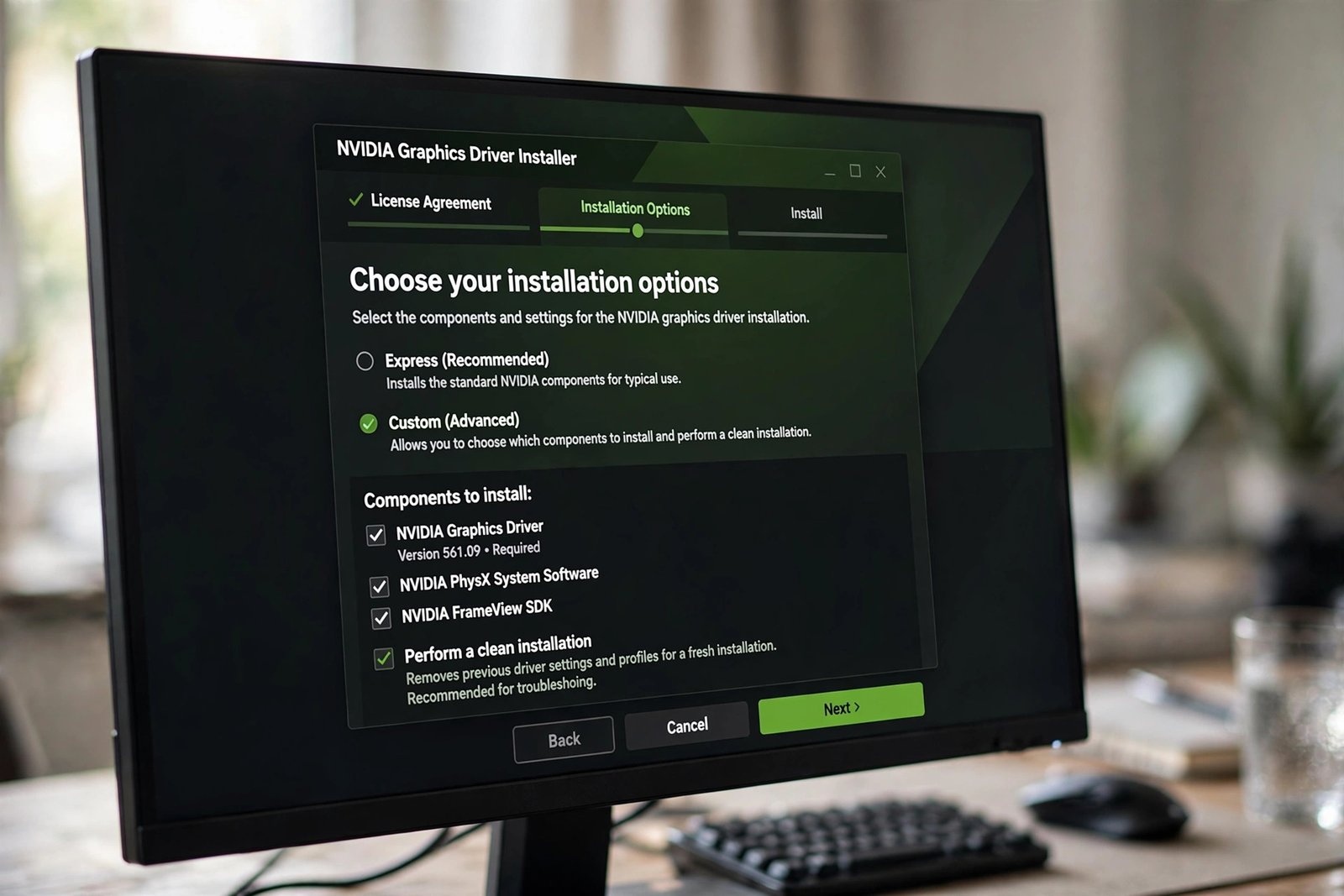
- Run the downloaded driver package and choose Custom (Advanced) instead of Express.
- Check Perform a clean installation. This wipes old profiles, services, and registry entries before installing fresh. The steps match the official clean-install procedure.
- For troubleshooting, install just the Graphics Driver and PhysX first, and skip the extras until the install is stable.
- Reboot after the install, even if the installer does not ask you to.
Fix 3: Free up disk space
Driver packages need room to extract and install. If your system drive is nearly full, the install can stall or fail mid-extraction. Clear temporary files and make sure you have several gigabytes free before retrying. For a full cleanup routine, see our guide on how to clear cache on Windows 11.
Fix 4: Pause antivirus during the install
Security software sometimes quarantines driver files mid-install, which produces rollbacks and mysterious hangs. Open Windows Security, go to Virus and threat protection, and pause Real-time protection just for the install. Turn it back on immediately afterward. The same applies to third-party antivirus.
Fix 5: The DDU clean wipe in Safe Mode
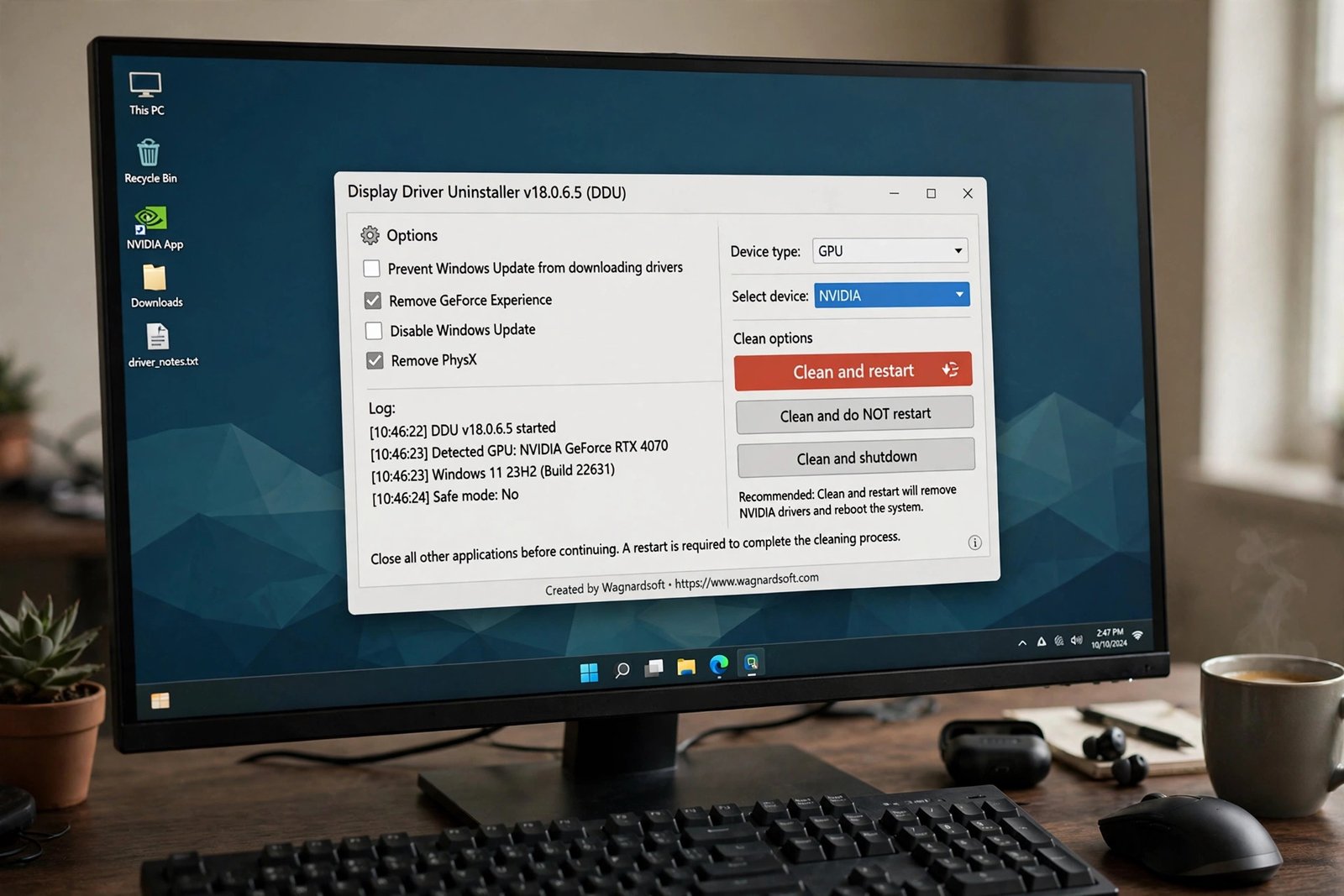
If the installer keeps failing after the basics, the nuclear option is Display Driver Uninstaller (DDU). It removes NVIDIA drivers, services, scheduled tasks, and registry remnants that survive normal uninstalls. This fixes nearly every stubborn case, and HelpDeskGeek’s 2026 fix list ranks it as the decisive step too.
- Download DDU from the official Wagnardsoft site and extract it to your PC.
- Disconnect from the internet so Windows Update cannot slip a generic display driver in during the cleanup.
- Boot into Safe Mode. Safe Mode prevents locked files and active NVIDIA services from interfering.
- Launch DDU, select GPU and NVIDIA, then click Clean and restart.
- After the reboot, run your freshly downloaded NVIDIA installer as administrator.
Fix 6: Update Windows and chipset drivers
Missing system components can break an install that is otherwise fine. Go to Settings, Windows Update and install everything pending. Then check your motherboard manufacturer’s site for the latest chipset drivers. Retry the NVIDIA install after both are done.
All fixes at a glance
| Fix | Use when |
|---|---|
| Restart and verify the package | First attempt for any install failure |
| NVIDIA app or custom clean install | Download failures, corrupted profiles |
| Free up disk space | Install stalls or fails mid-extraction |
| Pause antivirus | Rollbacks and mid-install hangs |
| DDU wipe in Safe Mode | Repeated failures after basic fixes |
| Update Windows and chipset drivers | Dependency-related failures |
When to suspect the hardware instead
If a full DDU clean install still produces Code 43 or Code 10 errors in Device Manager, the problem may be physical. Reseat the card in its PCIe slot, check that all power cables are firmly connected, and if possible test the card in another slot or another PC. If the same error follows the card, it is a hardware fault rather than a driver issue, and no amount of reinstalling will fix it.
Most failed installs are won at the clean-install or DDU stage, so resist the urge to reinstall Windows first. And while you are maintaining the system, removing bloatware from Windows 11 keeps background clutter from interfering with drivers. If audio broke along the way, check how to fix computer speakers not working too.

- How to Fix Windows 11 Clock Showing the Wrong Time - October 23, 2026
- How to Fix File Explorer Slow to Open in Windows 11 - October 22, 2026
- How to Fix a Printer Showing Offline in Windows 11 - October 21, 2026