
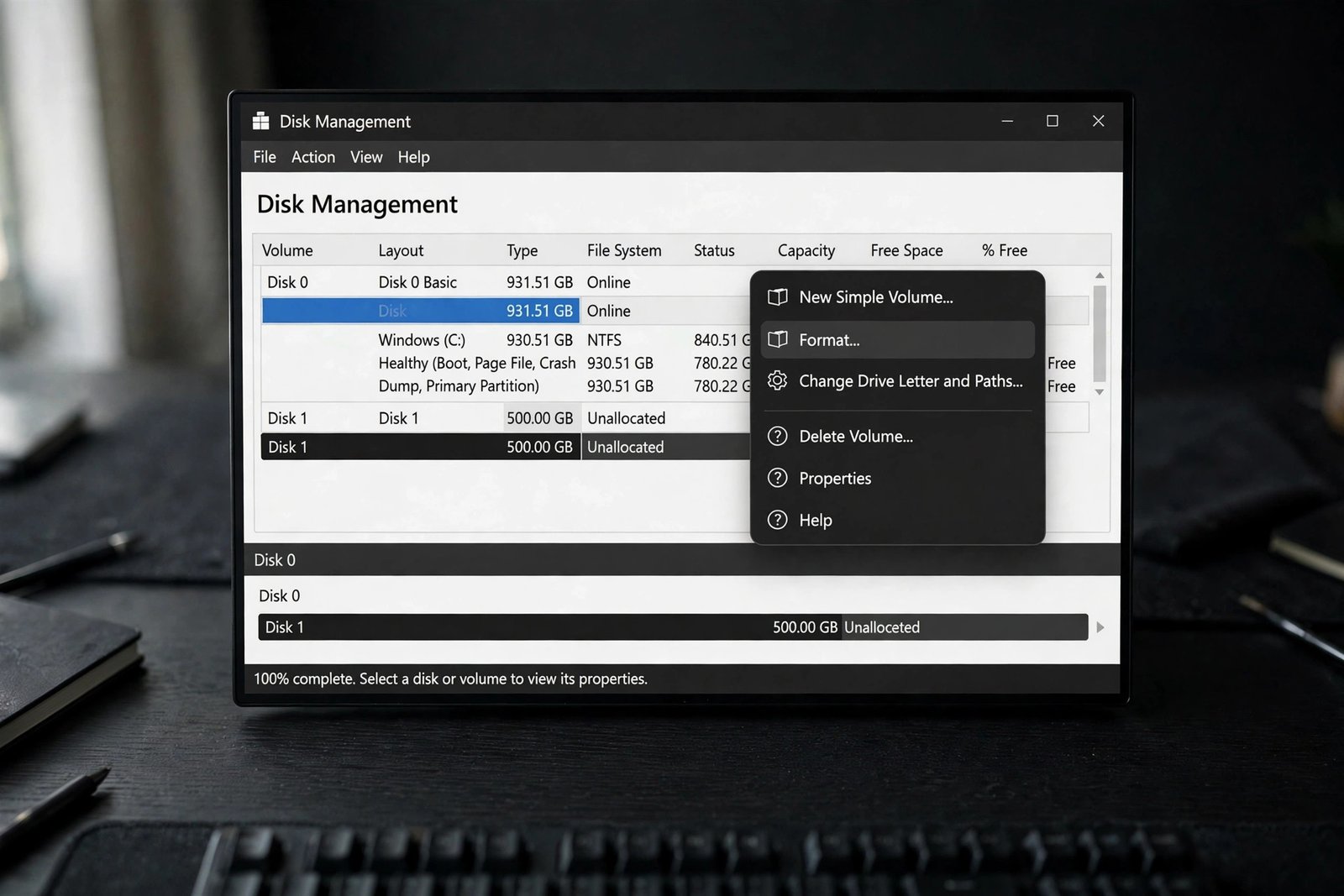
If you format a drive on Windows, you are usually choosing between NTFS and ReFS, and they are built for very different jobs. NTFS is the reliable all-rounder on every Windows PC. ReFS is the specialist that guards huge volumes against data corruption. Here is how to pick the right one in 2026.
NTFS: the default you already know
NTFS has been the standard Windows file system since 1993, and for good reason. It supports file and folder permissions, compression, per-file encryption (EFS), disk quotas, hard links, and it is the only file system Windows can boot from. Every Windows system drive uses NTFS, and it works on removable drives too.
Its weakness is resilience. NTFS relies on a metadata journal and the chkdsk utility to recover from corruption, which means repairs are manual and the file system does not verify your actual data as it is read. Nakivo’s detailed ReFS vs NTFS feature table lays out even more differences.
ReFS: built to survive
ReFS, the Resilient File System, arrived with Windows Server 2012 and is designed around one idea: data integrity. It checksums your data and metadata, detects corruption automatically in the background, and repairs it from mirrored copies without taking the volume offline.
It also scales far beyond NTFS, with practical volume and file limits around 35 petabytes versus NTFS’s 256 terabytes, plus features like block cloning and sparse VDL that make virtual machines dramatically faster to create. Windows 11 supports ReFS on data volumes, and Microsoft has even surfaced it in Windows Setup for Dev Drive scenarios.
Feature comparison: ReFS vs NTFS
| Feature | NTFS | ReFS |
|---|---|---|
| Max volume and file size | 256 TB | 35 PB |
| Bootable Windows drive | Yes | No |
| Corruption detection and repair | Manual, via chkdsk | Automatic, with checksums |
| File and folder compression | Yes | No |
| Per-file encryption (EFS) | Yes | No (BitLocker only) |
| Disk quotas | Yes | Limited |
| Removable drives | Yes | No |
| Block cloning and sparse VDL | No | Yes |
| Storage Spaces integration | Basic | Optimized, with integrity streams |
When NTFS is the right choice
- Your Windows system drive. ReFS cannot boot Windows, so this is not a choice at all.
- Everyday laptops and desktops. Documents, photos, games, and apps all belong on NTFS.
- USB drives and portable SSDs. ReFS is not supported on removable media.
- When you need compression, EFS encryption, or quotas. ReFS simply does not have these.
When ReFS makes sense
- Large data volumes and Storage Spaces pools where integrity matters more than features.
- Backup repositories, thanks to block cloning that saves space on repeated backups.
- Hyper-V and virtualization hosts, where sparse VDL creates fixed virtual disks in seconds.
- Windows 11 Dev Drive volumes for development workloads, which use ReFS for performance and reliability.

How to check which file system a drive uses
- File Explorer: right-click the drive, choose Properties. The General tab shows the file system.
- PowerShell: run
Get-Volumeto list every volume with its file system. Sysadmin’s broader Windows file system comparison also covers FAT32 and exFAT.
Can you convert NTFS to ReFS?
No. There is no in-place conversion either way. Switching means backing up your data, formatting the volume with the new file system, and restoring. Plan accordingly, and always verify your backup before you format.
The verdict for 2026
ReFS is not an upgrade to NTFS. It is a different tool for a different job. For your PC, your external drives, and anything you boot from, NTFS remains the right and only choice. For large Storage Spaces pools, backup targets, and virtualization storage where silent data corruption is the enemy, ReFS is the better file system.
If a drive is acting up regardless of file system, hard drive repair software can help diagnose it, and recovering permanently deleted files in Windows is worth reading before you format anything. For moving files between machines instead, see how to transfer photos from Android to PC.

- How to Change the Lock Screen Timeout on Windows 11 - October 25, 2026
- How to Fix the Windows 11 Taskbar Auto-Hide Problem - October 24, 2026
- How to Fix a Laptop Camera Not Working in Windows 11 - October 23, 2026