
Most guides about turning off Google AI Mode start with a promise they cannot keep. They tell you to flip a switch in Search Labs that, for most accounts, is simply not there anymore. There is no hidden menu and no secret checkbox waiting to be found. What you can do is route around it, and that is what this guide shows you: three honest workarounds that work in 2026, ranked from quickest to most lasting.
The honest answer first
If you are looking for a permanent, official off switch, here is the truth: Google does not offer one for most accounts. AI Mode grew from a Search Labs experiment into a regular part of Google Search, and when that happened, the Labs toggle quietly disappeared for most users. That is why the old instructions keep failing. They describe a switch that no longer exists on your account.
Google’s own help page for AI Mode is clear about what the Search Labs toggle does: it switches the AI Mode experiment on or off for accounts that have it. It does not remove AI Overviews or AI Mode from ordinary search. Google’s AI Overviews help page goes further and calls Overviews a core Search feature that cannot be turned off, then points to the Web filter as the way to see links only. So do not spend time hunting for a beaker icon. The workarounds below are the real options.
“We offer a ‘web’ filter to see links only.”
A Google spokesperson, on the AI-free results option
One more thing worth knowing: availability varies by account, device, and region. Some people get AI Mode front and center while others barely see it, and the Labs toggle may linger for a few accounts. Nothing below breaks if you happen to be in either camp.
Workaround 1: Stay on the Web tab
This is the fastest fix, and it is the one Google itself points to. Your results open on the All tab by default. Click the Web tab right next to it and the page switches to plain link results with no AI Mode view.
- Run your search as normal.
- Look just under the search bar for the row of tabs: All, Images, News, and more.
- Click Web. On smaller screens it may be tucked under the More menu.
- That search now shows classic link results you can scroll through.
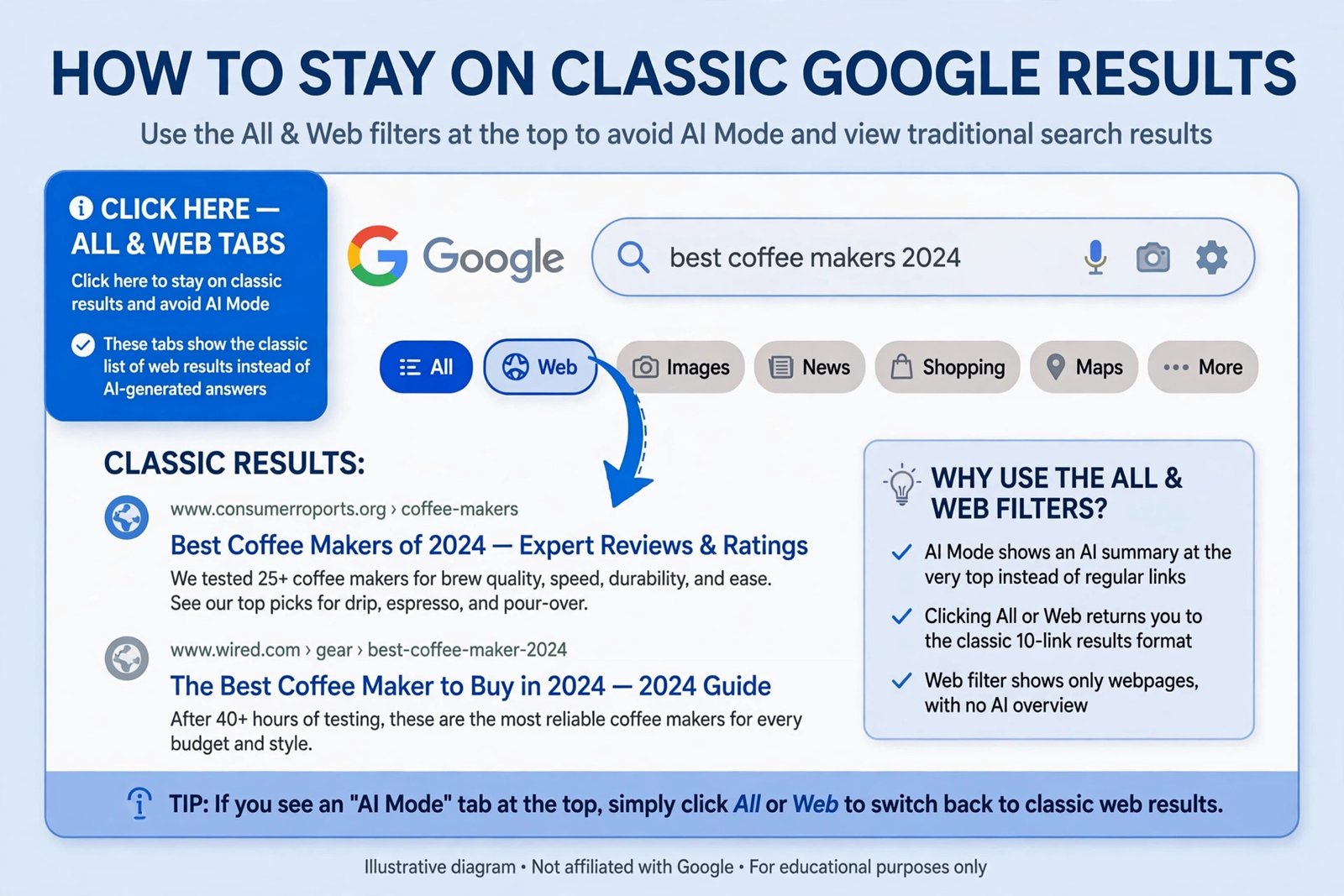
The catch is that this is a per-search habit. Google may remember your tab choice for a while, but it does not lock it in forever, so expect to keep clicking it. If that sounds annoying, the next workaround sets it up once and forgets about it.
Workaround 2: Make web-only your default search engine
This is the closest thing to a permanent fix on desktop. The little code udm=14 has been part of Google’s search URLs since 2024, and checked again in November 2026 it still forces the web-only view: no AI Overviews, no AI Mode tab. Add it as your browser’s default search and every address-bar search skips the AI layer automatically.
Here are the steps in Chrome on a computer:
- Open Chrome, click the three-dot menu in the top right, then choose Settings.
- Go to Search engine, then Manage search engines and site search.
- Next to “Site search”, click Add.
- Fill in the three fields like this: Name: Google Web. Shortcut: g. URL: https://www.google.com/search?q=%s&udm=14
- Click Add, then find your new entry in the list, click its three dots, and choose Make default.
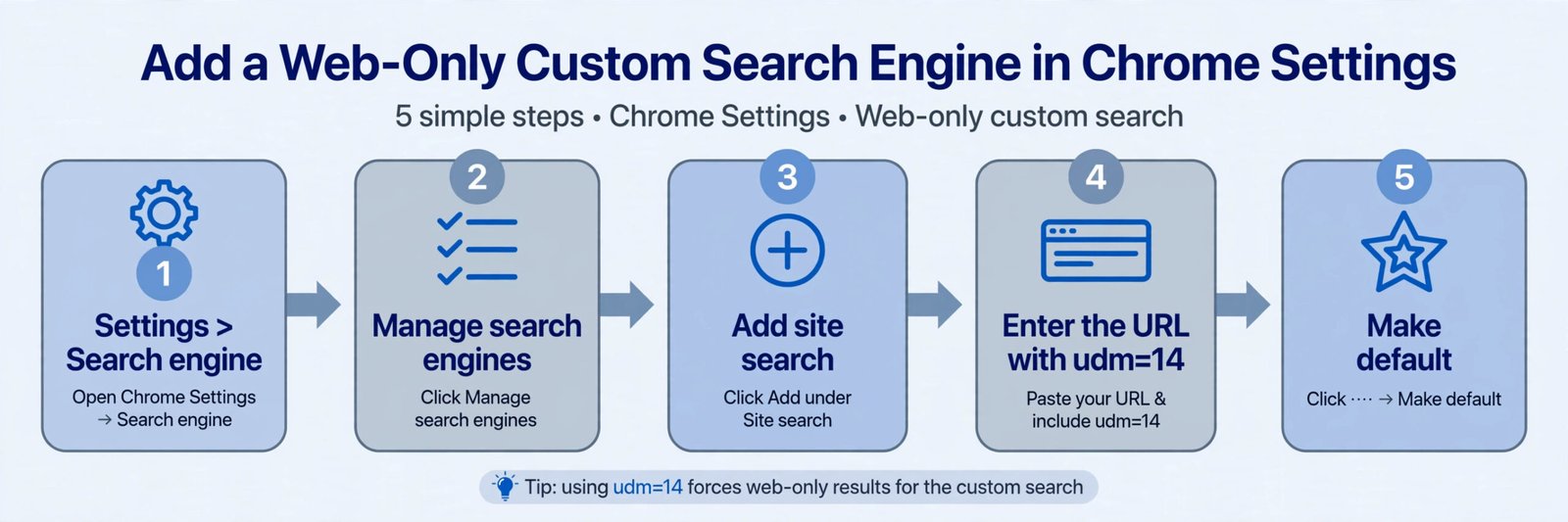
From now on, anything you type in the address bar lands on classic web results. Firefox and Edge let you add custom search engines too, using the same URL. And if you only want the web view for one search, just add &udm=14 to the end of any Google results URL and reload.
Two honest trade-offs. The web-only view drops some extras along with the AI, including Knowledge Panels and the image and video carousels. And this is still a workaround, not a Google setting, so it keeps working only as long as Google keeps honoring that URL parameter. If the company ever retires it, the trick dies with no warning.
One practical tip: Chrome syncs this default search change to your other signed-in devices. If you rarely touch Chrome’s settings, back up your bookmarks first with our guide to exporting Chrome bookmarks, so nothing important gets lost while you experiment.
Workaround 3: Add -ai to a single search
For a one-off search, type -ai (a minus sign plus the letters ai) at the end of your query, like this: best noise cancelling headphones -ai. The minus sign is a classic Google operator that excludes pages mentioning a word. As a side effect, it suppresses the AI Overview on that search. 9to5Google documented this trick in May 2026, and checks in late October 2026 confirm it still works.
It is a per-query trick rather than a setting, so you type it every time, and it targets the inline AI Overview rather than the full AI Mode tab. Because it genuinely excludes the word AI from results, it can occasionally hide a useful page that happens to mention AI. For most everyday searches that trade is invisible, but skip this trick when your question is actually about AI itself.
The three workarounds, compared
On your phone: the same escape, set up differently
The desktop setup does not carry over to a phone, but the Web filter itself works everywhere. After any search in your phone browser, swipe along the row of filters under the search box and tap Web. That is the one-tap fix, and it works in the Google app too, where there is no setting to change the default view.
For something closer to a default, the options depend on your phone and browser. In Chrome on Android, set your homepage to a Google search page that already carries the web-only address, then start your searches from that homepage. In Firefox on Android, add the same web-only address as a custom search engine and make it your default, exactly as on a computer. On an iPhone, neither Safari nor Chrome lets you add a custom search engine, so the per-search Web filter is the only route, and the -ai trick from Workaround 3 works there too, since it is just part of the query.
| Method | Effort | How long it lasts |
|---|---|---|
| Web tab | One click | This search |
| udm=14 default search engine | About three minutes of setup | Until you change it back, or Google retires the parameter |
| -ai after a query | A few keystrokes | This search |
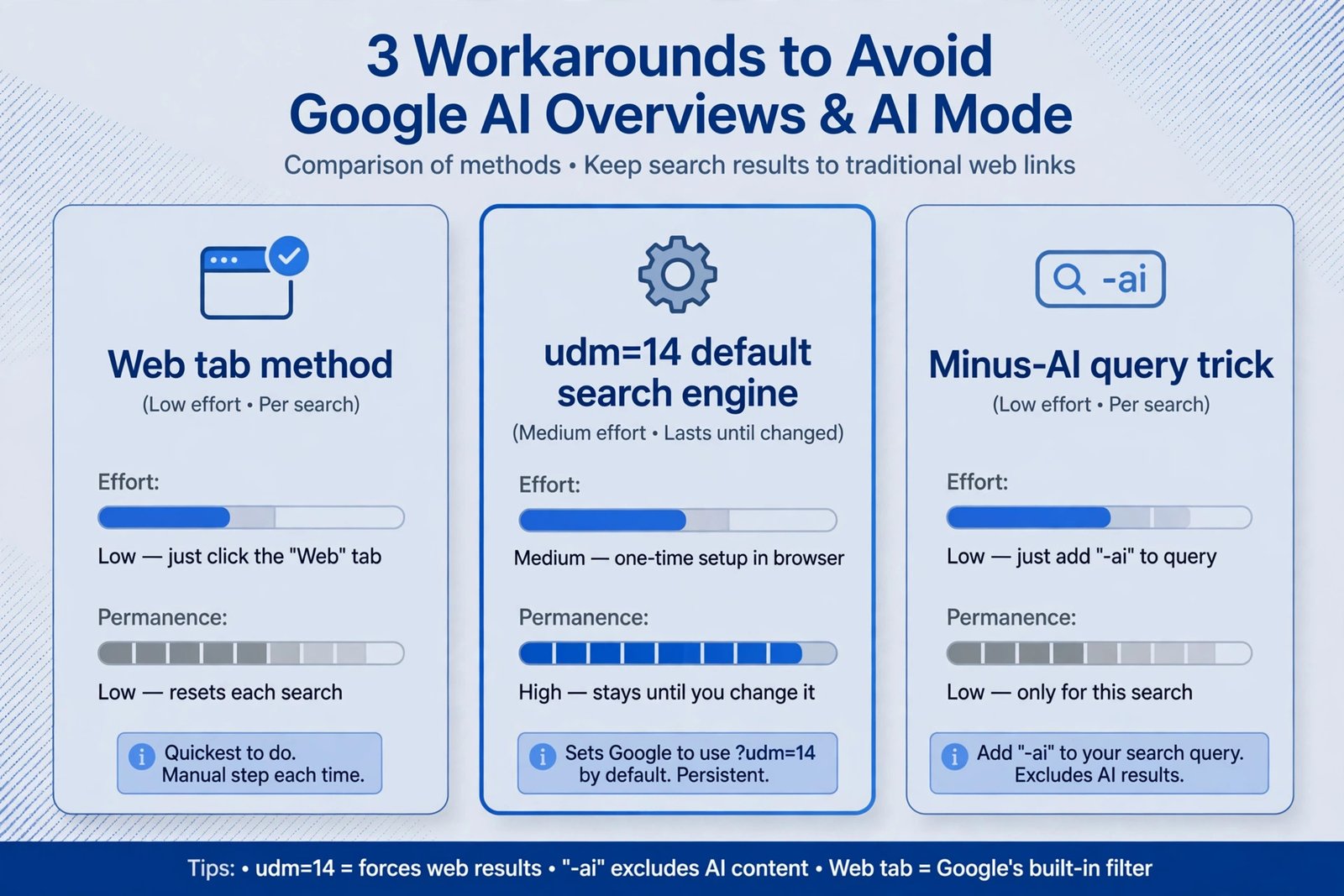
None of these is a true off switch. The udm=14 method simply feels the most permanent because you set it once and forget it, while the other two are habits you repeat.
What these methods do not fix
Workarounds have edges. Knowing them now saves you a surprise later.
- There is no official permanent off switch for most accounts, and none of these create one. They change what you see, not what Google offers.
- On phones, the setup is different, not impossible. The Web filter works on any phone browser if you tap it after each search. Firefox on Android also takes the udm=14 address as a custom search engine, and Chrome on Android can use a udm=14 page as its homepage. Safari and Chrome on iPhone cannot add a custom search engine, so the per-search Web filter is the only route there. The phone steps are in the section above.
- The web-only view loses some extras. Knowledge Panels, instant answers, and media carousels go away along with the AI. If you lean on those, the per-search Web tab may suit you better than the permanent default.
- Workarounds can break. If Google retires the udm=14 parameter or changes how the minus operator behaves, these tricks stop working with no notice. Treat them as conveniences, not contracts.
- Phone AI is a separate problem. If the AI features bothering you live on your phone rather than in search results, like the assistant that answers when you hold the home button, that is controlled in your phone’s settings, not in Google Search.
Frequently asked questions
Why did the Search Labs toggle disappear?
The Labs toggle never switched AI Mode itself off. It switches the AI Mode experiment, which is an opt-in test bed. AI Mode and AI Overviews are now built into Search for most accounts, so there is no toggle left to find. Availability still varies by account, device, and region, and Google notes on its help page that it is currently updating its Search settings, so labels and menus may shift.
Does typing -ai change my actual results?
Only slightly. It excludes pages containing the word AI, which is why the Overview vanishes. For queries about AI topics, skip this trick and use the Web tab instead, so you do not filter out the very pages you want.
I actually like AI answers sometimes. Do I have to give them up?
Not at all. Keep the classic web view as your default and call on AI help when you want it, for example by asking your questions in a dedicated AI app instead of inside Search. Our roundup of trending AI apps worth trying is a good place to start.
Could the Web tab disappear too?
Google has not announced any plan to remove it, and the company has publicly pointed to it as the links-only option. That said, Google redesigns its results pages often. If the tab moves, check under the More menu before assuming it is gone.
The off switch is gone, but you are not stuck. One click handles a single search, a few keystrokes dodge an unwanted summary, and three minutes of setup buys you an AI-free default. Pick the one that matches your patience, and stop hunting for a toggle that no longer exists.

- How Much VRAM Do You Need to Run Local AI Models (With Sizing Table) - November 27, 2026
- How to Clone an SSD to a Larger SSD on Windows 11 (Free Tools) - November 26, 2026
- How to Turn Off Copilot in Microsoft Edge (4 Switches) - November 25, 2026