
You try to delete a leftover folder from an old Windows install and get “Access denied.” You open a file from a rescued hard drive and Windows says you do not have permission. In both cases the fix is the same: you need to become the owner first. That is what the takeown command does, and this guide walks the whole procedure, including the follow-up step most tutorials leave out.
Ownership vs Permissions: The Distinction That Matters
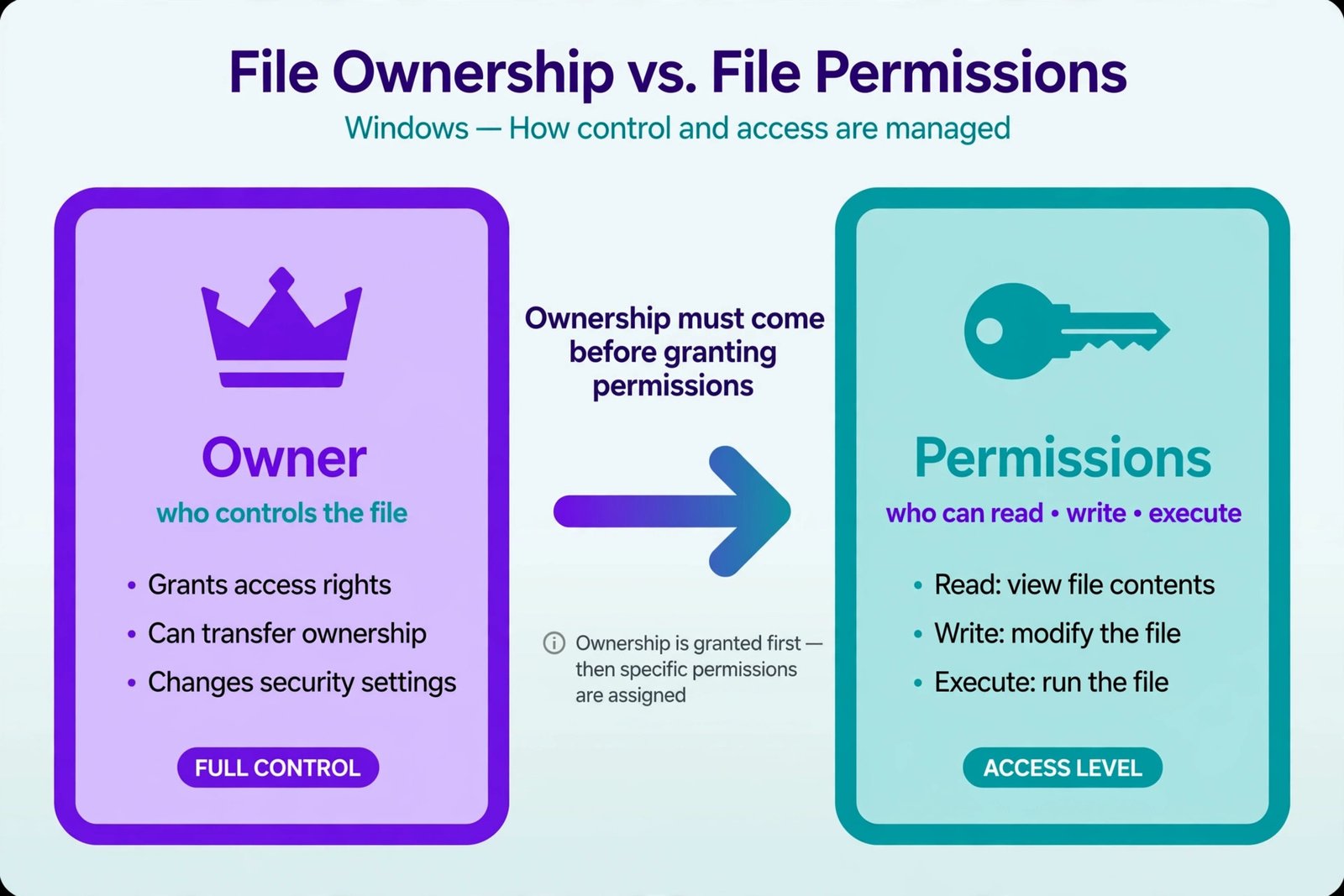
Every file and folder on an NTFS drive has an owner, and separately, a list of permissions saying who may read, write, or delete it. These are two different things. takeown changes only the owner. Becoming the owner gives you the right to change the permissions, but it does not automatically grant you access. That is why step two of this procedure uses icacls to grant yourself full control afterward. Skip that step and you will own a file you still cannot open.
Step 1: Open an Elevated Command Prompt
takeown only works with administrator rights. Press the Windows key, type cmd, right-click Command Prompt, and choose Run as administrator. Click Yes on the User Account Control prompt. If the window title does not say “Administrator,” close it and try again: without elevation every command below will fail.
Step 2: Take Ownership
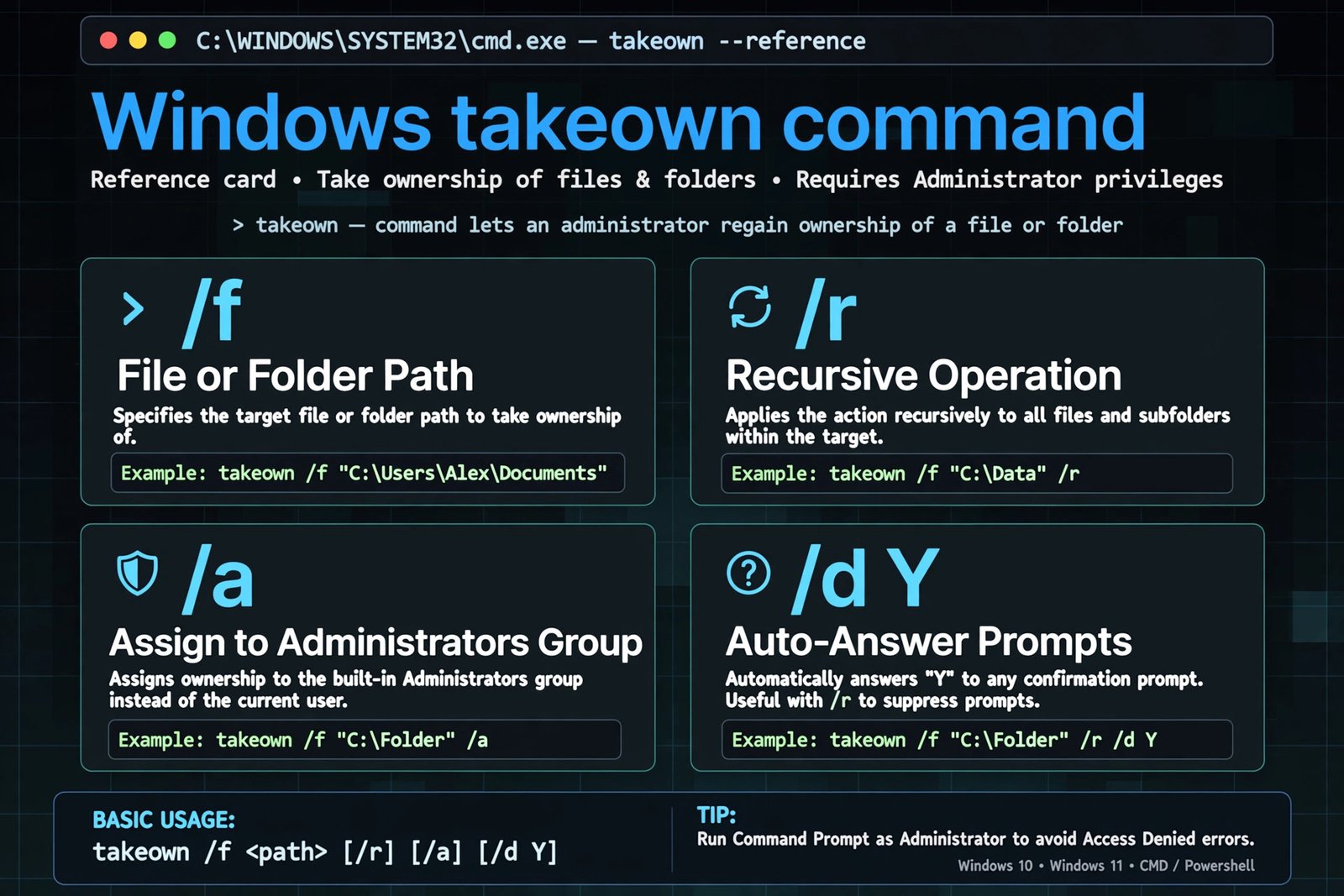
The basic pattern is takeown /f followed by the path. Here are the variations you will actually use, from simplest to most thorough.
Take ownership of a single file
takeown /f "D:\Photos\old-backup.zip"Use quotes around any path containing spaces. On success you will see: SUCCESS: The file (or folder) is now owned by your user account.
Take ownership of a folder and everything inside it
takeown /f "D:\OldWindows" /r /d yThe /r flag recurses through all subfolders and files. The /d y flag auto-answers “yes” to the confirmation prompt that appears when you lack list permission on a directory, so a big job runs unattended. Expect one success line per object; on a large folder that is a lot of scrolling text, which is normal.
Give ownership to the Administrators group instead of yourself
takeown /f "D:\Shared" /a /r /d yThe /a flag assigns ownership to the local Administrators group rather than your personal account. Prefer this for shared folders or anything another admin might need to manage later: it keeps recovery repeatable instead of tying the folder to one person.
Parameter Reference
| Parameter | What it does | When to use it |
|---|---|---|
/f | Specifies the file, folder, or pattern to take ownership of | Every takeown command; wildcards and UNC paths allowed |
/r | Recurses through all subfolders and files | Whole-folder takeovers, old installs, rescued drives |
/a | Gives ownership to the Administrators group | Shared resources, servers, anything another admin may touch |
/d y | Auto-answers yes to permission prompts | Unattended runs on folders you cannot currently list |
/s, /u, /p | Target a remote computer with credentials | Administering another PC on your network |
Step 3: Grant Yourself Permissions with icacls
This is the step most guides skip, and the reason people report that “takeown did not work.” Ownership alone does not open the file. Grant full control now:
icacls "D:\OldWindows" /grant administrators:F /tThe /t flag applies it through all subfolders, matching the recursive takeover. Replace administrators with your username if you took personal ownership in step 2. After this command, you can read, modify, or delete the files normally.
Step 4: Verify It Worked
- Run
icacls "D:\OldWindows"and check that your account or Administrators shows(F)for full control. - Run
dir /Q "D:\OldWindows"to display the owner of each item in the listing. - Simply try the operation that failed before: delete, move, or open the file. If it works, you are done.
When Not to Use Takeown
takeown is safe on your own data, but reckless on the operating system. Do not run it recursively on C:\, C:\Windows, or C:\Program Files. Changing ownership of system files can break updates, Windows Security, and installed programs in ways that are painful to undo. If Windows itself is denying you access to a system location, that is usually the system protecting you, not a problem to bulldoze through.
Also note the difference between “access denied” and other errors. If a file is locked because a program has it open, ownership will not help; see our guide to fixing the file is open in another program error instead. And if you are fighting impossibly long paths rather than permissions, the destination path too long fix is the right tool.
Our Take
takeown plus icacls is the correct two-punch combination for reclaiming files from old installs, rescued drives, and deleted user accounts. Use /a for anything shared, always follow up with the grant, and keep it away from Windows system folders. If you are recovering data from a failing drive rather than fighting permissions, read our guide to recovering deleted files in Windows before you touch anything.

- How to Fix Windows 11 Search Not Finding Files - October 24, 2026
- How to Fix Windows 11 Clock Showing the Wrong Time - October 23, 2026
- How to Fix File Explorer Slow to Open in Windows 11 - October 22, 2026