
A factory reset reinstalls Windows 11 and returns the PC to a clean state. It is the right move when a PC keeps crashing, runs slowly after every other fix, or is about to change owners. The built-in tool is called Reset this PC, and it works on the current versions, Windows 11 26H2 and 25H2, as of November 2026.
The short version: open Settings, go to System, then Recovery, and click Reset PC. Choose Keep my files to repair a PC you will keep, or Remove everything to wipe it for a new owner. Then pick Cloud download or Local reinstall and follow the prompts. Microsoft says the process typically takes 30 minutes to 2 hours, so start it when you do not need the computer for a while.
Try a lighter fix first
A reset is the most disruptive of the everyday recovery options, and Microsoft lists it last for that reason. If Windows still starts, try the smaller fixes first, because one of them may solve the problem without removing anything.
- Run a troubleshooter. Go to Settings, then System, then Troubleshoot, then Other troubleshooters, and run the one that matches the problem.
- Reinstall Windows using Windows Update. On Windows 11 version 22H2 or later, this reinstalls the current version while keeping your files, apps, and settings. It sits on the same Recovery page, under Reinstall now.
- Roll back with point-in-time restore. On Windows 11 version 24H2 or later, this returns the whole PC to a recent automatic restore point. Check System, then Recovery, then Point-in-time restore to see whether one exists from before the trouble started.
- Uninstall a recent update. If the problem began right after an update, removing that update can fix it without touching your files or apps.
If none of these helps, or if the PC is being handed to someone else, a reset is the right next step.
Before you reset: back up and find your BitLocker key
A reset removes your apps and settings even when you choose Keep my files, so back up before you start. Copy documents, photos, and anything you cannot replace to an external drive or a cloud folder, and note the programs to reinstall afterwards. Windows Backup, under Settings, then Accounts, then Windows Backup, can save your apps and settings to your Microsoft account.
The step people most often miss is the BitLocker recovery key. Many Windows 11 laptops encrypt the drive automatically, and the recovery environment can ask for the key before it lets you reset. The key is a 48-digit number, and Microsoft states that its support team cannot retrieve, provide, or recreate a lost one, so find yours before you begin. If the key was saved to your Microsoft account, look it up from another device at aka.ms/myrecoverykey after signing in. Microsoft also has a guide to finding your BitLocker recovery key that covers printouts, USB drives, and work or school accounts. Since Windows 11 version 24H2, the recovery screen shows a hint of the Microsoft account the key belongs to.
Also plug a laptop into power before you start. A reset that loses power halfway through can leave Windows unable to start.
Reset from Settings, step by step
If Windows still opens and you can sign in, Settings is the simplest place to start, as Microsoft documents in its Reset your PC guide.
- Press Windows key + I to open Settings.
- Select System in the left-hand menu, then scroll down and select Recovery.
- Under Recovery options, find Reset this PC and click Reset PC.
- Choose Keep my files or Remove everything. The table below explains what each one does.
- Choose Cloud download or Local reinstall, then follow the on-screen prompts and click Reset.
| Choice | Personal files | Apps and settings | Best for |
|---|---|---|---|
| Keep my files | Kept | Removed | Repairing a PC you will keep using |
| Remove everything | Removed | Removed | A fresh start, or a PC that is changing owners |
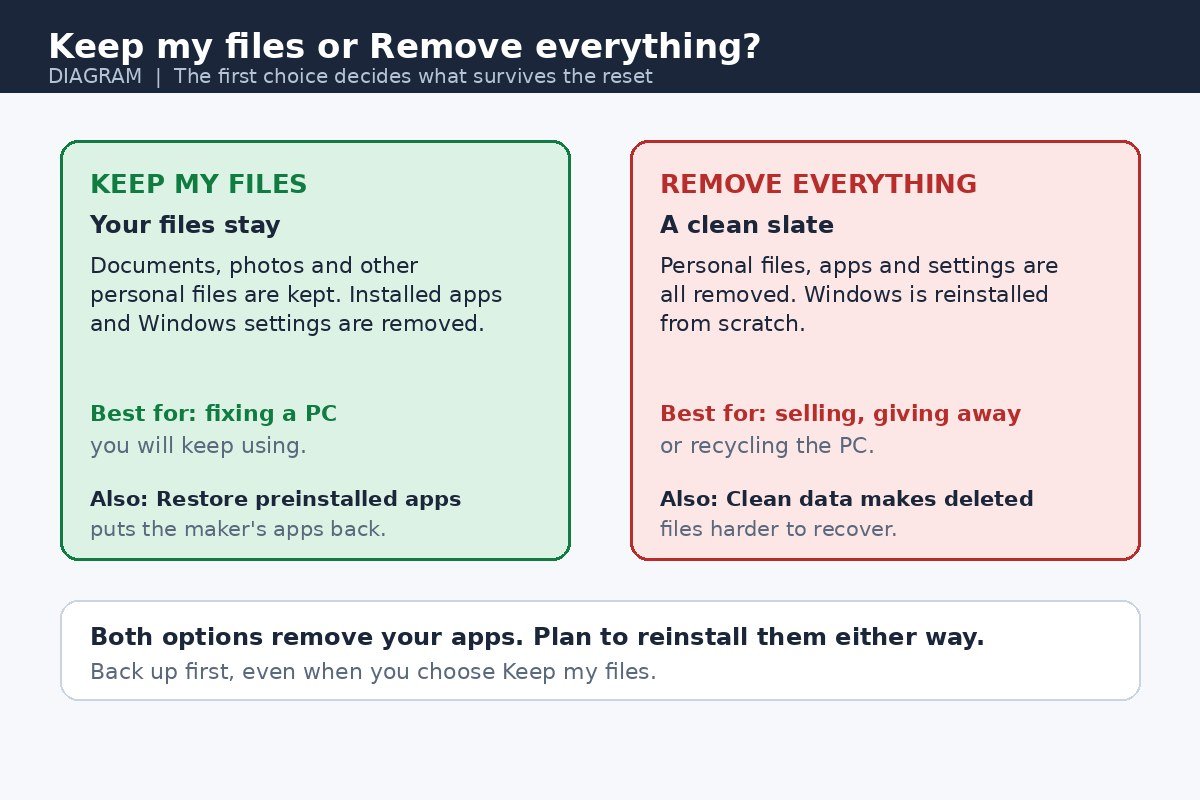
Keep my files is also called Refresh. It reinstalls Windows while keeping your documents, photos, and other personal data, but it removes your installed programs and resets your settings. It offers an extra switch, Restore preinstalled apps, which puts back the apps and settings that came from the PC maker. Remove everything is the true factory reset. It reinstalls Windows and removes all personal files, apps, and settings, which makes it the right choice for a fresh start or a PC that is being sold, donated, or recycled. With Remove everything, an extra switch called Clean data appears. Turning it on removes files and cleans the drive, which takes longer but makes it harder for someone else to recover what you deleted, so use it whenever the PC is leaving your hands. Microsoft describes this data erasure as aimed at everyday users, not as meeting government or industry erasure standards.
Cloud download fetches a fresh copy of Windows from Microsoft, with the latest updates included, and it is the better pick when the files on your PC may be damaged. It needs a stable internet connection and downloads several gigabytes. Local reinstall uses the files already on the PC, so it is faster on a slow connection, but it may not include the latest updates. Either way, the PC restarts several times, and the screen may go black for a long stretch, sometimes more than 15 minutes. Do not restart the PC yourself during the reset, because Microsoft warns that doing so can make the reset fail. If you need a deeper wipe than a reset, for example before disposing of a drive entirely, our guide to formatting your laptop step by step explains how that differs from a reset.
Reset when Windows will not start
If Windows will not reach the desktop, or you cannot sign in, you can still reset from the Windows Recovery Environment, known as WinRE, with the same choices as in Settings.
- On the sign-in screen, hold Shift, click the Power icon in the bottom-right corner, then click Restart. Keep holding Shift until the blue Choose an option screen appears.
- Select Troubleshoot.
- Select Reset this PC.
- Choose Keep my files or Remove everything, then Cloud download or Local reinstall, and follow the prompts.
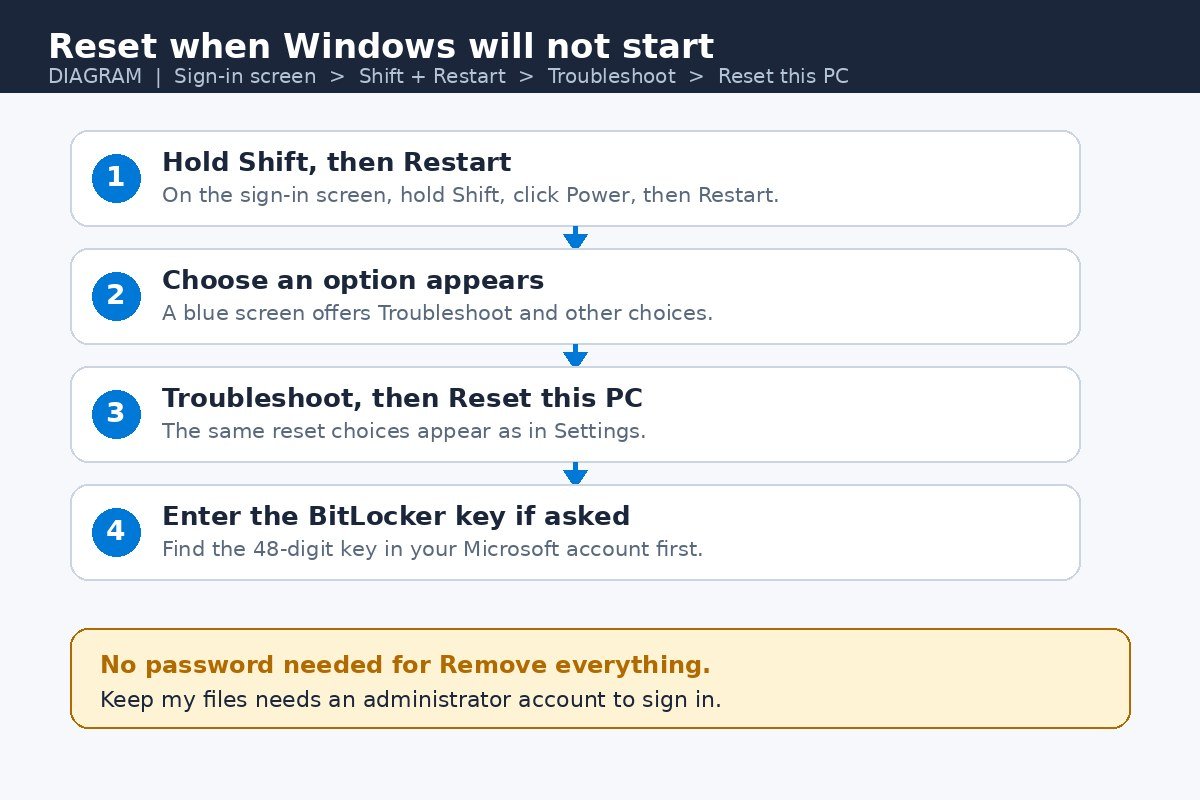
Two other routes lead to the same screen. From inside Windows, go to Settings, then System, then Recovery, and click Restart now under Advanced startup. If Windows fails to start twice in a row, it usually opens the recovery environment on its own through Automatic Repair. If the drive is encrypted, WinRE asks for the BitLocker recovery key before it lets you continue. Keep my files asks you to sign in with an administrator account, so if you have forgotten every password, Remove everything is the option that still works.
What happens after the reset
When the reset finishes, Windows opens the first-time setup screens, the same ones a new PC shows. You pick a language and region, connect to Wi-Fi, and sign in. Your personal files are there if you chose Keep my files, and gone if you chose Remove everything. Everything else needs attention.
- Apps are gone either way. Every program you installed yourself must be reinstalled from its own installer or the Microsoft Store.
- Settings start over. Wi-Fi passwords, paired Bluetooth devices, and custom settings return to their defaults. If Wi-Fi will not connect afterwards, our guide to resetting network settings in Windows 11 walks through the network side of the cleanup.
- Drivers mostly come back on their own. Windows Update installs the drivers most hardware needs. For a laptop, the maker support site still has the newest drivers for things like the fingerprint reader or special function keys.
- Windows usually reactivates itself. The digital licence is tied to the PC hardware, so in most cases a reset does not ask for a product key. If activation fails, check Settings, then System, then Activation, and sign in with the Microsoft account the licence is linked to.
- Preinstalled maker apps return only if you asked for them. With Keep my files and Restore preinstalled apps switched on, they come back. With Remove everything, they do not.
Before doing anything else, run Windows Update until no updates remain, then restore your files from the backup and reinstall your programs. Also sign into the apps that need a licence, such as Microsoft 365, so they do not hit their device limit later.
When the reset fails
Most failed resets have a straightforward cause. Match the symptom to the fix in the table below before starting over.
| Problem | Likely cause | Fix |
|---|---|---|
| Reset is stuck on a percentage | It is still working, or the screen has gone black | Wait at least an hour. The screen can stay black for 15 minutes or more |
| There was a problem resetting your PC | Damaged recovery files on the PC | Try Cloud download instead of Local reinstall, so Windows comes from Microsoft rather than the damaged files |
| Not enough space | The drive is too full to hold the new Windows files | Free space under Settings, then System, then Storage, and delete large files or uninstall apps before retrying |
| Cloud download fails | No stable internet connection | Switch to Local reinstall, or connect the PC to a wired network and try the download again |
| Asked for a BitLocker key you do not have | The encrypted drive will not unlock without it | Find the 48-digit key in the Microsoft account used on the PC. Without it, Remove everything is the only reset that can proceed |
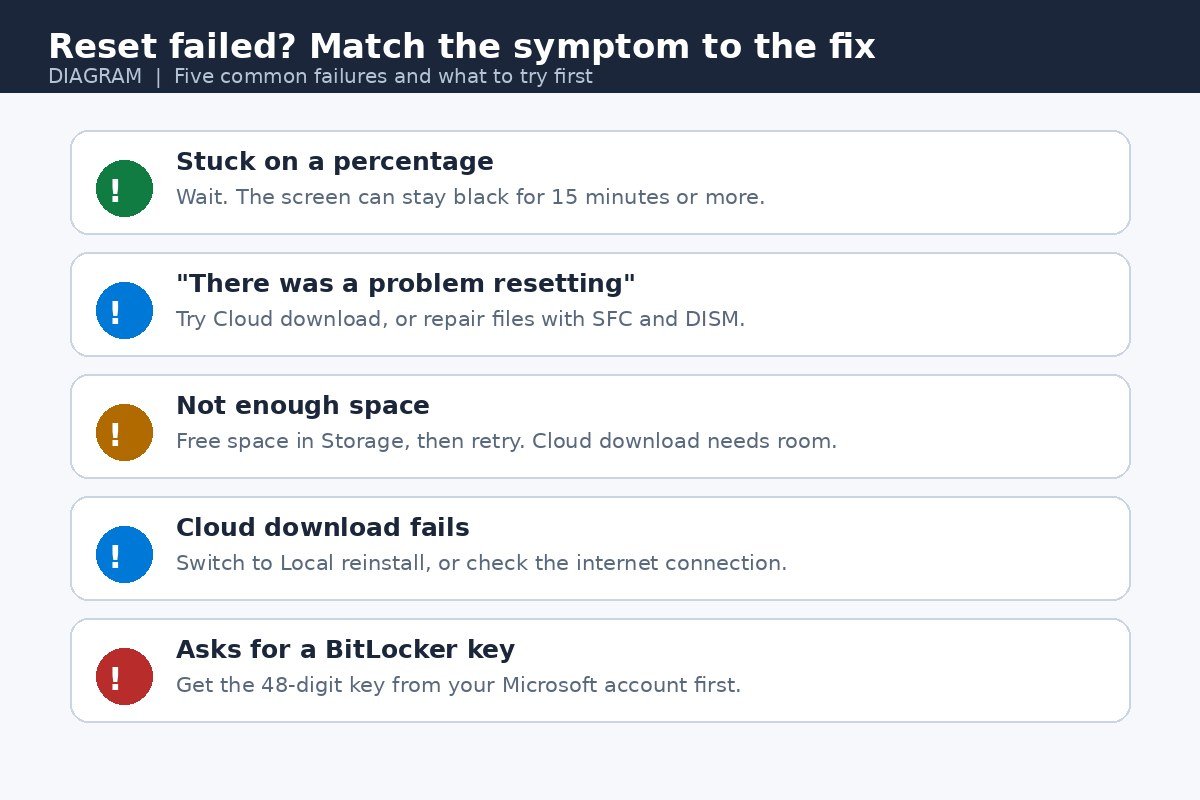
If the message “There was a problem resetting your PC” keeps appearing with both download options, the system files the reset relies on may be damaged. Repair them first from an administrator Command Prompt with the two commands Microsoft documents for system file repair: sfc /scannow, then DISM /Online /Cleanup-Image /RestoreHealth. Restart the PC after they finish and try the reset again. On recent Windows 11 versions, the Recovery page may also offer a Rebuild PC option, also called Cloud rebuild, which reinstalls Windows with a fresh copy of Windows and drivers from Windows Update when Reset this PC does not fix the problem. It removes all personal files, apps, and settings, so back up first. If every built-in option fails, the last resort is installation media: download the Windows 11 installer on another working PC, create a bootable USB drive of at least 8 GB, and reinstall from it.
A factory reset is a strong tool, and that is why it works when nothing else does. Back up first, keep the BitLocker key within reach, pick the option that matches what the PC is for, and let the process finish without touching the power button. After that, a clean install and a short round of updates leave the PC ready to use again, or ready for its next owner.

- How to Factory Reset Windows 11 - November 17, 2026
- Turn Off Finish Setting Up Your Device in Windows 11 - November 16, 2026
- How to Turn Off Suggested Actions in Windows 11 - November 15, 2026