
You know a file is on your PC. You can see it in File Explorer when you open the right folder. Yet when you type its name into search, Windows shrugs and shows nothing. That gap between what is stored and what search can find is almost always an indexing problem, not a missing file problem. Windows search does not scan your whole drive each time you type. It looks in an index, a catalog of file names and locations that Windows builds. When that catalog is incomplete, out of date, or looking in the wrong places, files disappear from results even though they are safe on disk.
The fixes below are ordered by how often each one solves the problem. Start at the top, test your search after each fix, and stop as soon as your file shows up. Most cases end at Fix 1 or Fix 2.
First, work out which search is failing
Windows has more than one search box, and they do not all behave the same way. Naming the broken one saves you from fixing the wrong thing.
- Start menu search. Press the Windows key and type. This searches apps, settings, files, and web results together.
- File Explorer search. Open a folder and use the search box at the top right. This searches inside that folder and its subfolders.
- Settings search. The search box at the top of Settings only searches settings pages, never your documents.
Try the same file name in both Start search and File Explorer search. If File Explorer finds it when you search inside its own folder but Start search does not, the file is probably outside the indexed locations, which is exactly what Fix 1 and Fix 2 address. If neither search finds it anywhere, the index itself may be damaged, and Fix 4 is the one to aim for. If Start search returns web pages but no local files, the local index is the suspect, not your internet connection. Windows also mixes web results into Start search, and if those results are getting in your way, turning off Bing web results in Start menu search makes the local results easier to read, though it does not repair the index itself.
Fix 1: Switch search to Enhanced mode
When this works: the missing file lives outside the usual Documents, Pictures, Desktop, and Downloads folders, for example in a folder on another drive, a project folder on the desktop of a second drive, or a folder you created at the root of a drive.
By default, Windows 11 search uses Classic mode. Classic mode only indexes a small set of standard folders. Anything stored elsewhere is invisible to Start search, no matter how many times you type its name correctly. Enhanced mode tells Windows to index your entire PC, which is the single most common fix for this problem.
- Press Windows key + I to open Settings.
- Go to Privacy and security, then Searching Windows.
- Under Find my files, select Enhanced.
- Wait for indexing to finish. The same page shows indexing progress. On a PC with many files this can take a while, and search results improve gradually as more files are indexed. You can keep using the PC while it works.
- Search for your file again once the page reports that indexing is complete, or at least well under way.
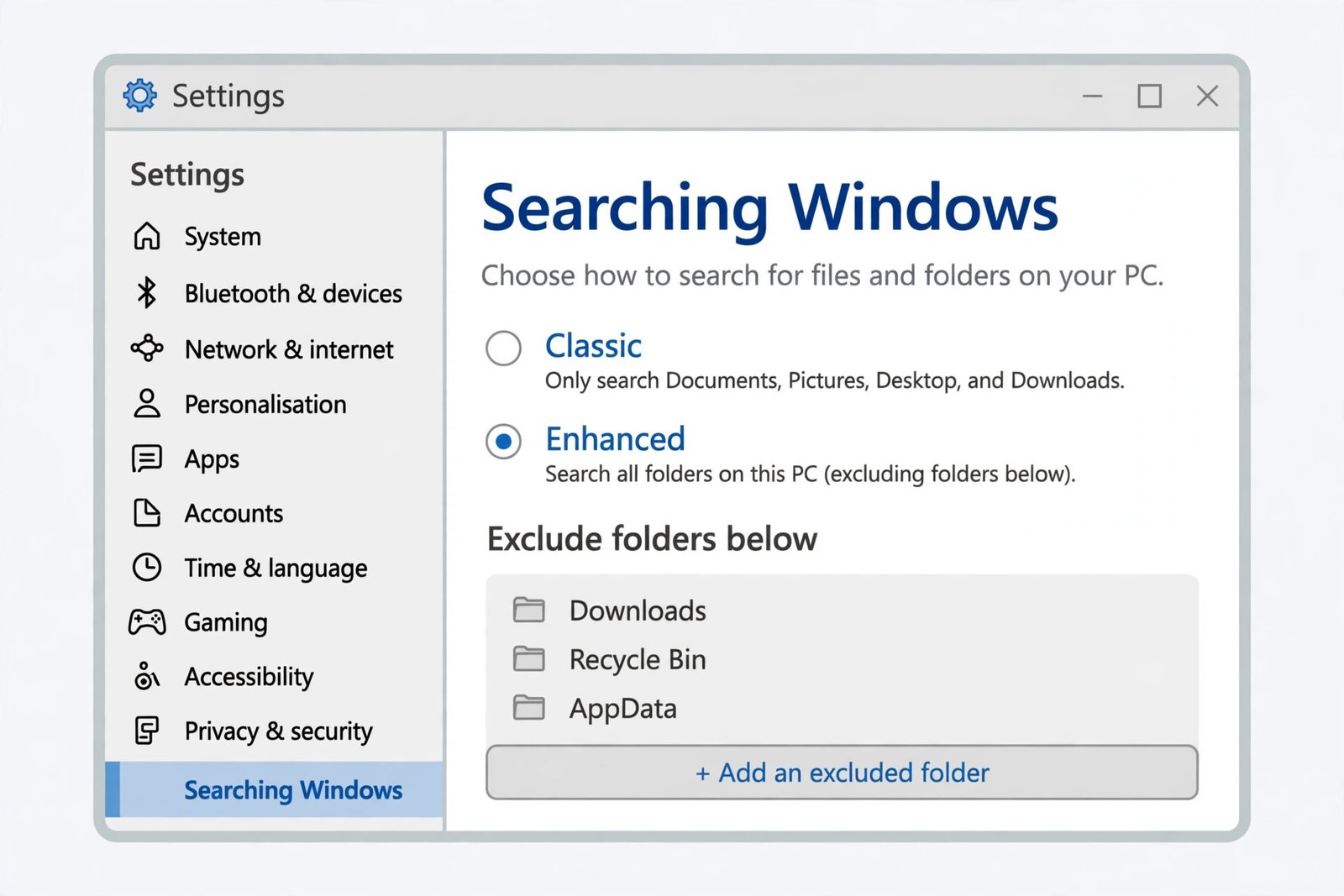
You should now see: files from folders outside Documents and Pictures appearing in Start search results.
Fix 2: Remove the folder from the exclusion list
When this works: you already use Enhanced mode, or you switched to it in Fix 1, but one particular folder still never appears in results.
Enhanced mode still skips a list of excluded folders, shown on the same Searching Windows page under the heading for excluded folders. System folders and app data folders are excluded on purpose, but a folder you care about can end up on that list too, especially if it was added during a previous troubleshooting attempt or by an older Windows version.
- Go back to Settings, Privacy and security, Searching Windows.
- Scroll to the excluded folders list under the Enhanced option.
- Find the folder that holds your missing file. If it is listed, select it and choose Remove.
- Give Windows time to index the newly included folder, then search again.
Do not remove system folders from the exclusion list just to be thorough. Only include folders where you actually keep documents, photos, or work files you search for.
Fix 3: Add the folder to the index directly
When this works: the file sits on an external drive, a second internal drive, or a network location that Windows has never indexed, and Enhanced mode alone has not picked it up yet.
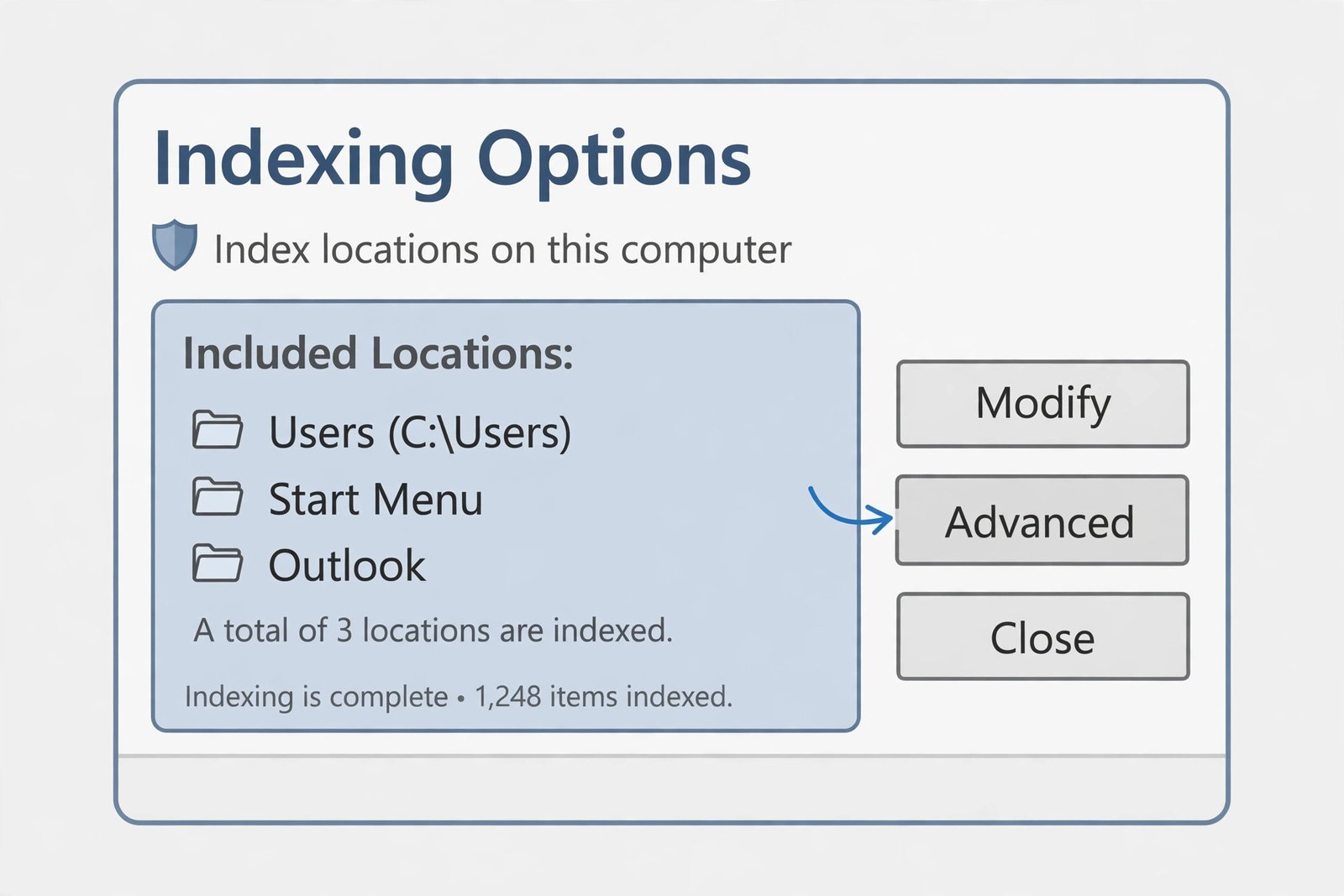
- On the Searching Windows page, select Advanced indexing options near the bottom of the page.
- In the Indexing Options window, check the list of included locations. If your folder is missing, click Modify.
- Tick the checkbox next to the drive or folder you want indexed, then click OK.
- Wait for indexing to finish, then test the search again.
Fix 4: Rebuild the search index
When this works: files that used to appear in search have stopped appearing, results look stale, or search finds old file names for files you renamed or moved. Those are signs of a damaged index, not a wrong setting.
Rebuilding deletes the old catalog and builds a fresh one from scratch. Your files are not touched. Only the catalog is rebuilt, so nothing is deleted from your documents or photos.
- Open Settings, Privacy and security, Searching Windows, then select Advanced indexing options.
- In the Indexing Options window, click Advanced. Approve the administrator prompt if one appears.
- Under Troubleshooting, click Rebuild, then OK to confirm.
- Leave the PC on while the rebuild runs. Depending on how many files you have, it can take from a few minutes to several hours, and search results will be incomplete until it finishes. Plug a laptop into power so it does not sleep partway through.
- When the Indexing Options window reports that indexing is complete, search for your file again.
Fix 5: Restart the Windows Search service
When this works: search is blank, frozen, or behaves oddly even after a rebuild, or the search box itself stops responding. A stuck background service can block everything the index tries to do.
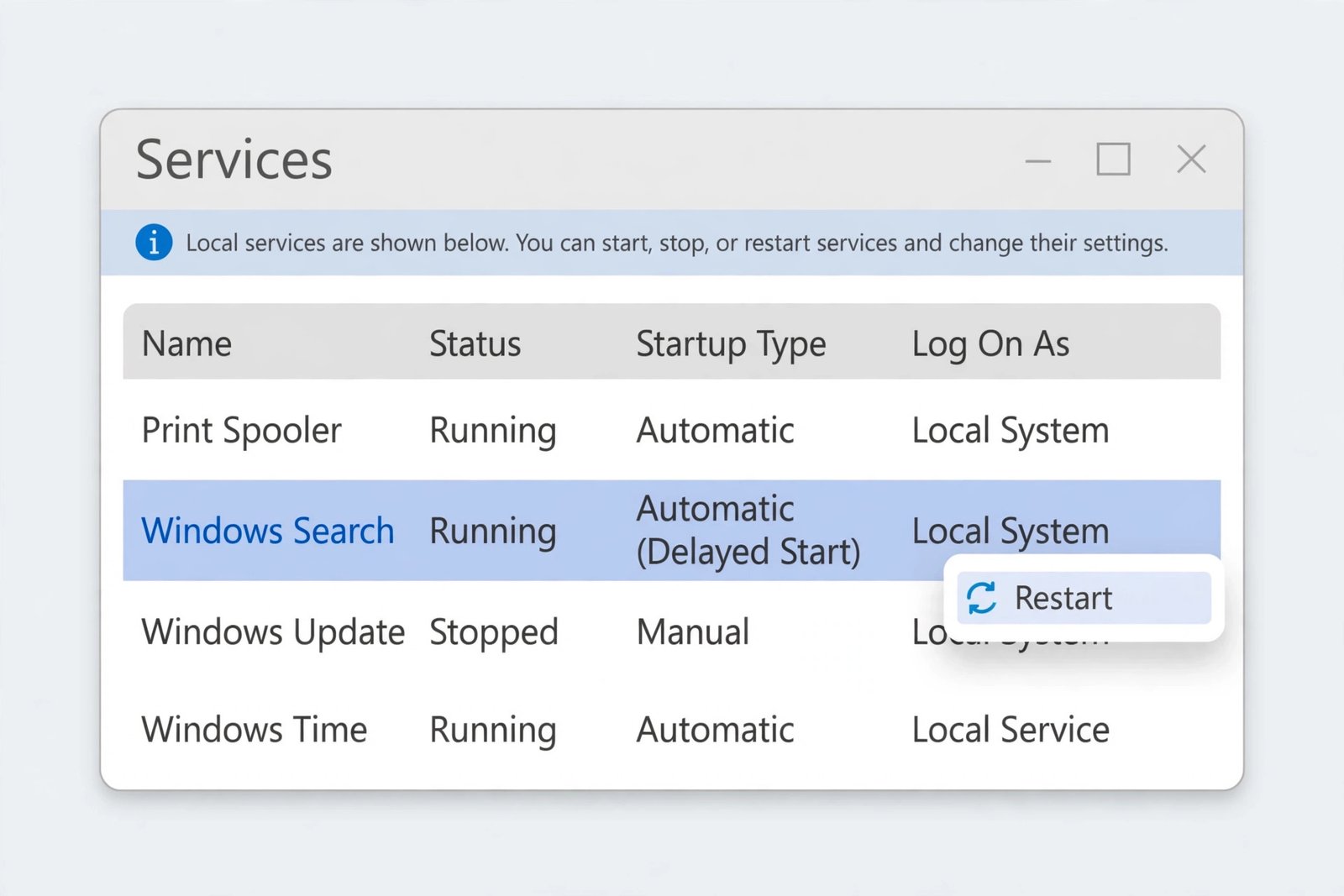
- Press Windows key + R, type services.msc, and press Enter.
- Scroll the list to find Windows Search.
- Right-click it and choose Restart. If Restart is grayed out, the service is stopped, so right-click it, choose Properties, set Startup type to Automatic (Delayed Start), click Start, then OK.
- Wait a minute, then try your search again. Microsoft documents the official steps for fixing problems in Windows Search, including the search troubleshooter, if the service restart alone does not help.
Fix 6: Check the details search is actually indexing
When this works: search finds a file by name but not by a word inside it, or it misses certain file types entirely, such as PDFs or text files with unusual extensions.
Windows indexes file names by default, but indexing the contents inside files is a separate setting, controlled per file type. That distinction explains a confusing pattern: you search for a document title and find it, but you search for a phrase inside the document and get nothing.
- Open Advanced indexing options as in Fix 4, click Advanced, then go to the File Types tab.
- Find the extension of your missing file, for example docx, pdf, or txt, and check whether it is set to Index Properties and File Contents rather than properties only.
- If the extension is missing or set to properties only, change it and click OK, then allow time for reindexing.
- Also check the drive itself: in File Explorer, right-click the drive, choose Properties, and make sure Allow files on this drive to have contents indexed is ticked on the General tab.
One more check belongs here. Open the folder that holds the file and confirm it is really there, under the name you are searching for. A file in Downloads instead of the folder you remember, or a file still inside a zip archive, will not match your search, and no index fix will change that.
Match your symptom to the fix
| What you notice | Most likely fix |
|---|---|
| File is outside Documents, Pictures, or Downloads | Fix 1: Switch to Enhanced mode |
| One folder never appears, everything else does | Fix 2: Remove it from the exclusion list |
| File is on another drive or an external drive | Fix 3: Add the folder to the index |
| Results are stale or files that used to appear are gone | Fix 4: Rebuild the search index |
| Search is blank, frozen, or unresponsive | Fix 5: Restart the Windows Search service |
| Found by file name but not by words inside it | Fix 6: Check file contents indexing |
Most Windows 11 search problems end with a wider index: Enhanced mode on, the right folder included, and enough time for indexing to finish. If you have worked through all six fixes and a file on a connected, indexed drive still does not appear, the next step is a new user profile test, since a damaged profile can break search while the index itself is healthy. Sign in with a different local account, search for a test file there, and if search works in the new profile, moving your files to a fresh profile is a cleaner answer than another rebuild.

- How to Fix Windows 11 Search Not Finding Files - October 24, 2026
- How to Fix Windows 11 Clock Showing the Wrong Time - October 23, 2026
- How to Fix File Explorer Slow to Open in Windows 11 - October 22, 2026