
Key facts
- Most dead laptop cameras are not broken. The usual cause is a closed privacy shutter, a switched-off camera key, or a privacy toggle a Windows update reset.
- Six fixes in likelihood order, from the 30-second physical checks to a driver reinstall and the BIOS setting.
- Each fix ends with a one-line result check.
- The built-in camera troubleshooter lives at Settings > System > Troubleshoot > Other troubleshooters > Camera.
A laptop camera that goes dark before a video call is miserable, and Windows 11 rarely says why. The cause is almost always a covered lens, a switched-off key, a privacy toggle, or a broken driver. Work through these 6 fixes in order and stop when your video returns.
- Fix 1: Open the privacy shutter and switch the camera key on
- Fix 2: Turn on camera access in privacy settings
- Fix 3: Run the Windows 11 camera troubleshooter
- Fix 4: Update or reinstall the camera driver in Device Manager
- Fix 5: Enable the camera in BIOS or UEFI
- Fix 6: Check your antivirus or security software
Try these quick checks before changing settings
- Restart the PC. A restart clears temporary states that can hold the camera in a failed condition.
- Test in the built-in Camera app. Open Start, type Camera, and open the app. If the preview works there but not in Zoom or Teams, the hardware and driver are fine. Skip to Fix 2.
- Close other apps that might be using the camera. Only one app can hold the camera at a time; a background Zoom can make Teams fail with error 0xA00F4243.
Fix 1: Open the privacy shutter and switch the camera key on
When this works: the camera stopped suddenly, apps show a black image or a crossed-out icon, or it never worked since you got the laptop.
- Look at the top bezel for a small slider next to the lens and slide it open. Many HP, Lenovo, and Dell laptops ship with one; while it is closed, no software setting can bring the picture back.
- Look along the F1 to F12 row for a key with a camera icon, sometimes with a line through it. Press it once; if nothing happens, hold Fn and press it (Fn + F8 on many Lenovo models).
- Open Start > Camera. If your preview appears, the hardware was switched off at the physical level and everything else is fine.
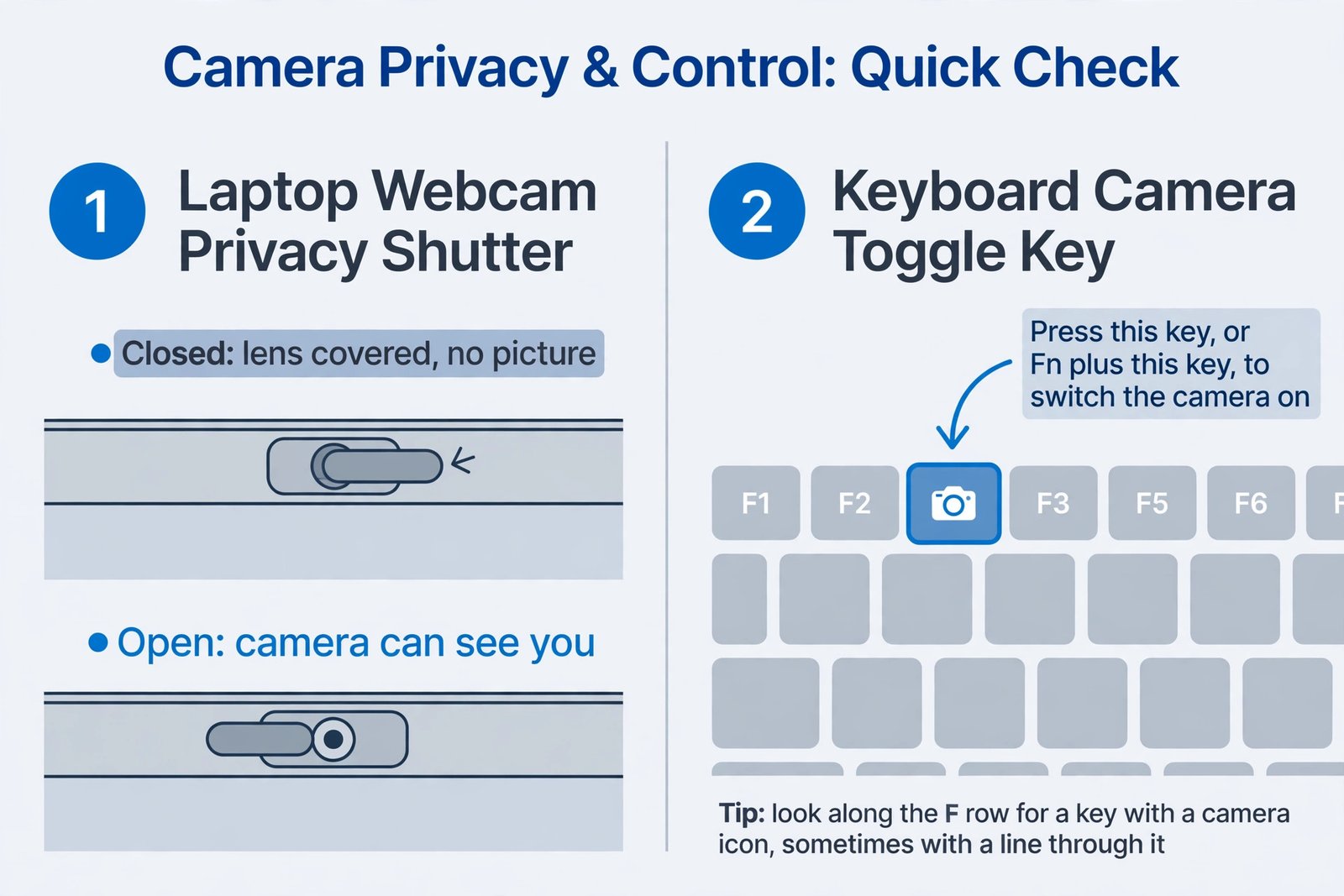
You should now see: your face in the Camera app preview. This step alone restores the camera when the shutter or key was the problem.
Fix 2: Turn on camera access in privacy settings
When this works: the camera worked before a recent Windows update, or some apps see it while others do not. Newer Windows 11 versions can reset app camera access after an update.
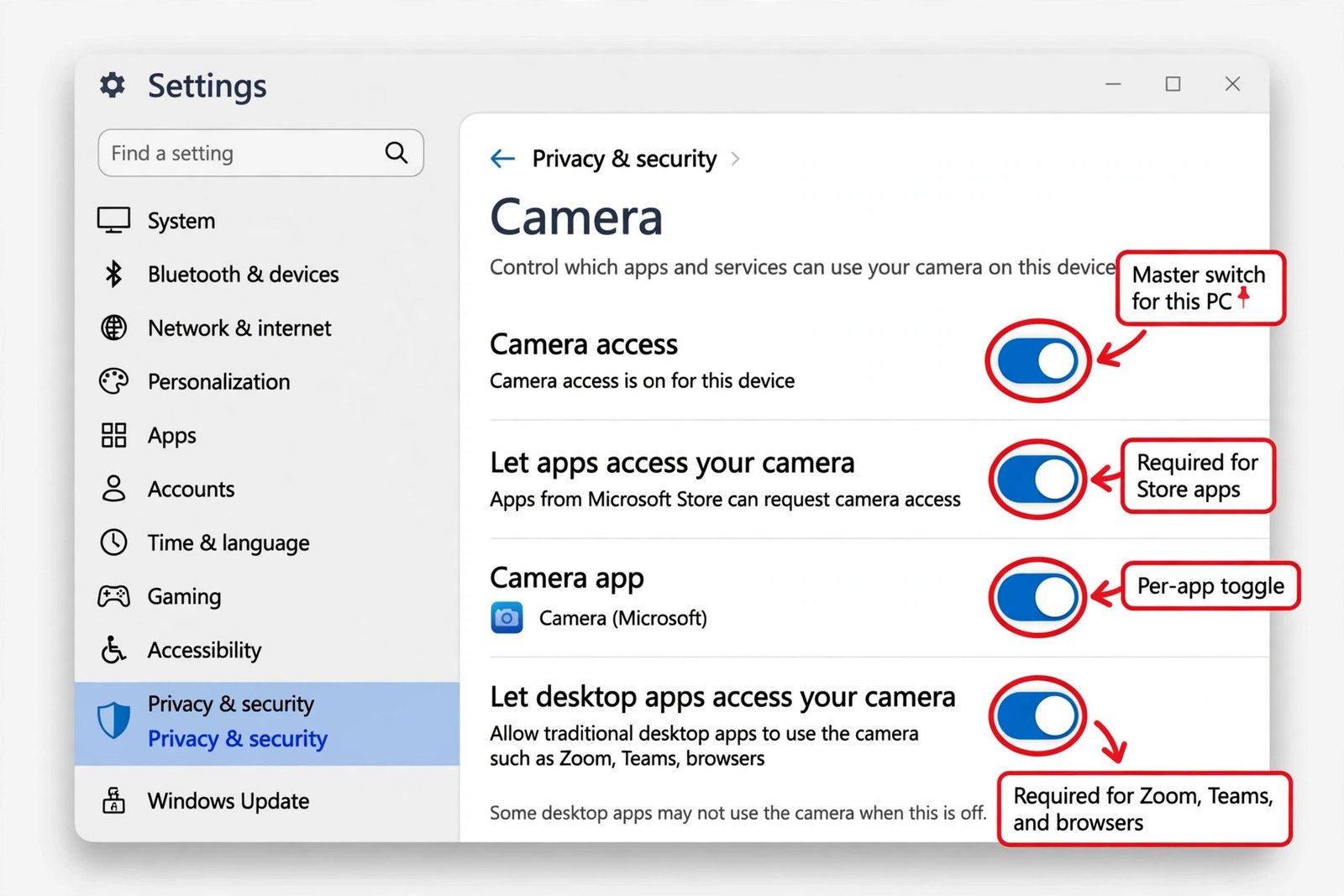
- Press Windows key + I to open Settings, then select Privacy & security in the left pane and Camera under App permissions.
- Turn on Camera access at the top; if it is off, no app can use the camera. If it is greyed out, an administrator controls the setting on a managed PC.
- Turn on Let apps access your camera and switch on the toggle for each app you want to allow. Only Microsoft Store apps appear in this list.
- Make sure Let desktop apps access your camera is on. Edge, Zoom, and Teams are desktop apps covered by this one shared toggle; they cannot be switched individually.
- Reopen the app you were using; an already-open app may not pick up the change.
Camera and microphone privacy sit side by side, and video calls need both. If people can see you but not hear you, our guide to a microphone that is not working on Windows covers the mic side.
You should now see: a live preview in the Camera app, and your meeting app lists the camera in its video settings.
Fix 3: Run the Windows 11 camera troubleshooter
When this works: the shutter is open, privacy looks right, and you want Windows to diagnose the rest.
- Select Start > Settings > System > Troubleshoot > Other troubleshooters, find Camera in the list, and select Run next to it. Follow the prompts and apply any fix it suggests.
- Alternative: open the Get Help app from Start and type camera troubleshooter. You can also reach it from Settings > Bluetooth & devices > Cameras by selecting your camera and choosing Troubleshoot.
Microsoft’s Camera does not work in Windows support page walks through symptoms and error codes such as 0xA00F4244 if the troubleshooter does not finish the job.
You should now see: the troubleshooter reports its findings, or the camera simply starts working.
Fix 4: Update or reinstall the camera driver in Device Manager
When this works: the camera is missing from apps, shows a warning icon, or broke right after an update.
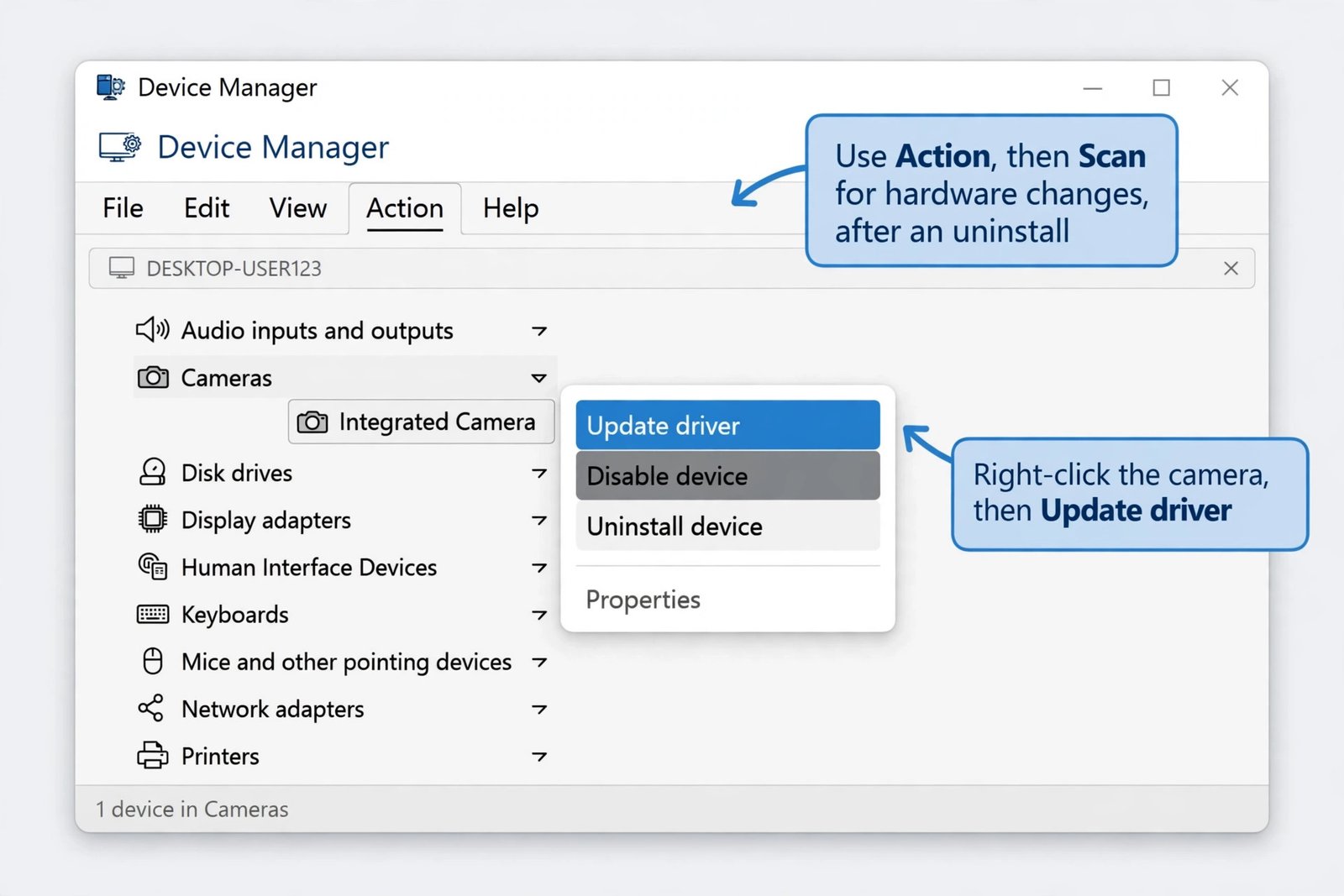
- Press Windows key + X, select Device Manager, and expand Cameras. On some laptops the camera appears under Imaging devices or Sound, video and game controllers.
- Right-click your camera. If the menu shows Enable device, select it and test. If it shows Disable device, the camera is already enabled.
- To update: right-click the camera, select Update driver, then Search automatically for drivers. Install anything found and restart.
- If it broke right after an update: right-click the camera, select Properties, open the Driver tab, choose Roll Back Driver, then Yes. Restart and test. Not every driver offers this button.
- For a clean reinstall: right-click the camera, select Uninstall device, tick Attempt to remove the driver for this device (it may read Delete the driver software for this device on some builds), confirm, then choose Action > Scan for hardware changes. Restart and test.
If the camera still does not reappear, Microsoft’s community thread on a camera missing in Device Manager collects further steps from its support advisors.
You should now see: the camera listed under Cameras with no warning icon, and a working preview in the Camera app.
Fix 5: Enable the camera in BIOS or UEFI
When this works: the camera does not appear in Device Manager even after Scan for hardware changes.
- Restart and press the setup key repeatedly as the laptop starts: F2 on Dell, Esc then F10 on HP, F1 or Enter on Lenovo.
- Find the camera setting: Dell puts it under Integrated Devices as Enable Camera; HP under Advanced or Device Configuration; Lenovo often under Security, then I/O Port Access. Set it to Enabled.
- Save and exit (usually F10), let Windows start, then open Device Manager and expand Cameras. The camera should now be listed.
You should now see: the camera reappears in Device Manager, ready for Fix 4’s driver steps.
Fix 6: Check your antivirus or security software
When this works: every setting looks right, yet apps show a black screen or an access-denied error.
- Open your security app and look for webcam protection, camera protection, or privacy protection.
- Check its blocked list for your meeting app or browser and add the app to the allowed list instead of disabling the protection.
- On a work or school PC, a greyed-out Camera access switch in Settings means your organization controls the setting, so ask your IT department.
You should now see: the blocked app opens the camera on its next launch.
Our Take: which fix to try first
Start with Fix 1: a closed shutter or switched-off camera key explains most sudden failures and costs under a minute. Fix 2 is the other half of the quick wins, especially after a Windows update. Run the Fix 3 troubleshooter before touching drivers. Driver work in Fix 4 is the right move when the camera misbehaves or goes missing after an update; the BIOS check in Fix 5 is rare but decisive when Device Manager shows nothing at all. Antivirus in Fix 6 comes last because it varies between products. If the Camera app shows your video but only Zoom or Teams fails, check that app’s own camera selection first.
Match your symptom to the fix
| What you notice | Most likely fix |
|---|---|
| Black image or crossed-out camera icon | Fix 1: Open the shutter and switch the camera key on |
| Camera works in the Camera app but not in Zoom, Teams, or a browser | Fix 2: Turn on camera access in privacy settings |
| Camera stopped working right after a Windows update | Fix 4: Roll back or reinstall the driver |
| Camera is missing from Device Manager entirely | Fix 5: Enable the camera in BIOS or UEFI, then rescan |
| Everything looks right but apps get an access error | Fix 6: Check your security software |
Most dead laptop cameras come back with one of the first two fixes, so check the shutter, the camera key, and the privacy toggles before reinstalling drivers. If all six fixes leave the Camera app dark, the camera module or its internal cable has likely failed, and that is a repair for your laptop maker’s service center rather than a settings problem.

- How to Fix a Laptop Camera Not Working in Windows 11 - October 23, 2026
- How to Fix the Brightness Slider Missing in Windows 11 - October 22, 2026
- How to Stop Phone Link From Opening on Startup in Windows 11 - October 21, 2026