
It is tiny, often under 100 MB, and it sits there in Disk Management looking like wasted space. So it is natural to wonder whether you can delete the System Reserved partition and reclaim it. The short answer is that on most PCs you should leave it alone, because deleting the partition your PC boots from means the PC no longer boots. There is exactly one situation where removing it is safe, and this guide covers the checks and the procedure for that case only.
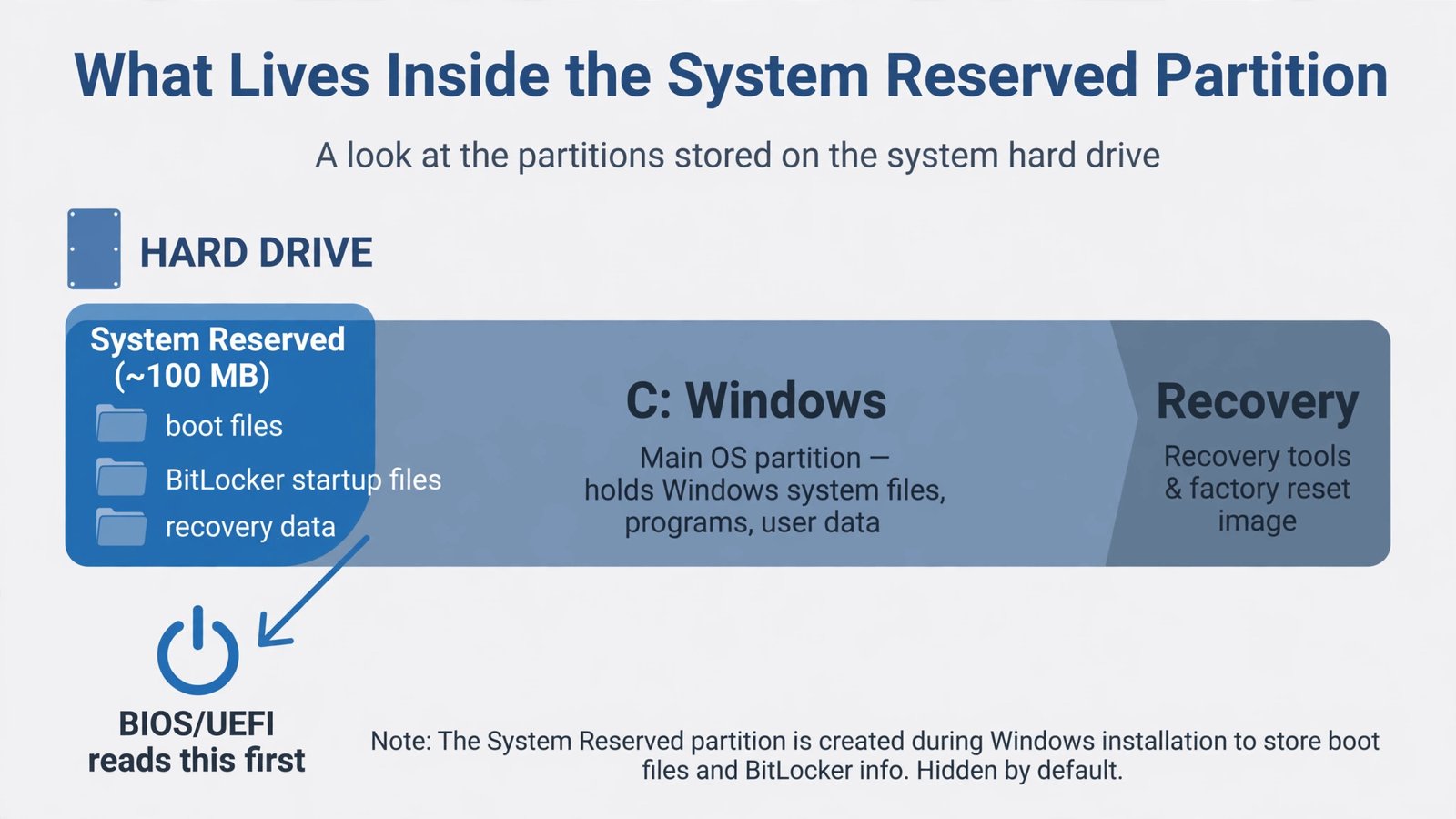
What the System Reserved Partition Actually Does
When Windows installs on a BIOS-based PC, it creates this small partition to hold three things: the boot manager and boot configuration data that start Windows, the unencrypted startup files BitLocker needs before it can unlock your drive, and some recovery data. On modern UEFI PCs, the same job is done by the EFI System Partition instead, and the “System Reserved” label may not appear at all.
This is why deleting it breaks booting: your firmware looks for the boot files there first. Remove the partition, and the PC powers on to a black screen or a “boot device not found” error. The few hundred megabytes you free up are never worth that on a working system.
The One Case Where Deleting It Is Safe
The exception is a leftover partition: the System Reserved partition sits on a drive that no longer boots Windows. The classic example is a PC where Windows was moved to a new SSD, and the old drive still carries its System Reserved partition even though the PC now boots from the new drive. In that case the partition holds no active boot files, and removing it only reclaims space on the old drive.
Pre-Flight Checklist (Every Box Must Be Ticked)
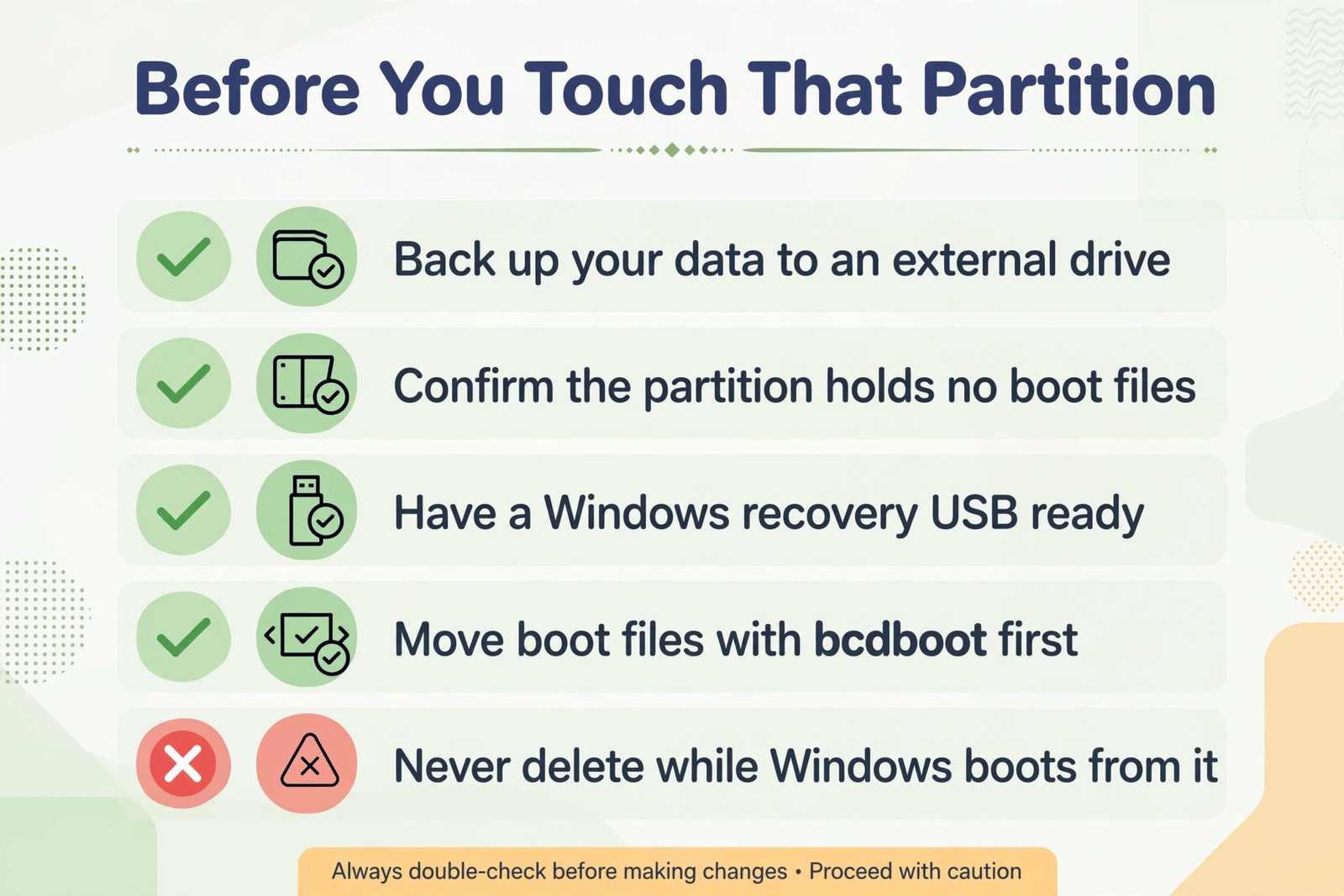
- Checkpoint: your files are backed up to an external drive or cloud storage. Partition work can go wrong, and a backup turns disaster into inconvenience.
- Checkpoint: you have a Windows recovery USB drive ready. If anything goes wrong, this is how you repair the boot files. Create one from Settings, then Recovery, then “Create a recovery drive.”
- Checkpoint: you have confirmed the partition is a leftover. In Disk Management, the drive your PC currently boots from is Disk 0 in most cases. If the System Reserved partition is on a different disk than your C: drive, it is a candidate. If it is on the same disk as Windows and your PC boots from that disk, stop here.
- Checkpoint: you do not use BitLocker on that drive. BitLocker depends on the unencrypted startup files in the reserved partition.
- Checkpoint: you know the exact disk number you are working on. Verify by size: your 1 TB SSD and your old 500 GB drive are easy to tell apart in Disk Management.
Step 1: Move the Boot Files First
Even for a leftover partition, do not just delete it. The safest path is to rebuild the boot files on the drive you want to keep, so nothing depends on the old partition at all. Open Command Prompt as administrator and run:
bcdboot C:\Windows /s C: /f ALLThis copies the boot files to your Windows drive for both UEFI and BIOS firmware. If your Windows drive letter is different in the recovery environment, adjust it.
Checkpoint: the command should report “Boot files successfully created.” If it errors, do not proceed to deletion.
Step 2: Restart and Confirm the PC Boots
Restart your PC. If you are unsure which drive it boots from, disconnect the old drive temporarily, or change the boot order in your BIOS/UEFI settings so the new drive is first. The PC must boot cleanly into Windows without the old drive involved.
Checkpoint: Windows loads normally with the old drive disconnected or deprioritized. This proves the leftover partition truly holds nothing your boot needs.
Step 3: Delete the Partition
Back in Windows, open Disk Management (right-click Start, then Disk Management). Right-click the leftover System Reserved partition on the old drive and choose Delete Volume. Windows may refuse if it thinks the partition is in use; that refusal is protection, not a bug, so take it seriously and re-check your checkpoints.
After deletion, the space shows as Unallocated. You can extend a neighboring partition into it or create a new simple volume for storage.
What Could Go Wrong
- You delete the active partition. The PC will not boot. Boot from your recovery USB, open Command Prompt, and run
bootrec /fixmbrandbootrec /rebuildbcdto rebuild the boot data. - BitLocker stops unlocking the drive. Without its startup files, an encrypted drive cannot start Windows. You would need the 48-digit BitLocker recovery key, so confirm BitLocker is off before touching anything.
- Windows Update or reset fails later. Recovery tools sometimes reference the reserved partition. Keeping your recovery USB current covers this.
Frequently Asked Questions
How much space will I actually gain?
Very little: usually between 50 and 500 MB. This is why deleting the active partition is never worth it. The only sensible reason to remove one is cleaning up an old drive you are repurposing.
Can I just hide the drive letter instead?
Yes, and for the active partition this is the better move. If the reserved partition has a drive letter showing in File Explorer, remove the letter in Disk Management (right-click, Change Drive Letter and Paths, Remove). The partition stays intact, but it stops cluttering your file list.
What is the difference between System Reserved and the EFI partition?
They do the same job on different firmware. BIOS-era PCs use the System Reserved partition; UEFI PCs use the EFI System Partition, usually around 100 MB and formatted as FAT32. On a UEFI system, the advice is identical: leave it alone unless it is a leftover on a retired drive.
Repurposing an old drive after this cleanup? Our guide to formatting and reinstalling Windows covers wiping a drive properly for reuse.

- How to Turn Off iPhone Keyboard Clicks and Haptic Feedback - November 4, 2026
- How to Turn Off AirDrop Receiving on iPhone - November 3, 2026
- How to Turn Off Background App Refresh on iPhone, Per App - November 2, 2026