
“StartTLS is required to send email.” Or the shorter server version: “Must issue a STARTTLS command first.” You hit Send, and instead of your message flying off, it comes straight back at you. Nothing is wrong with your password or your internet. Your email app connected to the mail server just fine, then tried to log in before switching the connection to encrypted mode, and the server refused. Here is what that means and how to fix it, ordered by what works most often.
What the Error Actually Means
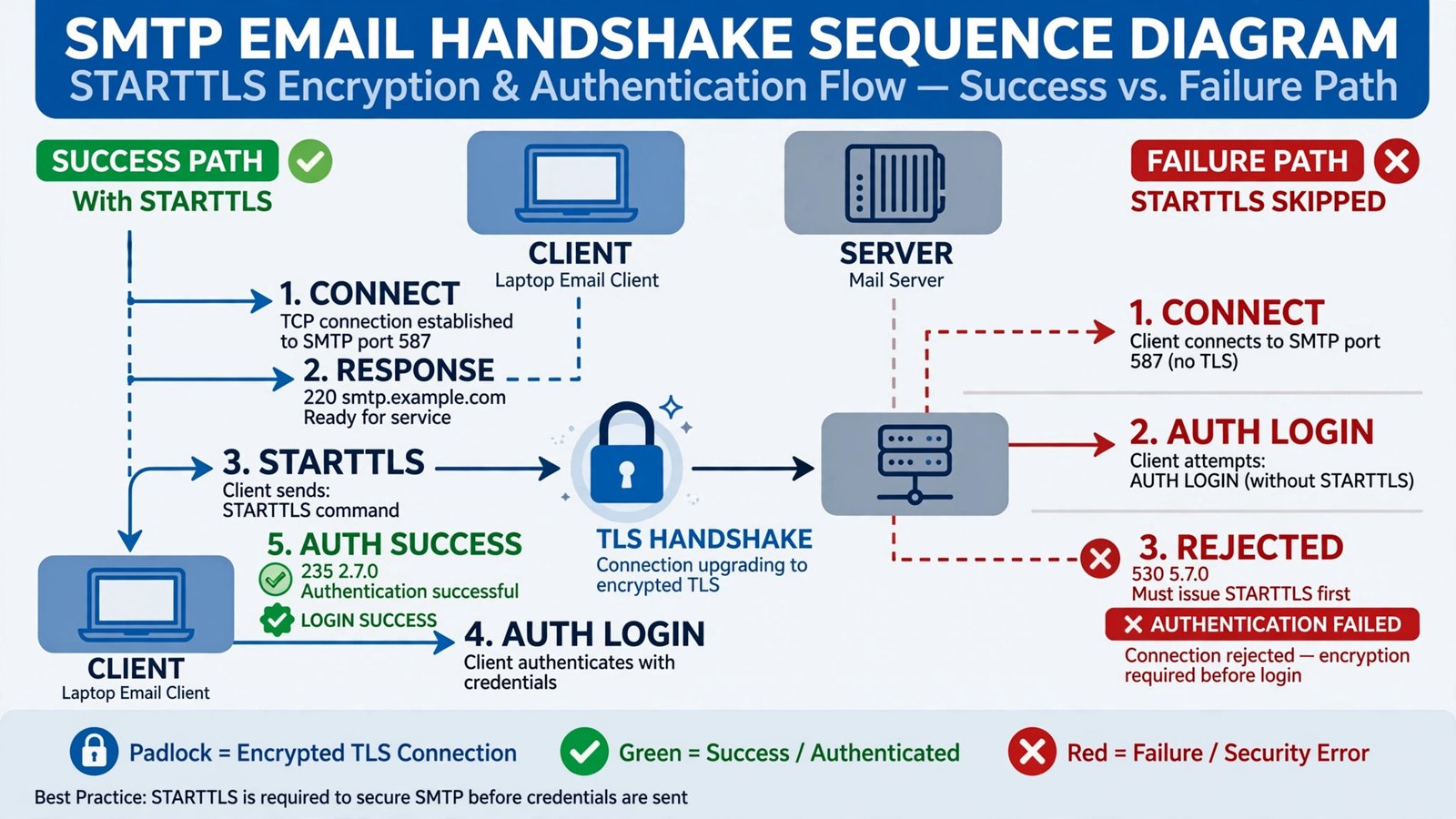
Email servers that require StartTLS accept your connection in plain text first, then expect your email app to ask for an upgrade to an encrypted connection before logging in. The command your app is supposed to send is called STARTTLS. If your app skips that step, maybe because security is set to “None”, or because the port and security type do not match, the server stops the conversation right there. It is a security refusal, not a typo.
Fix 1: Set the Right Security Type and Port Pair
This one change fixes the error for the vast majority of people. Port and security type must match:
| Port | Correct security setting | Notes |
|---|---|---|
| 587 | STARTTLS | The standard outgoing mail port. Start here. |
| 465 | SSL/TLS | Implicit encryption from the first byte. Never STARTTLS. |
| 25 | None or STARTTLS | Often blocked by ISPs. Avoid for sending mail. |
The classic mistake is choosing SSL/TLS on port 587, or leaving security set to None. Either way the STARTTLS command never gets sent. Set your outgoing server to port 587 with STARTTLS, and make sure authentication (usually “Normal password” with your full email address) is turned on.
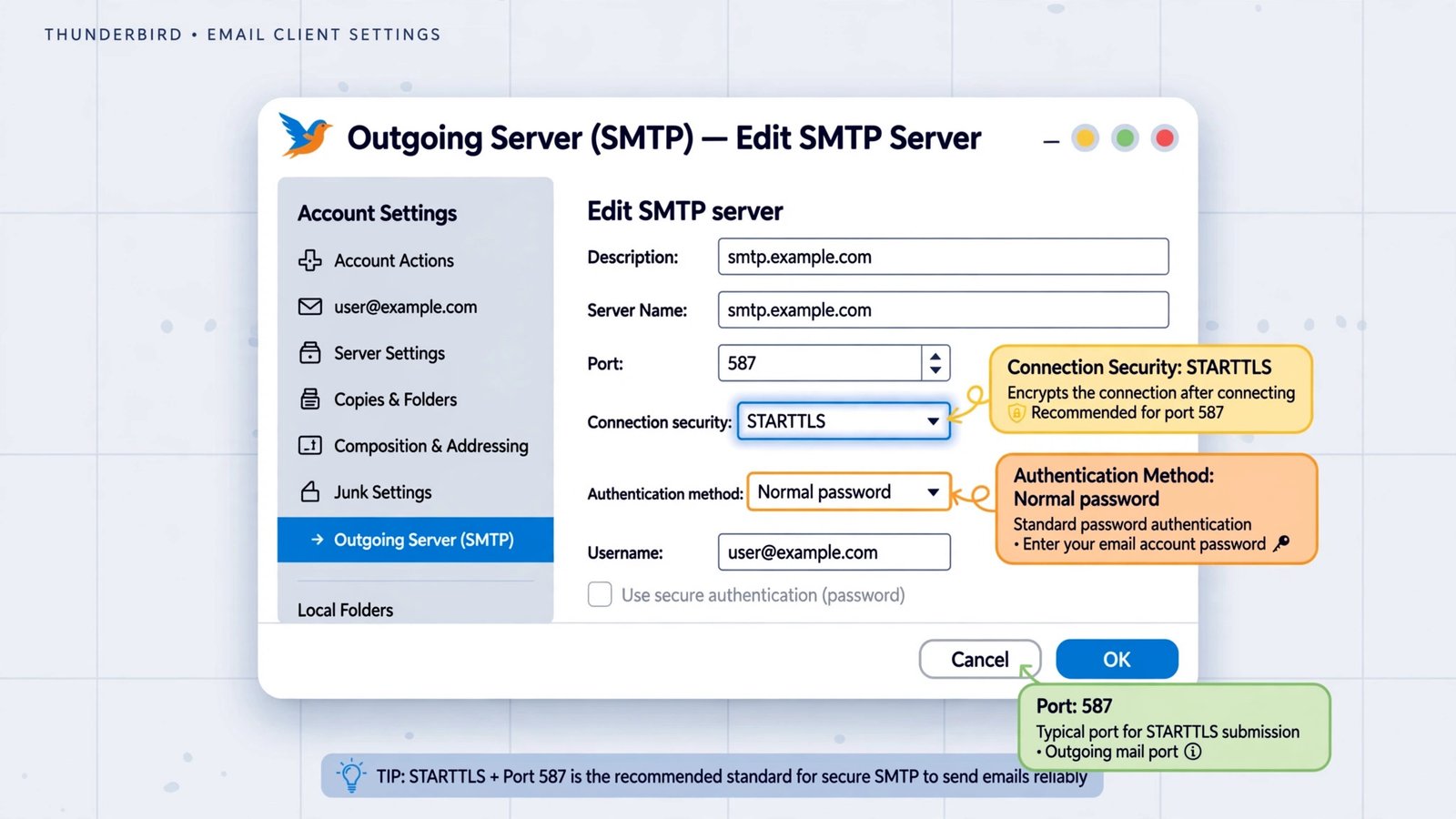
Fix 2: Correct the Settings in Thunderbird
- Open Thunderbird and go to Settings, then Account Settings.
- Scroll to Outgoing Server (SMTP) at the bottom of the left pane, select your mail server, and click Edit.
- Set Connection security to STARTTLS and Port to 587.
- Set Authentication method to Normal password and confirm the username is your full email address.
- Click OK, close the settings, and try sending again.
Fix 3: Correct the Settings in Outlook
- In classic Outlook, go to File > Account Settings > Account Settings, select your account, and click Change, then More Settings.
- Open the Advanced tab. Set the outgoing server (SMTP) port to 587 and choose TLS (or STARTTLS, depending on your Outlook version) from the encryption dropdown.
- On the Outgoing Server tab, confirm “My outgoing server (SMTP) requires authentication” is checked and set to use the same settings as the incoming server.
- Click OK, Next, Finish, and send a test message.
In the new Outlook for Windows, the same settings live under Settings (the gear icon) > Accounts > your account > server settings. Microsoft’s own Q&A on mail client timeouts confirms the standard recipe: smtp.office365.com on port 587 with STARTTLS.
Fix 4: Try a Different Port if Yours Is Blocked
Some internet providers and hotel or office networks block port 587 to fight spam. If the settings are correct but sending times out, switch the outgoing server to port 465 with SSL/TLS (encryption from the very first byte, no STARTTLS command needed), or ask your provider whether they offer port 2525. Do not fall back to port 25: it is blocked almost everywhere for outgoing mail.
Fix 5: Use an App Password, Not Your Regular Password
Gmail and Outlook.com accounts with two-step verification will fail authentication inside desktop mail apps, which can surface as confusing TLS errors. Generate an app-specific password in your Google or Microsoft account security settings and use that in your mail client’s SMTP password field. If your password was recently changed, update it in the SMTP settings too: the error sometimes hides a plain wrong-password problem.
If the error mentions a certificate problem rather than STARTTLS, check that the server hostname matches exactly (a wrong hostname fails verification), and fix your system clock first, since an off clock breaks certificate checks. The cannot verify server identity guide explains certificate mismatch errors in plain language.
Twilio’s plain-English guide to StartTLS is a good deeper read on how the upgrade from plain text to encrypted mail works. And if you keep hitting walls with your current provider, our Gmail alternatives guide walks through providers whose setup screens make these settings hard to get wrong.
Our Take: Match the Pair and Move On
This error has exactly one root cause: a mismatch between what your mail app offers and what the server demands. Fix 1 resolves it almost every time, because port 587 plus STARTTLS is what nearly every major provider expects. Do not chase it with antivirus exceptions, reinstalls, or a new email app before you have verified the pairing. If it worked last week and broke today, something changed your settings: an update, a password change, or a new network blocking the port. Check in that order.

- How to Stop Android Auto-Connecting to Open Wi-Fi Networks - October 24, 2026
- How to Stop iPhone Apps Asking for Ratings and Reviews - October 23, 2026
- How to Turn Off HDR in Windows 11 When Colors Look Washed Out - October 22, 2026