
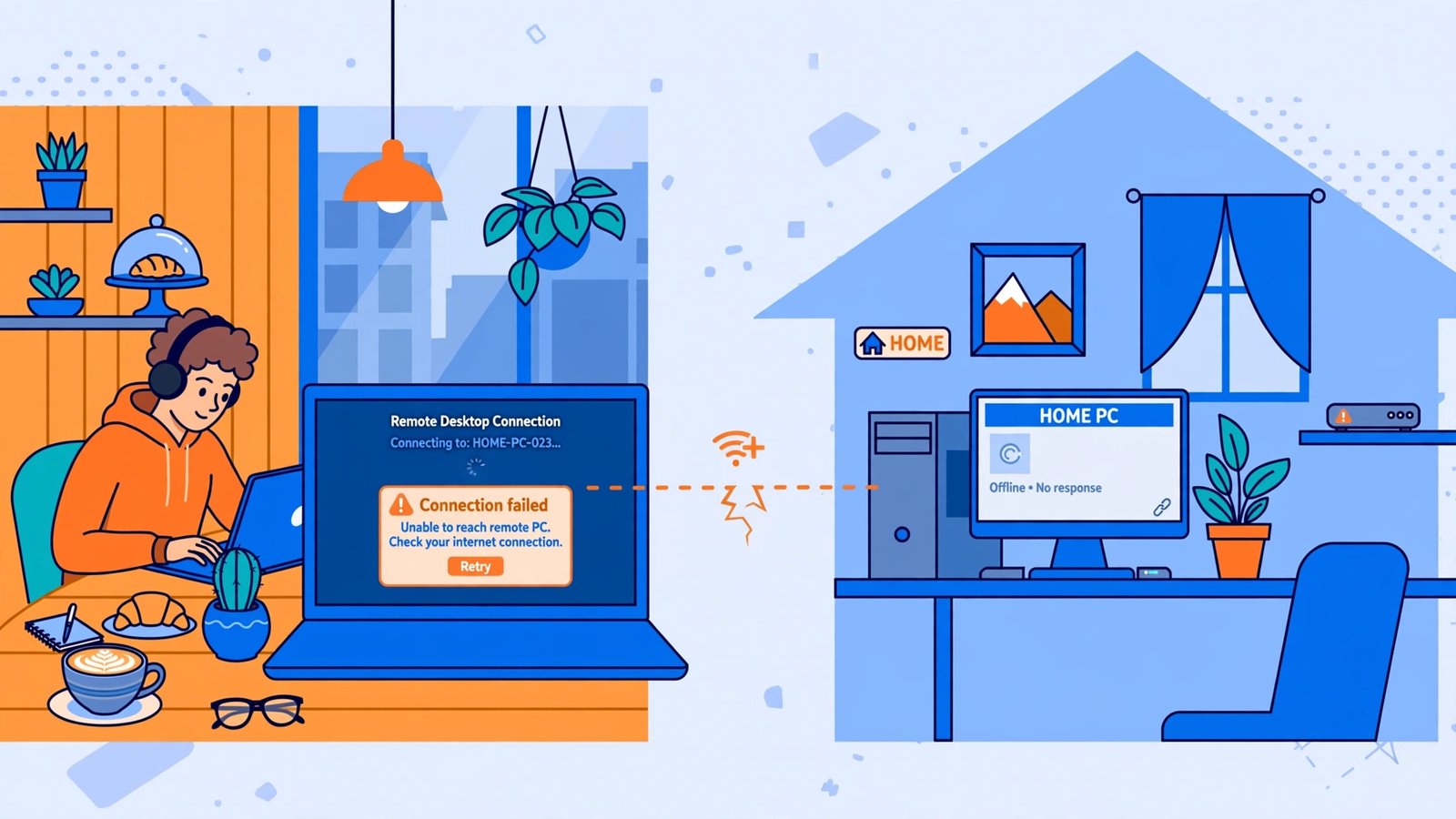
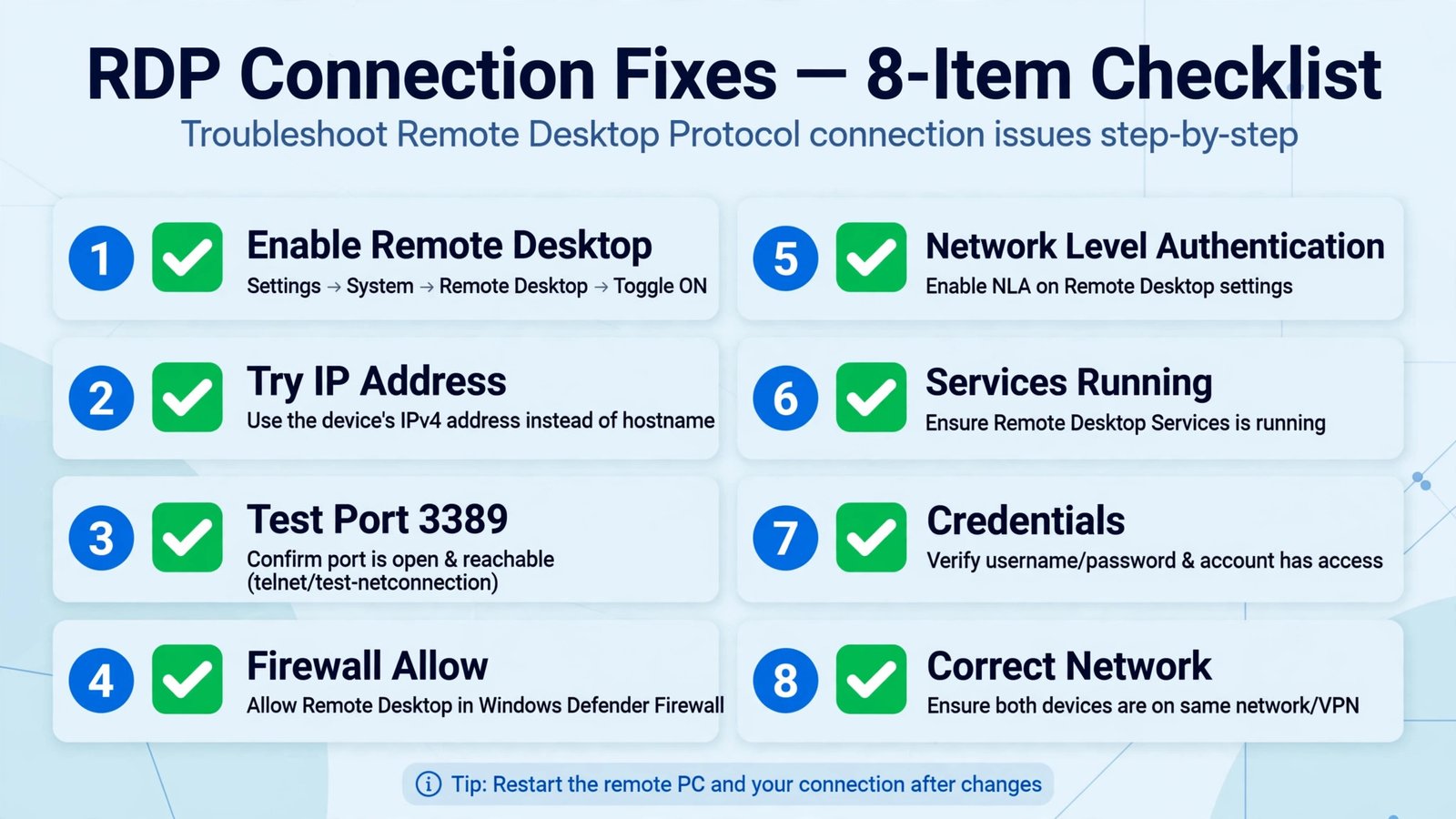
You are on your laptop at a coffee shop, you need one file from your home PC, you open Remote Desktop, type in the computer name like always, and get the same flat rejection: Remote Desktop can’t connect to the remote computer. Yesterday it worked from the couch. The difference between working and failing is almost never your laptop. It is something on the other end: the host is asleep, Remote Desktop got switched off by an update, the firewall is blocking port 3389, or the network between you changed. These eight fixes run in the order they actually solve the problem.
Fix 1: Confirm Remote Desktop Is Actually Enabled on the Host
The number one cause is embarrassingly simple: Remote Desktop is off on the computer you are trying to reach. Windows updates, someone else using the PC, or a fresh install can all flip it off.
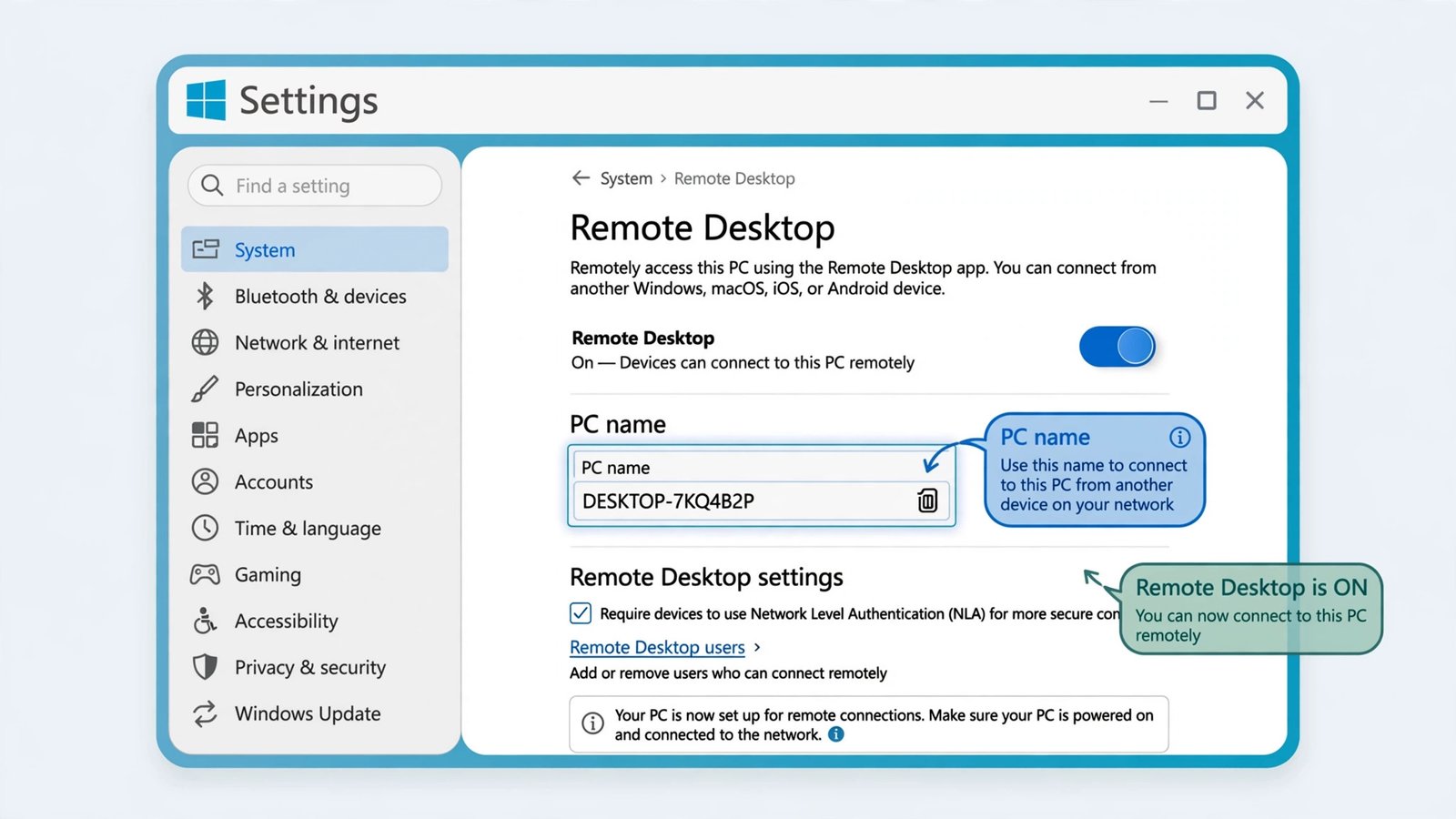
- On the host PC (the one you want to reach), open Settings and go to System > Remote Desktop.
- Make sure the Remote Desktop toggle is on. Confirm the change if Windows asks.
- Note the PC name shown under “PC name”. You will need it exactly right when connecting.
Two hard limits worth knowing: the PC must be powered on and awake (a sleeping PC cannot answer), and Windows Home editions cannot host Remote Desktop sessions at all. If the host runs Windows 11 Home, no setting will make this work; you need a Pro license or a third-party remote tool.
Fix 2: Try the IP Address Instead of the PC Name
If Remote Desktop is on but the connection still fails, the name may not be resolving. On the host, open a command prompt and run ipconfig to find its IPv4 address, then connect to that address instead of the PC name in the Remote Desktop Connection app (type mstsc in the Start menu to open it). If the IP works and the name does not, the problem is name resolution on your network, not Remote Desktop.
Fix 3: Test Whether Port 3389 Is Reachable
Remote Desktop listens on TCP port 3389. From your laptop, open PowerShell and run:
Test-NetConnection -ComputerName 192.168.1.50 -Port 3389Replace the address with your host’s IP. If TcpTestSucceeded comes back False, something between the two machines is blocking the port: the host firewall, a third-party security suite, or the router. That points you straight at Fix 4.
Fix 4: Let Remote Desktop Through the Host Firewall
- On the host, search the Start menu for Allow an app through Windows Firewall and open it.
- Click Change settings, find Remote Desktop in the list, and make sure it is checked for the network type you use (Private for home networks).
- If you run third-party antivirus or a security suite, check its own firewall rules too. These often block port 3389 silently after an update.
Fix 5: Sort Out Network Level Authentication
Network Level Authentication (NLA) requires your device to prove who you are before the remote desktop even starts loading. The error “the remote computer requires Network Level Authentication” means the handshake failed, and the fix is almost always on the client side:
- Connect with the built-in Remote Desktop Connection app or the Windows App, not an outdated third-party client that may not support NLA.
- Install pending Windows updates on both PCs. Authentication components age out of compatibility.
- Keep NLA enabled on the host. It is the recommended setting for a reason: disabling it exposes the login screen to anyone who can reach port 3389. Only turn it off briefly to test, never as the permanent fix.
Fix 6: Make Sure Remote Desktop Services Is Running on the Host
On the host, open a command prompt and run qwinsta. You should see an rdp-tcp entry in the Listen state. If it is missing, the Remote Desktop Services service may be stopped. Press Windows key + R, type services.msc, find Remote Desktop Services, and start it (set Startup type to Automatic). You can also confirm the registry value fDenyTSConnections under HKLM\SYSTEM\CurrentControlSet\Control\Terminal Server is 0, which means connections are allowed.
Fix 7: Check Credentials and Permissions
- The account you sign in with must exist on the host and be an administrator or a member of the Remote Desktop Users group. On the host, check under Settings > System > Remote Desktop > Remote Desktop users.
- If you changed the password recently, update the saved credentials in your Remote Desktop connection, or clear them entirely: open Credential Manager in the Start menu, look under Windows Credentials, and remove stale entries for the remote PC.
- Retype the username as
PCNAME\usernameto be explicit about which machine the account belongs to.
Fix 8: Get on the Right Network
Remote Desktop works directly only when both devices can reach each other. From a coffee shop or a different city, your home PC is behind your router with no route in, so you need a VPN into your home network first. If the host is a work PC on a company domain, connect the VPN before opening Remote Desktop. And if your Wi-Fi itself is misbehaving, the Wi-Fi troubleshooting guide and the network reset guide cover the underlying connection.
Our Take: It Is Almost Always the Host, Not You
In practice, nine out of ten “can’t connect” cases end at Fix 1, Fix 4, or the sleeping-PC problem: Remote Desktop off, firewall blocking, or the host asleep. The port test in Fix 3 is the fastest way to tell which of the three you are dealing with. And one piece of judgment: if the host is a PC you do not control, an office machine or a family member’s computer, check with whoever manages it before changing firewall or authentication settings. Remote Desktop is a door into someone else’s computer, and it should only ever be opened deliberately. If connectivity errors look server-side rather than RDP-specific, the RPC server unavailable guide helps rule out deeper network issues.

- How to Change the Lock Screen Timeout on Windows 11 - October 25, 2026
- How to Fix the Windows 11 Taskbar Auto-Hide Problem - October 24, 2026
- How to Fix a Laptop Camera Not Working in Windows 11 - October 23, 2026