
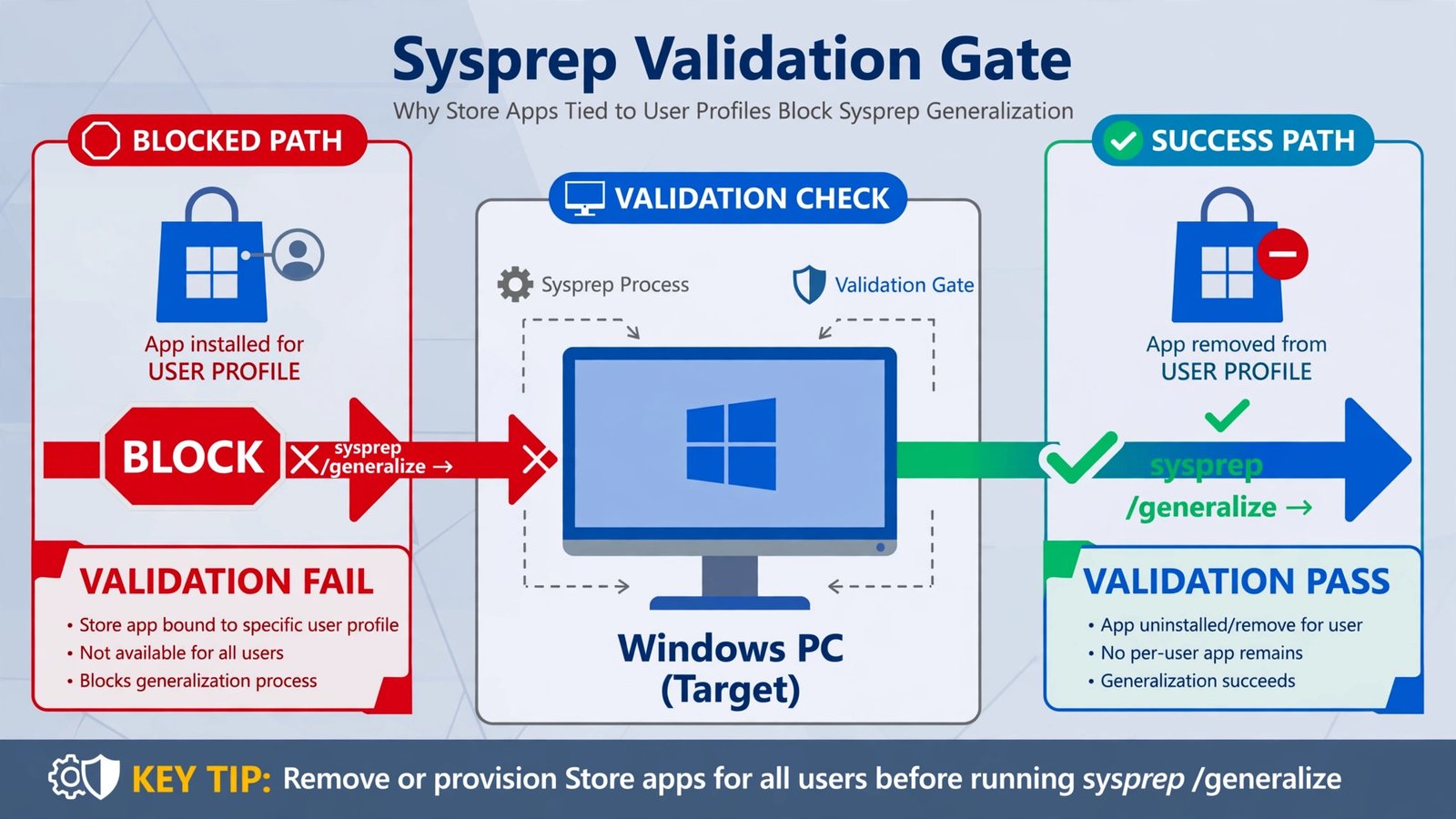
Sysprep exists to do something unnatural: take your personalized Windows installation and scrub it down to a neutral master image that can be cloned onto a hundred other PCs. The “was not able to validate your Windows installation” error exists because Sysprep refuses to generalize a system that cannot survive the process cleanly. And the thing that almost always blocks it is a Microsoft Store app that was installed for one user but never provisioned for everyone. Sysprep cannot strip away an app that only half exists, so it stops and points you at the log file.
Step Zero: Read the Log, Do Not Guess the App
The error dialog gives you a log path, and the log names the exact culprit package. Chasing random Store apps without reading it is how people spend an afternoon removing things that were never the problem.
- Open Command Prompt as administrator.
- Run this to surface only the failure lines:
findstr /i "error fail exception" C:\Windows\System32\Sysprep\Panther\setupact.log - Look for a line like this:
The package name before the version numbers is what you need. Common repeat offenders in 2026 include Microsoft.Winget.Source, Microsoft.Windows.Client.CBS, the Xbox app, Mail and Calendar (communicationsapps), and Microsoft.ZuneMusic.SYSPRP Package Microsoft.Winget.Source_... was installed for a user, but not provisioned for all users. This package will not function properly in the sysprep image.
Fix 1: Remove the Offending App for All Users
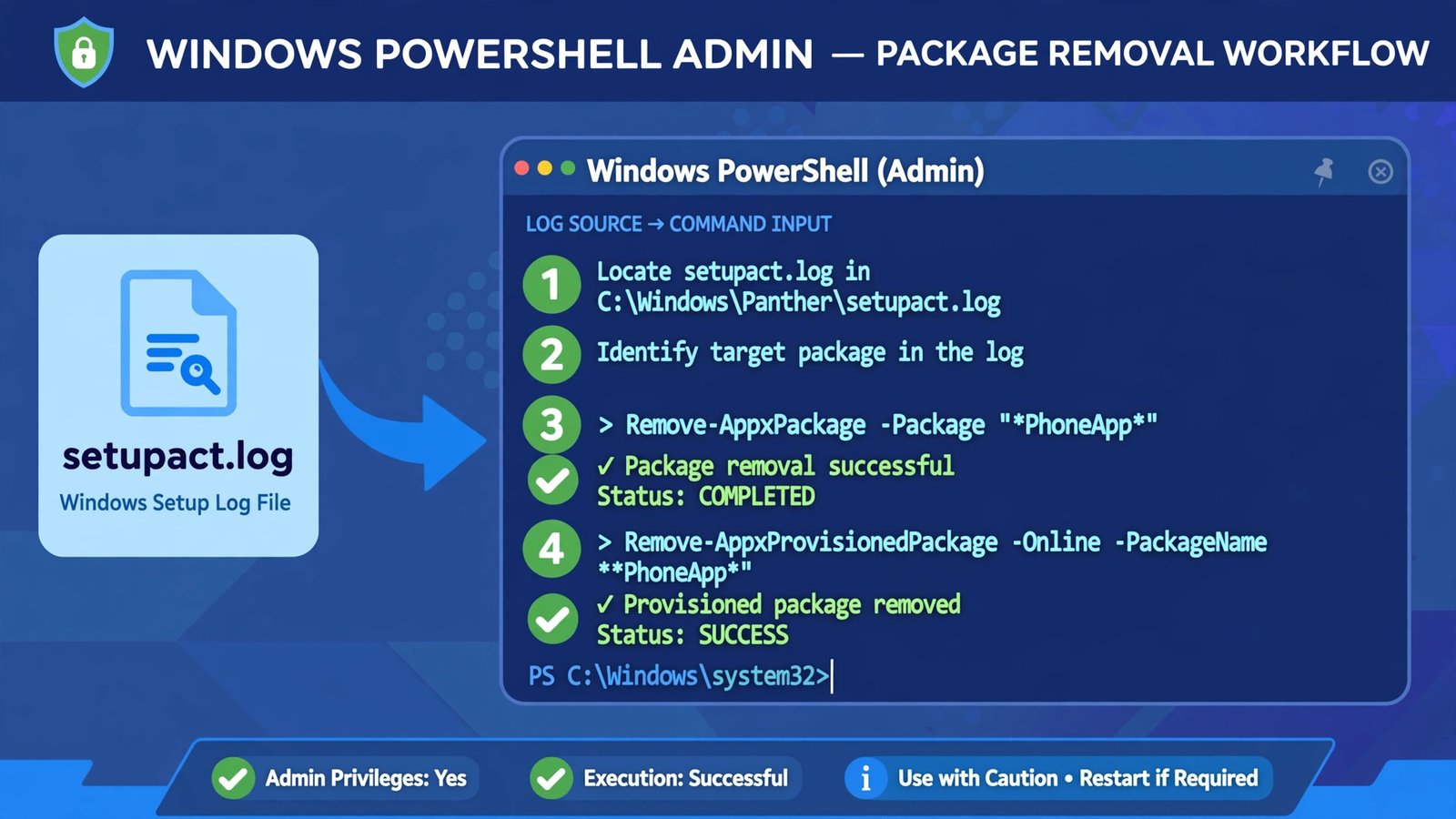
Once the log names the package, remove both the installed copy and the provisioned copy. Removing only one of them leaves Sysprep just as unhappy.
- Open PowerShell as administrator.
- Confirm exactly how the package is installed:
This shows the full package name and which user profiles carry it.Get-AppxPackage -AllUsers | Where PublisherId -eq 8wekyb3d8bbwe | Format-List -Property PackageFullName,PackageUserInformation - Remove the installed package (use the full PackageFullName from the log):
Remove-AppxPackage -AllUsers -Package Microsoft.Winget.Source_2023.928.502.235_neutral__8wekyb3d8bbwe - Remove the provisioned package so it does not come back for new users:
Remove-AppxProvisionedPackage -Online -PackageName Microsoft.Winget.Source_2023.928.502.235_neutral__8wekyb3d8bbwe - Repeat steps 3 and 4 for every offending package the log named, restart, and run Sysprep again.
Fix 2: Stop Creating the Problem While Building the Image
Most of these failures are self-inflicted during image preparation. Two habits cause them:
- Do not sign in with extra accounts on the reference image. Every Microsoft account login can install user-scoped Store apps that Sysprep cannot generalize. Build the image with a single local administrator account.
- Prepare the image in audit mode. Boot into audit mode (Ctrl + Shift + F3 at the OOBE screen) and do your configuration there, without completing the out-of-box experience. Apps installed during a full OOBE are the classic source of user-scoped packages.
If you are stripping apps from the reference image anyway, our guide to removing bloatware from Windows 11 shows the safe way to remove built-in apps without breaking the system underneath.
Fix 3: Finish Windows Updates Before You Generalize
A pending update or a restart waiting to happen will fail Sysprep validation just as reliably as a bad app. Open Settings, check Windows Update, install everything, restart, and check again until the page reports you are up to date. Only then run Sysprep. Skipped restarts leave the system in a state Sysprep will not touch.
Fix 4: Accept the Cases That Cannot Be Fixed
Some Sysprep failures are by design, and no command will rescue them:
- You cannot Sysprep a machine that was upgraded from an older Windows version. Sysprep requires a clean install as the starting point.
- Sysprep has a limited number of generalization passes. If the image has been generalized repeatedly, the limit is exhausted and only a fresh install fixes it.
- Extra user profiles on the reference machine can block validation. Delete profiles you do not need under System > About > Advanced system settings > User Profiles before running Sysprep.
Microsoft’s official troubleshooting page, Sysprep fails after you remove or update Microsoft Store apps, documents the app-removal cause and is worth bookmarking if you build images regularly.
Our Take: Read the Log, Remove the App, Change the Habit
The honest pattern behind this error is that the log almost always names a single guilty package, and two PowerShell commands remove it. The long-term fix is building the reference image properly: audit mode, one local admin, updates finished. If you have run Sysprep three times and it still fails, stop iterating on the same image. Image the drive as a backup, reinstall clean, and rebuild: a reference image is only worth cloning if its foundation is boring and predictable. If profile problems surface later on deployed machines, the user profile service sign-in guide covers that side of things.

- How to Change the Screenshot Save Location on Mac - October 24, 2026
- How to Turn Off Stage Manager on Mac - October 23, 2026
- How to Reset Your Private Space PIN on Android If You Forgot It - October 22, 2026