
Searching for a projector app usually starts with a fun idea: point your phone at a wall and get a movie. Let us get the honest part out of the way first, then look at the apps that genuinely help you get your phone’s screen onto a projector in 2026.
The honest truth: no app turns your phone into a projector
A phone screen simply is not bright enough to throw an image across a room, and no software changes the physics. Apps with names like “HD Projector” or “Projector Simulator” on the app stores are either screen mirroring tools with optimistic branding or novelties. If a listing promises to project without any projector hardware, skip it. What apps can do is bridge your phone to a real projector, and that is where the genuinely useful ones live.
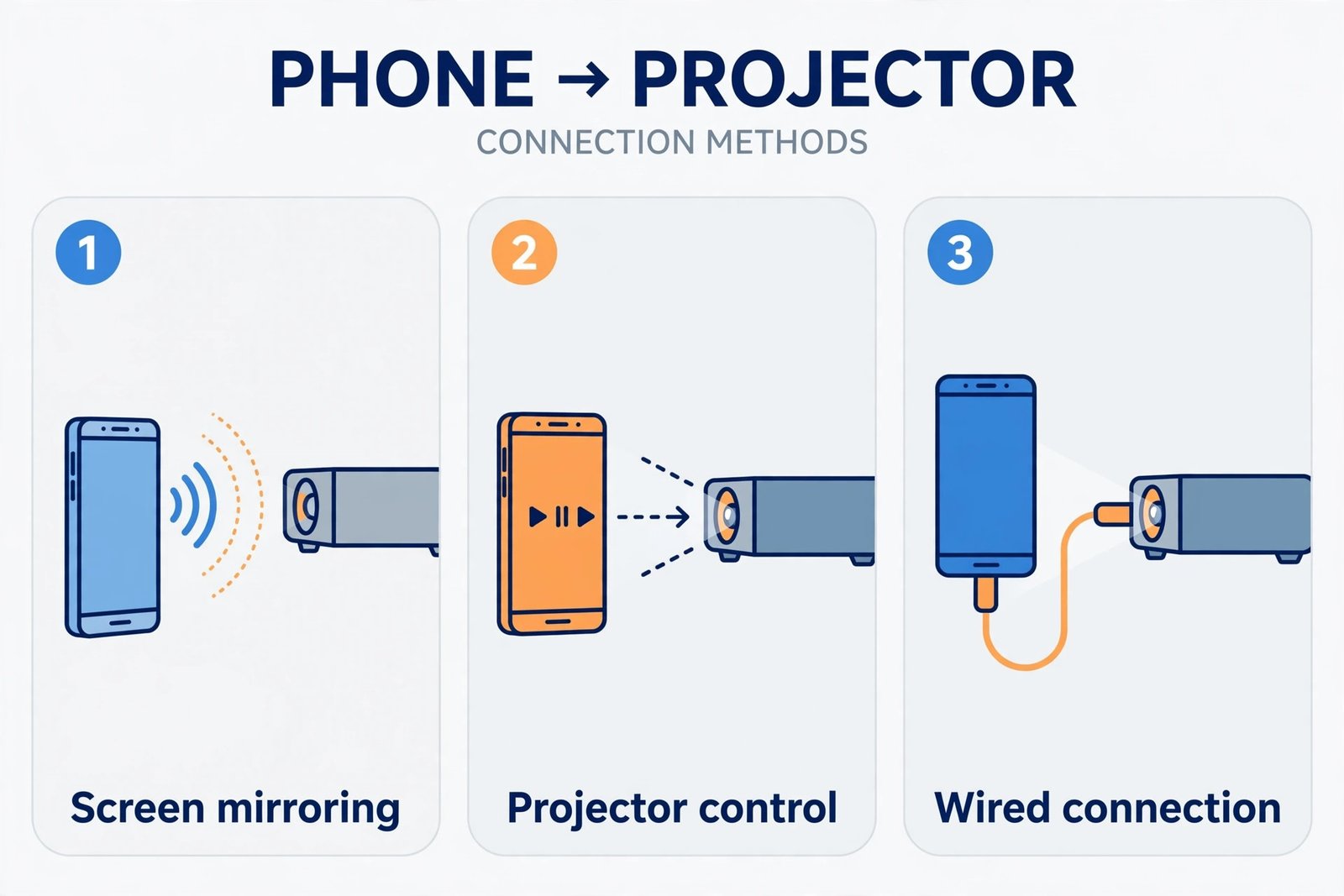
The three jobs projector apps actually do
- Screen mirroring and casting: sending your phone’s display wirelessly to a projector that supports Chromecast, AirPlay, or Miracast.
- Projector control: manufacturer apps that turn your phone into a remote for a smart projector.
- Media playback: player apps that cast video files straight to the projector.
Best for wireless screen mirroring
Google Home (Android and iPhone, free). If your projector has Chromecast built in, or you have a Chromecast dongle plugged into it, the Google Home app mirrors your Android screen with a couple of taps. It is the path of least resistance on Android, and iPhone users can cast supported apps through it too.
AirPlay (iPhone, built in, free). Not an app you install: it is part of iOS. Open Control Center, tap Screen Mirroring, and pick an AirPlay-compatible projector (or an Apple TV connected to one). Nothing to download, nothing to pay for. If you mirror video to a TV often, our guide to connecting a Samsung smart TV to Alexa covers the same casting ideas on the TV side.
ApowerMirror (Android and iPhone, free tier with paid VIP plans). The most capable cross-platform option when the built-in tools fall short: it mirrors over Wi-Fi to projectors, PCs, and TVs, adds whiteboard annotation for presentations, and works across Android and iOS. The free version covers casual use; heavy users hit the paywall.
Best projector control apps
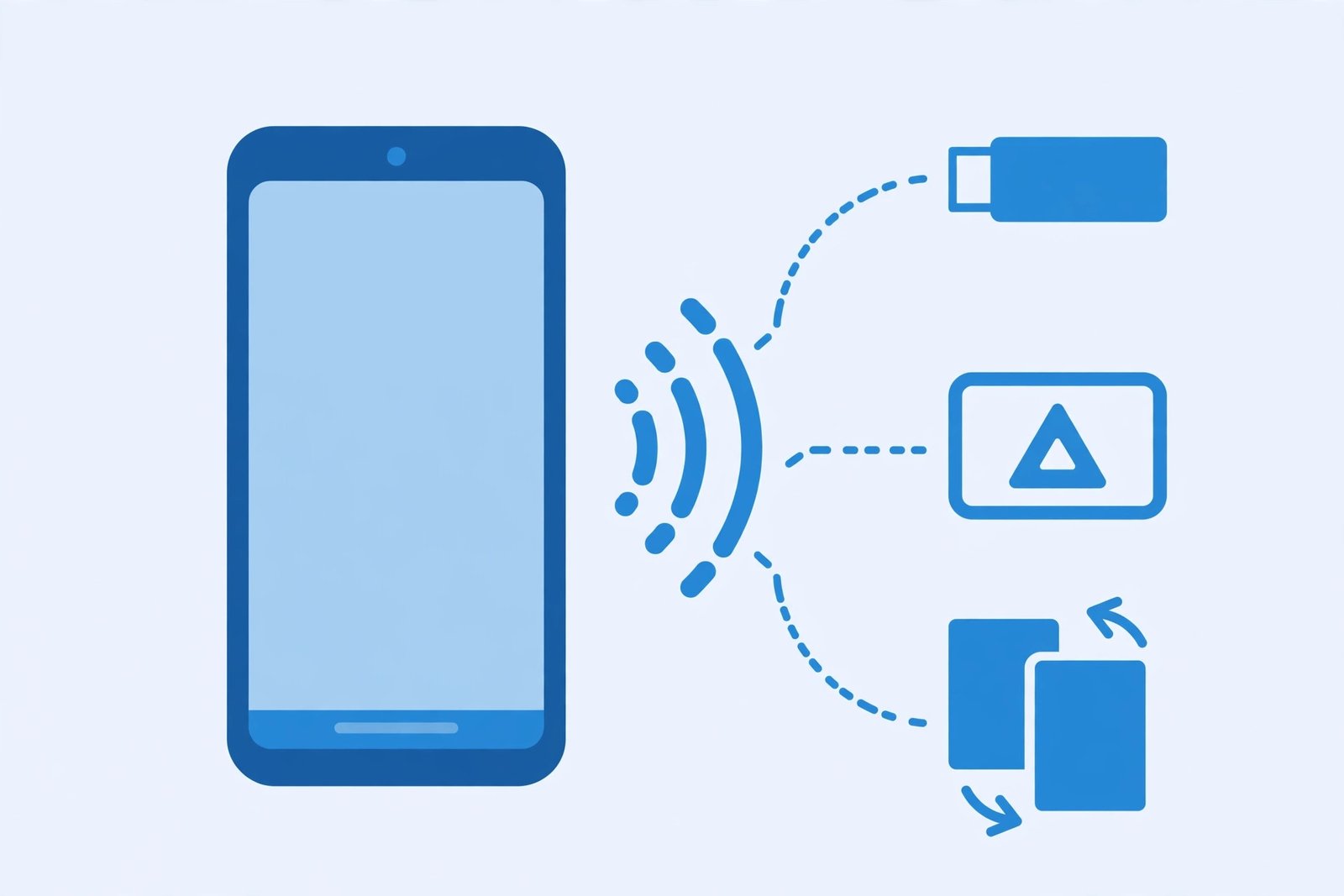
If you own a smart projector, its own app is usually better than any generic one.
- Epson iProjection (Android and iPhone, free). Connects to Epson projectors over the network, sends photos, documents, and web pages straight to the big screen, and works as a remote.
- Nebula Connect (Android and iPhone, free). Anker’s companion for its Nebula portable projectors: full remote control, mouse mode for navigating the projector’s Android interface, and quick settings.
BenQ, Optoma, and most other big brands ship equivalents. Check your projector’s manual first; the right app is the one made for your model.
Best for playing media through a projector
VLC for Mobile (Android and iPhone, free and open source). For movie night, a player matters more than a mirroring app. VLC plays nearly any video file and can cast to Chromecast and AirPlay targets directly, so the file plays on the projector while your phone stays free. Pair it with our guide to the best apps to watch Korean drama and you have a full big-screen setup.
The no-app option: just use a cable
For presentations and anything where lag is unacceptable, wired still wins. A USB-C to HDMI cable or adapter (Android) or a Lightning/USB-C to HDMI adapter (iPhone) plugs straight into the projector: no Wi-Fi, no app, no fiddling, and the phone charges while you present if the adapter supports it. For a one-off meeting, this beats every app on this list.
How to choose, quickly
| Situation | Best pick | Cost |
|---|---|---|
| Android phone, Chromecast-ready projector | Google Home | Free |
| iPhone, AirPlay projector or Apple TV | AirPlay (built in) | Free |
| Mirroring plus presentation tools | ApowerMirror | Free tier, paid VIP |
| You own an Epson projector | Epson iProjection | Free |
| You own a Nebula portable projector | Nebula Connect | Free |
| Movie night from video files | VLC for Mobile | Free |
| Reliability matters most | HDMI cable/adapter | One-time purchase |
Our take
Start with what is already on your phone: Google Home on Android or AirPlay on iPhone handles most projectors for free. Only install a third-party mirroring app if those do not cover your setup, and grab your projector manufacturer’s app if you own a smart projector. And if you regularly move photos or videos off your phone for big-screen viewing, our guide to transferring photos from Android to PC is handy for the prep work. Skip anything promising to turn the phone itself into a projector: that app does not exist.

- How to Change the Screenshot Save Location on Mac - October 24, 2026
- How to Turn Off Stage Manager on Mac - October 23, 2026
- How to Reset Your Private Space PIN on Android If You Forgot It - October 22, 2026