
Key takeaways
- Most slow File Explorer launches are caused by what it loads at startup: Home page history, the preview pane, or OneDrive sync overlays.
- This guide walks through 5 fixes in order of likelihood, starting with clearing the File Explorer history and opening to This PC instead of Home.
- Time a launch with a stopwatch before you start and again after each fix, so you can tell which step made the difference.
Clicking the folder icon and staring at a blank window for five seconds is not normal. File Explorer should open in a second or two, and when it does not, the culprit is almost always something it tries to load on launch: your Home page history, file previews, or cloud sync status. The five fixes below are ordered by how likely each one is to help, so start at the top and stop when opening feels fast again.
Measure the slowdown first so you know what worked
Close every File Explorer window. Start the stopwatch on your phone, then double-click the File Explorer icon on the taskbar. Stop the timer when you can see your folders. Write down the number. Repeat this same test after each fix below and you will know exactly which one made the difference instead of guessing.
Try the quick checks before changing settings
A few basics are worth ruling out before you dig into settings, since each takes less than a minute.
- Restart Windows Explorer. Press Ctrl + Shift + Esc to open Task Manager, select Windows Explorer in the Processes list, then click Restart. The taskbar will flicker and come back; this clears any hung state in Explorer itself.
- Restart the PC. A pending restart from an update can leave Explorer sluggish, and a plain restart clears temporary states nothing else can.
- Install pending Windows updates. Go to Settings, then Windows Update, then Check for updates. Version 26H2, the 2026 Update, began rolling out on September 29, 2026 as a small enablement package for PCs on 24H2 or 25H2, and it includes improvements to how fast File Explorer Home launches.
Fix 1: Clear the File Explorer history and open to This PC
When this works: File Explorer opens slowly to the Home page, or shows a blank area for a moment before your recent files appear. This is the most common cause, because Home loads your recent files and frequent folders every time, including items from disconnected drives or cloud folders that are no longer available.
- Open File Explorer and click the three-dot … menu in the top bar, then choose Options.
- In the Folder Options dialog, stay on the General tab.
- Under Privacy, click the Clear button next to “Clear File Explorer history.” This wipes the recent files and frequent folders list; it does not delete any of your files.
- Still on the General tab, change Open File Explorer to to This PC. This skips the dynamic Home page entirely and opens straight to your drives.
- If you want to keep the recent items feature but make it lighter, uncheck Show recently used files in Quick access and Show frequently used folders in Quick access.
- Click Apply, then OK.
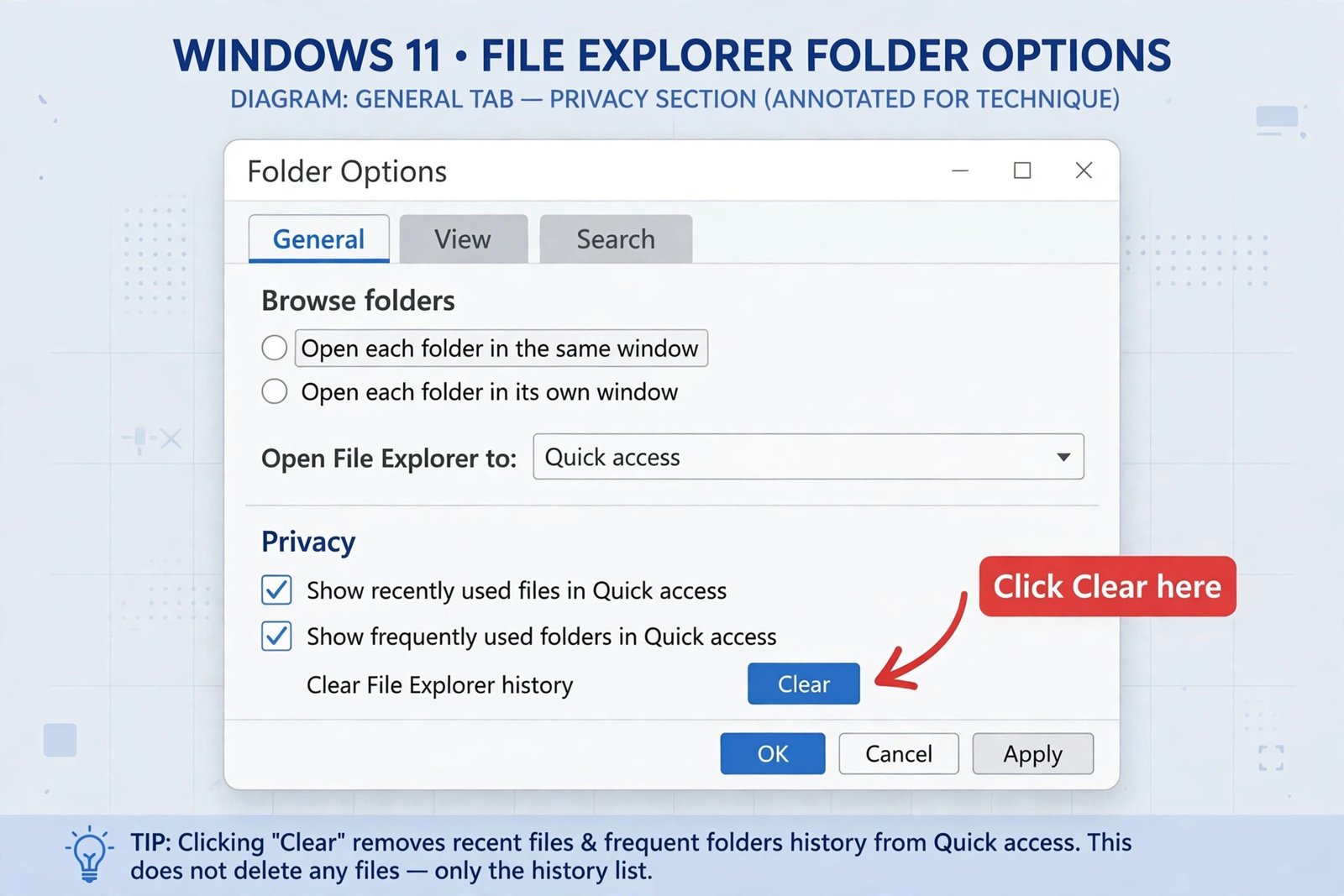
You should now see: File Explorer opens directly to your drives and devices, with no blank pause while recent items load. If it opened to Home slowly before and opens to This PC quickly, the slowdown was in your Home page history.
Fix 2: Unpin folders that point to slow or dead locations
When this works: Explorer opens slowly even after clearing the history. Every pinned folder in the left navigation pane gets checked at startup. One pinned folder pointing to a disconnected network drive, an unplugged external drive, or a removed cloud location makes Windows wait for a response that never comes.
- Open File Explorer and look at the pinned folders in the left navigation pane.
- Right-click each pinned folder you rarely use or that points to a network path, old external drive, or deleted location.
- Choose Unpin from Quick access.
- Keep only folders on your internal drive that you actually open, such as Desktop, Documents, or Downloads. For occasionally used shared folders, make a desktop shortcut instead of pinning them.
You should now see: the left navigation pane fills in instantly, with no lingering empty entries while Windows chases unreachable locations.
Fix 3: Turn off the preview pane and preview handlers
When this works: folders full of documents, PDFs, or videos open slowly, or the whole window hesitates while a file preview renders. The preview pane generates a live preview of the selected file, and preview handlers from installed apps can stall while doing it.
- In File Explorer, click View in the top bar, then find the Panes section.
- If Preview pane has a check mark next to it, click it to turn it off. The preview column on the right disappears immediately.
- Open the three-dot … menu again and choose Options.
- In Folder Options, go to the View tab.
- Under Advanced settings, uncheck Show preview handlers in preview pane and click OK. Microsoft also lists this toggle, along with disabling thumbnails, among the supported ways to lighten Explorer’s workload on its official speed-up guidance.
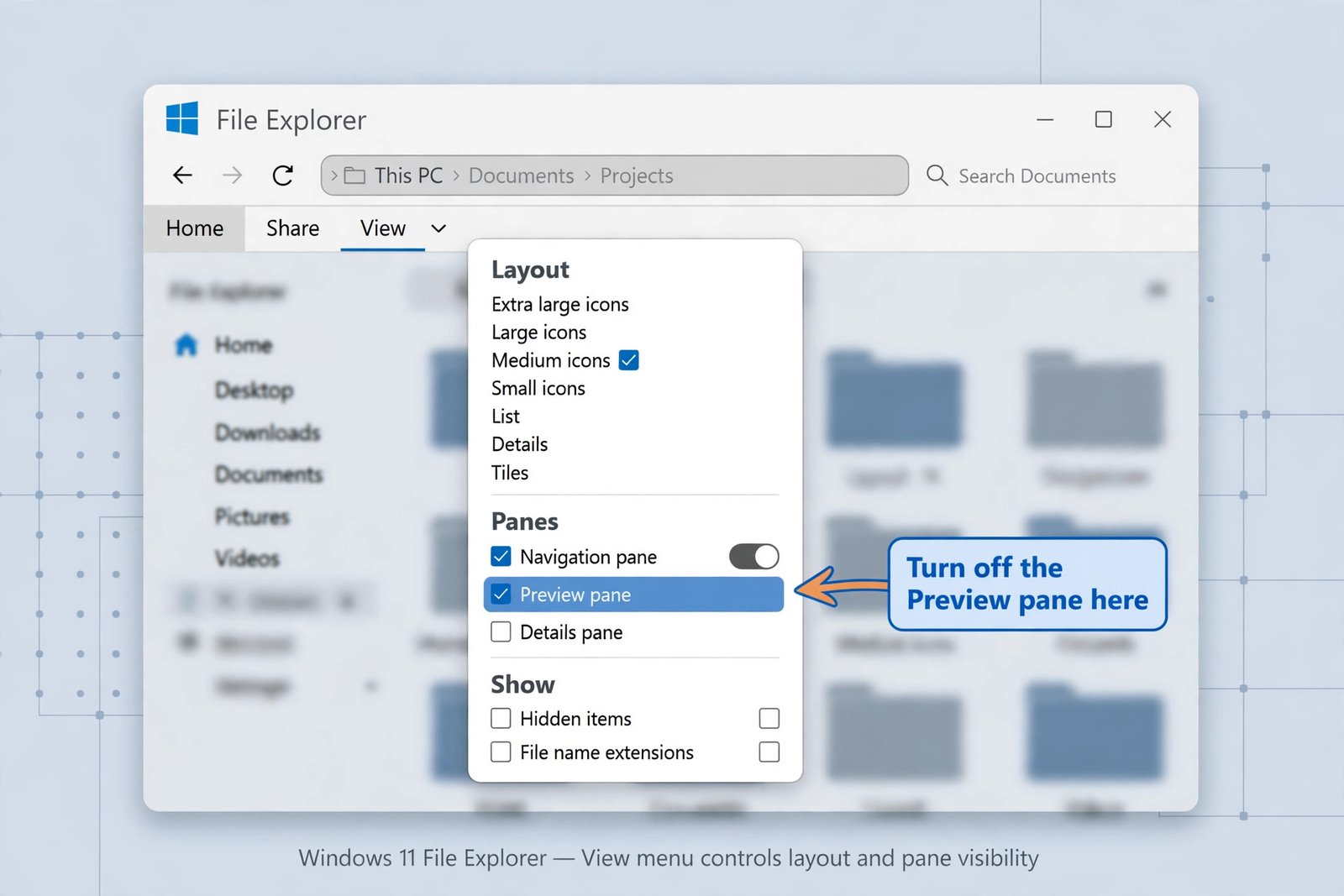
You should now see: folders with many documents or images open noticeably faster, and selecting a file no longer triggers a pause while a preview is generated. If you miss the preview pane later, you can turn it back on the same way.
Fix 4: Settle OneDrive sync before judging the speed
When this works: File Explorer is slow mainly when you open folders containing OneDrive files, or you see lots of circular arrow icons. Each sync overlay icon means Windows is checking that file’s cloud state, and a folder full of syncing files takes longer to list. The overlay icons tell you what is happening at a glance.
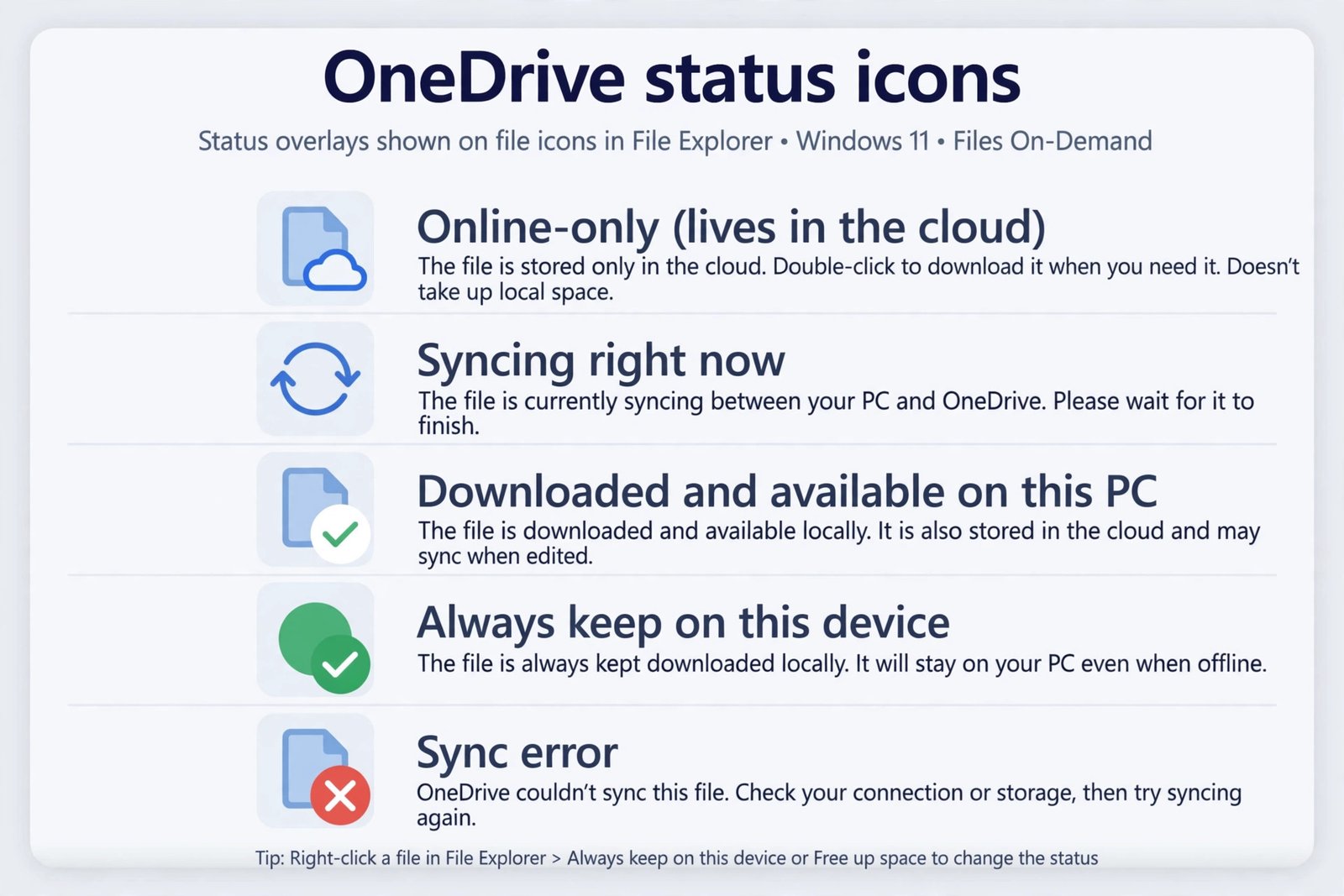
- Click the OneDrive cloud icon in the taskbar system tray. If it says it is syncing, give it time to finish, or choose Pause syncing for a few hours to test whether syncing is the slowdown.
- Open a folder showing a red sync error icon, click the OneDrive icon, and read the error message there. Fix the error (for example, a file with an unsupported name) and the delay goes away.
- For large folders you rarely open, right-click the folder and choose Free up space so the files become online-only, or Always keep on this device for the few you need offline. Fewer syncing files means faster folder loading.
- Microsoft maintains a full reference of every status icon on the OneDrive icons help page if you see one you do not recognize.
You should now see: folders with OneDrive files list quickly once syncing finishes, and no persistent syncing or error overlays remain on files you use daily.
Fix 5: Rebuild the icon cache
When this works: icons and thumbnails draw slowly, blank white icons appear, or folders feel sluggish specifically while pictures render. A damaged icon cache forces Windows to rebuild each icon from scratch. This fix helps only with icon and thumbnail slowness, so skip it if your problem is clearly the history or syncing.
- Press Windows key + R to open the Run dialog.
- Type ie4uinit.exe -show and press Enter.
- Your desktop and Explorer icons may blink or disappear for a second or two. This is normal. Windows deletes and regenerates the icon cache in the background without needing a restart.
You should now see: icons and thumbnails redraw cleanly, and folders where images were the bottleneck open faster. If nothing changed, your slowdown is not icon-related, and the earlier fixes are the ones to revisit.
Match your symptom to the fix
| What you notice | Most likely fix |
|---|---|
| Slow to the Home page, blank pause before recent files appear | Fix 1: Clear history, open to This PC |
| Slow even after clearing history | Fix 2: Unpin stale or dead folder locations |
| Slow folders full of documents, PDFs, or images | Fix 3: Turn off the preview pane and preview handlers |
| Slow only in folders with OneDrive files, lots of sync arrows | Fix 4: Settle OneDrive sync |
| Blank icons, thumbnails draw slowly | Fix 5: Rebuild the icon cache |
If none of these fixes move the needle, time a launch again with the stopwatch method above. A consistently slow launch on an older machine with a spinning hard drive is a hardware limit rather than a settings problem, and an SSD upgrade is the only fix that will change it. On a modern PC with an SSD, though, one of these five almost always returns File Explorer to opening in a second or two.

- How to Fix File Explorer Slow to Open in Windows 11 - October 22, 2026
- How to Fix a Printer Showing Offline in Windows 11 - October 21, 2026
- How to Turn Off Windows 11 Feedback Notifications and Stop It Asking for Feedback - October 20, 2026