
Hot Corners turn each corner of your Mac screen into a shortcut. Flick the pointer into the top-left corner and Mission Control opens. Nudge the bottom-right and a Quick Note appears. It sounds handy, and for some people it is. But the same sensitivity that makes Hot Corners fast makes them easy to fire by accident. Reach for the Apple menu, grab a window close button, or slide toward the Dock, and suddenly the screen saver starts or Notification Center slides out. The classic offender is the bottom-right corner, which Apple sets to Quick Note by default, right in the path of the Dock and the scroll bars.
If your corners keep surprising you, the fix takes about a minute. The steps below show the exact clicks in macOS 27 Golden Gate: open the Hot Corners panel, set each corner to the dash for no action, and, if you want a middle ground, lock a corner behind a modifier key so it only fires when you mean it.
Key Takeaways
- Hot Corners live at System Settings > Desktop & Dock > Hot Corners, at the bottom of the pane.
- Set a corner dropdown to the dash (“-“) to give it no action, then click Done to save.
- Hold Command, Shift, Option, or Control while choosing an action to make that corner require the key.
- There is no Hot Corners switch in the menu bar. Corners are hover triggers handled by the Dock, not clickable icons.
- The steps are unchanged in macOS 27 Golden Gate.
Open Hot Corners settings
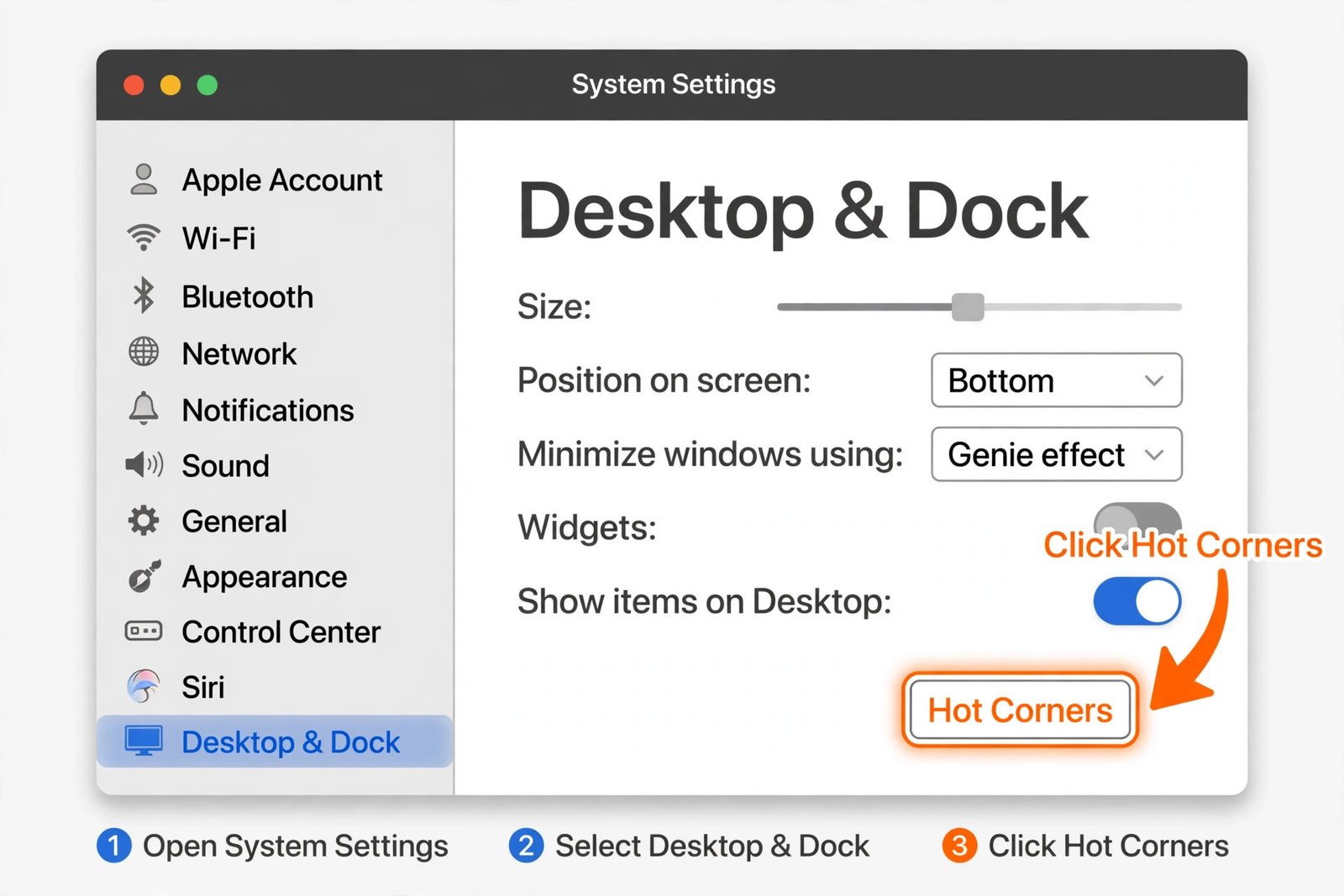
The Hot Corners panel is tucked at the very bottom of the Desktop & Dock pane, so it is easy to miss. Follow these clicks to get there.
- Click the Apple menu in the top-left corner of the screen and choose System Settings.
- In the left sidebar, select Desktop & Dock. Scroll down the sidebar if you do not see it right away.
- Scroll all the way to the bottom of the Desktop & Dock pane and click the Hot Corners button.
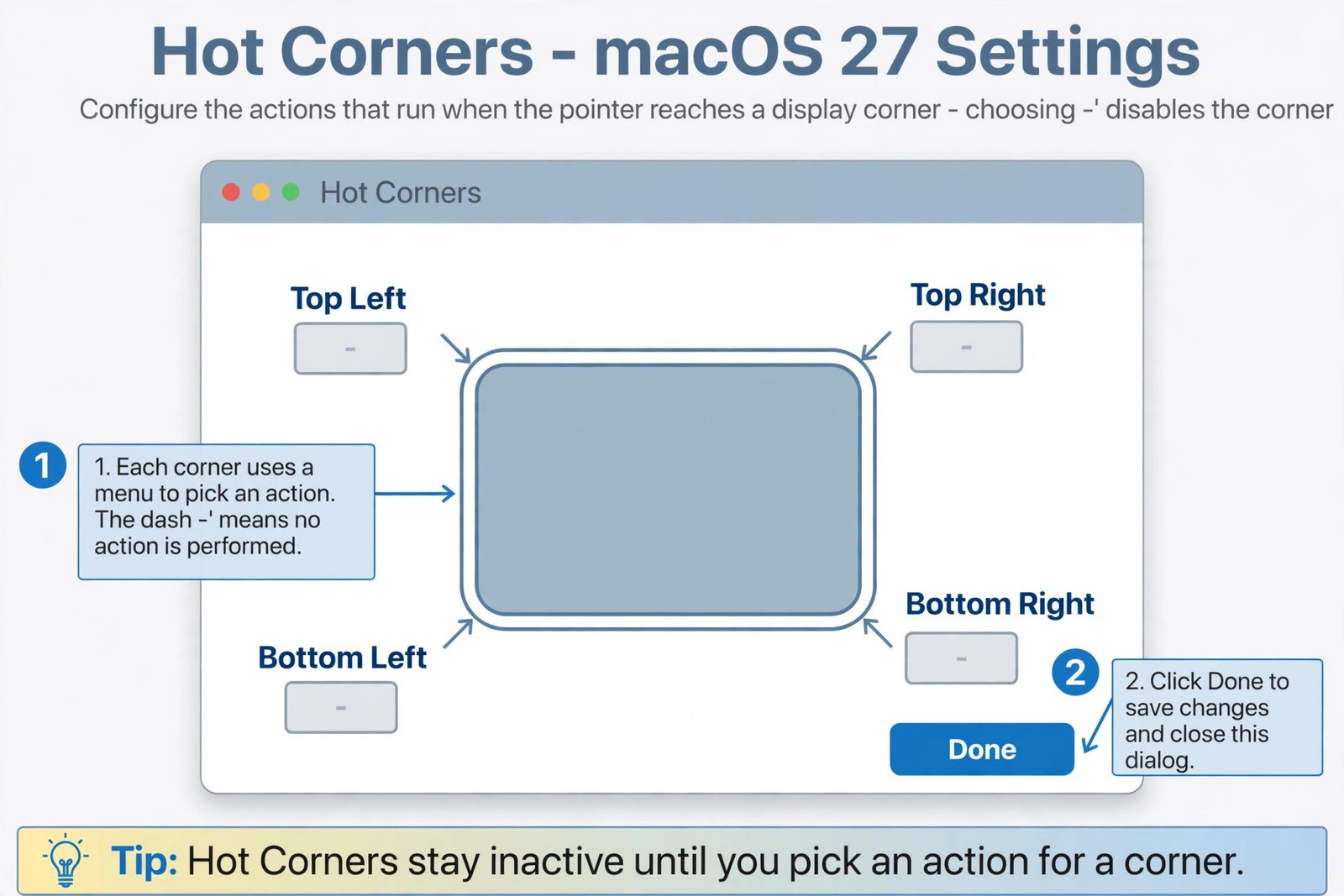
- The Hot Corners dialog opens, showing four dropdowns: Top Left, Top Right, Bottom Left, and Bottom Right.
If you cannot find the pane, type “Hot Corners” into the search field at the top of the System Settings sidebar. The search jumps you straight to the right spot, which also helps if Apple rearranges the layout in a future update.
Set each corner to off
To kill a corner, you assign it “no action.” There is no master on/off switch for Hot Corners. Each corner is independent, so you can disable one troublemaker or all four.
- In the Hot Corners dialog, click the dropdown for the corner you want to disable.
- Choose the dash (“-“) option, which usually sits at the bottom of the list. On some macOS versions it is labeled “None” instead.
- Repeat for each corner you want off. Set all four to the dash and Hot Corners are fully disabled.
- Click Done to save. The change takes effect immediately. There is nothing to restart.
A dash means the corner does nothing at all, so you can flick the pointer into it without any surprises. If only one corner bothers you, disable just that one and leave the rest alone. The table below shows every action you might find in the dropdown, so you know exactly what you are turning off.
| Action | What it does |
|---|---|
| Mission Control | Shows all open windows and desktops |
| Application Windows | Shows every window of the current app |
| Desktop | Sweeps windows aside to reveal the desktop |
| Notification Center | Opens Notification Center |
| Launchpad | Opens the app launcher |
| Quick Note | Opens a new Quick Note |
| Start Screen Saver | Starts the screen saver immediately |
| Disable Screen Saver | Keeps the screen saver from starting while the pointer rests in the corner |
| Put Display to Sleep | Turns the display off |
| Lock Screen | Locks the Mac and asks for your password |
Require a modifier key instead
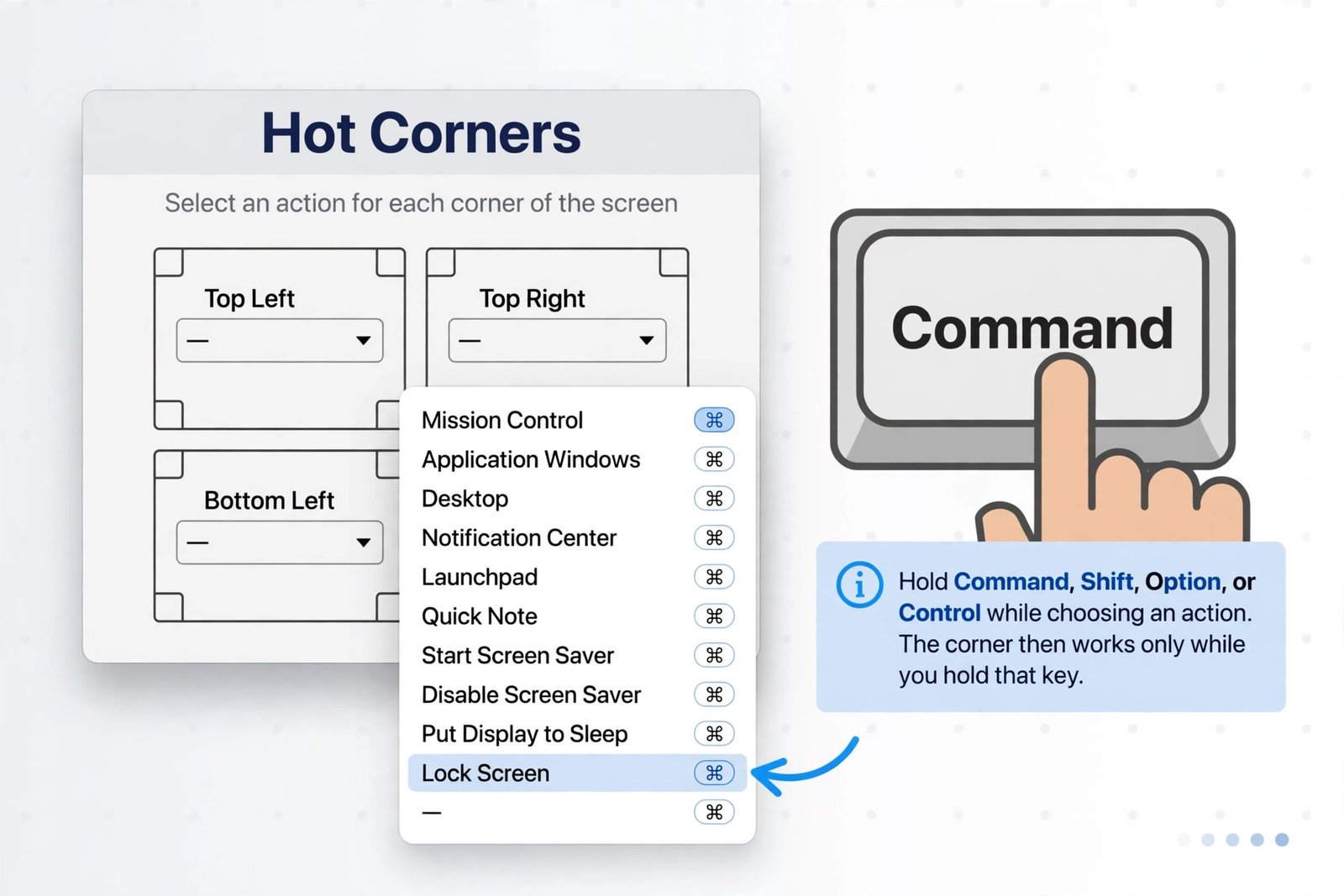
If you like Hot Corners but hate the misfires, there is a middle ground. You can require a modifier key, so the corner only fires when you hold that key while moving the pointer into the corner.
- Open the Hot Corners dialog again (System Settings > Desktop & Dock > Hot Corners).
- Press and hold a modifier key, or a combination: Command, Shift, Option, or Control.
- While still holding the key, open the dropdown for the corner and choose an action. You will see the key symbol appear next to each action in the list.
- Let go of the key and click Done.
From now on, that corner does nothing unless the key is held down. It is a good compromise for disruptive actions like Lock Screen, Put Display to Sleep, or Quick Note, while keeping harmless ones like Mission Control key-free. You can use a different modifier for each corner. To change the modifier later, repeat the steps with a different key held. To drop the corner entirely, set it back to the dash.
Clean up Control Center and the menu bar
One common misconception is worth clearing up: Hot Corners do not live in the menu bar. There is no Hot Corners icon or switch up there. Corners are hover triggers handled by the Dock, so removing menu bar icons does not disable them. If you open Control Center settings hoping for a Hot Corners toggle, you will not find one. That panel, at System Settings > Control Center, only controls which controls appear in the menu bar and in Control Center itself. It is still useful for tidying icons, and if you are doing a broader cleanup, TechIlu’s guide to customizing your Mac walks through more of these hidden settings.
Still getting triggers after setting every corner to the dash? Reopen the Hot Corners dialog and confirm each dropdown really shows the dash and that you clicked Done. Also remember that Notification Center can be opened by clicking the date and time in the menu bar, so a sliding panel is not always a corner firing. As a last resort, you can restart the Dock, which handles Hot Corners, by opening Terminal and running killall Dock.
These steps are unchanged in macOS 27 Golden Gate. The panel sits in the same place it has since Ventura, and the dash still means no action. Apple did add one new corner-related item in macOS 27, but it is for developers only: a .disableScreenCornerInteractions option that lets apps suppress Hot Corners while they run. There is nothing new for everyday users to toggle. For Apple’s own walkthrough, see Apple’s guide to using Hot Corners on Mac. And if you are on a Mac-tweaking streak, you can also disable Caps Lock on Mac and remap it to Escape, or stop AirPods from automatically switching between iPhone and Mac.

- How to Turn Off Hot Corners on a Mac - October 21, 2026
- How to Stop AirPods From Automatically Switching Between iPhone and Mac - October 20, 2026
- How to Disable Caps Lock on Mac and Remap It to Escape - October 19, 2026