
Key Takeaways
- What it does: The Caps Lock key on your Mac can act as an Escape key, a second Control key, or be switched off completely.
- Where to do it: The remap lives in System Settings, under Keyboard, Keyboard Shortcuts, then Modifier Keys.
- One caveat: The remap is stored per keyboard, so an external keyboard needs the same change applied to it separately.
Caps Lock sits right under the pinky of the home row, in prime keyboard real estate, yet most typists only use it to shout by accident. Vim and Emacs users noticed this long ago: Escape is pressed constantly in modal editors, but on modern keyboards it sits a long stretch away in the top corner. Moving Escape to the Caps Lock position saves that reach on every single keypress. This guide shows 2 methods to remap or disable Caps Lock on Mac, starting with the simple Settings route and then a Terminal command for people who prefer it.
Method 1: Remap Caps Lock to Escape in System Settings
This is the method almost everyone should use. It needs no extra software, it applies instantly, and it is fully reversible. The steps below match macOS 27 Golden Gate, and the same pane has been in this spot on recent macOS versions.
- Open System Settings. Click the Apple menu in the top-left corner of the screen and choose System Settings.
- Select Keyboard. Click Keyboard in the left sidebar. If you do not see it, type “keyboard” in the search field at the top of System Settings.
- Open Keyboard Shortcuts. Under the Keyboard navigation section, click the Keyboard Shortcuts… button.
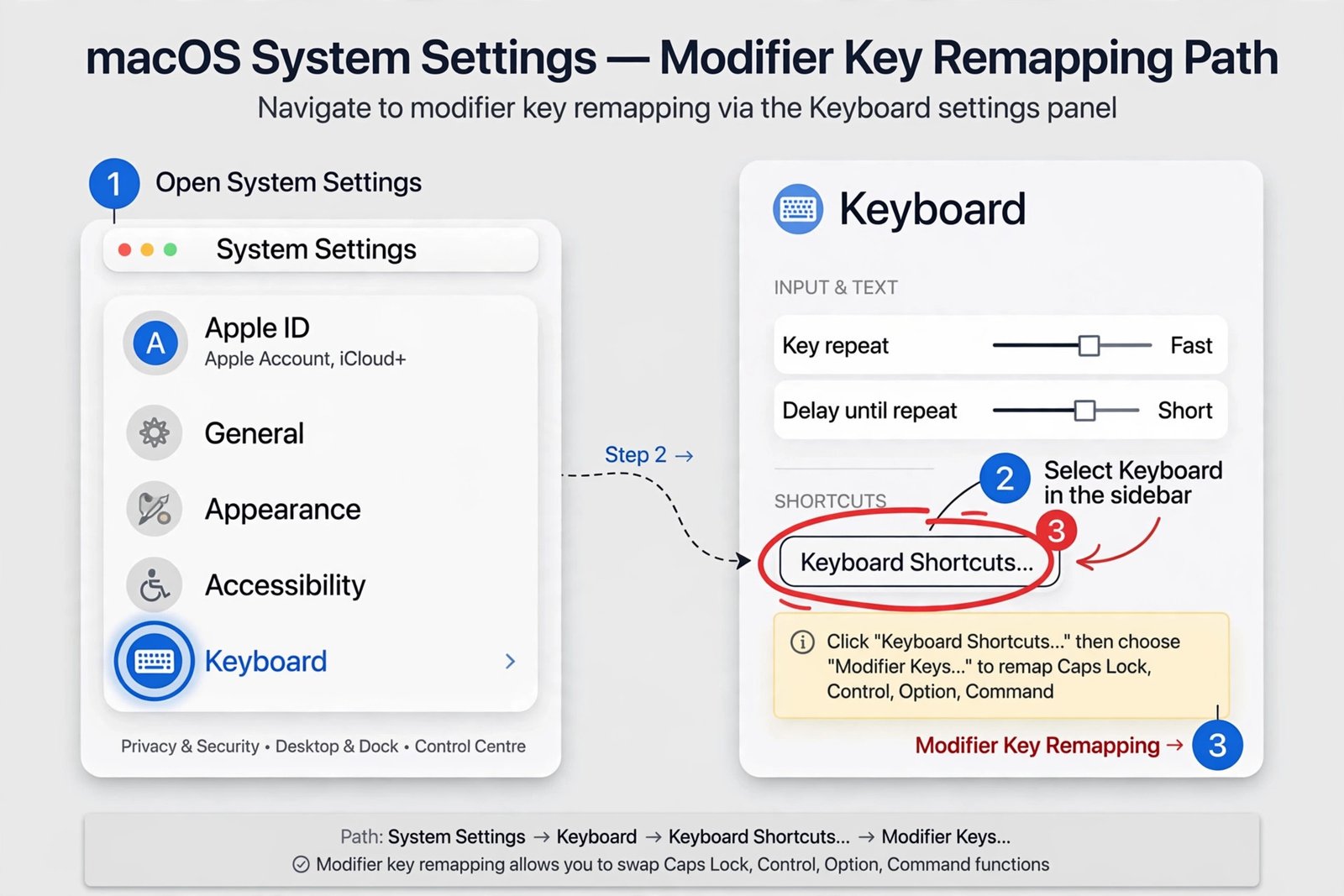
- Choose Modifier Keys. In the left column of the Shortcuts window, select Modifier Keys.
- Pick your keyboard. At the top of the pane, use the Select keyboard dropdown to choose which keyboard the change applies to, for example the built-in MacBook keyboard or an external USB or Bluetooth keyboard.
- Remap Caps Lock. Click the dropdown next to Caps Lock and choose Escape. If you would rather the key did nothing at all, choose No Action instead.
- Save. Click Done (older macOS versions label this button OK). The change takes effect immediately, with no restart required.
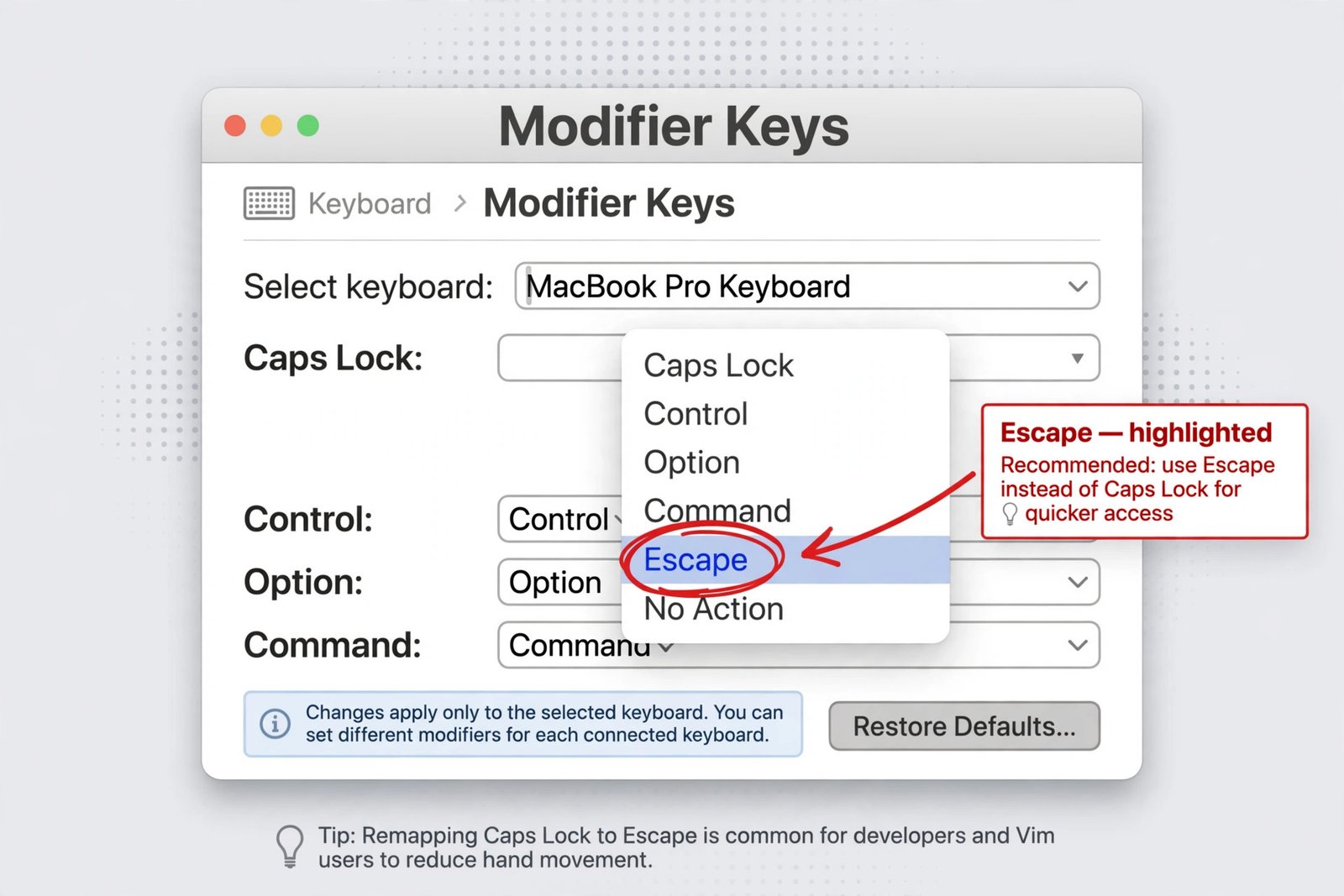
Note: Each option in the dropdown changes what the physical key reports to the system. The full set of choices is:
| Dropdown option | What the Caps Lock key will do |
|---|---|
| Caps Lock | Default behavior, toggles uppercase typing |
| Control | Acts as a second Control key, popular with terminal and Emacs users |
| Option | Acts as a second Option key |
| Command | Acts as a second Command key |
| Escape | Acts as an Escape key, the Vim and modal-editor favorite |
| No Action | The key does nothing, effectively disabling Caps Lock |
Which should you pick, Escape or No Action? If you use Vim, Neovim, Emacs, or any modal workflow, Escape is the obvious winner, since it turns a dead key into the one you reach for most. If you simply keep fat-fingering Caps Lock while writing prose and never touch Vim, No Action is the calmer choice: the key becomes inert, and accidental presses do nothing at all. Both choices can be changed back in seconds, so there is no risk in experimenting.
To undo the change at any point, return to the same pane, set the Caps Lock dropdown back to Caps Lock, or click Restore Defaults to reset every modifier at once. Apple documents the same navigation path in its official guide on changing the behavior of the modifier keys on Mac. Readers who also tinker with the top row should see how to activate function keys on a laptop for the matching fix on that side of the keyboard.
Method 2: Remap Caps Lock to Escape Using Terminal
Prefer the command line, or setting up several Macs at once? macOS ships with a built-in tool called hidutil that remaps keys at the system level, with no third-party software involved. It was introduced for exactly this kind of key remapping and is documented in Apple’s developer technical notes.
- Open Terminal. Find it in Applications, Utilities, or launch it with Spotlight (Command + Space, then type “Terminal”).
- Run the remap command. Paste the following line and press Enter:
hidutil property --set '{"UserKeyMapping":[{"HIDKeyboardModifierMappingSrc":0x700000039,"HIDKeyboardModifierMappingDst":0x700000029}]}' - Test it. Press the Caps Lock key. It should now behave as Escape. If you open Vim or any dialog you can cancel, one tap on the old Caps Lock key will do what Escape does.
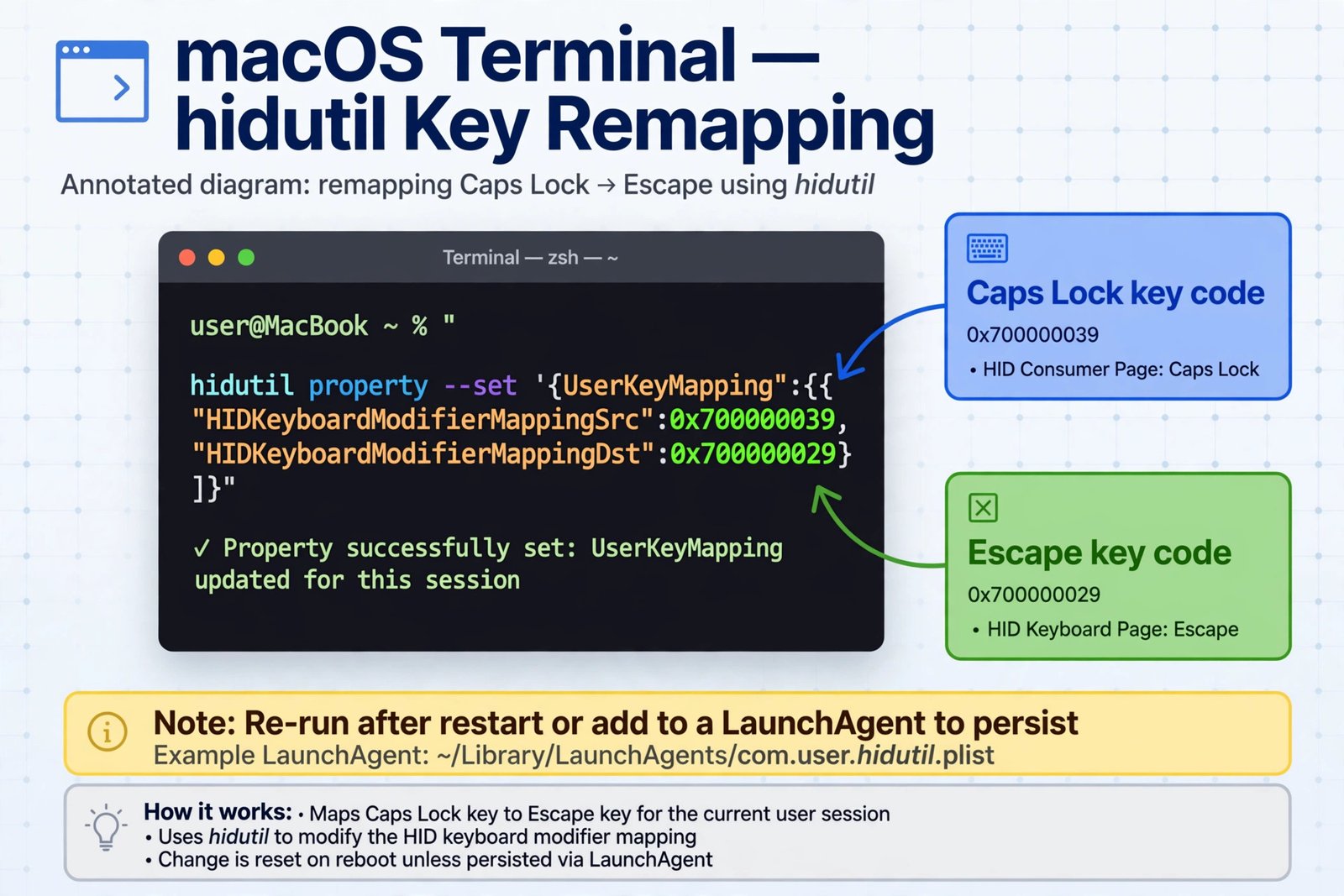
The two hexadecimal numbers are the hardware key codes from Apple’s key tables: 0x700000039 is Caps Lock and 0x700000029 is Escape. Swapping the destination code remaps the same key to something else entirely. Some common alternatives are listed below.
| Key | hidutil key code | Use it as the destination to map Caps Lock to… |
|---|---|---|
| Caps Lock (source) | 0x700000039 | This is the key you are remapping |
| Escape | 0x700000029 | An Escape key under your pinky |
| Backspace | 0x70000002A | A second Backspace key |
Note: If macOS prompts for permission the first time you run the command, approve Terminal under System Settings, Privacy & Security, Input Monitoring, then run the command again.
Make the Terminal remap stick across restarts
Unlike the Settings method, the hidutil mapping is forgotten when the Mac restarts. To make it permanent, run it automatically at login with a LaunchAgent. Save the following as ~/Library/LaunchAgents/com.local.capslock-escape.plist:
<?xml version="1.0" encoding="UTF-8"?> <plist version="1.0"> <dict> <key>Label</key> <string>com.local.capslock-escape</string> <key>ProgramArguments</key> <array> <string>/bin/sh</string> <string>-c</string> <string>hidutil property --set '{"UserKeyMapping":[{"HIDKeyboardModifierMappingSrc":0x700000039,"HIDKeyboardModifierMappingDst":0x700000029}]}'</string> </array> <key>RunAtLoad</key> <true/> </dict> </plist>
Then load it once with launchctl load ~/Library/LaunchAgents/com.local.capslock-escape.plist. From then on, the remap applies itself every time you sign in. To remove it later, run launchctl unload on the same file and delete the plist. This persistence pattern is the same one used by developers who build multi-function Caps Lock setups.
A Note on Per-Keyboard Remapping
The Modifier Keys pane stores the remap per keyboard, not for the whole Mac. If you remap Caps Lock on the built-in MacBook keyboard and later plug in an external keyboard, that external keyboard keeps its own mapping until you select it from the Select keyboard dropdown and apply the change there too. This is genuinely useful: you can keep Escape on the laptop keyboard while an external keyboard keeps a normal Caps Lock, or the other way around.
One small thing to expect: after remapping, the little green Caps Lock indicator light may stop lighting up, because the key no longer reports itself as Caps Lock to the system. That is normal and does not mean the remap failed. Press the key in a text field or a modal editor to confirm what it actually sends.
Note: If you currently use Caps Lock to switch keyboard input languages (System Settings, Keyboard, Text Input, Input Sources), remapping the key overrides that behavior. Decide which use matters more to you before committing to the remap.
Your Caps Lock Is Now an Escape Key
Both routes get you the same result, so pick the one that fits your habits: System Settings for a two-minute change you can reverse in one click, or hidutil for a scriptable, repeatable setup. Either way, the most accident-prone key on the keyboard finally earns its spot on the home row.
If this kind of low-level tweak appeals to you, customize your Mac further with more settings worth changing, and if you remap keys for games, check which Mac settings actually help gaming performance.

- How to Disable Caps Lock on Mac and Remap It to Escape - October 19, 2026
- Nintendo Switch 2: Is It Worth It in 2026? - October 18, 2026
- What Is C2PA? How Content Credentials Show If an Image Is AI-Made in 2026 - October 18, 2026