
Key takeaways
- The washed-out look is Windows mapping SDR content into the wider HDR brightness range. It is a settings issue, not a broken monitor.
- The fastest fix is the Use HDR toggle under Settings, System, Display, Brightness and color, or the Win + Alt + B shortcut.
- To keep HDR on, use the SDR content brightness slider on the HDR settings page, then calibrate with Microsoft’s free HDR Calibration app.
You flipped on HDR expecting richer colors, and now your whole desktop looks pale and gray. That washed-out look happens because Windows has to squeeze everyday SDR content into the wider HDR brightness range, and it does not always get the mapping right. In this guide, you will learn why it happens and get three ways to deal with it: turn HDR off completely, adjust the SDR content brightness slider, or calibrate your display with Microsoft’s free HDR Calibration app.
Why HDR makes your screen look washed out
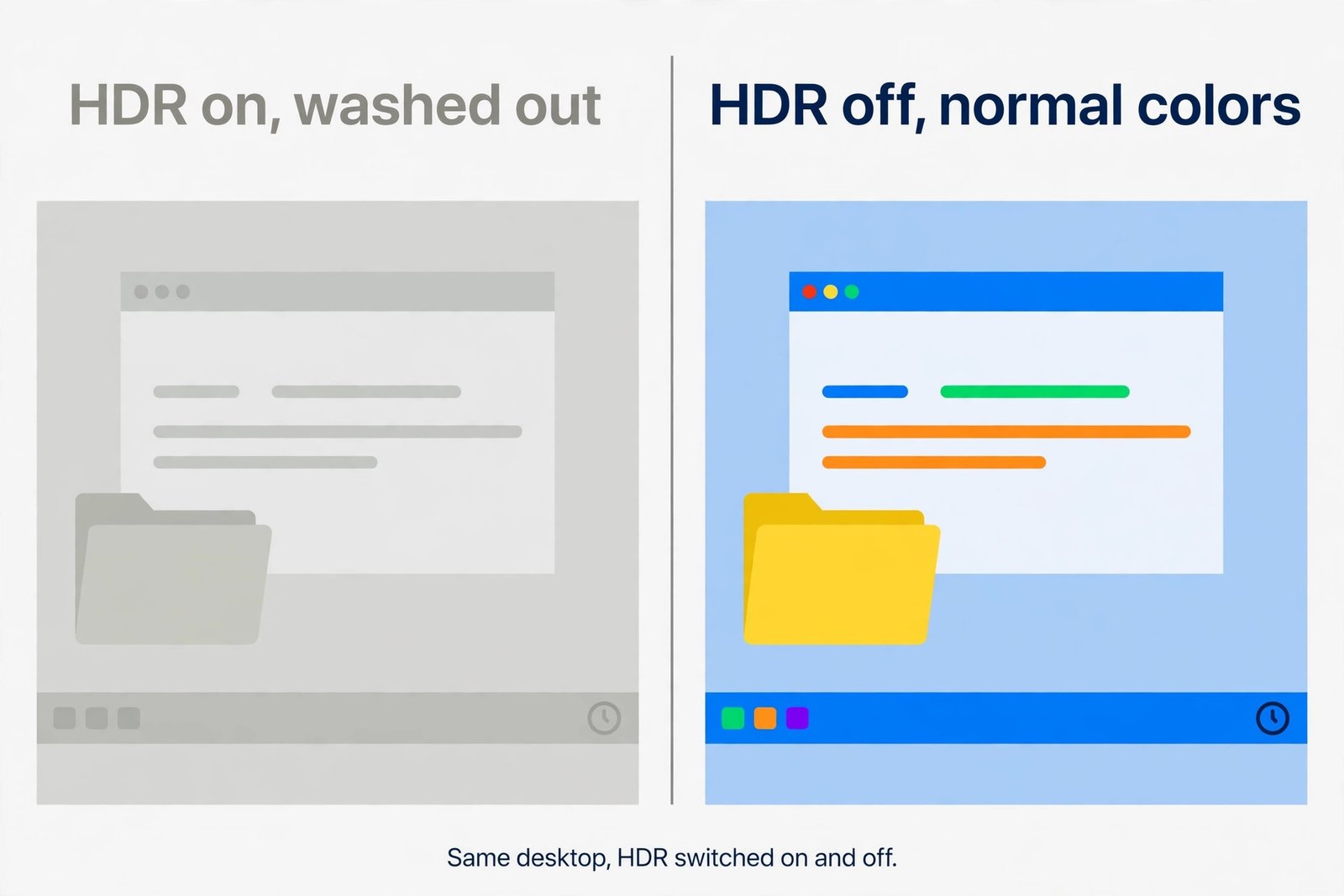
HDR (High Dynamic Range) lets a display show a much wider range between its darkest and brightest points than the older SDR (Standard Dynamic Range) standard. Almost everything you use daily, your browser, email, File Explorer, and Office apps, is SDR content designed for that narrower range. When you turn HDR on, Windows must translate all that SDR content into the HDR signal through a process called tone mapping. If Windows guesses your display’s brightness range wrong, white areas land at the wrong brightness and the whole desktop looks gray, flat, and low-contrast.
Here is the classic example: you launch an HDR game and it looks stunning, then you quit back to the desktop and everything looks like a faded photograph. The game sends HDR data the screen understands, while your SDR desktop is being stretched into a brightness range it was never made for. That gap between the two is exactly what you are seeing.
How to turn off HDR in Windows 11
If you mostly use everyday apps, turning HDR off is the fastest fix. Your colors go straight back to normal in seconds.
- Press Win + I to open Settings. You can also right-click the desktop and choose Display settings.
- Go to System, then Display.
- If you have more than one monitor, select your HDR-capable display at the top of the page so the change applies to the right screen.
- Under Brightness & color, switch the Use HDR toggle to Off. Your screen may flicker briefly as it switches back to SDR.
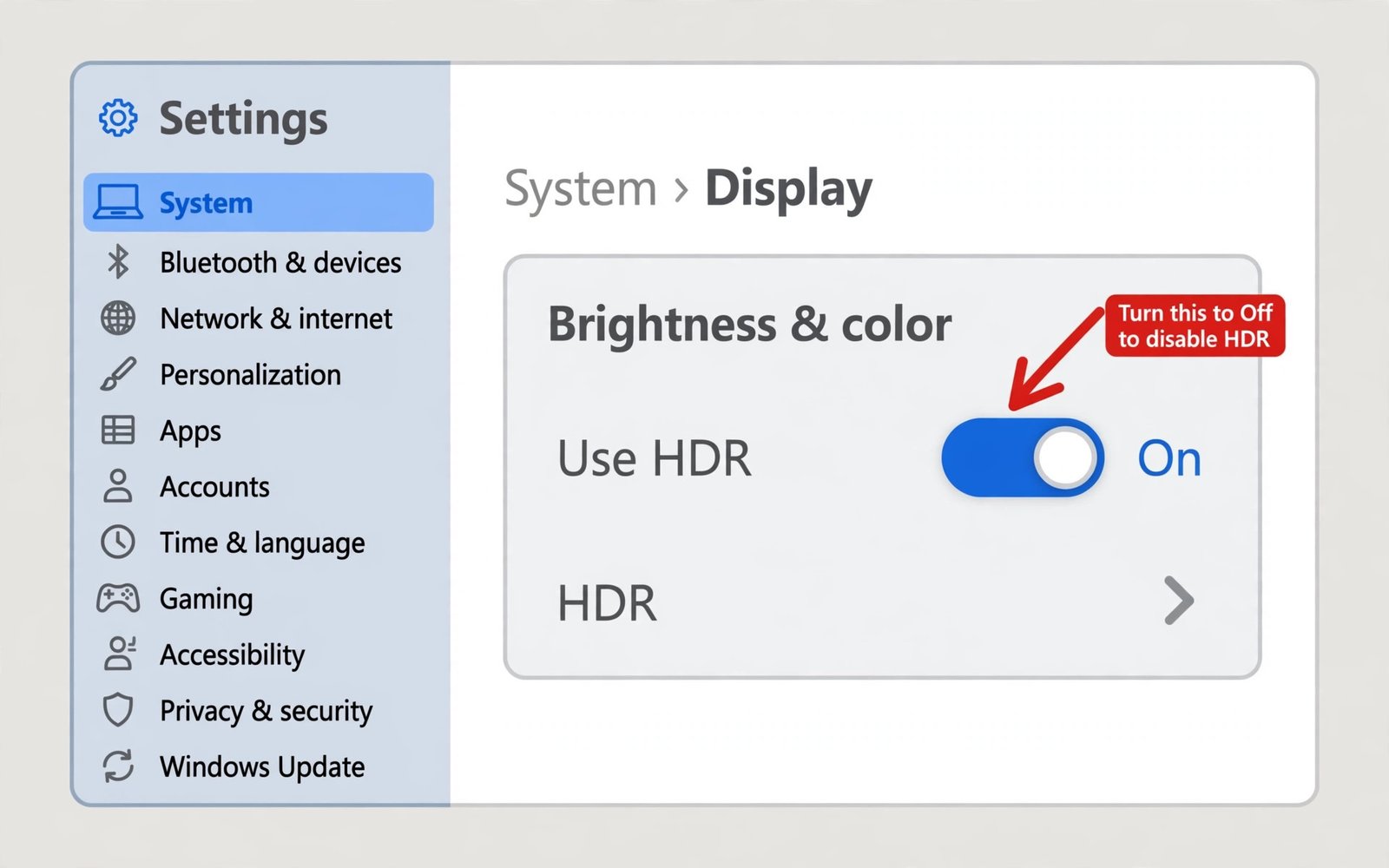
Your desktop should now look exactly as it did before HDR was turned on. If the colors still look off, check your monitor’s own menu: some displays have a separate HDR or picture mode in their on-screen display that needs switching back to a standard or sRGB mode to match Windows.
Turn HDR on and off with a keyboard shortcut
Windows 11 has a built-in HDR toggle shortcut: press Win + Alt + B. The screen flashes for a moment and HDR flips to the opposite state. This is handy when you want HDR for a game or movie and SDR for everything else, since it beats digging through Settings every time.
Fix washed-out colors without turning HDR off
If you want to keep HDR for games and movies but the desktop looks wrong, the SDR content brightness slider is the middle ground. It changes how bright everyday content looks without touching how HDR content is shown.
- Press Win + I and go to System, then Display.
- Select your HDR-capable display at the top of the page.
- Click HDR, the row next to the Use HDR toggle under Brightness and color. This opens the HDR settings page.
- Under SDR content brightness, drag the slider until everyday apps look natural. Judge by eye: whites should look white, neither gray nor glaring. The change is live, so you can watch the desktop update as you drag.
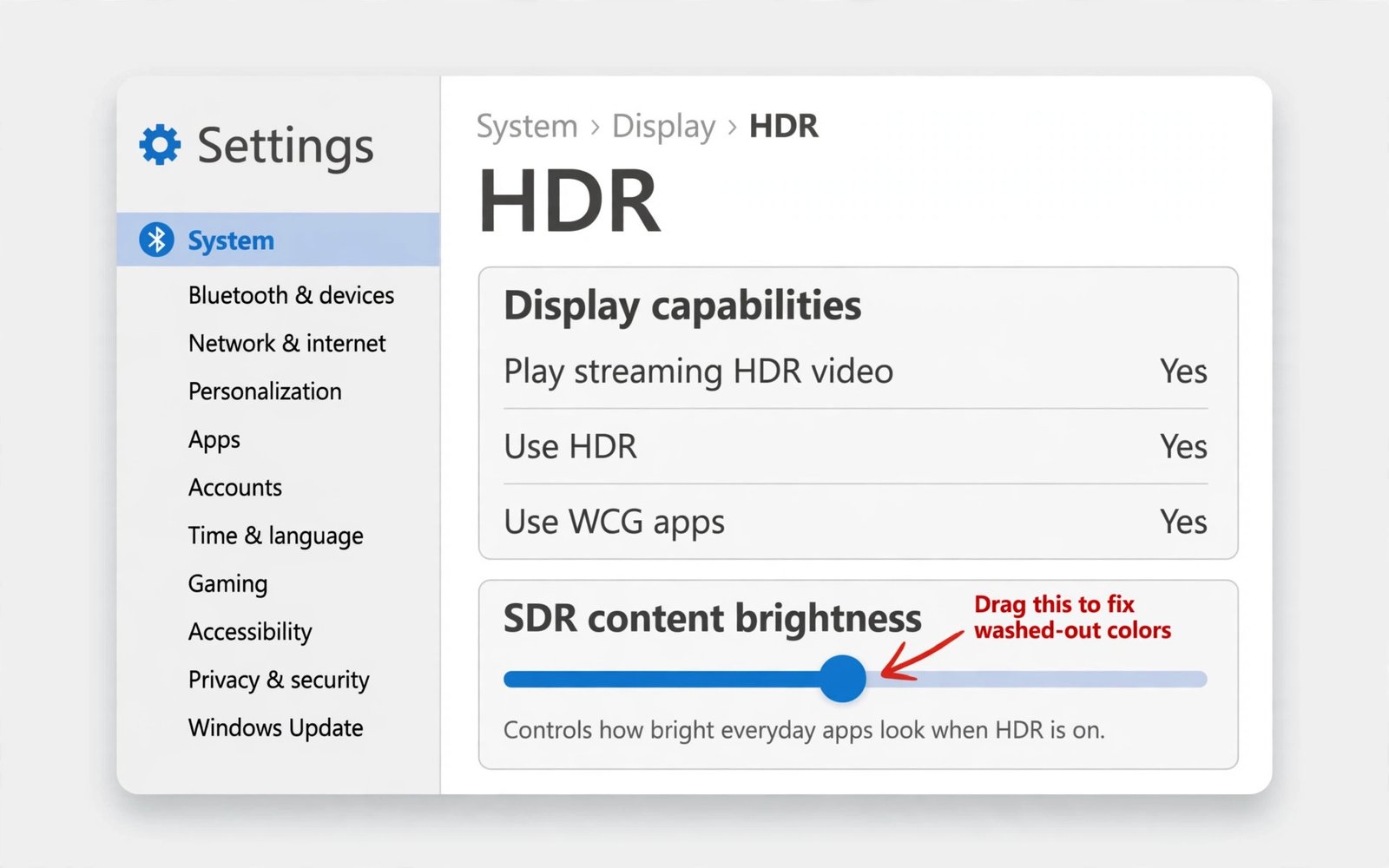
This slider only appears while HDR is on, which is why many people never find it. Move the Settings window onto the HDR display you are adjusting so you can see the change on the right screen. One thing to know: on laptops with a built-in HDR screen, the slider may be labeled HDR content brightness instead, and it adjusts HDR brightness relative to your normal SDR brightness. On an external monitor it is called SDR content brightness and does the opposite. Either way, nudge it until the desktop looks right. Microsoft’s own HDR settings guide walks through the same balance slider and explains how it differs between external and built-in displays.
Calibrate your display with the Windows HDR Calibration app
When the slider alone is not enough, calibration teaches Windows exactly what your specific monitor can do, so its tone mapping stops guessing. Windows assumes a generic brightness range out of the box, and that guess is the main reason the desktop looks washed out on some displays but fine on others.
- Turn HDR on first. Calibration only works while HDR is enabled.
- Open the Microsoft Store, search for Windows HDR Calibration, and install it. It is a free official Microsoft app and does not come pre-installed on most PCs.
- Launch the app from the Start menu. If you use more than one monitor, drag the app window onto your HDR display before you start.
- Click Get started. The app walks you through three full-screen test patterns: drag the slider for minimum luminance until the pattern disappears, then maximum luminance, then max full frame luminance.
- On the color saturation screen, adjust the slider until the colors look right to you.
- Click Finish to save the profile. Windows applies it automatically whenever HDR is on for that display.
Microsoft documents the requirements and the full calibration flow in its Windows HDR Calibration guide, which is worth a look if a step behaves differently on your setup. After calibrating, you can compare before and after from Settings, System, Display, HDR, where the option to use your calibration profile can be switched on and off. If the desktop still looks slightly pale afterward, combine the profile with the SDR content brightness slider from the previous section.
Verdict: keep HDR on, or turn it off?
There is no single right answer. It depends on what you do on your PC. HDR genuinely shines for HDR games and HDR movies on a capable display, and a one-time calibration makes it far more consistent. But for everyday desktop work, browsing, email, and documents, SDR still looks more reliable, drains less battery on laptops, and avoids the mapping problem entirely. Use this as your rule of thumb:
| Situation | Best setting |
|---|---|
| You play HDR games or watch HDR movies regularly | Keep HDR on, and run the calibration app once |
| You mainly browse, work, and use Office apps | Turn HDR off, and use Win + Alt + B when you want it |
| The desktop looks only slightly off with HDR on | Keep HDR on and adjust the SDR content brightness slider |
| You are on a laptop running on battery | Turn HDR off to save battery life |
The washed-out look is not a broken monitor or a Windows bug. It is the side effect of fitting SDR content into an HDR signal, and Windows gives you every control you need to handle it. Pick the fix that matches how you use your PC. The choice takes less than a minute to make, and just as little to reverse.

- How to Turn Off HDR in Windows 11 When Colors Look Washed Out - October 22, 2026
- What Is Samsung Free and How to Stop It Opening on Your Home Screen - October 21, 2026
- What Is Now Brief on Samsung Galaxy Phones and How to Turn It Off - October 20, 2026