
You can hide the search box on the Windows 11 taskbar in under a minute, and search keeps working exactly as before. Open Taskbar settings, find Search under Taskbar items, and choose Hide. The box disappears at once, and you can still search by pressing the Windows key and typing, or with Windows key + S. Nothing is uninstalled, and the change is easy to undo.
Hide the search box in Taskbar settings
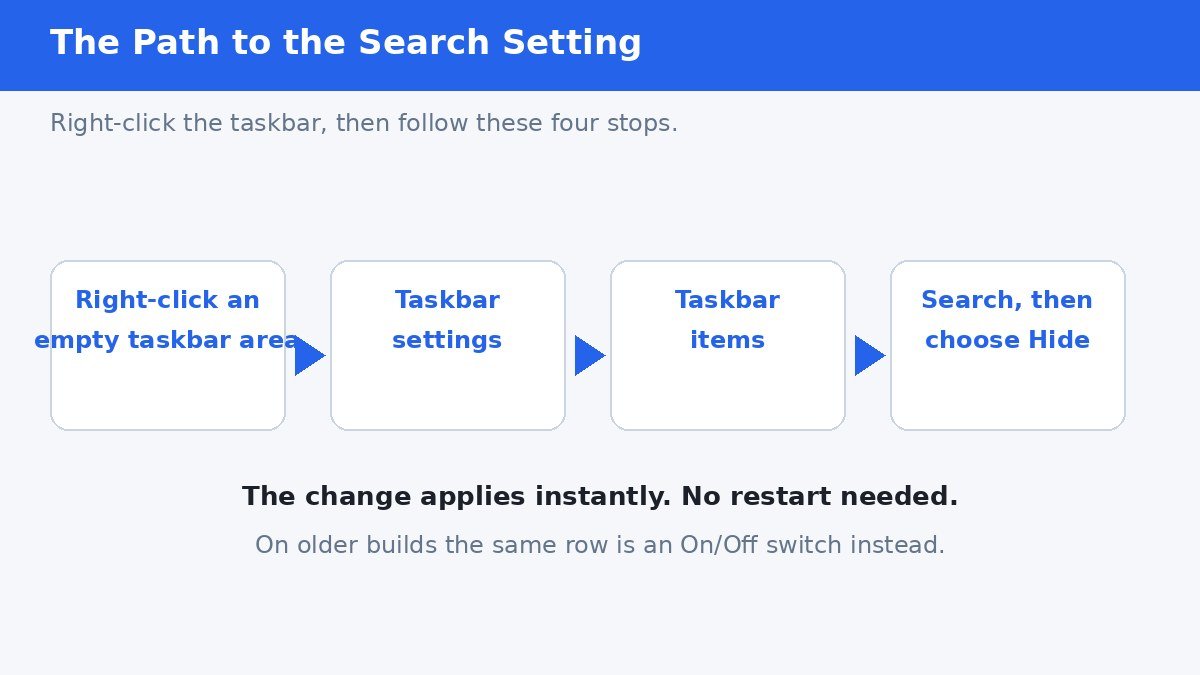
- Right-click an empty area of the taskbar and choose Taskbar settings.
- Look for Search under the Taskbar items section near the top of the page.
- Open the drop-down menu next to Search and choose Hide.
- Close Settings. The taskbar updates immediately, with no restart needed.
If right-clicking the taskbar does nothing, reach the same page another way: press Windows key + I to open Settings, then go to Personalization, then Taskbar. You can also press Windows key + R, type ms-settings:taskbar, and press Enter.
The four search styles, compared
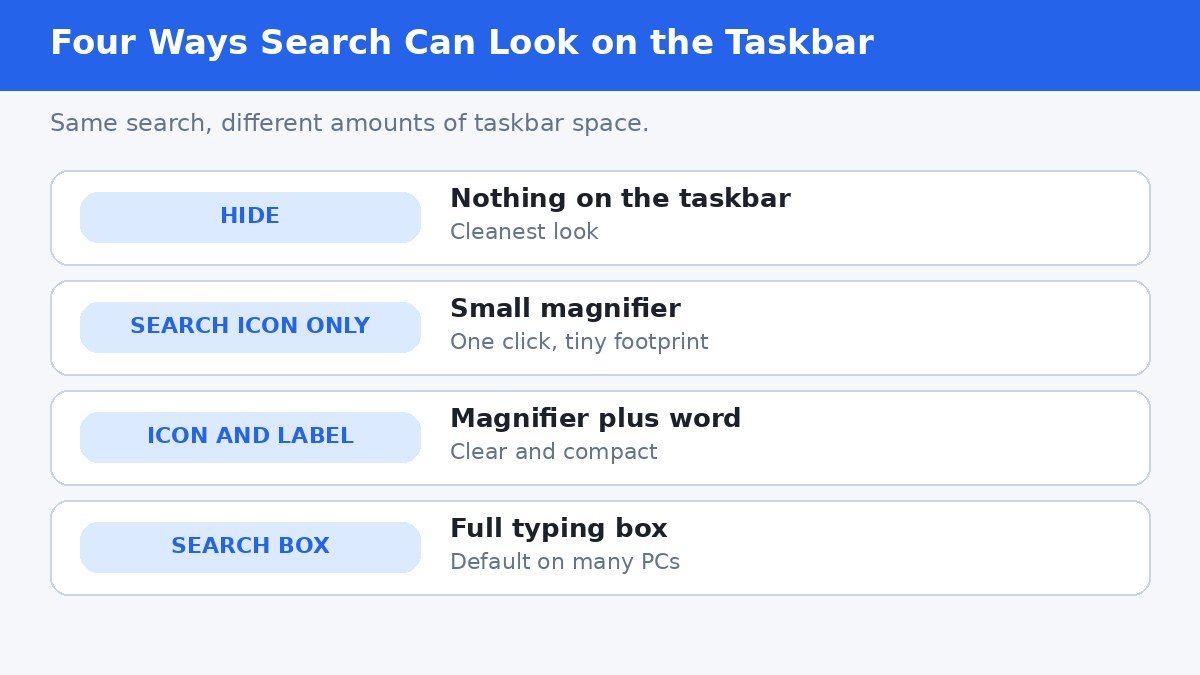
Windows 11 offers four ways to show search on the taskbar. Hiding it is only one option, and for many people a smaller button is the better middle ground, since search stays one click away. The four styles need Windows 11 build 22621 or newer; on older builds you get the simpler On/Off switch covered below.
| Style | What you see | Best for |
|---|---|---|
| Hide | Nothing at all | The cleanest taskbar, if you search from the keyboard |
| Search icon only | A small magnifying glass | Saving space while keeping search one click away |
| Search icon and label | Magnifying glass plus the word Search | Clarity without the width of a full box |
| Search box | A full typing box | Typing a search without opening anything first |
To switch between styles later, return to the same drop-down menu and pick another option. The taskbar changes the moment you choose, so you can try each style and keep the one you like.
If your PC shows an On/Off switch instead
On older Windows 11 builds, the Search row under Taskbar items has a simple On/Off switch instead of a drop-down menu. Turn the switch Off to hide the search button, and On to bring it back. The result is the same as choosing Hide: the button leaves the taskbar, and search still works from the Start menu and the keyboard.
If you see neither a drop-down nor a switch, check for Windows updates first, since the four-style menu arrived with later builds. A missing Search row can also mean a work or school policy controls the taskbar, in which case the setting may be greyed out and only an administrator can change it.
Registry fallback for stubborn cases
If the Settings option is missing or does not stick, the same choice lives in the registry. Only use this method if you are comfortable editing the registry, and back it up first: in Registry Editor, choose File, then Export, and save a copy before changing anything.
- Press Windows key + R, type regedit, and press Enter. Approve the permission prompt.
- Go to HKEY_CURRENT_USER, Software, Microsoft, Windows, CurrentVersion, Search. You can paste that path into the address bar at the top.
- Look for a DWORD value named SearchboxTaskbarMode. If it is missing, right-click in the right pane, choose New, then DWORD (32-bit) Value, and name it exactly SearchboxTaskbarMode.
- Double-click it and set Value data to 0 to hide search. A value of 1 restores the icon only, and 2 restores the search box on most builds.
- Close Registry Editor. The taskbar should update at once; if not, restart the PC.
One honest caveat: sources disagree slightly on the numbering for the box and button styles, because the labels changed across builds. The value 0 for hiding is consistent everywhere. If a restore value gives you a different style than expected, delete the value you created and use the Settings drop-down instead, which is always the safer route.
What hiding search does not do
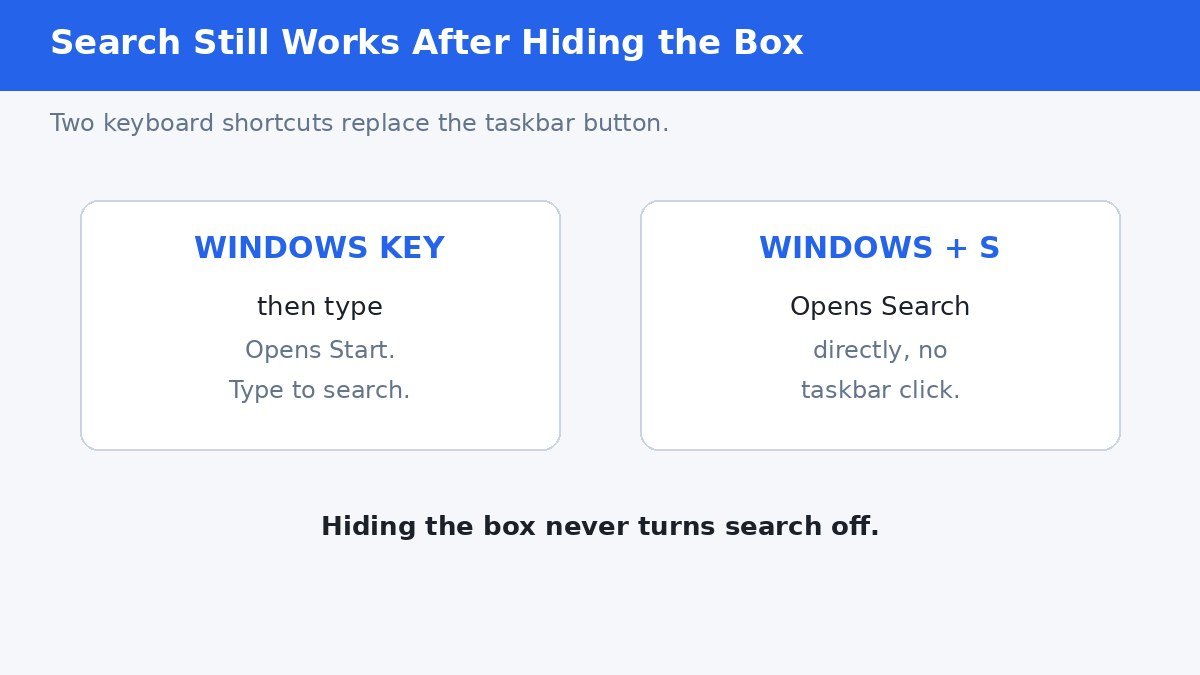
Hiding the taskbar search box only removes the button from the taskbar. It does not turn search off, and it does not remove the search box inside the Start menu, which has no setting to turn it off. Pressing the Windows key and typing still opens Start search, and Windows key + S still opens the search panel directly.
The setting also applies per user account, not per PC. If several people sign in to the same computer, each account keeps its own taskbar search style, so repeat the steps on any account that should look the same.
A cleaner taskbar costs nothing here: no feature is lost, no app is removed, and one setting brings everything back. If you mostly search from the keyboard anyway, hiding the box is the tidiest choice. If you still click to search, the small icon gives you almost the same clean look without changing your habit.
## Verification notes (for the publisher, not the article) – Fact verification: Settings path (right-click taskbar, Taskbar settings, Personalization, Taskbar, Taskbar items, Search drop-down), four modes (Hide, Search icon only, Search icon and label, Search box), older-build On/Off switch, ms-settings:taskbar shortcut, Windows key and Windows key + S behavior, per-account scope, and the Start menu search box having no off switch all confirmed against current Windows 11 guides dated 2026. Registry path HKEY_CURRENT_USER\Software\Microsoft\Windows\CurrentVersion\Search and SearchboxTaskbarMode confirmed; the 0 value for Hide is consistent across sources, while the box/button numbering (2 vs 3) varies by build, so the article hedges that point honestly rather than asserting one mapping. – Link counts: 0 outbound, 0 internal. No verifiable authoritative link target was available verbatim and no internal targets could be verified without contacting WordPress, so no links were forced. – No em dashes. No first-person testing claims.
- How to Hide the Search Box on the Windows 11 Taskbar - November 1, 2026
- How to Reverse Mouse Scroll Direction on Windows 11 - October 31, 2026
- How to Turn Off Transparency Effects on Windows 11 - October 30, 2026