
You ticked “User must change password at next logon,” the user signs in, and… nothing happens. No prompt, no forced change, just a normal login. Here are the two-minute fixes first, then the deeper causes if those do not stick.
The 2-Minute Quick Fixes
Quick fix 1: Re-tick the checkbox and check it stayed ticked
Open Computer Management (right-click Start, then Computer Management), go to Local Users and Groups, then Users. Double-click the account, tick “User must change password at next logon,” click Apply, and then close and reopen the properties. If the tick is gone, something is clearing it: read the account-type section below. If it stays ticked, have the user sign out completely and sign back in.
Quick fix 2: Confirm it is a local account, not a Microsoft account
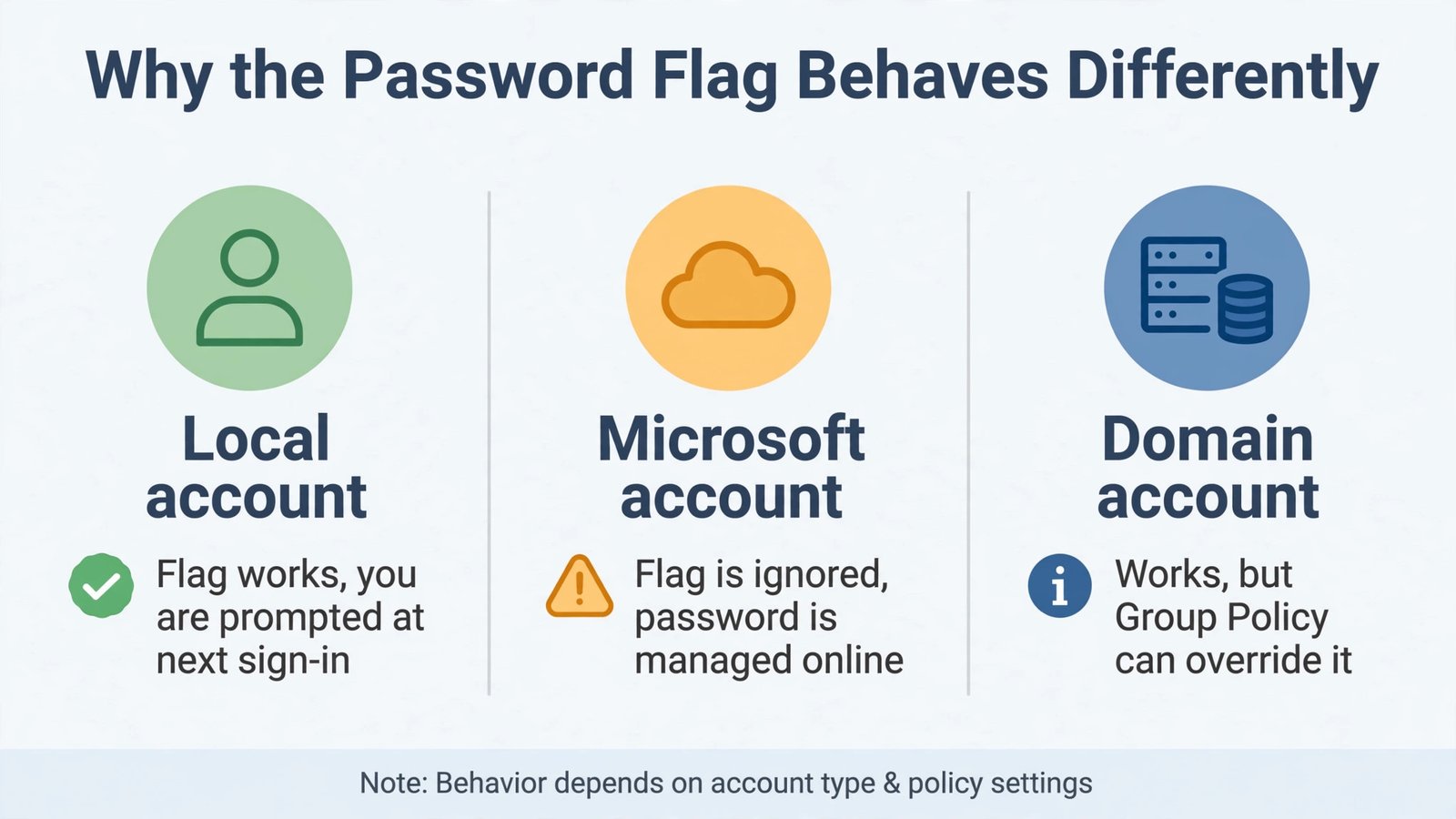
This is the single most common reason the flag “does not work.” The checkbox only applies to local and domain accounts. If the user signs in with a Microsoft account (an email address), Windows ignores the flag entirely, because the password is managed online at the Microsoft account page, not on the PC. For those users, the password must be changed through their Microsoft account settings instead.
Quick fix 3: Set the flag from the command line
Sometimes the graphical checkbox misbehaves while the command works. Open Command Prompt as administrator and run:
net user username /logonpasswordchg:yesReplace username with the actual account name. Have the user sign out and back in, and the change-password prompt should appear.
Did it work? If the user now sees “The user’s password must be changed before signing in” at the login screen, you are done. If the checkbox keeps un-ticking itself, or the prompt never appears over Remote Desktop, move on to the deep fixes.
Still Broken? The Deeper Causes
Deep fix 1: Cached credentials are logging the user in locally
On domain-joined PCs, Windows can log the user in with cached credentials when it cannot reach a domain controller, and a cached logon never triggers the password-change prompt. Make sure the PC has a working network connection to the domain controller, then have the user sign out fully (not just disconnect) and sign in again. You can also clear stored credentials with cmdkey /list to review them and cmdkey /delete to remove stale entries.
Deep fix 2: The flag only fires on the second logon attempt
A known quirk: on some setups the first sign-in after setting the flag succeeds normally, and only the second sign-in shows the prompt. If the user logged in once without being prompted, do not assume the flag failed: have them sign out and sign in one more time before troubleshooting further.
Deep fix 3: Remote Desktop with NLA blocks the prompt
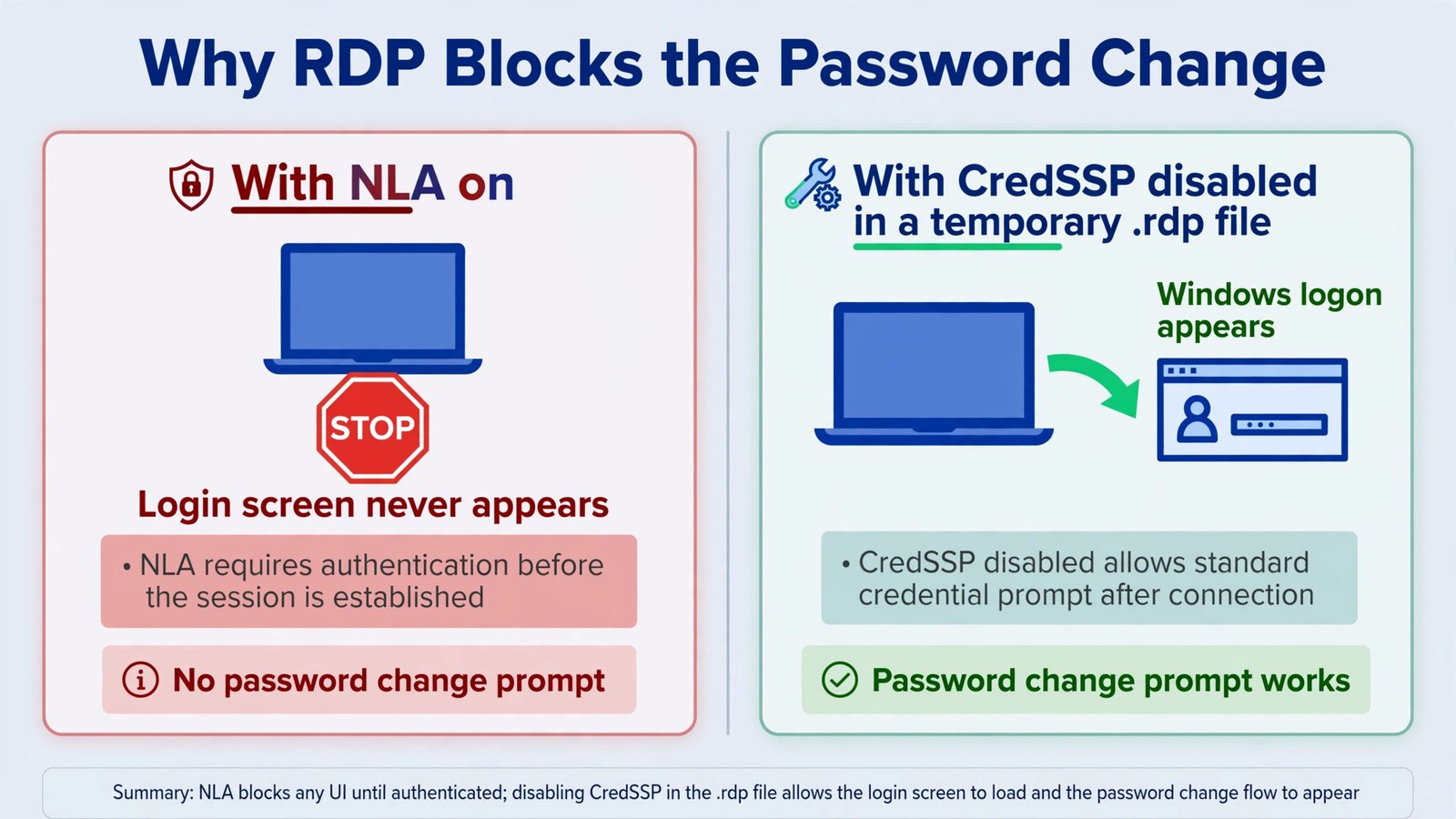
When Network Level Authentication is on, Remote Desktop authenticates the user before the Windows login screen ever appears, so the “must change password” prompt has nowhere to show up. The workaround is a temporary .rdp file with authentication lowered. Save your connection as a file, open it in Notepad, add these two lines at the bottom, and connect through that file:
authentication level:i:2
enablecredsspsupport:i:0
The user will then see the normal Windows logon screen on the remote PC, change the password there, and sign in. Delete the temporary file afterward, because lowered authentication is less secure and should not become the everyday way to connect. Our guide to saved credentials in Remote Desktop covers related login quirks.
Deep fix 4: Group Policy is overriding the account
On domain PCs, Group Policy can control password behavior and silently clear or ignore the flag. Check with your domain admin whether a password policy or a LAPS (Local Administrator Password Solution) policy manages the account: LAPS-managed accounts, in particular, behave unexpectedly when the flag is set manually, because LAPS expects to be the only thing changing the password.
Frequently Asked Questions
Why does the checkbox un-tick itself?
Usually because the account is a Microsoft account, which does not support the flag, or because a domain policy or management tool is resetting it. It can also clear if the password was changed by another admin tool after you ticked it.
Does this work for accounts that sign in with a PIN or fingerprint?
Windows Hello sign-in methods bypass the password prompt flow, so the flag may not trigger for PIN or biometric sign-ins. Have the user sign in with their password once to receive the change prompt.
Setting up accounts from scratch? See our walkthrough on logging in with a local account instead of a domain account for the account-type basics.

- How to Fix Windows 11 Clock Showing the Wrong Time - October 23, 2026
- How to Fix File Explorer Slow to Open in Windows 11 - October 22, 2026
- How to Fix a Printer Showing Offline in Windows 11 - October 21, 2026