
You type the computer name, hit Connect, and Remote Desktop replies that it cannot find the computer. No helpful detail, no error code, just a dead end. This message almost always means the connection never reached the remote PC at all, so the fix is about finding where the path breaks: the PC, the name, the network, or the firewall.
Key Takeaways
- This error means your PC could not locate the remote PC on the network. It is a connection problem, not a password problem.
- The remote PC being asleep, turned off, or having Remote Desktop disabled causes most cases.
- Trying the IP address instead of the computer name fixes the next largest group, because name resolution fails far more often than people expect.
- Windows 11 Home cannot accept Remote Desktop connections at all, so check the edition if nothing else helps.
One-line diagnosis: your computer asked the network “where is this PC?” and got no answer, so work through the list below from the remote PC outward.
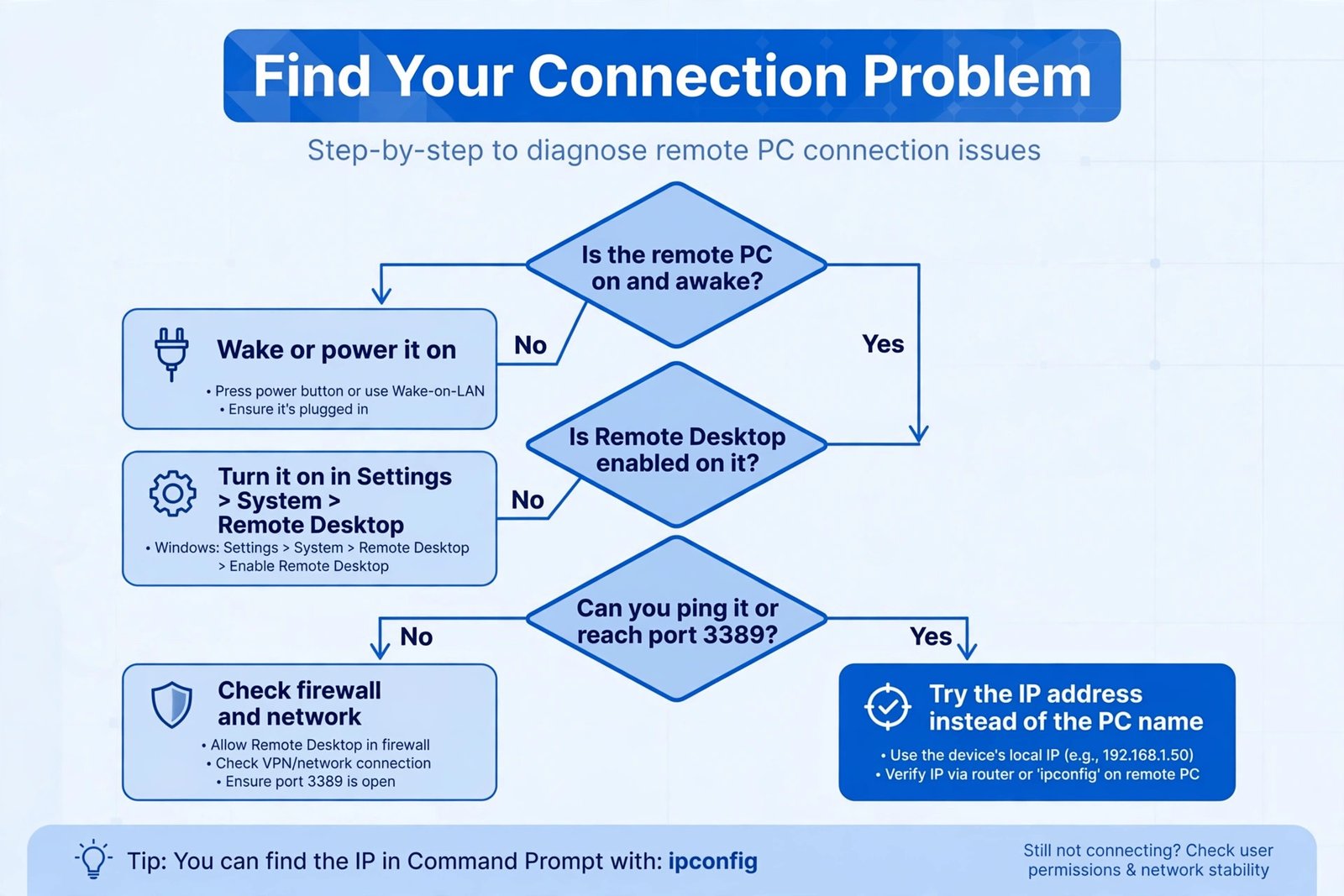
Thirty-second triage: open Command Prompt and run ping followed by the remote PC’s name. If the ping succeeds but Remote Desktop still cannot find the computer, it is a name-resolution problem, so use the IP address (Fix 2). If the ping fails too, the problem is power, the network, or the firewall. If the connection gets further and then fails with error 0xC000000D, that is a different, known update issue, covered in Fix 5, not this error.
Try These First (2 Minutes)
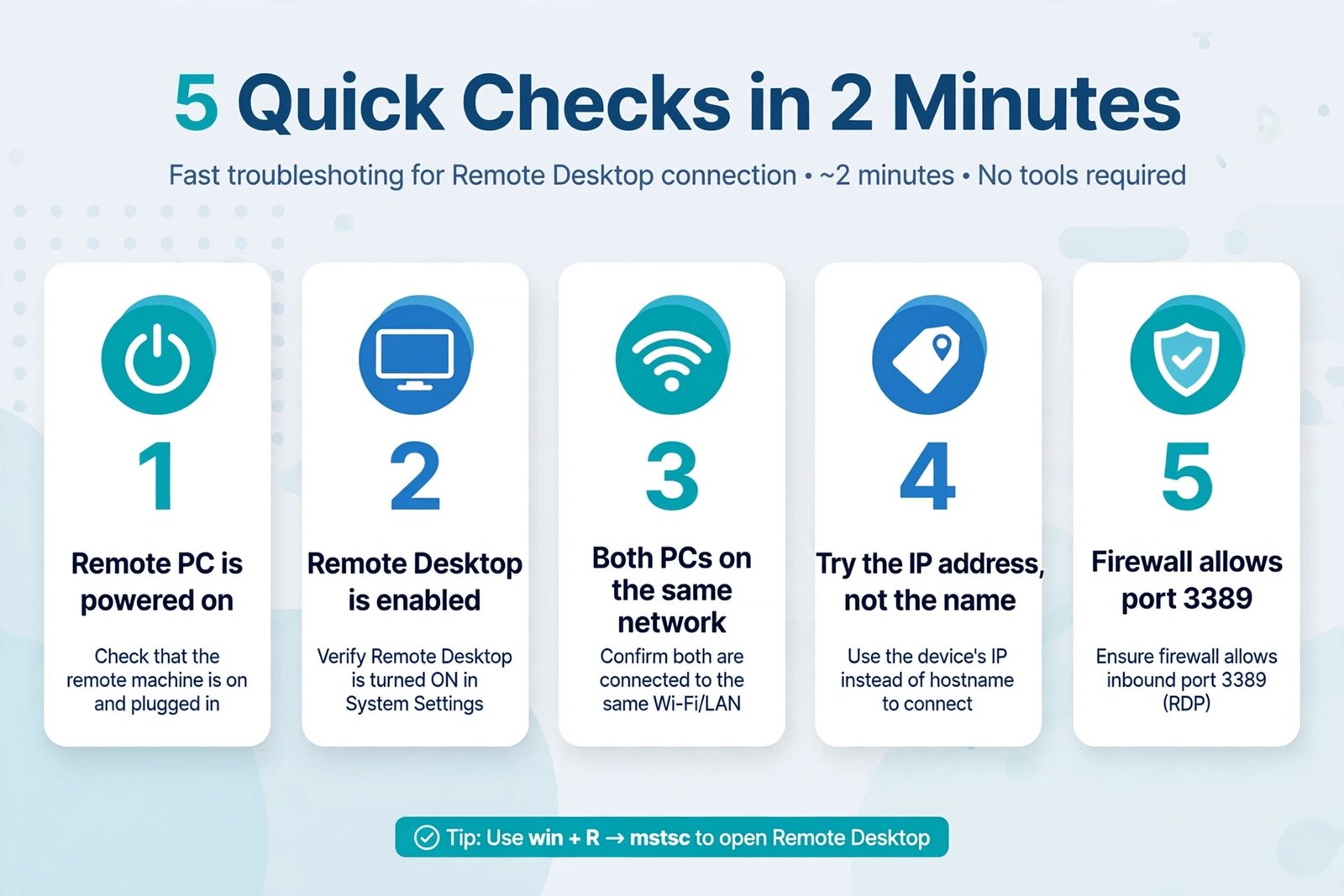
- Confirm the remote PC is powered on and awake, not asleep or hibernating.
- Confirm Remote Desktop is enabled there: Settings, then System, then Remote Desktop.
- Confirm both PCs are on the same network, or that you are connected through your VPN if the remote PC is elsewhere.
Fix 1: Wake the PC and Enable Remote Desktop
This is the most common cause by far. A sleeping or powered-off PC simply does not answer, and Remote Desktop is off by default on fresh Windows installs. Sit at the remote PC (or ask someone there) and go to Settings, then System, then Remote Desktop, and turn the toggle on. While you are there, note the PC name shown under the toggle.
How to tell it worked: the Remote Desktop settings page shows “PC name” and the toggle stays on after you close and reopen Settings.
Fix 2: Use the IP Address Instead of the Name
Computer names fail to resolve surprisingly often, especially across different routers, VPNs, or after network changes. On the remote PC, open Command Prompt and run ipconfig, then note the IPv4 address (something like 192.168.1.42). Type that address into the Remote Desktop client instead of the computer name. If the address worked last week and stopped, check whether it changed: most home networks hand out addresses that can change. On the remote PC, run hostname to confirm the exact name, and on your own PC run ipconfig /flushdns to clear a stale name lookup.
How to tell it worked: you reach a login prompt instead of the “cannot find” message. If it works by IP but not by name, the problem was name resolution all along, and you can keep using the IP.
Fix 3: Check the Firewall and Port 3389
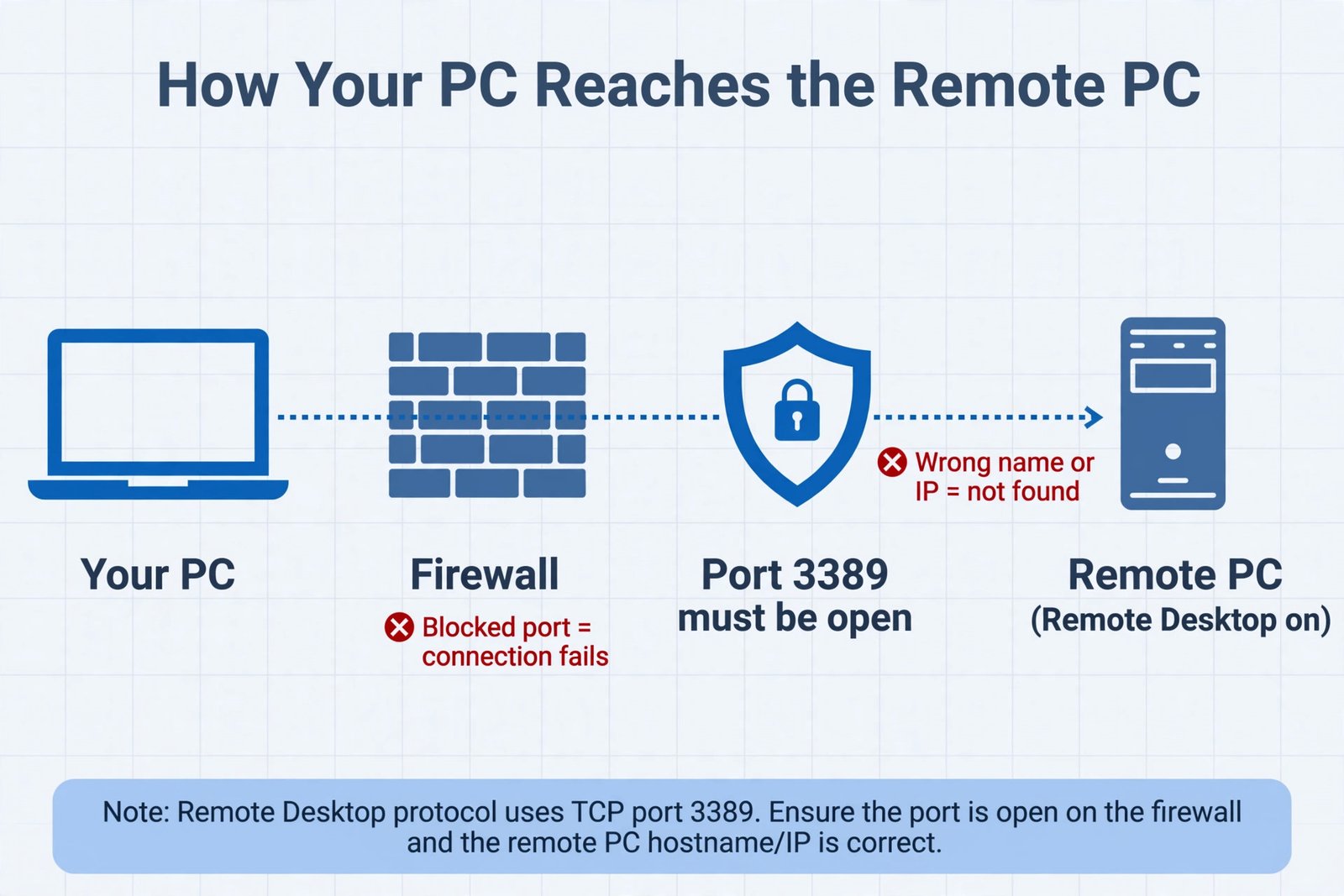
Remote Desktop listens on port 3389. If a firewall on either PC or on the network blocks it, the remote PC is effectively invisible. On the remote PC, open Windows Defender Firewall, then “Allow an app or feature,” and confirm Remote Desktop is checked for your network type. Third-party security software has its own firewall rules, so check those too. Also check the network profile on the remote PC: a network set to Public blocks more than one set to Private. And if you are reaching the PC across the internet rather than on the same network, you need its public IP address plus port forwarding for 3389 on its router; be aware that exposing 3389 to the internet is a common target for attackers, so a VPN is the safer route.
From your own PC, you can test the port directly. Open PowerShell and run:
Test-NetConnection -ComputerName 192.168.1.42 -Port 3389How to tell it worked: the command reports TcpTestSucceeded: True. If it reports False, the port is blocked somewhere between the two PCs.
Fix 4: Make Sure the Remote Desktop Services Are Running
On the remote PC, press Windows key + R, type services.msc, and look for “Remote Desktop Services” and “Remote Desktop Services UserMode Port Redirector.” Both should be running. If either is stopped, right-click it and choose Start. Their default startup type is Manual, so do not worry if they are not set to Automatic.
How to tell it worked: both services show “Running” status, and a retry of the connection gets past the “cannot find” stage.
Fix 5: Check for the 2026 Update Issues
This one is specific to 2026, and it is not quite the same error. The September 2026 Windows security updates made Remote Desktop Services unstable on some PCs, with sign-in failures, dropped sessions, and hosts hanging, rather than the “cannot find the computer” message. Microsoft issued emergency fixes on 14 September 2026: KB5129195 for Windows 11 24H2 and 25H2, KB5129194 for 26H1, and KB5129236 for Windows 10. If your connection problems started after a September update, install the latest cumulative update on both PCs. One catch for Windows 10: KB5129236 covers extended-security-update PCs only, and it is available from the Microsoft Update Catalog, not through Windows Update.
How to tell it worked: after updating and restarting, the connection succeeds without any other changes. There is a second, separate 2026 issue to know about: on hosts with Administrator Protection switched on, non-admin users can fail to connect with error 0xC000000D (“The token that was passed to the function is invalid”). That one is fixed by the 28 October 2026 preview update KB5127936 or the 10 November 2026 update KB5132061; switching the protection off is only a stopgap. If your PC runs Windows 11 24H2 Home or Pro, note that those editions stopped receiving updates on 13 October 2026, so no update will arrive for them: move to 25H2 or 26H2 instead.
Fix 6: Confirm the Edition Supports Hosting
Windows 11 Home can connect to other PCs as a client, but it cannot accept incoming Remote Desktop connections, period. On the remote PC, go to Settings, then System, then About, and read the Edition line. If it says Home, no setting will fix this: you need Windows 11 Pro, or a third-party remote tool.
How to tell it worked: this is a dead-end check, not a fix. It saves you hours of troubleshooting the wrong problem.
If you get connected but hit a different error, our guides on the Network Level Authentication error and RDP cannot connect fixes cover the next layer of problems.

- How to Disable the Touch Keyboard Popup in Windows 11 - November 14, 2026
- How to Turn Off Nearby Sharing in Windows 11 - November 13, 2026
- How to Stop Microsoft Teams From Opening on Startup in Windows 11 - November 12, 2026