
You downloaded an NVIDIA driver, ran the installer, and instead of a progress bar you got “DCH driver package is not compatible.” It sounds cryptic, but it almost always means one thing: the driver package you grabbed does not match your Windows installation. Here are the fixes in the order you should try them, starting with the one that works for most people.
What “DCH Driver Package” Actually Means
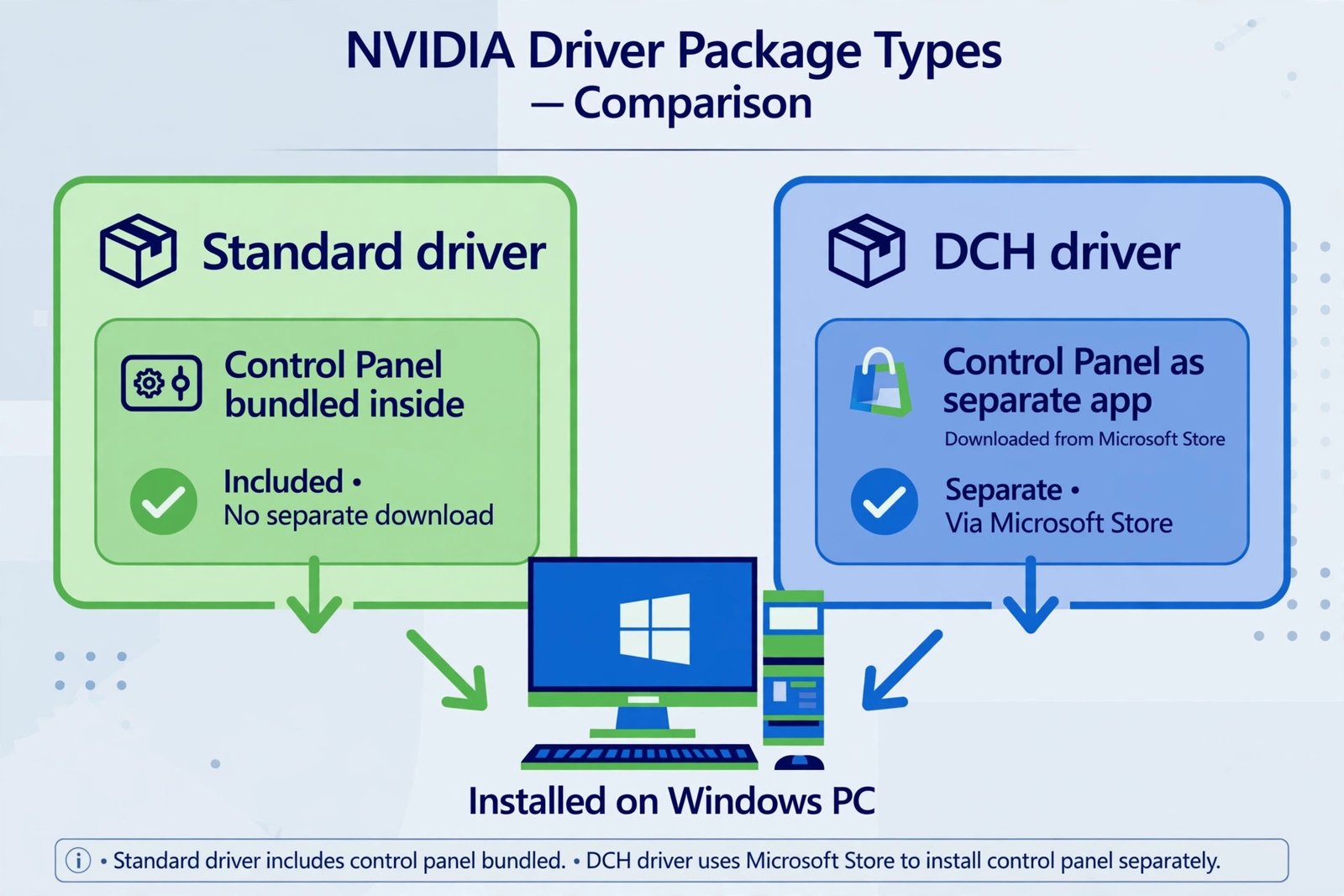
DCH stands for Declarative Componentized Hardware, Microsoft’s modern driver format introduced with Windows 10 version 1803. The practical difference: a DCH driver installs only the driver itself, and extras like the NVIDIA Control Panel arrive separately through the Microsoft Store. The older “Standard” package bundled everything together.
Two things worth knowing in 2026. First, NVIDIA no longer ships Standard packages for current drivers; everything new is DCH, so you are not choosing between two equal options. Second, the installer is picky about matching the package to your system. A Windows 10 package on Windows 11, the wrong architecture, or a driver built for a newer Windows build than you are running will all trigger some version of this compatibility error.
Fix 1: Let the NVIDIA App Choose the Driver
The fastest fix is to stop choosing manually. The NVIDIA App (the replacement for GeForce Experience) detects your exact GPU, Windows version, and edition, then downloads the one correct package. If you have been hand-picking installers from the driver download page, this single step resolves the mismatch for most people.
- Install the NVIDIA App from NVIDIA’s official site if you do not have it.
- Open it, sign in with a free NVIDIA account, and go to the Drivers tab.
- Click Download on the driver it offers, then choose Custom installation and tick Perform a clean installation before proceeding.
Fix 2: Download the Package That Matches Your Windows
If you prefer the manual download page, double-check these three things before clicking download:
- Windows 10 vs Windows 11. They are separate packages. Pick the one running on your PC: press Windows key + R, type
winver, and read what it says. - 64-bit. All current NVIDIA drivers are 64-bit only. If you are somehow on 32-bit Windows, no current driver will install, and that is the real problem to solve.
- Your GPU model. Selecting the wrong product series, especially on laptops with similarly named mobile chips, produces exactly this error.
Fix 3: Do a Clean Install with DDU
Leftover files from a previous install, especially a mix of DCH and Standard remnants, can make a correct package fail. Display Driver Uninstaller (DDU) wipes the slate clean.
- Download DDU from its official source and extract it.
- Boot Windows into Safe Mode (Settings, System, Recovery, Advanced startup, then Troubleshoot, Advanced options, Startup Settings, Restart, and press 4).
- Run DDU, select GPU and NVIDIA on the right, then click Clean and restart.
- After the restart, install the driver you downloaded in Fix 1 or Fix 2 before Windows Update gets a chance to install its own copy.
Fix 4: Update Windows to a Supported Build
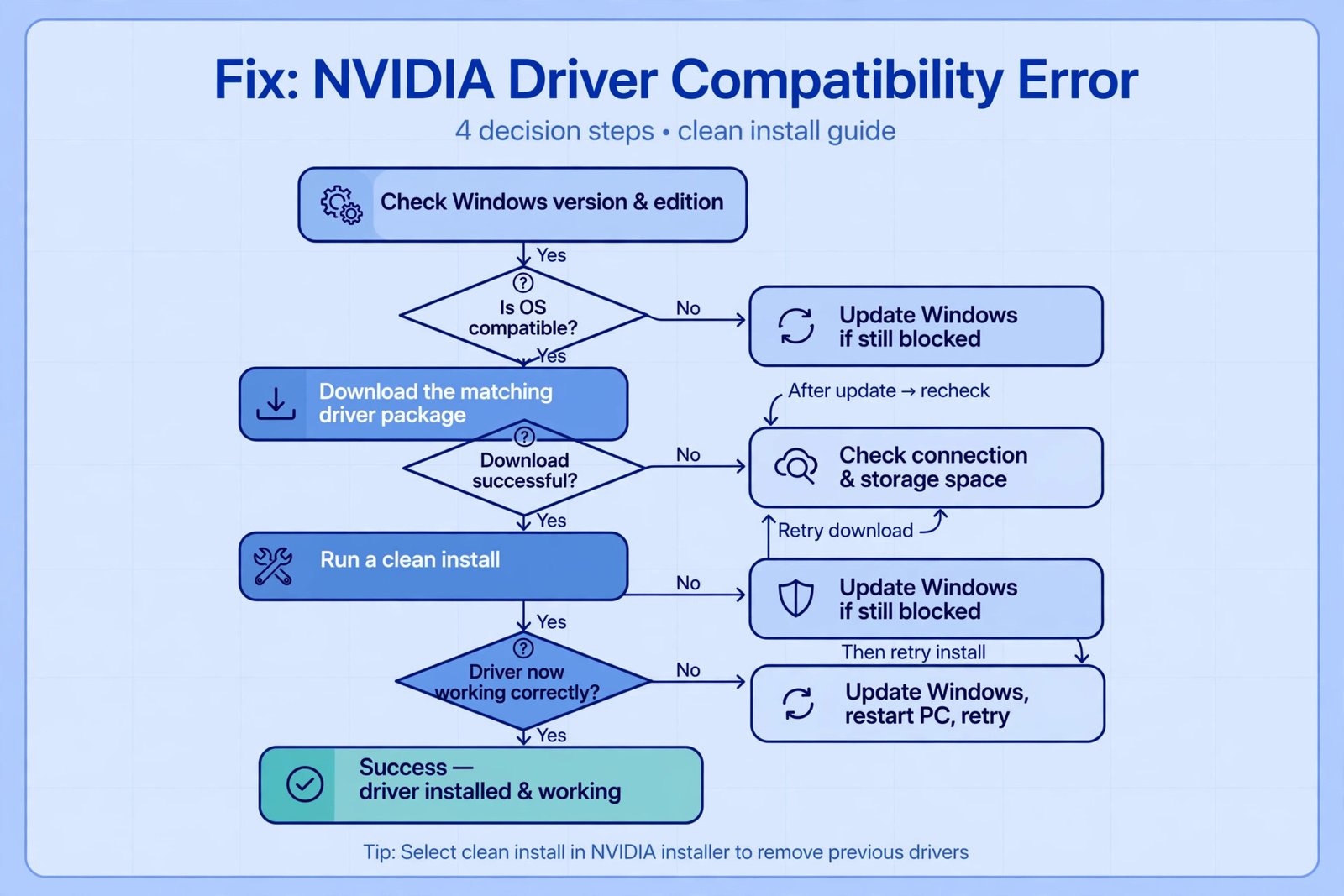
Newer NVIDIA drivers require a minimum Windows build. If you have updates paused or a years-old Windows 10 install, the installer will refuse even a correctly chosen package. Go to Settings, Windows Update, and install everything pending, then reboot and try the driver again. If your Windows 10 build is too old to take current drivers at all, that is a sign it is time to move to a supported release.
Fix 5: Laptop Owners Should Check the Manufacturer First
Some gaming laptops, especially from Lenovo, ASUS, and Dell, ship with customized GPUs that only accept the manufacturer’s own driver builds. If the generic NVIDIA package keeps failing on a laptop, grab the graphics driver from your laptop maker’s support page for your exact model instead. Once that baseline works, you can usually move back to NVIDIA’s releases.
What Not to Do
You will find old forum posts telling you to edit the driver’s .inf files to force your hardware ID into the package. Do not. Modified .inf files break driver signature verification on modern Windows, so the driver will not load properly even if the installer accepts it. A clean install of the right package beats a hacked install of the wrong one every time.
Still stuck after all five fixes? Our broader guide on fixing NVIDIA drivers that will not install covers the remaining edge cases, including conflicting Windows Update drivers. Driver trouble can also masquerade as other hardware weirdness, so the walkthroughs for unknown USB device errors and speakers not working are worth a look if the symptoms spread beyond the GPU.

- How to Turn Off Stage Manager on Mac - October 23, 2026
- How to Reset Your Private Space PIN on Android If You Forgot It - October 22, 2026
- How to Turn Off Hot Corners on a Mac - October 21, 2026