
Key takeaways
- Automatic switching is a feature, not a bug: your AirPods move between Apple devices on the same Apple Account when you start audio on another one.
- The fix is per device. Change Connect to This iPhone and Connect to This Mac from Automatically to When Last Connected to This iPhone/Mac.
- You need to change it on every Apple device you own. A single iPad or watch left on Automatically can keep pulling your AirPods away.
- This applies to AirPods 2 and later, all AirPods Pro, and all AirPods Max on iOS 27 and macOS 27 Golden Gate.
You are halfway through a video on your Mac when a notification on your iPhone steals your AirPods. That sudden silence is automatic switching doing its job at the wrong moment.
The good news: you can tame it without unpairing anything. The control lives on each device, and this guide walks you through the iPhone fix, the Mac fix, and what to try when your AirPods still wander.
This usually means the Connect to This setting is on Automatically on at least one of your Apple devices.
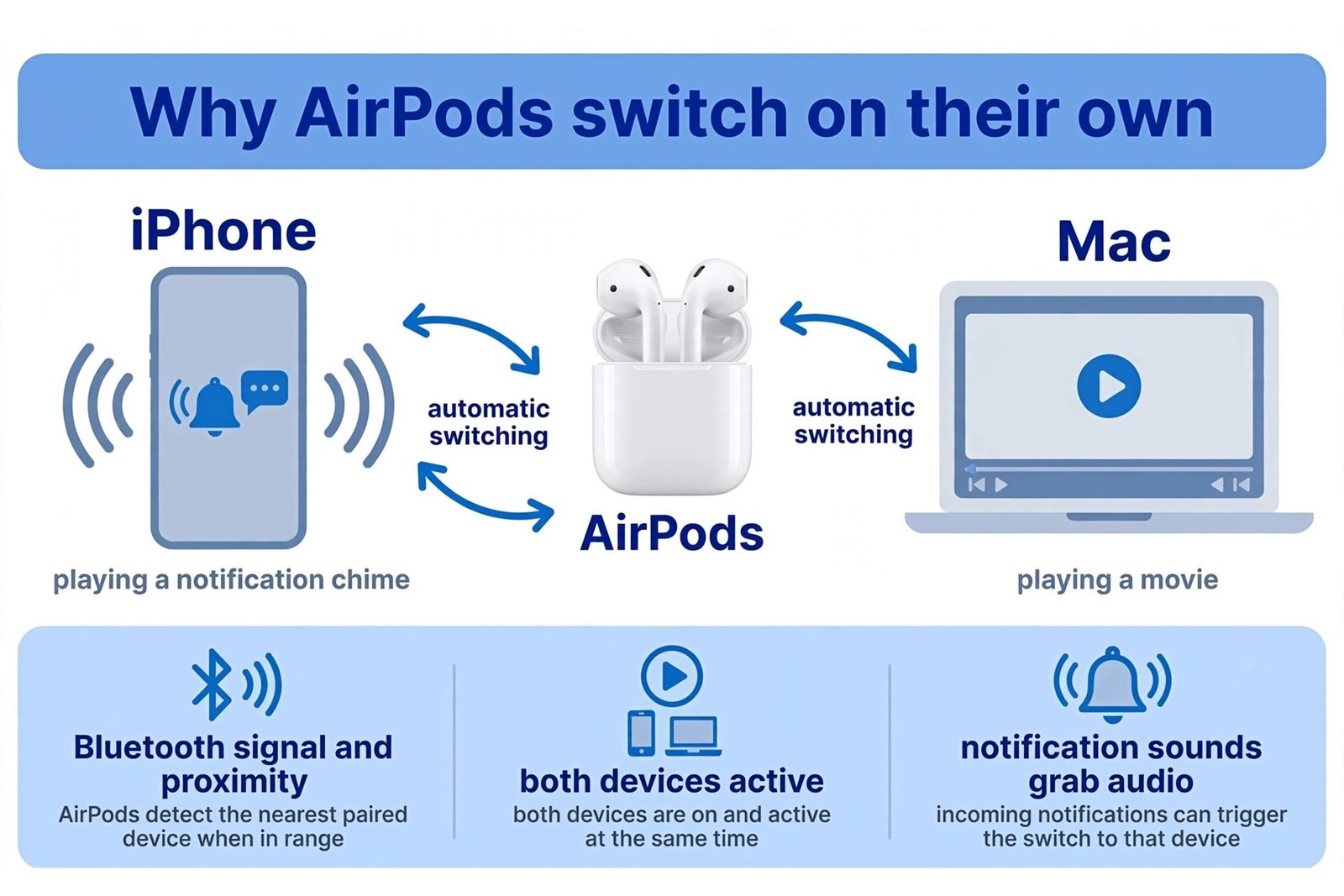
Why your AirPods switch between iPhone and Mac on their own
Apple built automatic switching so your AirPods follow you around your own devices. Start a video on your Mac and they move to the Mac. Start music on your iPhone and they hop back. For this to work, Apple requires every device to run the latest software and to be signed in to the same Apple Account with two-factor authentication.
The trouble starts when the handoff fires at the wrong moment. A notification sound on your iPhone can grab the AirPods while your Mac is mid-movie. When both devices are awake and nearby, Bluetooth proximity plays a part: the device your AirPods hear most clearly often wins. Since macOS Sequoia, Macs also take part in automatic switching, so a nearby Mac is a constant candidate to grab your audio.
Quick checks before you change the settings
Run through these first. They take a minute and rule out simple causes.
- Confirm both devices use the same Apple Account, with two-factor authentication on. Switching only happens between devices on the same account, so a mismatch points to a different problem.
- Update your iPhone and Mac to the latest software: iOS 27 and macOS 27 Golden Gate, which shipped on September 14, 2026.
- Wear your AirPods and keep them near the device you are setting up. The options below only appear while the AirPods are connected.
- Try one manual switch first. On iPhone, open Control Center and tap the AirPlay icon to pick your AirPods. On Mac, open Control Center, click Bluetooth, and choose your AirPods. If the connection itself is flaky, fix that first.
Fix 1: Set “Connect to This iPhone” to “When Last Connected to This iPhone”
When this works: your iPhone stops pulling your AirPods away from your Mac, while calls and audio you start on the iPhone keep working normally.
- Put your AirPods in your ears and make sure they are connected to your iPhone.
- Open the Settings app and tap your AirPods near the top of the list. If you do not see them there, go to Settings, tap Bluetooth, and tap the (i) next to your AirPods.
- Tap Audio and Routing, if that option appears.
- Tap Connect to This iPhone.
- Choose When Last Connected to This iPhone.
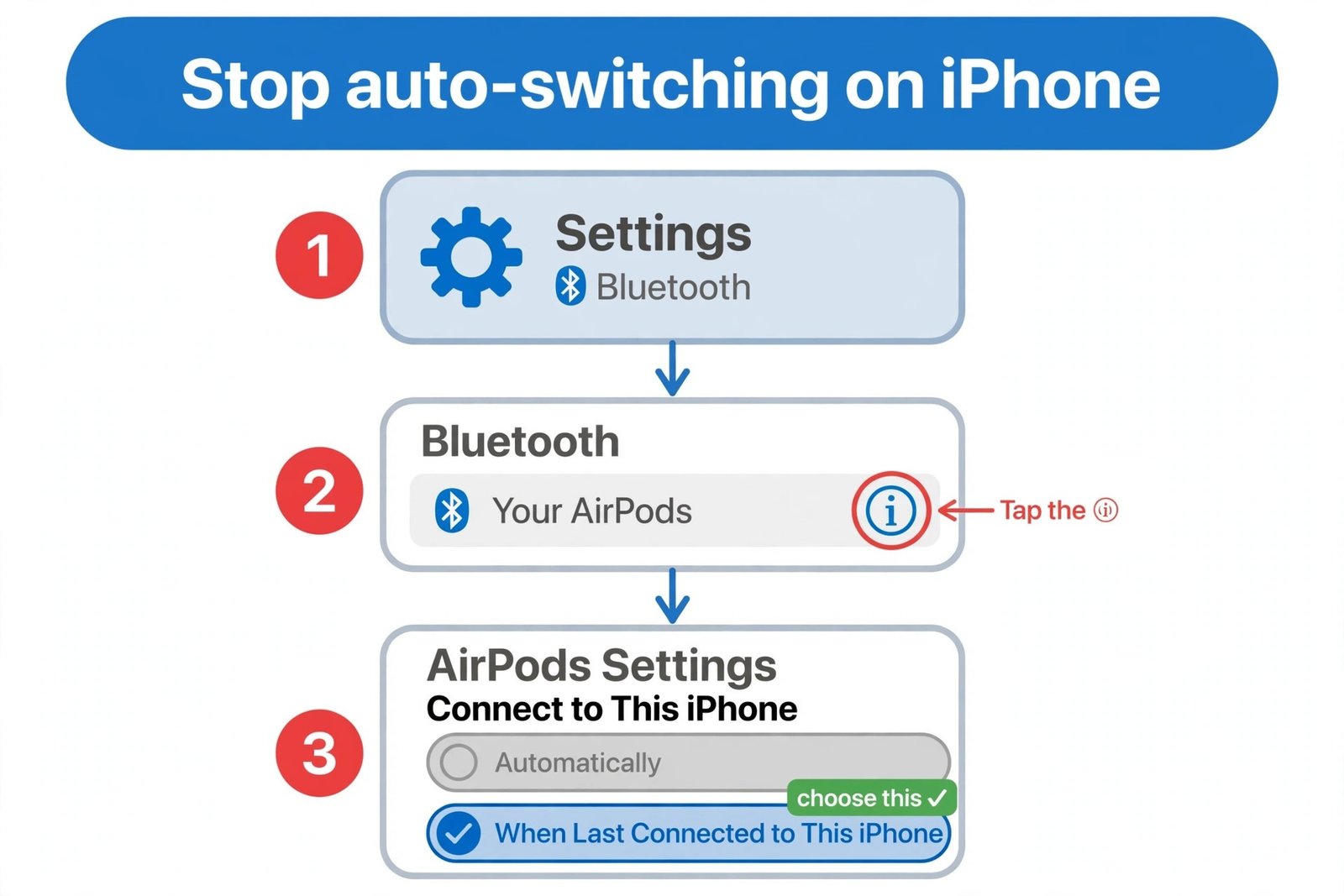
You should now see When Last Connected to This iPhone selected. From here on, your iPhone takes your AirPods only if they were last used there, instead of grabbing them automatically. To turn switching back on later, choose Automatically. If you enjoy tuning your iPhone, these are 12 iPhone settings worth changing on iOS 27.
Fix 2: Set “Connect to This Mac” to “When Last Connected to This Mac”
When this works: your Mac stops stealing your AirPods from your iPhone. This is the fix for the classic complaint of AirPods jumping ship during phone calls and podcasts.
- Put your AirPods in your ears and make sure they are connected to your Mac.
- Click the Apple menu, choose System Settings, then click Bluetooth in the sidebar.
- Click the Info (i) button next to your AirPods in the device list.
- Select Audio and Routing, if that option appears, then set Connect to This Mac to When Last Connected to This Mac.
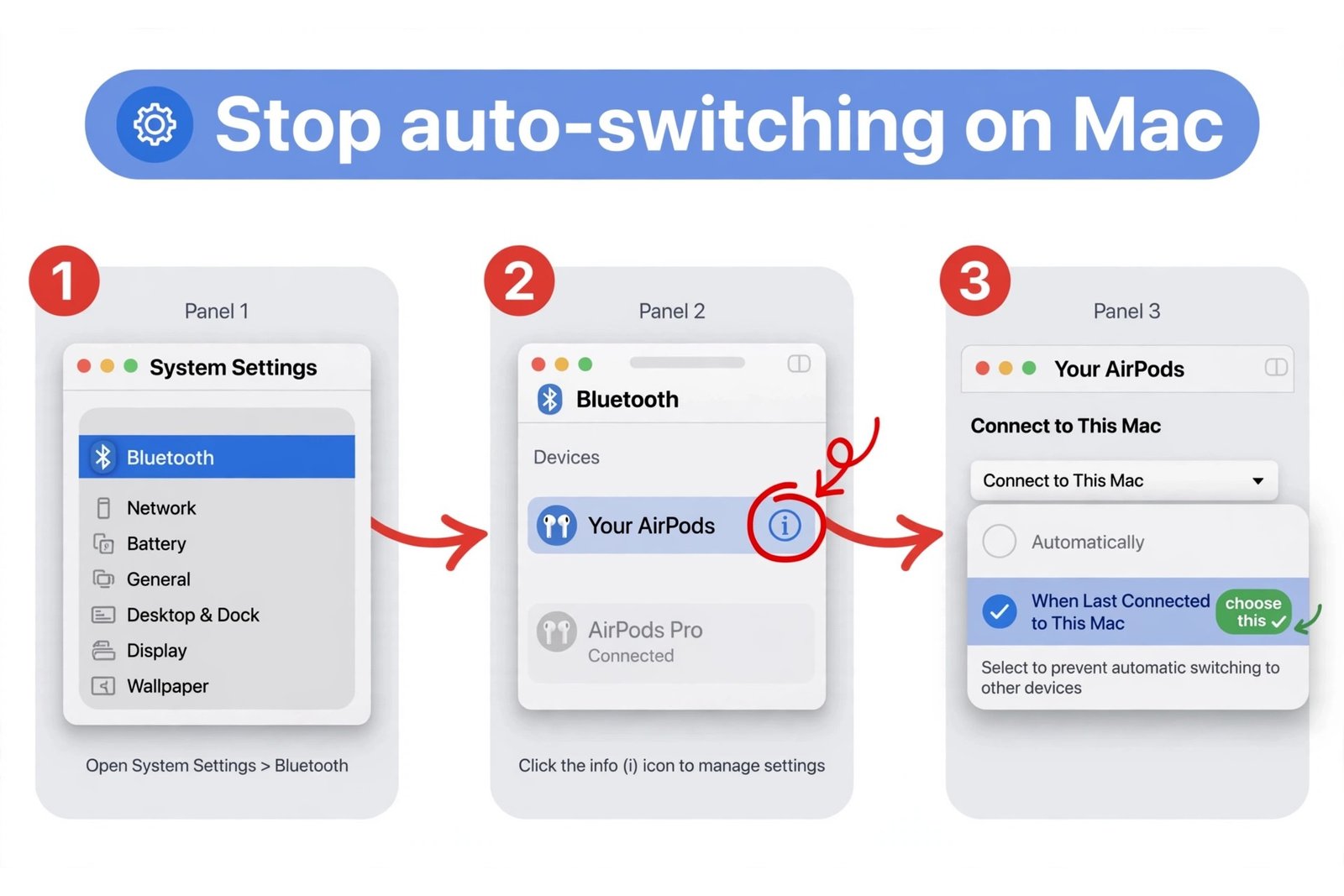
Connect to This Mac should now read When Last Connected to This Mac. Your Mac will take the AirPods only when they were last used there. While you are inside System Settings, you might like our guide to customizing your Mac.
Here is what the two options actually do:
| Option | What it does |
|---|---|
| Automatically | Your AirPods switch to this device on their own whenever you start audio on it. |
| When Last Connected to This iPhone/Mac | Your AirPods connect to this device only if it was the last one they were used with. They stay put otherwise. |
Fix 3: Repeat the change on every other Apple device
When this works: the setting is stored per device, so one forgotten iPad or watch can keep the switching alive. Apple confirms the setting has to be changed on each device where you do not want automatic switching.
Do the same steps on every device signed in to your Apple Account: iPad (Connect to This iPad), Apple Watch, and Apple Vision Pro. On Apple TV go to Settings, then Remotes and Devices, then Bluetooth, and turn off Suggest Nearby AirPods. Apple’s guide to switching AirPods between devices lists the steps for each one. A device with Bluetooth off cannot request your AirPods, so switch it off on devices you rarely use.
Fix 4: Update your devices and let the AirPods firmware catch up
When this works: mismatched software versions make switching behave erratically, with handoffs firing late or landing on the wrong device.
On your iPhone, go to Settings, then General, then Software Update, and install anything pending. On your Mac, open System Settings and click Software Update. Then put your AirPods in their charging case, plug the case in, and leave it overnight next to your iPhone with Wi-Fi and Bluetooth on. AirPods firmware installs silently under those conditions, and current firmware plus current OS versions give switching its best chance of behaving.
Your AirPods still switch? Try these deeper fixes
If the setting is right everywhere and the hopping continues, work through these in order.
- Forget and re-pair the AirPods on the device that keeps stealing them. On iPhone: Settings, Bluetooth, tap the (i), Forget This Device, then pair again with the open case nearby. On Mac: System Settings, Bluetooth, click the (i), Forget This Device, then pair again.
- Restart both the iPhone and the Mac. A stale Bluetooth stack is a common cause of settings that seem to have no effect.
- Double-check that two-factor authentication is on for your Apple Account and that nobody else’s device is signed in. In a shared home, someone else’s iPad on your account can keep pulling your AirPods.
- Know what normal looks like. Apple says audio should never switch automatically while you are on a phone call, a FaceTime call, or in a video meeting. If yours does, that is a bug rather than a setting: restart everything, and if it repeats, contact Apple Support.
- If your iPhone grabs them one more time anyway, look for the Moved to notice at the top of the screen and tap the return button to send your AirPods back to your Mac.
- As a last resort on iPhone, reset network settings at Settings, then General, then Transfer or Reset iPhone, then Reset, then Reset Network Settings. This wipes saved Wi-Fi networks and Bluetooth pairings, so you will re-enter Wi-Fi passwords afterward.
Our Take: should you turn automatic switching off?
If your AirPods live mostly on one device, say your Mac during the workday, turning automatic switching off is the calmer choice. You lose nothing: switching manually takes two taps through Control Center or the AirPlay menu, and you decide when it happens.
If you bounce between devices all day, leave one on Automatically and set the rest to When Last Connected: your iPhone keeps handing off calls while your Mac stops hijacking podcasts.
One honest limitation: this setting is stored per device, and Apple sometimes reshuffles where it sits after a big software update, so check it again after installing a new iOS or macOS release. If the hopping has put you off AirPods, a pair that lives on one device can be the simpler life. Our picks of the best noise-cancelling headphones in 2026 cover travel, work, and home.

- How to Stop AirPods From Automatically Switching Between iPhone and Mac - October 20, 2026
- How to Disable Caps Lock on Mac and Remap It to Escape - October 19, 2026
- Nintendo Switch 2: Is It Worth It in 2026? - October 18, 2026