
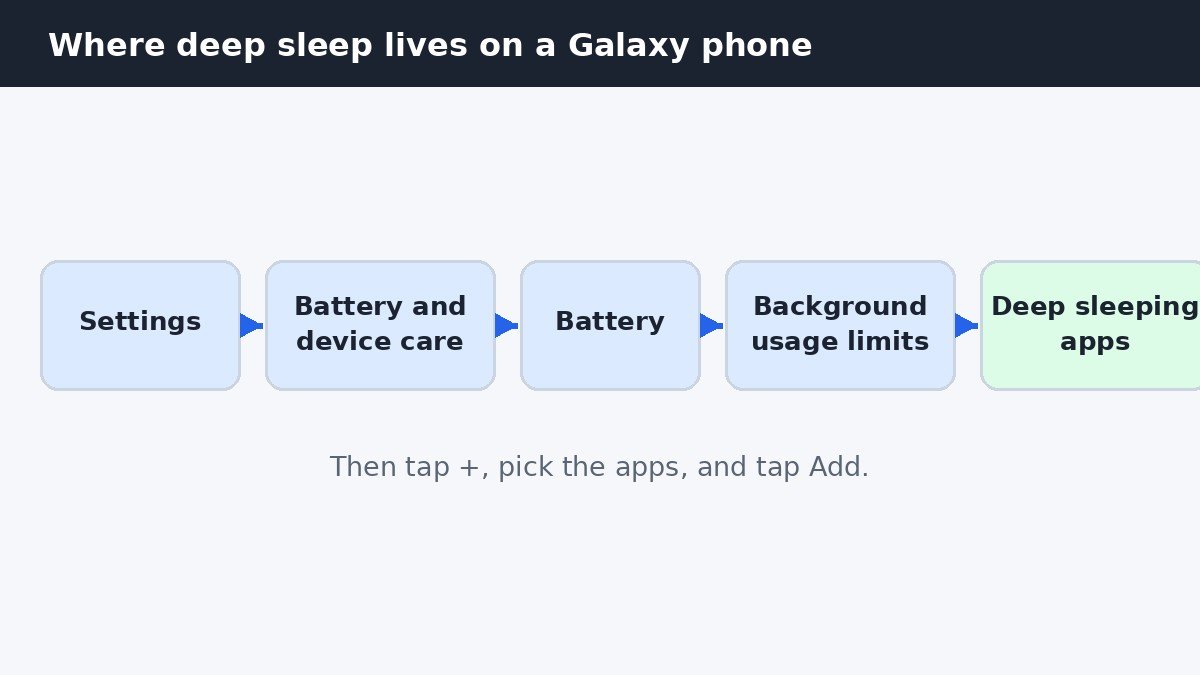
On a Samsung Galaxy phone, the strongest way to stop an app running in the background is to put it into deep sleep. Open Settings, tap Battery and device care, tap Battery, then tap Background usage limits, open Deep sleeping apps, tap the plus sign, select the apps you rarely open, and tap Add. Those apps will not run in the background at all and will only wake up when you open them. For a single app, there is a faster route: Settings, then Apps, then the app, then Battery, and choose Restricted.
Sleeping, deep sleeping, and never sleeping: what each level does
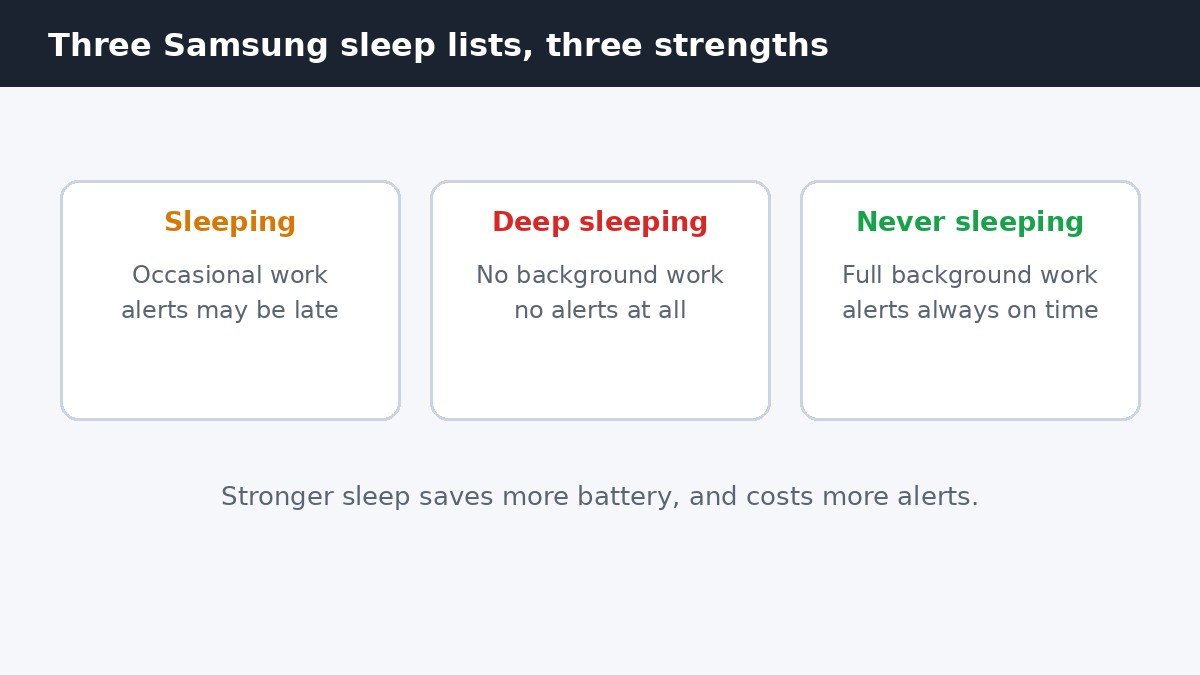
Samsung sorts background activity into three lists, and they are easy to confuse because two of them sound almost identical. The difference is how much background work an app is still allowed to do, and what happens to its notifications. Picking the wrong list is how people end up missing messages, so the distinction is worth getting right before adding anything.
| List | Background activity | Notifications | Best for |
|---|---|---|---|
| Sleeping apps | Occasional background work only, with delays | May arrive late | Apps you open weekly, such as news readers |
| Deep sleeping apps | None at all until you open the app | Stopped completely | Shopping, travel, and games you open rarely |
| Never sleeping apps | Full background activity, always | On time, always | Apps that must alert you at once |
Let the phone put unused apps to sleep on its own
Before adding apps by hand, switch on the automatic option, which does most of the work for you. Samsung moves an app you have not opened for a few days into sleeping mode on its own, and apps left unused for much longer end up in deep sleep. The exact number of days varies by One UI version, and Samsung adjusts it over time, so treat any specific day count in older guides as approximate.
- Open Settings.
- Tap Battery and device care, then Battery. On newer One UI versions the first entry may simply be called Battery.
- Tap Background usage limits.
- Turn on Put unused apps to sleep.
With that switch on, the phone quietly tidies up apps you stop using, and you only need to step in for apps you want restricted right now rather than after days of inactivity.
Add apps to deep sleep by hand
- Open Settings, tap Battery and device care, then Battery, then Background usage limits.
- Tap Deep sleeping apps.
- Tap the + sign in the top corner.
- Select the apps you want to stop, then tap Add.
Good candidates are shopping apps, travel apps, old games, streaming services you open rarely, and preinstalled apps you cannot uninstall but never use. Each one stops fetching data, stops refreshing, and stops sending notifications until the next time you open it. Opening the app works normally, and it returns to deep sleep once you leave it. Samsung documents these lists on its sleeping apps support page, including how to add and remove apps.
Restrict a single app without touching the lists
For one troublesome app, the per-app battery setting is quicker than the lists. Open Settings, tap Apps, tap the app, then tap Battery. Three choices appear. Unrestricted lets the app run freely in the background. Optimized, the default for most apps, balances background work against battery use. Restricted stops the app running in the background, so it only works while it is open on screen. Restricted is the right choice for a social or shopping app that keeps waking the phone, and the wrong choice for anything that has to alert you.
Apps you must never put into deep sleep
Deep sleep stops notifications completely, so some apps must stay out of that list no matter how much battery they seem to use. Messaging apps such as WhatsApp and Messages will stop delivering chats on time. Banking apps will stop sending transaction and security alerts. Alarm and clock apps can miss alarms, since a deep sleeping app cannot run background tasks. Authenticator apps, health apps that track medication or activity, and smart home apps that watch for doorbell or security events belong on the safe side too.
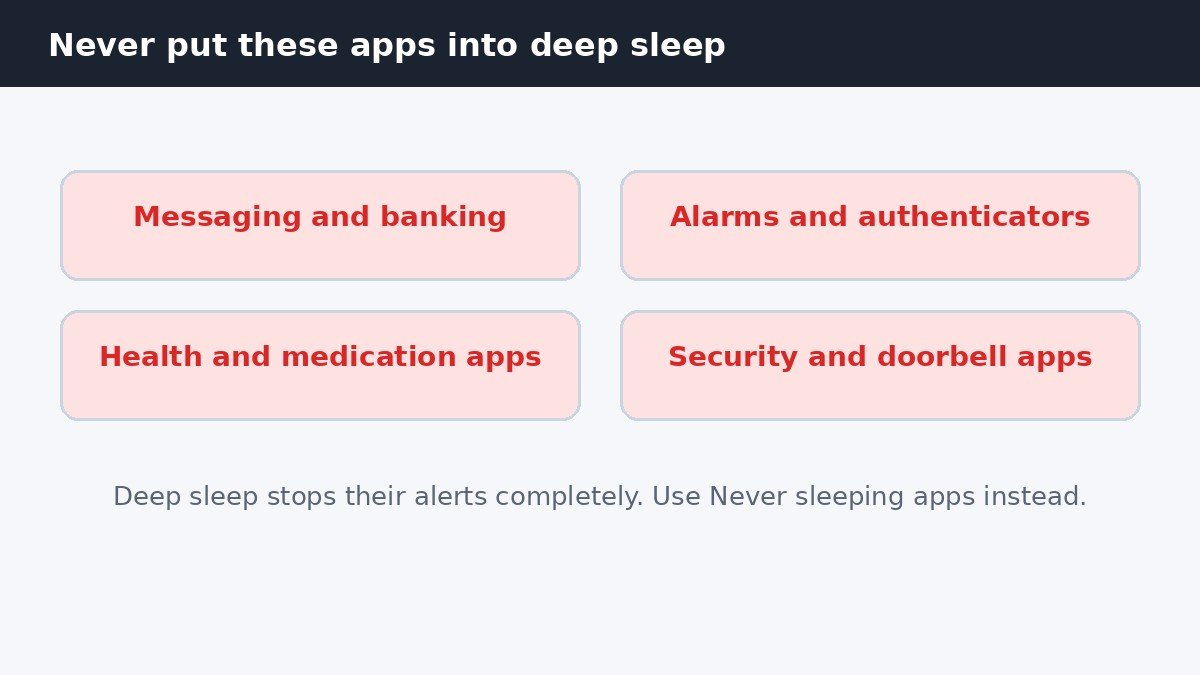
If an app in one of these groups is draining battery, restrict it with the per-app Optimized setting instead, or add it to Never sleeping apps so Samsung never moves it into sleep on its own. The same Never sleeping apps list, in the same Background usage limits menu, is also the fix when an important app keeps ending up asleep after you open it rarely: add it there once and Samsung leaves it alone. For another Galaxy annoyance that interrupts at the wrong time, our guide to turning off Bixby voice wake-up covers the voice assistant waking the phone.
Undo a sleep setting
To wake an app up, return to the same list, open the menu in the corner, choose Remove apps or Edit apps depending on your One UI version, select the app, and confirm. The app returns to normal background behaviour right away, with no restart needed. If notifications are still late after removing an app from deep sleep, check that the app’s own notification permission is on, and that Power saving mode is not also limiting it, since that mode restricts background activity for every app at once.
Deep sleep works best as a short list of apps you genuinely open rarely, not as a blanket rule for everything on the phone. A dozen rarely used shopping and travel apps in deep sleep saves more battery than a hundred apps half restricted, and it keeps the apps that matter alerting you on time.

- How to Stop Samsung Galaxy Apps Running in the Background - November 4, 2026
- How to Turn Off Bixby Voice Wake-Up on Samsung Galaxy - November 3, 2026
- How to Turn Off Notification Reminders on a Samsung Galaxy Phone - November 2, 2026