
Every few weeks, Windows 11 interrupts what you are doing with a notification asking how you feel about it. One setting controls how often those requests appear, and three extra checkboxes silence the other suggestion-style prompts Windows shows on its own. Here are two methods that work in Windows 11 26H2, and they take about two minutes combined.
Key takeaways
- The Feedback frequency setting controls how often Windows asks you to rate it. Set it to Never and the requests stop.
- Find it at Settings > Privacy & security > Diagnostics & feedback. The change applies right away, with no restart needed.
- For the other nudges (welcome screens, “finish setting up your device” prompts, tips), go to Settings > System > Notifications > Additional settings and clear the three boxes there.
- Turning off the requests does not delete the Feedback Hub app and does not stop required diagnostic data. You can still send feedback manually whenever you choose.
Set Feedback Frequency to Never in Diagnostics & Feedback
This is the main switch, so change it first. Windows calls these interruptions feedback requests. They usually appear as a notification banner asking you to rate Windows or to say whether you would recommend it to other people. The Feedback frequency setting decides how often those banners show up, and the default value is Automatically (Recommended), which lets Windows pick the timing for you. The banners tend to appear after feature updates or when you try a feature for the first time, since that is when Windows is most interested in your reaction.
- Open Settings by pressing Win + I on your keyboard.
- Click Privacy & security in the left sidebar.
- Click Diagnostics & feedback on the right side of the page.
- Scroll down to the Feedback section and open the Feedback frequency dropdown.
- Choose Never.
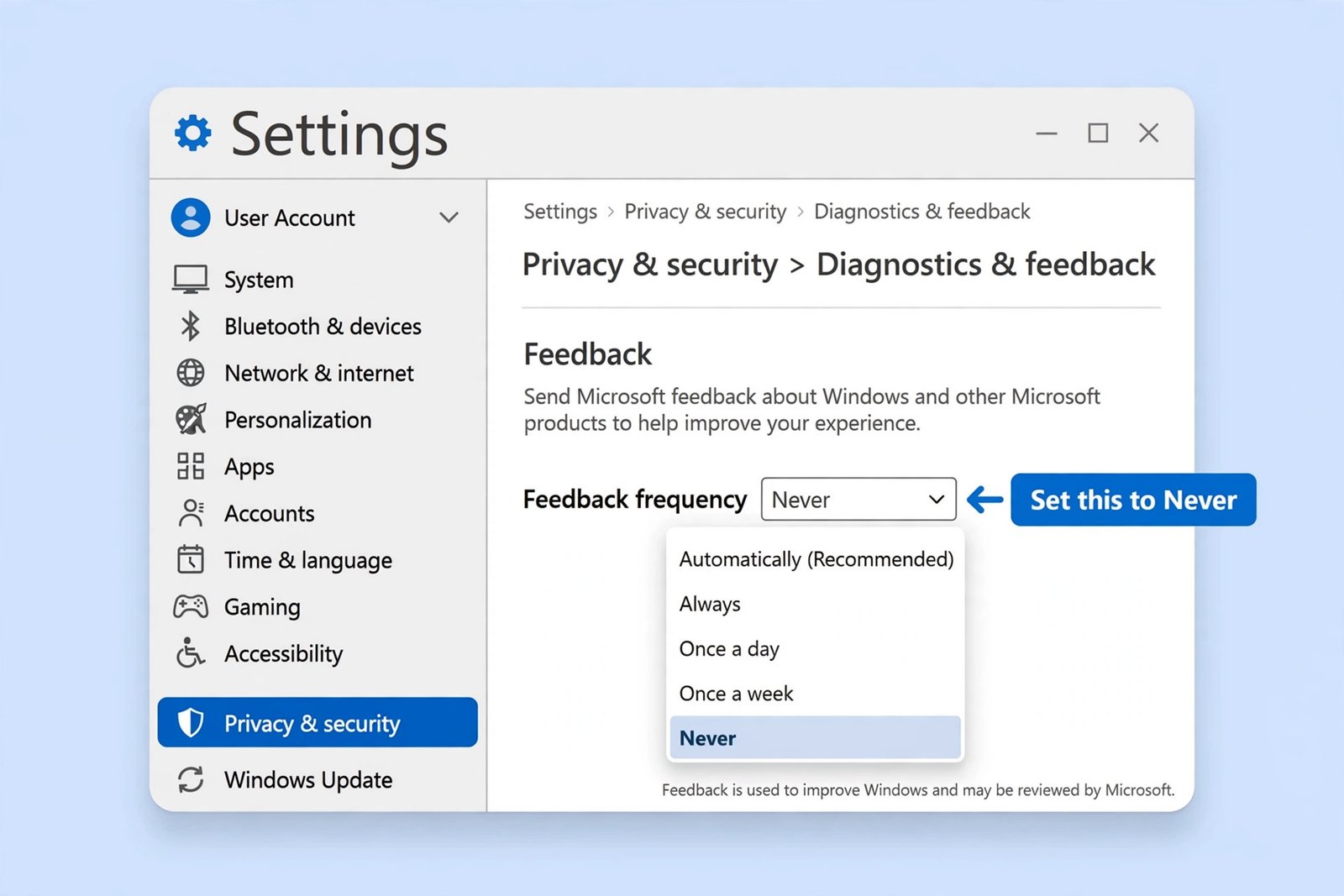
The setting takes effect immediately. There is nothing to save and no restart needed. Windows will simply stop showing the feedback banners from this point on.
| Feedback frequency option | What it means for you |
|---|---|
| Automatically (Recommended) | The default. Windows decides when to ask you for feedback. |
| Always | Windows asks at every opportunity, so you see the most prompts. |
| Once a day | Feedback requests can appear at most once per day. |
| Once a week | Feedback requests can appear at most once per week. |
| Never | Windows stops asking for feedback. |
Note: if you like the idea of helping Microsoft improve Windows but find the prompts too frequent, Once a week is a reasonable middle ground. You will rarely notice it, and you can still report problems in the Feedback Hub on your own schedule.
Quick tip: if the dropdown is greyed out, or the page shows the message “Some settings are hidden or managed by your organization”, your PC is managed by a workplace or school. Microsoft says only your IT administrator can change those settings, so you will need to ask them. This is the same behavior Microsoft documents for the other controls on the Diagnostics & feedback page, in its diagnostics, feedback, and privacy guide.
Turn Off Suggestion, Welcome, and Setup Prompts in Notifications
The Feedback frequency setting only covers the rating requests. Windows has a second family of interruptions: the welcome screens that appear after updates, the full-screen “Let’s finish setting up your device” pages, and small tips promoting Microsoft features. Those are controlled from a different page, and this method stops them.
- Open Settings and click System in the left sidebar, then click Notifications.
- Scroll to the bottom of the Notifications page and expand Additional settings.
- Clear the checkboxes for the following three items:
Show the Windows welcome experience after updates and when signed in to show what’s new and suggested
Suggest ways to get the most out of Windows and finish setting up this device
Get tips and suggestions when using Windows
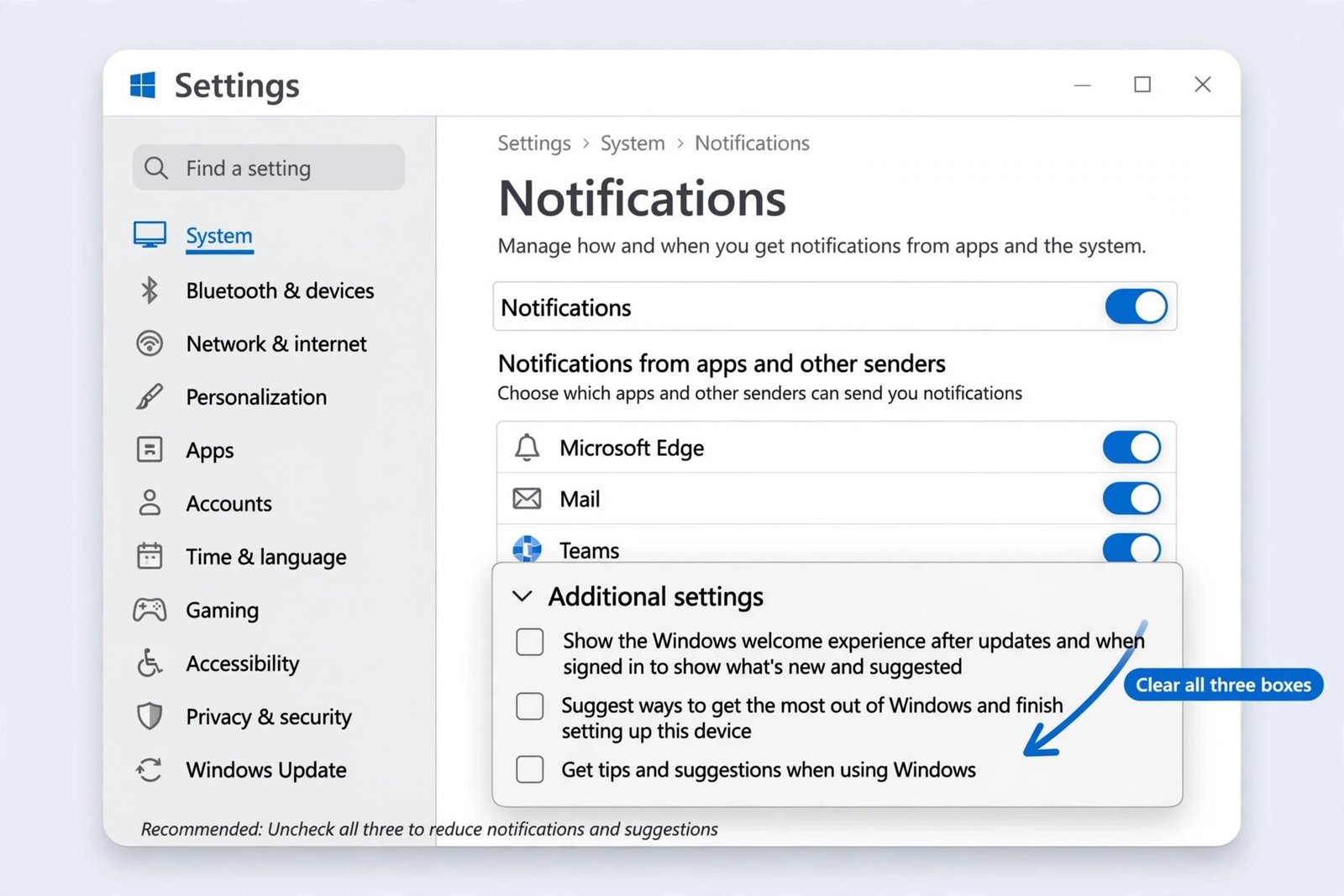
Each box covers a different kind of nudge. The “Suggest ways to get the most out of Windows” box is the one behind the full-screen “Let’s finish setting up your device” screen that sometimes appears after an update or a restart. The welcome experience box controls the “What’s new” tour after feature updates. The tips box stops the small suggestion notifications that promote Microsoft services. These same three boxes also cover the promotional nudges for Microsoft 365, OneDrive, and Edge that arrive as system notifications, so clearing them quiets more than just the setup reminders.
If Microsoft’s nudges bother you in other corners of Windows too, you can also turn off Bing web results in the Start menu search, which removes the web suggestions that appear as you type.
Our Take: Run Both Methods and Keep Your Voice
Do both methods. The Feedback frequency setting kills the rating requests, and the Notifications checkboxes kill the welcome screens, finish-setup prompts, and tips. Together they remove nearly every proactive prompt Windows generates on its own. Neither change affects Windows Update, security, or how your PC runs, so there is no downside to performance or stability. If you decide later that you miss the occasional check-in, switching Feedback frequency back to Once a week restores the prompts in their least annoying form.
Keep in mind what “Never” does and does not do. It only stops Windows from asking. Windows still sends the required diagnostic data it needs to keep your device secure and up to date, and Microsoft states that your device works the same whether or not you ever answer a feedback prompt. If you want to reduce what leaves your PC, that is a separate job involving the diagnostic data toggles on the same Diagnostics & feedback page.
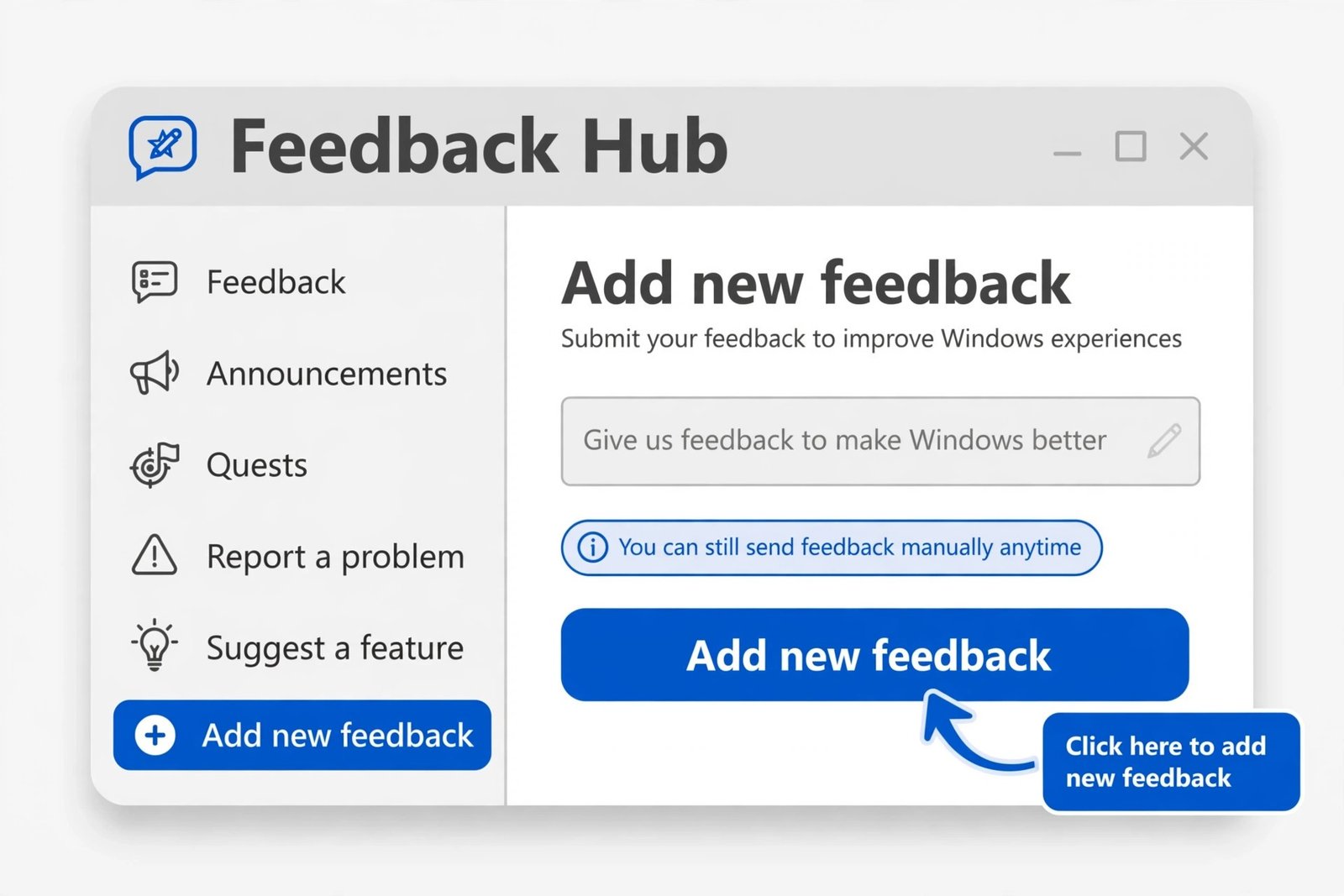
You also keep the ability to speak up. The Feedback Hub app stays installed, and opening it and choosing Add new feedback sends your report to Microsoft the same way it always did. Turning off the prompts only means feedback happens on your terms, when you actually have something to say.
To keep decluttering Windows 11, see how to stop Microsoft Edge from opening on startup, and check what is new in the Windows 11 26H2 update so you know which of these settings screens changed this year.

- How to Turn Off Windows 11 Feedback Notifications and Stop It Asking for Feedback - October 20, 2026
- How to Stop Microsoft Edge From Opening on Startup in Windows 11 - October 19, 2026
- Best Noise-Cancelling Headphones in 2026 for Travel, Work, and Home - October 18, 2026