
How to Turn Off the Snap Layouts Popup When Dragging a Window to the Top in Windows 11
Key takeaways
- The fix is one checkbox: Settings > System > Multitasking > Snap windows, uncheck “Show snap layouts when I drag a window to the top of my screen.”
- The change applies instantly, needs no restart, and you can re-check the box anytime to bring the popup back.
- Keyboard shortcuts (Win + Z and Win + arrow keys) and the maximize-button layout picker keep working exactly as before.
- Do not flip the Snap windows master toggle off unless you want all snapping gone, because that removes far more than the popup.
Dragging a window toward the top of your screen in Windows 11 summons a strip of layout thumbnails called the Snap Layouts bar. It is meant to help you drop the window into a neat arrangement, but if you move windows around a lot, especially between monitors, it fires constantly and gets in the way. This guide shows you how to turn off just that drag-to-top popup, so every other part of snapping keeps working. You will also see how to silence the maximize-button hover popup and, as a last resort, how to switch off Snap windows entirely.
A quick version check: the steps below match the Multitasking page in Windows 11 26H2. Not sure which version you are running? See our rundown of what is new in the Windows 11 26H2 update to check.
- What the popup is and why it appears
- Turn off the drag-to-top popup (the main fix)
- Also turn off the maximize-button hover popup (optional)
- Turn off Snap windows entirely (last resort)
- Our take: which option fits you
What the Snap Layouts popup is and why it appears
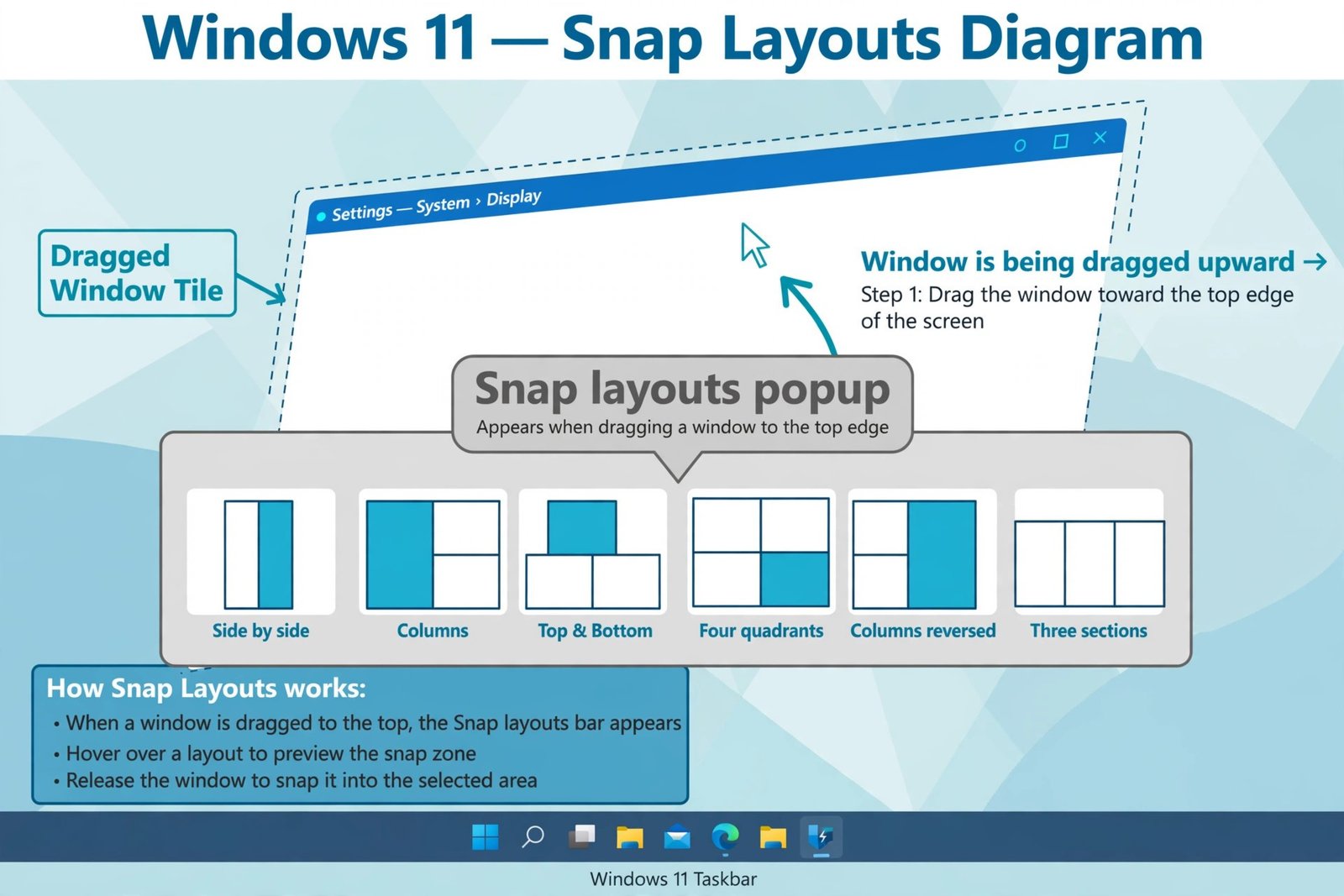
The popup is the Snap Layouts bar: a row of layout thumbnails that slides down from the top edge of the screen, offering to place the window you are dragging into halves, thirds, or quadrants. Windows shows it because it treats any window dragged near the top edge as a snap gesture in progress. It is a discoverability feature: Microsoft wants new users to notice that snapping exists, and Microsoft’s own guide lists dragging (on touchscreens) as one of the intended ways to open the layouts.
That is also why the popup feels so trigger-happy. On a multi-monitor setup, moving a window from one display to another routinely sweeps the cursor across the top edge, which Windows reads as the start of a snap. The popup then appears for a window you had no intention of snapping, and sometimes the window lands in a zone you did not want. On touchscreens it is easier to call up on purpose, which is why you may want to think twice before disabling it there.
Turn off the drag-to-top popup
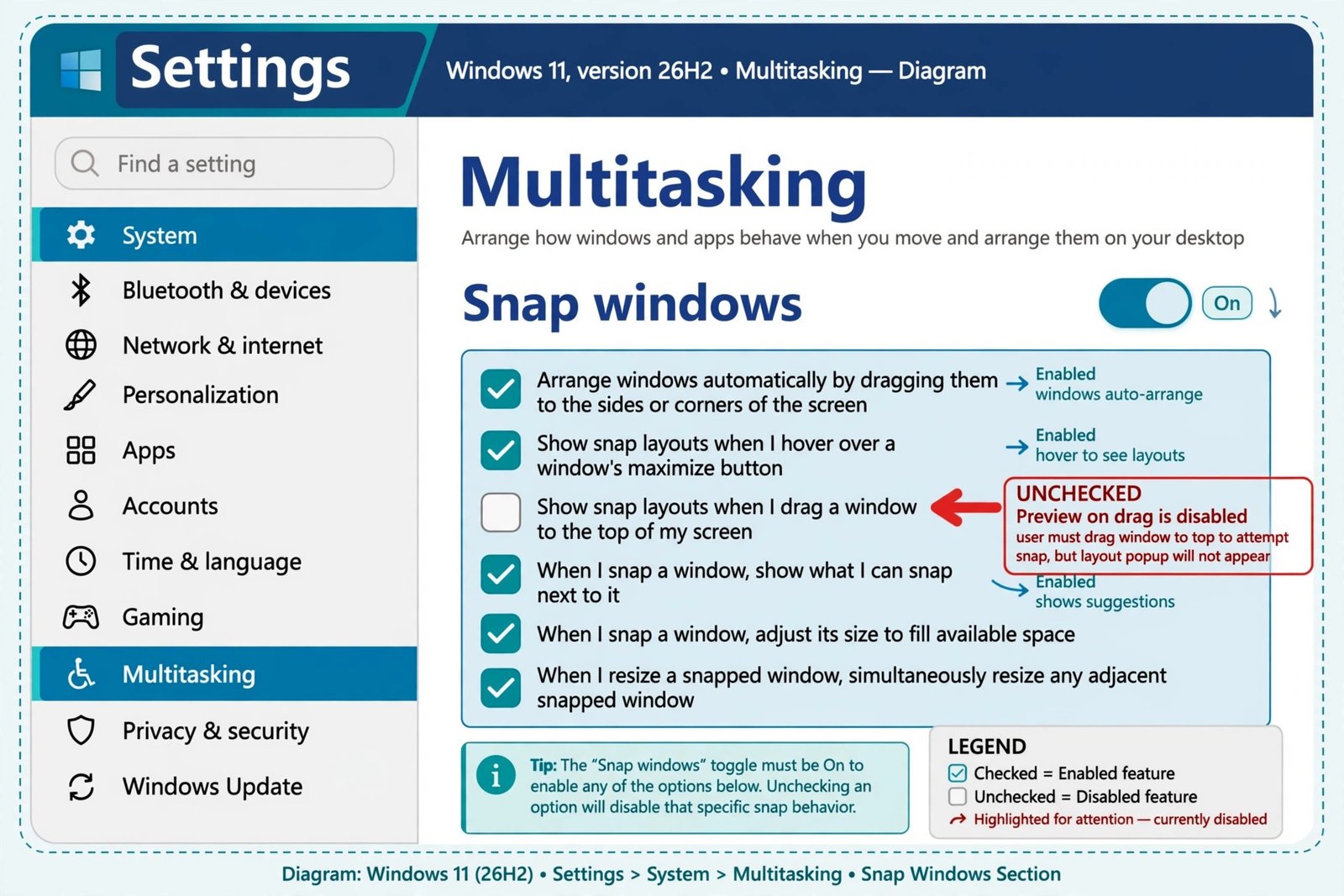
This is the precise fix: one checkbox, and nothing else changes. Leave the Snap windows master toggle on, and only the top-edge trigger goes away.
- Step 1: Open Settings. Press Win + I. On most Windows 11 installs, Settings opens directly on the System page; if it opens somewhere else, click System in the left sidebar.
- Step 2: Go to Multitasking. In the System page, click Multitasking in the right-hand panel. The Snap windows row sits near the top of this page with a toggle switch on its right side.
- Step 3: Expand the Snap windows section. Click the Snap windows row label itself, not the toggle. Clicking the toggle would switch snapping off entirely; clicking the label opens the list of sub-options. The master toggle must stay On: if it is off, every checkbox below it is grayed out and you cannot reach the one you need.
- Step 4: Clear the drag-to-top checkbox. Find “Show snap layouts when I drag a window to the top of my screen” and uncheck it. Then close Settings. The change takes effect immediately, no restart and no sign-out.
- Step 5: Test it. Drag any window toward the top of the screen. The layout bar should no longer drop down. Note that dragging the window all the way to the top and releasing still maximizes it; that is standard maximize-on-drag behavior, not the Snap Layouts popup, and this checkbox does not change it.
Quick tip: Everything about this fix is reversible. To bring the popup back, return to the same page and re-check the box. The bar returns immediately, so you can experiment without worrying.
What stays working after this change is worth knowing, because many guides wrongly tell you to kill the whole feature. Win + Z still opens the Snap Layouts picker by keyboard, Win + Left / Right / Up / Down still snaps windows to halves and corners, hovering over a window’s maximize button still shows the layout flyout, and dragging to the screen’s sides and corners still snaps as before. You removed one trigger, not the feature.
Also turn off the maximize-button hover popup (optional)
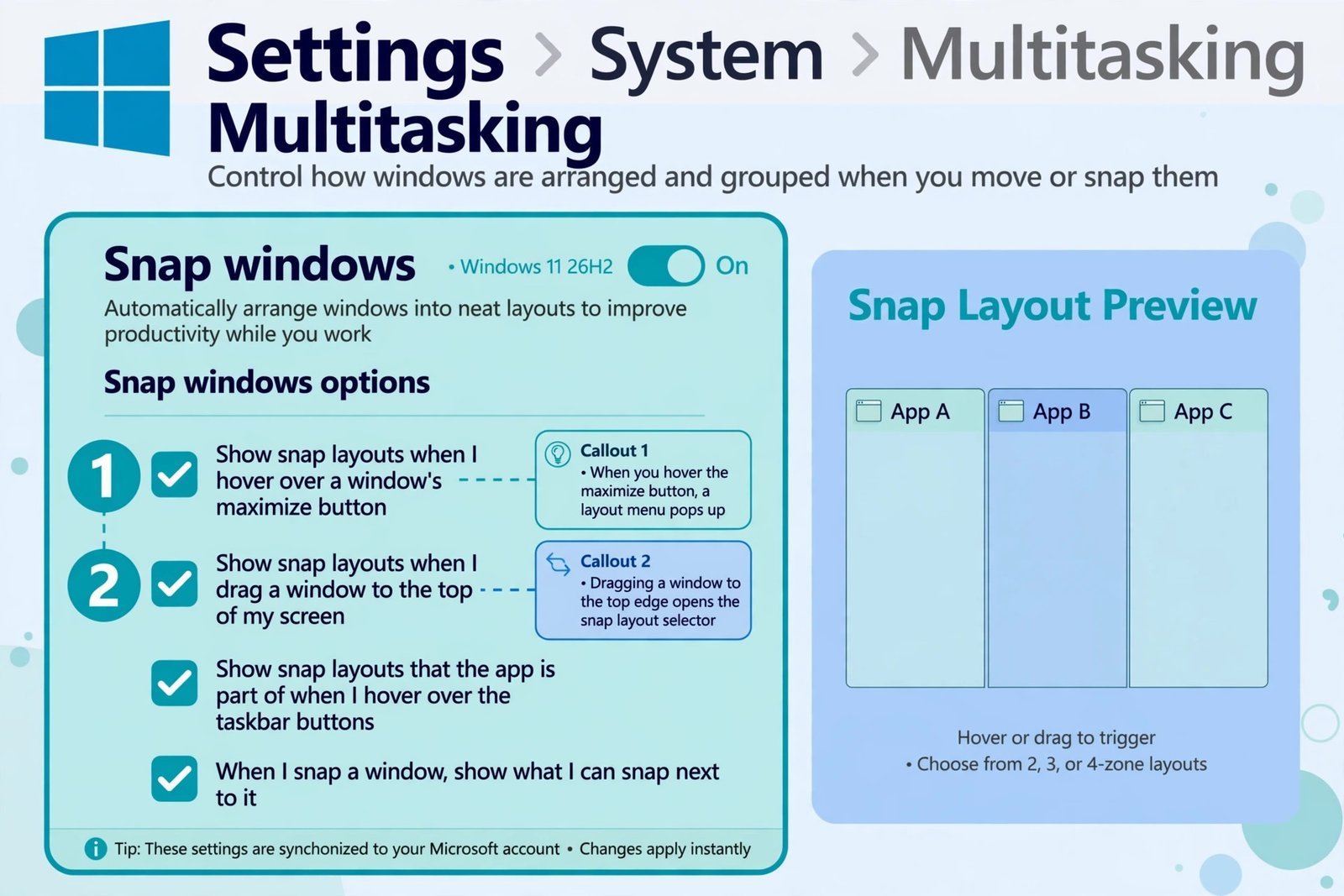
If the layout picker also annoys you when your cursor pauses over a window’s maximize button, the cure sits in the same list. Expand Snap windows again and uncheck “Show snap layouts when I hover over a window’s maximize button.” You lose nothing you cannot get back: pressing Win + Z opens the same picker on demand. Many people end up turning off both popups while keeping the master toggle on, which leaves snapping fully usable but completely silent until summoned.
Turn off Snap windows entirely (last resort)
Only take this step if you never want Windows to arrange your windows at all. Go to Settings > System > Multitasking and flip the Snap windows master toggle to Off. This stops edge-drag snapping, the layout picker, the keyboard shortcuts, and Snap Assist suggestions all at once. It is the right choice for gamers, presenters, and anyone with a rigid manual window workflow, but it is overkill if your only complaint was the top-edge popup. Re-enable it with the same toggle whenever you like.
| What you change | What stops | What still works |
|---|---|---|
| Uncheck the drag-to-top box | Only the top-edge layout popup | Win + Z, Win + arrows, maximize-button picker, side/corner snapping |
| Uncheck the maximize-button box too | Both popups | Win + Z, Win + arrows, side/corner snapping |
| Turn the Snap windows toggle off | All snapping behavior | Manual resizing and maximizing only |
Our take: which option fits you
For almost everyone, the single checkbox is the right move: the popup was the annoyance, not snapping itself, and this is the one fix that removes the annoyance without touching anything useful. If you use a touchscreen laptop or tablet regularly, consider leaving it on, because dragging with a finger is the one scenario where the popup is genuinely easier than remembering keyboard shortcuts. And if both popups bother you, clear both checkboxes but keep the master toggle on; switching off snapping entirely also takes away Win + Z and the arrow-key shortcuts that most people end up missing.
One more honest caveat: this setting lives in your user profile, so it applies to your account on that PC. If you sign in on a shared family computer with multiple accounts, each account has its own copy of the setting.
If this fix was part of a broader mission to stop Windows doing things without asking, the next target might be stopping Microsoft Edge from opening on startup, another small change that removes a daily irritation.

- How to Turn Off the Snap Layouts Popup When Dragging a Window to the Top in Windows 11 - October 20, 2026
- How to Turn Off Bing Web Results in Windows 11 Start Menu Search - October 19, 2026
- Android 17: What Is New, and Which Phones Get It in 2026 - October 18, 2026