
A printer that shows as offline in Windows 11 is one of the most annoying problems you can run into, especially when the printer is switched on and connected to the same network as your PC. The message rarely means the printer is broken. It usually means Windows lost track of the printer, or a setting is quietly telling Windows to hold your print jobs. This guide covers how to fix a printer showing offline but connected in Windows 11, ordered from the fastest checks to the fixes that solve the stubborn cases.
Key Takeaways
- Check power, cables, the Wi-Fi band, and any paper or ink warnings before touching settings.
- The “Use Printer Offline” toggle is the most common cause, and it hides inside the print queue’s Printer menu.
- Restarting the Print Spooler service clears most stuck-queue offline states in seconds.
- Network printers often report offline because of the SNMP Status Enabled port setting.
- If nothing works, remove the printer, add it again, and install a fresh driver from the manufacturer.
Quick checks first
Before changing any settings, rule out the simple physical and network causes. They take two minutes and fix more cases than people expect.
- Power and cables. Confirm the printer is fully on, not asleep. For USB printers, unplug the cable at both ends and plug it back in, preferably straight into the PC rather than a hub. If you have a spare USB cable, try it.
- Same Wi-Fi network. Check the printer’s own display for the exact network name it joined, then compare it with what your PC shows. Look out for separate 2.4 GHz and 5 GHz networks, or a guest network with a near-identical name. Being one band apart is enough to break printing.
- Paper, ink, and jams. A flashing light, an error code, an open cover, low paper, or a paper jam can all surface as an offline status in Windows. Clear any printer-side error first.
- Restart in this order. Turn the printer off and unplug it for 30 seconds. Restart your router and let it fully come back. Plug the printer back in and wait until it is idle. Then restart your PC. This clears stale IP assignments that often follow a router restart.
The table below maps the most common situations to the fix that resolves them, so you can jump straight to the right section if one matches.
| What you see | Likely cause | Start here |
|---|---|---|
| Printer is on and reachable, but Windows shows Offline | “Use Printer Offline” is checked | Fix 1 |
| Jobs pile up in the queue and nothing prints | Print Spooler is stuck | Fix 2 |
| Worked until the router restarted or was replaced | Printer IP changed, or SNMP port status is wrong | Fix 4 |
| Brand new setup, or broke after a Windows update | Missing or outdated driver | Fix 5 |
Fix 1: Turn off the “Use Printer Offline” mode
Windows can switch a printer into offline mode on its own, for example after a job fails to reach the printer or after the PC wakes from sleep, and then it leaves the setting switched on. A single momentary dropout turns into a permanent offline status. Checking this toggle first is the fastest win.
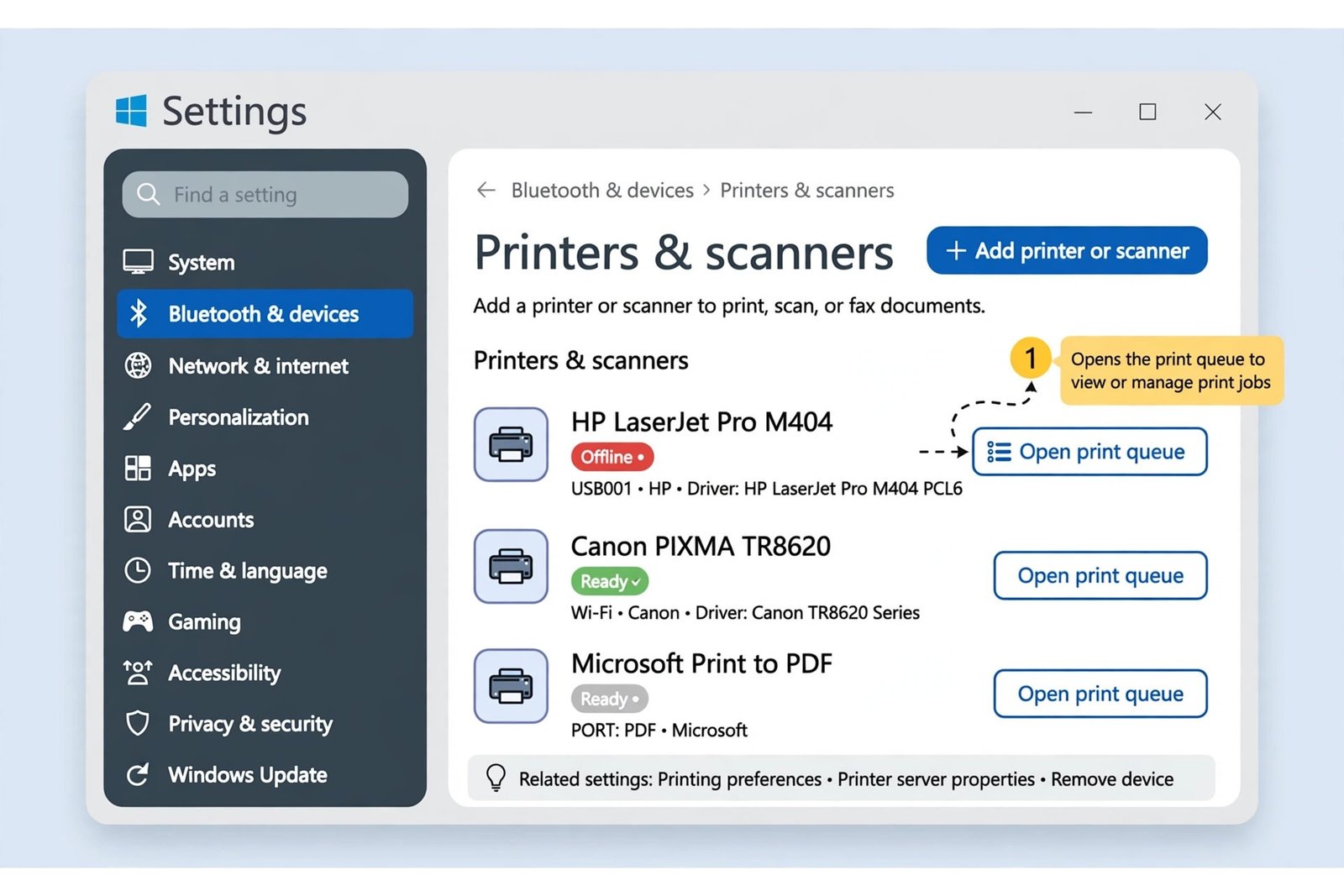
- Open Settings, then go to Bluetooth & devices > Printers & scanners.
- Click the printer that shows Offline, then click Open print queue.
- In the queue window, click Printer in the menu bar at the top.
- If Use Printer Offline has a checkmark next to it, click it to clear it. While you are in that menu, also clear Pause Printing if it is checked.
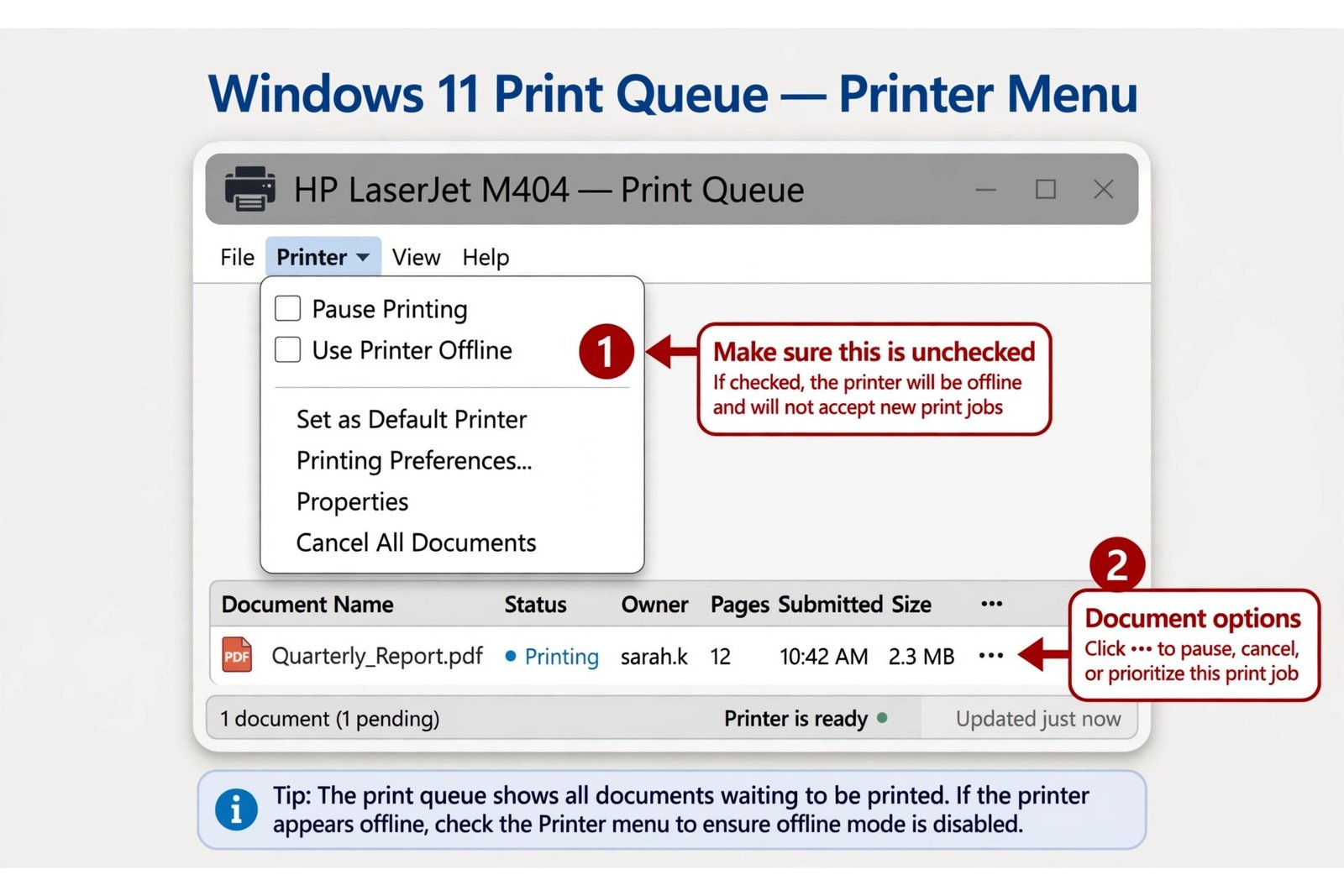
While the queue is open, cancel any stuck jobs too, since a single jammed job can keep the printer reporting offline. Choose Printer > Cancel All Documents to empty the queue. If the queue window shows no Printer menu at all, use the three-dot menu to resume paused jobs, then continue with Fix 2.
Finally, make sure print jobs are not being sent to the wrong device. In Printers & scanners, turn off Let Windows manage my default printer and set your printer as the default manually, so Windows stops rerouting jobs to a PDF writer or an old device. If the default setting itself refuses to stick, see our guide to fixing problems when you cannot set a printer as default in Windows 10 and 11.
Fix 2: Restart the Print Spooler service
The Print Spooler is the Windows service that manages every print job. When it stalls, jobs freeze and the printer can show as offline even though the connection is fine. Restarting the service takes seconds and is safe, but save your open documents first in case an app loses its active print dialog.
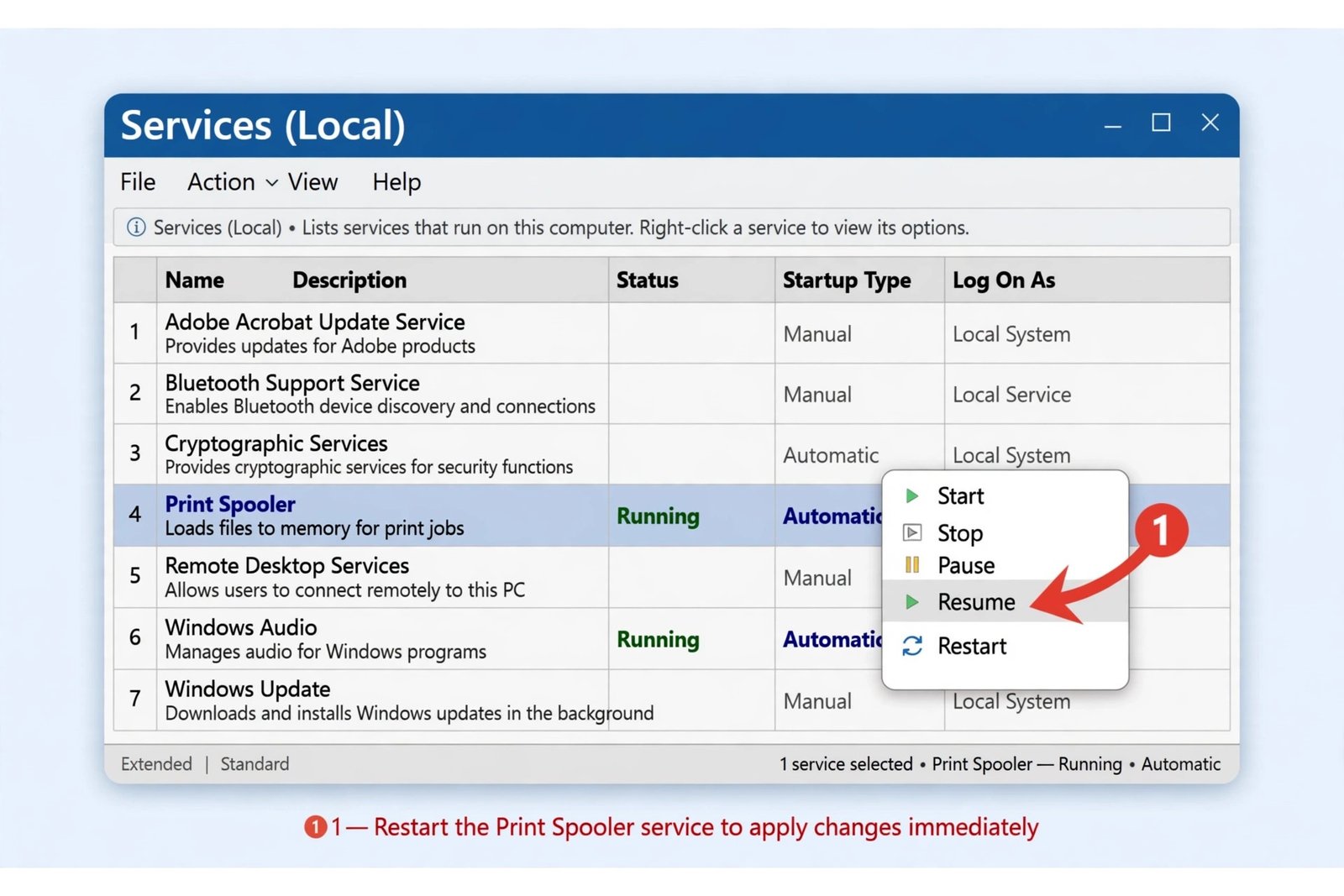
- Press Windows key + R to open the Run dialog.
- Type services.msc and press Enter to open the Services window.
- Scroll down and find Print Spooler.
- Right-click Print Spooler and select Restart. If Restart is grayed out, select Start instead.
Also double-click Print Spooler and confirm Startup type is set to Automatic, so Windows starts it at boot. Microsoft’s own guide to fixing Print Spooler errors in Windows covers the same reset if you want the official version.
Fix 3: Remove the printer and add it again
If the status still says Offline after the first two fixes, the printer’s stored configuration in Windows may be corrupt, especially after a router change or a Windows update. Removing it and adding it fresh forces Windows to rediscover the device and rebuild the connection.
- Go to Settings > Bluetooth & devices > Printers & scanners.
- Click the problem printer and choose Remove, then confirm.
- Wait about 30 seconds, then click Add device at the top of the page.
- Select your printer when it appears and let Windows finish the setup.
If the printer never appears in the list, install the driver from the printer maker’s website first, then repeat the add step. For a Wi-Fi printer, double-check it is awake and joined to the network before scanning again.
Fix 4: Disable SNMP status on the printer port
This fix applies to network printers only, and it is a classic. When Windows talks to a printer through a Standard TCP/IP port, it polls the printer with SNMP to decide whether the device is online. If the printer does not answer those polls, which happens with some routers, VLANs, or after an IP change, Windows marks the printer offline even though it prints fine over other paths. Disabling the SNMP status check stops Windows from asking.
- Press Windows key + R, type control, and press Enter to open Control Panel.
- Type printer in the Control Panel search box and click View devices and printers.
- Right-click your printer and choose Printer properties (not Properties).
- Open the Ports tab, select the checked port, and click Configure Port.
- Uncheck SNMP Status Enabled, click OK, then OK again to close the properties.
If the Configure Port button is unavailable, your printer is not using a Standard TCP/IP port, and this fix does not apply, move on to Fix 5. On office printers shared through a print server, the same setting lives on the server’s port, so ask the IT admin to change it there.
Fix 5: Update or reinstall the printer driver
An outdated, corrupt, or wrong driver can break the handshake between Windows and the printer, and Windows updates sometimes leave an older driver behind. A clean driver install is the last software fix worth trying before suspecting hardware.
- Press Windows key + X and select Device Manager.
- Expand Printers or Print queues.
- Right-click your printer and choose Update driver, then Search automatically for drivers. Follow the prompts.
If Windows finds nothing, do a clean reinstall: remove the printer in Settings > Bluetooth & devices > Printers & scanners, restart the PC, then download the latest full driver package from the manufacturer’s support site (HP, Canon, Brother, and Epson all host model-specific downloads) and run the installer. Restart once more after the install finishes and test with a simple document.
When it is still offline
If every fix above failed, the problem is almost certainly outside Windows. Print a network configuration page from the printer’s own menu and confirm it holds a valid IP address on your network. If the address looks wrong or keeps changing after router restarts, give the printer a static IP or a DHCP reservation in your router settings.
At this point, run the printer manufacturer’s own diagnostic tool if one exists, or contact their support with your model number and the fixes you already tried.

- How to Fix a Printer Showing Offline in Windows 11 - October 21, 2026
- How to Turn Off Windows 11 Feedback Notifications and Stop It Asking for Feedback - October 20, 2026
- How to Stop Microsoft Edge From Opening on Startup in Windows 11 - October 19, 2026