
If you have ever swiped left from the first page of your Galaxy home screen and landed on a page full of news stories, TV clips, and game suggestions, you have met Samsung Free. For years it sat on the leftmost home screen panel of Samsung phones, opening with a single accidental swipe. This guide explains what Samsung Free is, why it may look different on your phone in 2026, and how to turn it off or replace it with Google Discover.
Key Takeaways
- Samsung Free is a free content hub with news, TV, games, and podcasts that lives on the leftmost home screen panel of Galaxy phones.
- Samsung has phased out the Samsung Free name in favor of Samsung News in most regions, and the service itself ended in late 2025.
- To stop it opening, long-press an empty area of the home screen, swipe to the leftmost page, and turn off the switch at the top.
- You can keep the panel but switch it to Google Discover, or disable the app itself in Settings to stop it from fetching content in the background.
What is Samsung Free?
Samsung Free is a content aggregator that Samsung introduced with One UI 3 as the successor to Samsung Daily. It pulls together news articles, live TV, podcasts, and interactive games into one free service. You open it by swiping left from the first home screen page, which takes you to the leftmost panel where Samsung placed it. It came preinstalled on Galaxy phones, so most owners found it by accident rather than by choice.
In its original form, Samsung Free sorted everything into three tabs. The Watch tab gathered video and TV content, the Read tab collected news stories, and the Play tab offered instant games. Samsung later folded in podcasts and personalized recommendations. All of it was free, which made the panel an easy way to pass time, but many people found the content repetitive and the constant background updates an unwanted drain on battery life.
Samsung Free, Samsung News, and the naming confusion
This is where it gets confusing, so here is the short version. The leftmost panel has had three names over the years. It started as Bixby Home, became Samsung Daily in 2019, and turned into Samsung Free when One UI 3 arrived. In 2023 Samsung launched a separate app called Samsung News, a news focused service that replaced Samsung Free in the United States, and later in Canada and the United Kingdom. Samsung then confirmed that Samsung Free would be discontinued entirely in December 2025, with Samsung News taking its place in supported markets. Samsung support still describes Samsung News as becoming available through an update to Samsung Free, so the two names refer to the same spot on your phone.
| Name | Era | What it offered |
|---|---|---|
| Samsung Daily | 2019 onward | News and content feed on the leftmost panel |
| Samsung Free | One UI 3 onward | News, live TV, podcasts, and games in Watch, Read, and Play tabs |
| Samsung News | 2023 onward in supported regions | News and podcasts in News, Podcasts, and Following tabs |
What this means for you is simple. Depending on your region and how recent your software updates are, the leftmost panel on your Galaxy phone may say Samsung Free or Samsung News. The steps to turn it off are the same either way. Where Samsung News is not available, Google Discover is the other option Samsung offers for that panel.
How to turn it off on One UI 8
Turning off the panel takes about ten seconds, and you can turn it back on at any time by repeating the steps. The path is the same one Samsung documents in its own support guides.
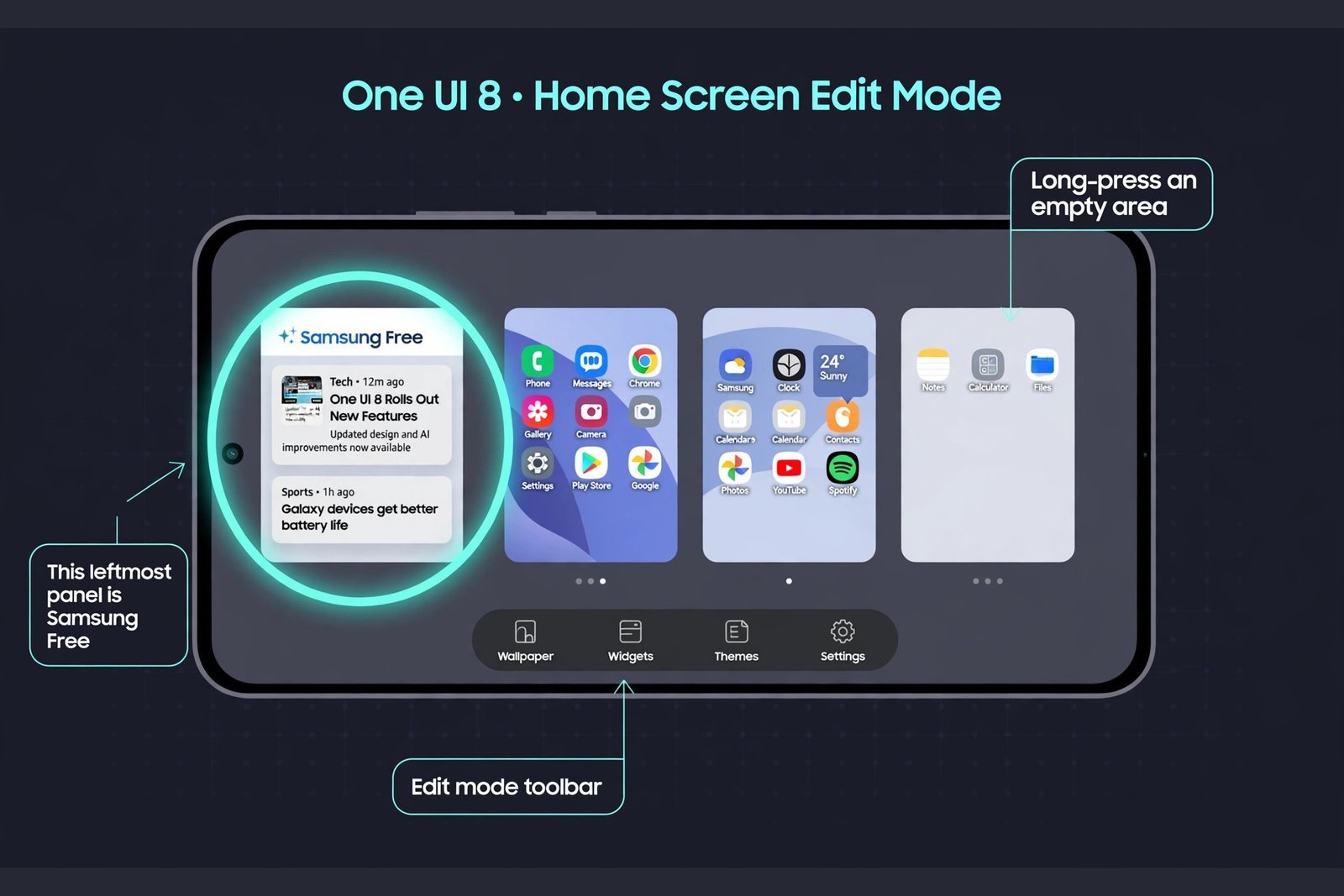
- Long-press an empty area of the home screen. Find a spot with no icons or widgets, press and hold for a moment, and the home screen enters edit mode. The pages shrink into thumbnails so you can see them all at once.
- Swipe to the leftmost page. Scroll sideways until you reach the panel that holds Samsung Free or Samsung News. It sits to the left of your first home screen page.
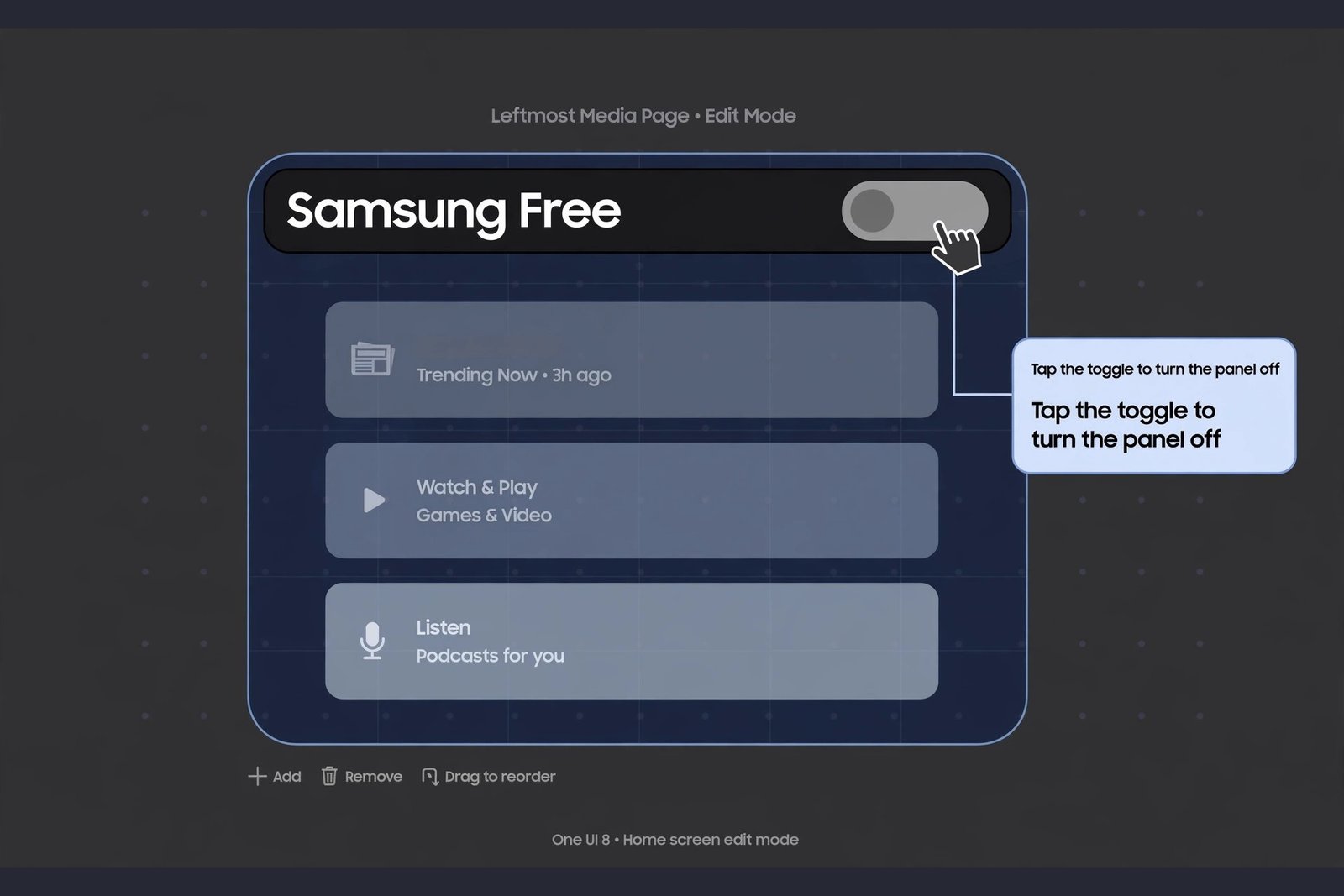
- Turn off the switch at the top of the panel. Tap the toggle above the media page. Samsung calls this the media page switch, and turning it off removes the panel from your home screen.
- Exit edit mode and check. Tap outside the pages or press the back button to leave edit mode. Now swipe left from your first home screen page and nothing opens. The panel is gone.
Disabling the Samsung Free app itself
Removing the panel stops it from opening when you swipe, but the app remains installed and can still fetch content in the background. If you want it fully quiet, you can disable the app. Open Settings, go to Apps, and find Samsung Free or Samsung News in the list. If it does not appear, look for an option to show system apps. Tap the app, then tap Disable and confirm. This stops the app from running and sending notifications. Samsung ships it as a system app, so you cannot uninstall it completely, but disabling it is the next best thing. If you ever want it back, return to the same screen and tap Enable.
Replacing it with Google Discover
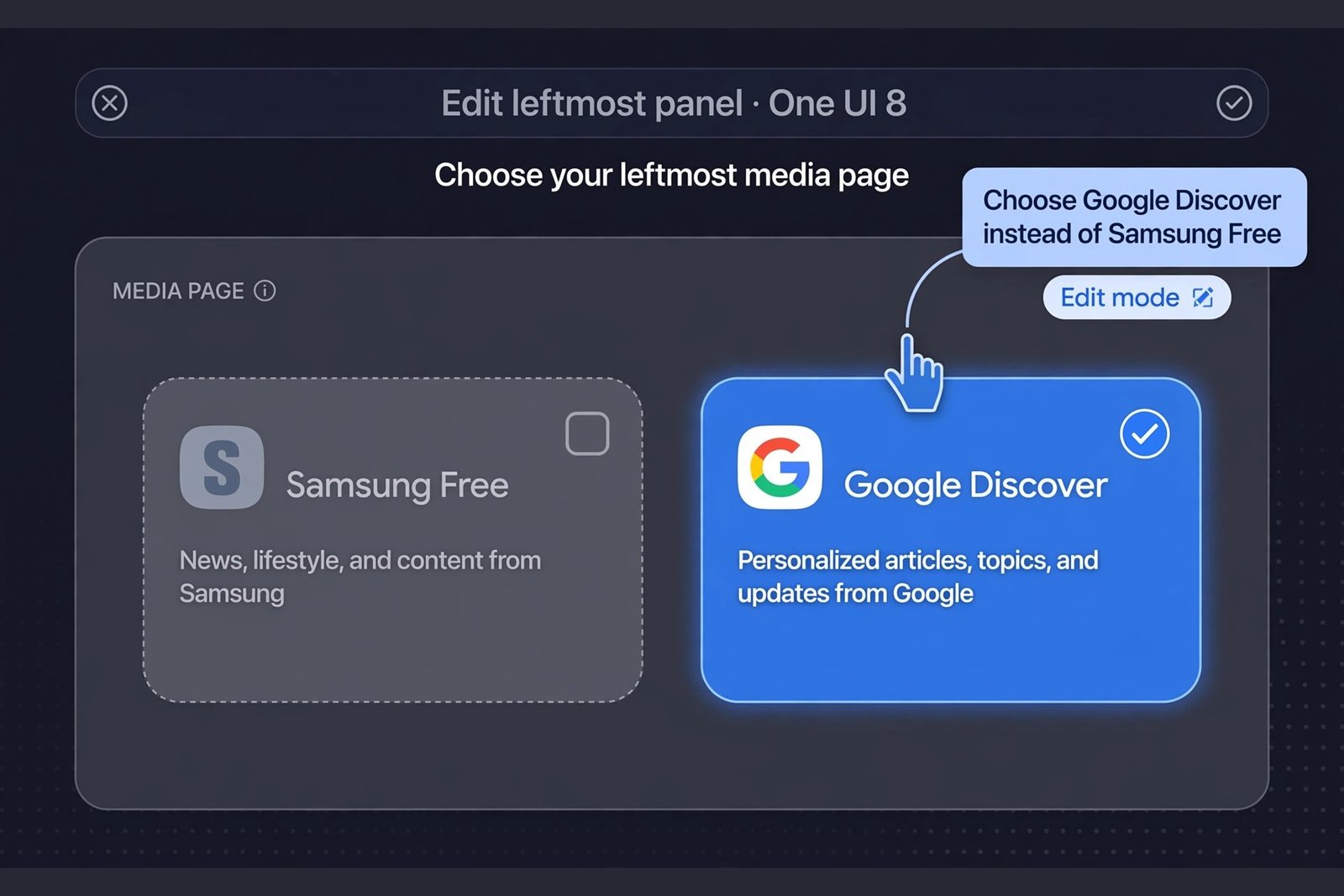
If you like having a swipe left news feed but prefer Google’s version, you can keep the leftmost panel and swap the service. Long-press an empty area of the home screen to enter edit mode, swipe to the leftmost page, and look at the media page options. Samsung lists both Google Discover and Samsung News there. Choose Google Discover to enable it for the panel, as explained in Samsung’s guide to switching between Samsung News and Google Discover. Google Discover then opens when you swipe left, with articles picked from your Google interests instead of Samsung’s feed.
What happens after you turn it off
Once the panel is off, swiping left from your first home screen page simply does nothing. Your other home screen pages, widgets, and icons are untouched. Nothing is deleted, and you can bring the panel back at any time by repeating the steps and turning the switch on again.
A few things are worth knowing. First, the content itself is not gone from your phone. News and podcasts remain available through the Samsung News app in your app drawer if it is supported in your region, and Samsung’s TV and games content lives on in the Samsung TV Plus and Gaming Hub apps. Second, turning off the panel does not change your Samsung account or any other settings. Third, major One UI updates have been known to switch the media page back on, so if the panel reappears after a software update, just repeat these steps to hide it again.
If you are trimming other Samsung extras while you are at it, our guide to turning off Samsung’s Now Brief covers another feature that appears uninvited. For general Android annoyances, see turning off notification cooldown on Android, and if you use Samsung hardware around the house, here is how to connect your Samsung Smart TV to Alexa. Samsung also keeps its own instructions for using Samsung News on your Galaxy phone if you decide to give the panel another chance.

- What Is Samsung Free and How to Stop It Opening on Your Home Screen - October 21, 2026
- What Is Now Brief on Samsung Galaxy Phones and How to Turn It Off - October 20, 2026
- How to Turn Off Notification Cooldown on Android - October 19, 2026