
Key takeaways
- Those star-card popups are Apple’s official in-app rating system. Apple caps each app at three prompts per person in any 365-day period, and a single system toggle blocks the prompt across every app at once.
- The 2026 path is Settings, then Apps, then App Store, then switch off In-App Ratings & Reviews. On iOS 17 and older, the App Store entry sits directly in Settings.
- The toggle only stops Apple’s official prompt. A developer’s own nag screens and Rate Us buttons are not covered, but they can usually be silenced with an in-app setting, a one-time rating, or a note to the developer.
You open an app to do one quick thing and a popup asks you to rate it before you can start. Then another app does the same thing later that day. Apple built a single system-wide switch that stops these official rating prompts across every app on your iPhone, and this guide shows you where it lives in the current Settings layout, what it can and cannot silence, and what to do about the popups it cannot reach.
What these rating popups actually are
That little star card that appears while you are using an app is Apple’s official in-app rating system. Apple introduced it years ago with SKStoreReviewController, and since iOS 18 the modern replacement is the AppStore.requestReview API and SwiftUI’s requestReview action, but what you see as a user has not changed: a small card with five stars where you can rate the app without leaving it.
Here is the part most people miss: the developer does not control when that card appears. The app calls Apple’s API at a moment the developer thinks is sensible, like after you finish a level or a task, and then Apple’s system decides whether to show the prompt at all. Apple caps how often it can appear: a person who has not rated an app can see the prompt at most three times in any 365-day period, and even within that limit the system may show it fewer times or not at all. Once you rate an app, Apple generally holds off until a new version arrives and a year has passed since your last review. Apple also tells developers to use the provided API to prompt users to review an app and that custom review prompts will be disallowed, so developers are not supposed to invent their own star-rating popups.
Why do apps ask at all? Ratings and reviews shape an app’s ranking in App Store search and recommendations, and they give the developer feedback on what to fix. That is a legitimate reason, but it explains why the prompts feel relentless: every app on your phone has an incentive to ask for one of your limited ratings.
How to turn off in-app ratings and reviews
The switch you want is called In-App Ratings & Reviews. Turning it off stops Apple’s system from showing the official rating prompt in any app on your iPhone. It applies to every app at once, and it stays off until you turn it back on. Apple added this switch years ago and it is still there in the current iOS, though its location moved when Apple reorganized Settings.
- Step 1: Open Settings.
- Step 2: Scroll down and tap Apps. Since iOS 18, individual app settings live under the Apps menu near the bottom of Settings.
- Step 3: Tap App Store in the list.
- Step 4: Scroll down and switch off In-App Ratings & Reviews.
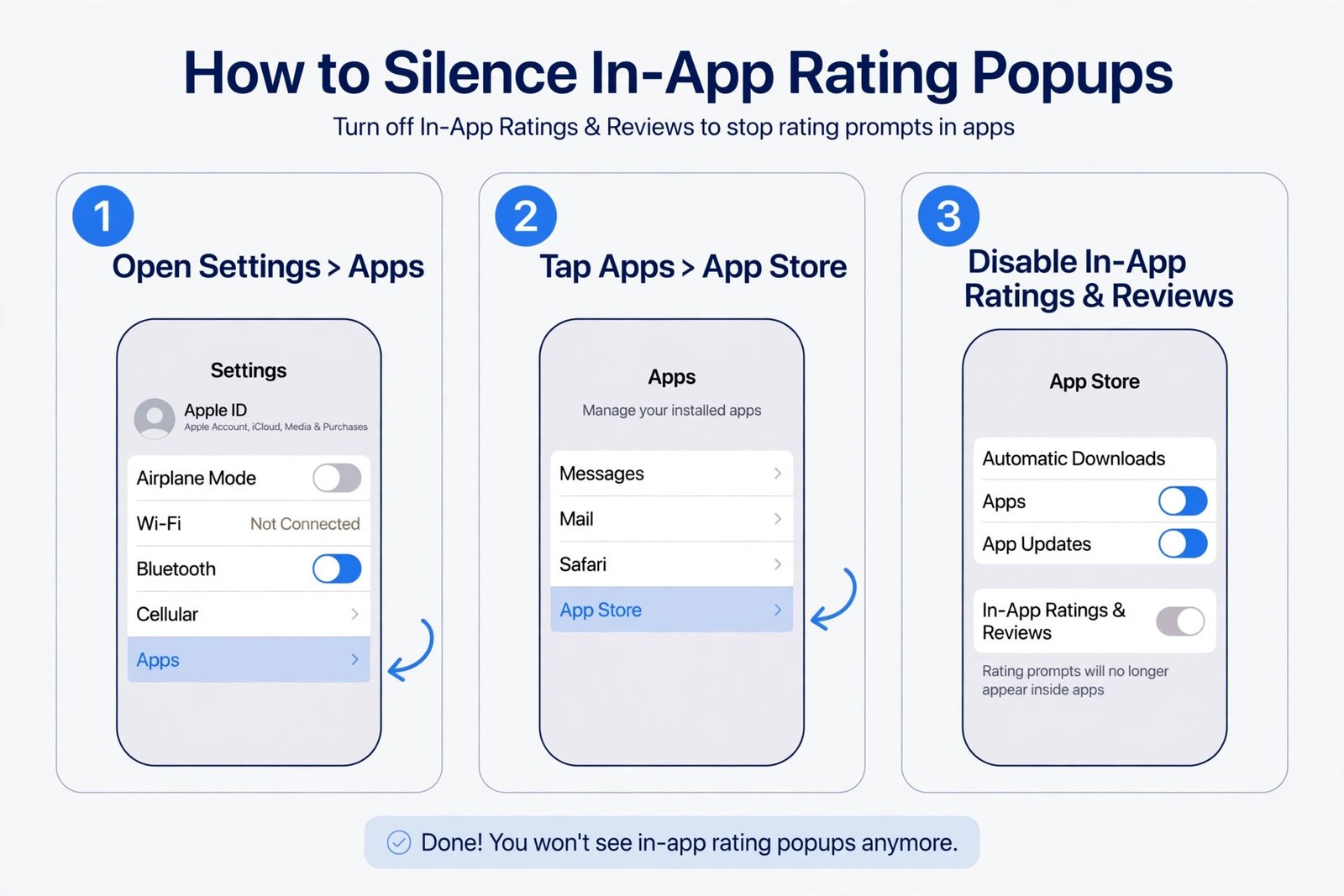
You should now see: the toggle sitting gray in the off position. From now on, no app can trigger Apple’s official in-app rating card on your iPhone.
On an older iPhone: on iOS 17 and earlier, the Apps menu does not exist. Go to Settings and tap App Store directly, then switch off In-App Ratings & Reviews. The toggle label is the same. If you do not see the toggle at all, check that your iPhone is up to date at Settings, then General, then Software Update. As of October 2026, the current release is iOS 27, with iOS 26.7.1 offered as a security update for phones that stay on iOS 26.
What this toggle actually stops, and what it cannot stop
Flipping the toggle stops exactly one thing: Apple’s official in-app rating prompt, the star card the system displays on the developer’s behalf. It is a strong switch, but it is not a universal blocker for every nag an app can show. It helps to tell the two kinds of prompts apart.
Apple’s official prompt is the standardized card with five stars and a Not Now button. It looks the same in every app because Apple draws it, and the developer cannot change its wording or make it appear more often than Apple’s rules allow. This is the popup the toggle blocks.
A developer’s own nag is anything else: a custom screen that says something like “Are you enjoying our app?” with Yes and No buttons, a “Please rate us” popup with a button that opens the App Store listing, or a persistent banner inside the app’s own settings. These are drawn by the app itself, so the system toggle cannot stop them. Apple prohibits outright custom review prompts, but sentiment screens and store-link buttons are allowed, which is why you can still run into them even with the toggle off.
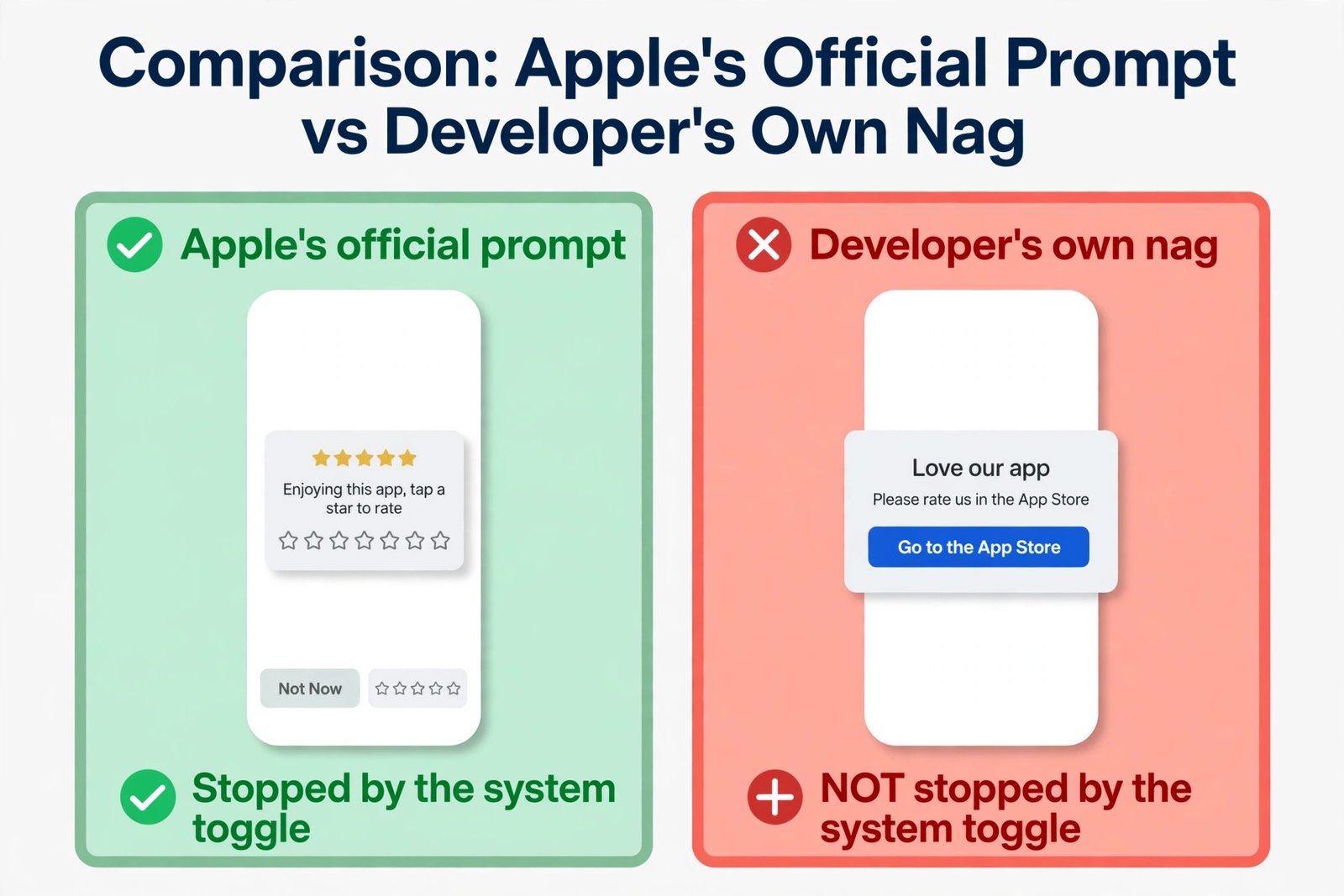
| Popup you see | Does the toggle stop it? |
|---|---|
| Apple’s official star rating card with a Not Now button | Yes |
| A custom “Enjoying the app?” or “Please rate us” screen | No, it is drawn by the app |
| A Rate Us button or menu item you tap yourself | No, you chose to open it |
| Reminders inside the app’s own settings or banners | No, check the app’s settings |
Here is a useful rule of thumb: if an app asks you every day, you are almost certainly looking at the app’s own nag, not Apple’s system. Apple’s official prompt cannot appear daily because of the three-in-365-days cap, so relentless begging is a sign the app designed its own screen.
What to do when a popup keeps appearing anyway
If a popup survives the toggle, it is coming from the app itself, and you have options, ordered from easiest to most decisive.
- Look for a switch inside the app. Some apps include their own toggle for review prompts or notifications on their settings screen. It may be labeled Prompts, Notifications, or About. Switch it off there too.
- Rate the app once. This sounds counterintuitive, but Apple’s system holds back the official prompt after you rate, and many apps silence their own nags for the current version once you submit a rating. If you genuinely like the app, a one-time rating is the fastest way to buy yourself silence.
- Contact the developer. On the app’s App Store page, scroll to the Information section and use the Developer Website or App Support link to report an overly aggressive prompt. Developers tune these screens based on feedback, and a polite note can work.
- Replace the app. An app that nags you daily after you have turned off every available switch is telling you how it treats its users. The App Store usually has alternatives that behave better.
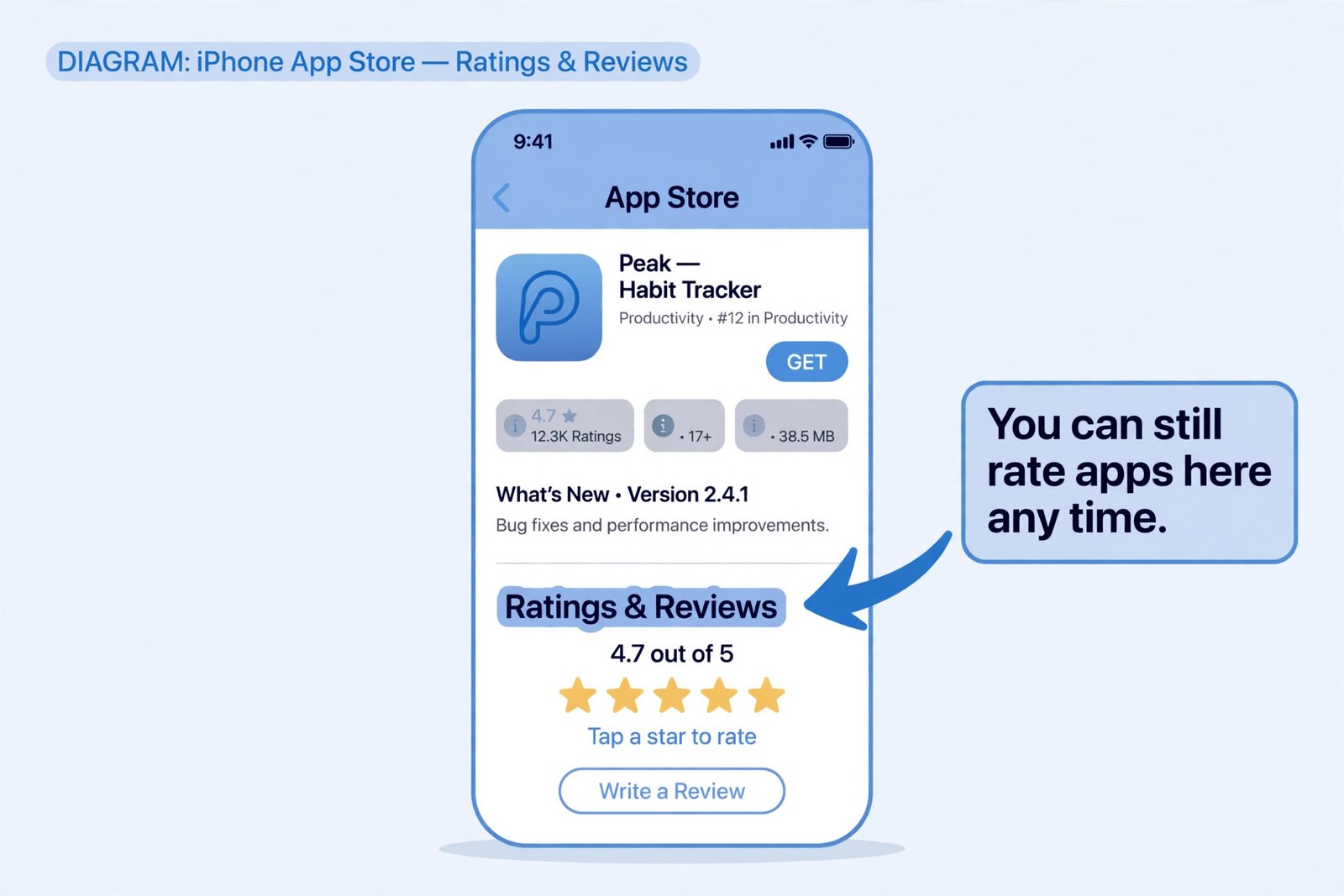
Turning off the toggle does not take away your ability to rate apps. You can still leave a rating or review for any app at any time: open the App Store, search for the app, scroll to Ratings & Reviews, tap a star, and tap Write a Review if you want to add words. Nothing about that path changes when the toggle is off.
Verdict: turn it off, but know what it covers
If rating popups interrupt you regularly, turning off In-App Ratings and Reviews is worth the ten seconds it takes. It is the only system-wide switch Apple provides, it covers every app at once, and it stays off until you change your mind. Its blind spot is the app’s own nags: the toggle cannot reach inside an app’s custom screens, so one stubborn app may need its own setting switched off or a rating to go quiet. Used with that expectation, the toggle turns the steady drip of rating requests into silence while leaving your own choice to review an app completely untouched.

- How to Stop iPhone Apps Asking for Ratings and Reviews - October 23, 2026
- How to Turn Off HDR in Windows 11 When Colors Look Washed Out - October 22, 2026
- What Is Samsung Free and How to Stop It Opening on Your Home Screen - October 21, 2026