
Key takeaways
- Stage Manager stacks your open apps along the left edge of the screen. Turning it off brings back the classic Mac layout where windows and the desktop behave the way they always have.
- The fastest switch is in Control Center: open it from the menu bar and click Stage Manager to toggle it. The full switch lives in System Settings under Desktop and Dock.
- Turning Stage Manager off closes nothing. Your windows stay open and return to their normal positions, and you can turn it back on any time with one click.
Stage Manager can be a handy way to organize windows, but not everyone likes the thumbnail strip it adds to the side of the screen. If you keep reaching for a normal desktop with your windows where you left them, this guide shows you 4 ways to turn Stage Manager off on your Mac, starting with the quickest one.
People usually switch it off for one of three reasons. The column of recent apps on the left can feel like a distraction when you just want one window to fill the screen. Desktop files and folders can seem hidden because Stage Manager moves them out of the way. Or the feature was turned on by accident, perhaps during setup, and the screen has looked unfamiliar ever since. Whatever brought you here, every method below is safe and reversible.
Turn off Stage Manager with Control Center, the fastest way
This is the method you will reach for most often, because it takes two clicks and no digging through settings. Apple also confirms in its own guide that you can move back and forth between Stage Manager and classic windows this way, so toggling is a normal part of using the feature rather than a one-way decision.
- Click the Control Center icon in the menu bar at the top right of the screen.
- Click the Stage Manager tile. The tile turns off, and the thumbnail strip on the left side of the screen disappears immediately.
- To turn it back on later, repeat the same two clicks. Nothing you changed is lost.
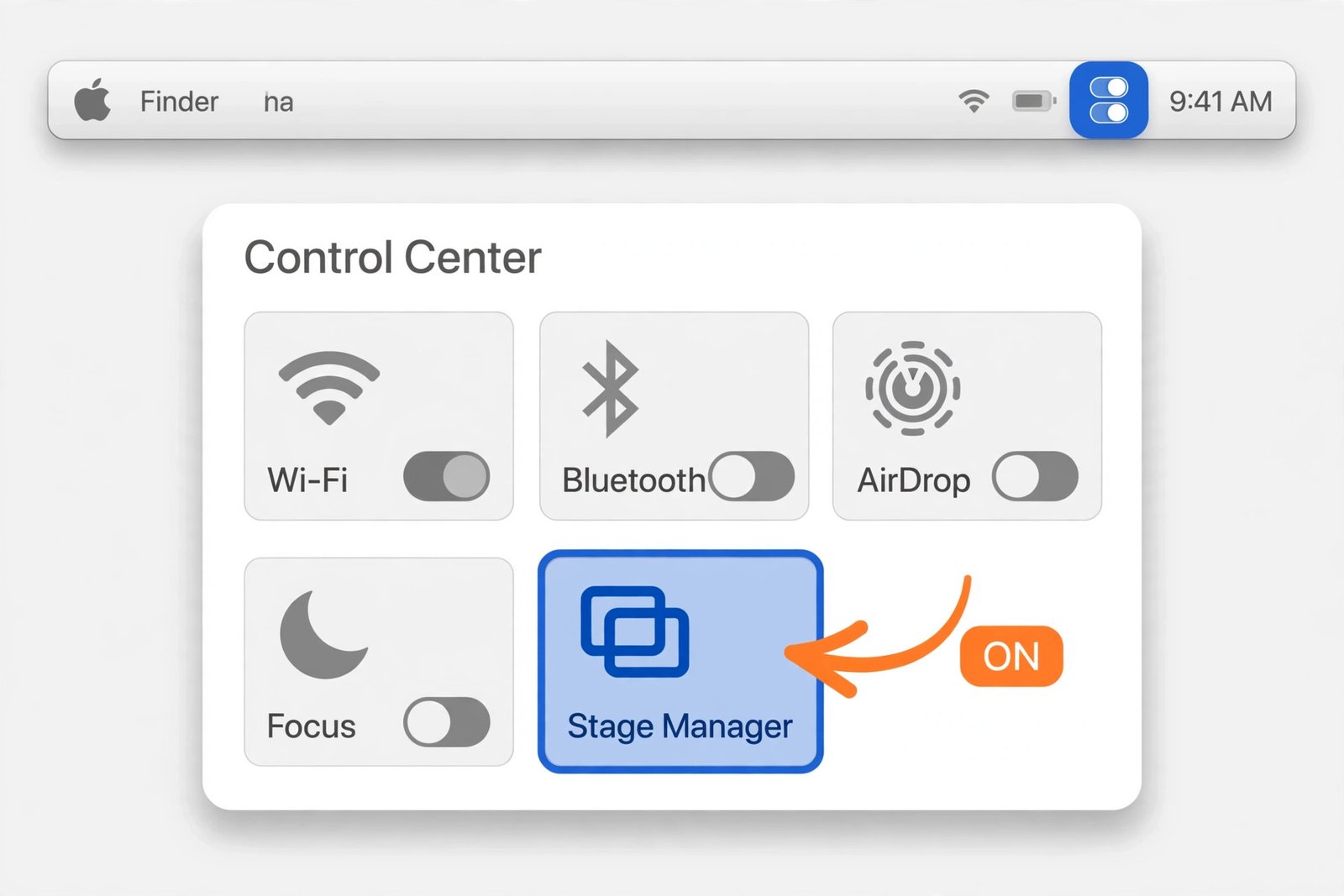
Note: If the Stage Manager tile is missing from your Control Center panel, the feature might still be on. In that case, use the System Settings method below, which always works regardless of how your Control Center is arranged.
Turn off Stage Manager in System Settings
If you prefer a switch that stays put, the master toggle for Stage Manager lives in System Settings. This is the same place you go to fine tune how the feature behaves, so it is worth knowing the path even if you usually use Control Center.
- Choose the Apple menu in the top left corner of the screen, then click System Settings.
- Click Desktop and Dock in the sidebar. You may need to scroll down to see it.
- In the Desktop and Stage Manager section, find the Stage Manager row and click the toggle to turn it off.
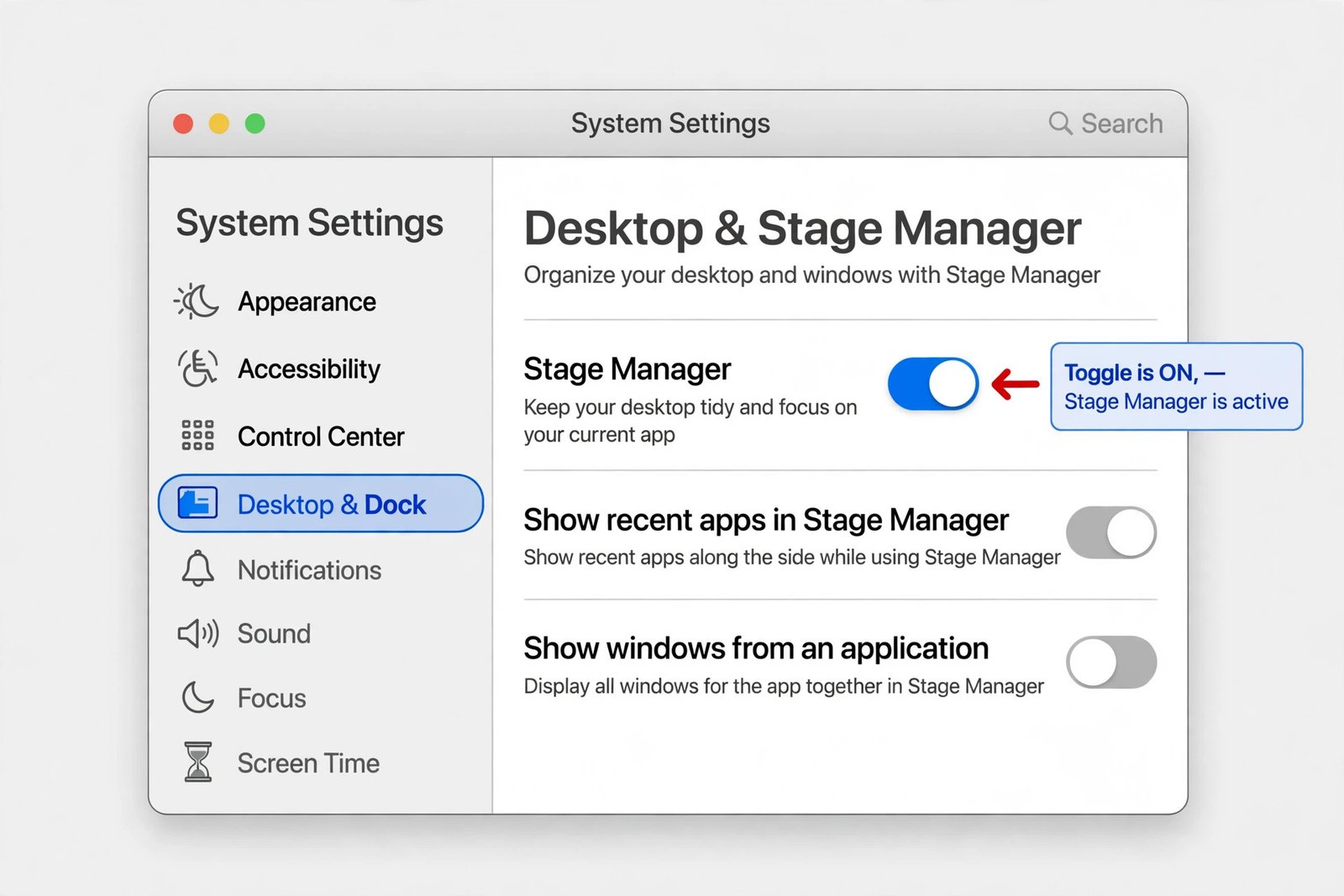
While you are on this screen, you may notice the related options underneath the toggle. Show recent apps in Stage Manager controls the thumbnail strip on the left edge of the screen. Show windows from an application decides whether switching to an app shows all of its windows or just the most recent one. These only matter while Stage Manager is on, so if you are turning it off for good you can leave them alone. If you ever cannot turn Stage Manager on again, Apple points to one prerequisite: in the same Desktop and Dock pane, scroll to Mission Control and make sure Displays have separate Spaces is turned on. Apple documents this requirement in its official Stage Manager guide.
You should now see: your windows behave like classic Mac windows again, the app thumbnails on the left are gone, and desktop items that were hidden while Stage Manager was on are visible again. Widgets on the desktop also return to their normal behavior. Stage Manager is one of several Mac features that are easy to switch off once you know the path, much like the steps to disable Caps Lock on a Mac when it keeps getting in your way.
Remove the Stage Manager icon from the menu bar
If you added Stage Manager to your menu bar for quick access, the icon can feel like clutter once you stop using the feature. Apple notes that Stage Manager is always available inside Control Center, so removing its menu bar icon does not remove your access to the feature. It simply moves the toggle out of sight.
- Hold the Command key on your keyboard.
- Click the Stage Manager icon in the menu bar and drag it off the bar, then release. The icon disappears with a small puff animation.
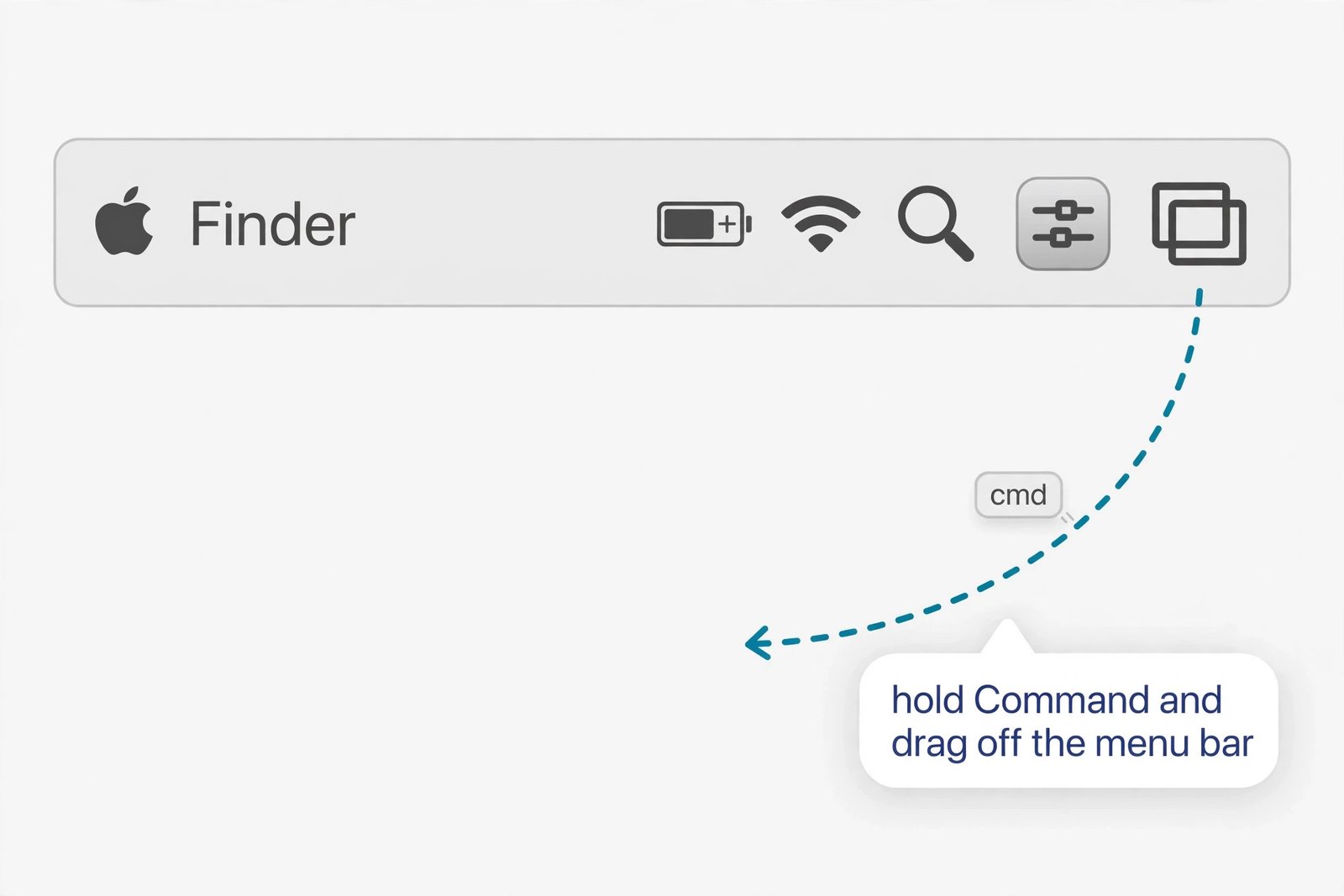
If the Command drag trick does not work on your setup, there is a settings route as well. Apple describes adding it through Control Center by opening Control Center, clicking Edit Controls, finding Stage Manager, and choosing Add to Menu Bar. The menu bar display can also be managed from System Settings under Control Center, where each module has a pop-up menu that controls whether it appears in the menu bar. Look for the Stage Manager entry there and set it so it does not show in the menu bar. If you like a tidy menu bar, there is more you can streamline in the guide to customizing your Mac.
Turn Stage Manager back on in seconds when you need it
Switching Stage Manager off is not a commitment. Many Mac users keep it off most of the time and flip it on for specific work, like juggling several windows during a research session, then switch it right back off when they are done.
- Open Control Center from the menu bar and click the Stage Manager tile, or re-add it to the menu bar by opening Control Center, clicking Edit Controls, and choosing Add to Menu Bar.
- Stage Manager turns back on instantly with whatever settings you had before, including your Show recent apps and Show windows from an application choices.
- If you removed the menu bar icon earlier, you can add it again from the same Edit Controls screen.
Note: Turning Stage Manager off does not change how your apps launch or where your files live. The recent apps you used are still one click away in the Dock, and windows you had grouped together in Stage Manager simply return to being regular windows. If you use Mission Control or Hot Corners for switching between windows, those keep working exactly as before. You can also turn off Hot Corners on a Mac if that multitasking feature causes accidental triggers too.
Stage Manager and Spaces are separate features, so turning Stage Manager off does not touch your virtual desktops. Any extra Spaces you set up stay exactly as they are, and Mission Control still shows all of your open windows and desktops when you swipe up with three fingers or press the Mission Control key. The only thing that changes is the Stage Manager layer on top of them.
Which way should you use?
| Situation | Best method |
|---|---|
| You want it off right now and might toggle it later | Control Center, two clicks |
| You want the master switch plus related options | System Settings, Desktop and Dock |
| The menu bar icon is clutter but you may use the feature again | Command-drag the icon off the menu bar |
| You turned it off and want it back for one session | Control Center tile, click to re-enable |
Enjoy a clutter free desktop again
Once Stage Manager is off, your Mac returns to the familiar layout where windows overlap naturally and your desktop stays visible. Start with the Control Center toggle since it is the quickest, and only visit System Settings if you want the related options adjusted too. The feature is always one click away if you miss it.

- How to Turn Off Stage Manager on Mac - October 23, 2026
- How to Reset Your Private Space PIN on Android If You Forgot It - October 22, 2026
- How to Turn Off Hot Corners on a Mac - October 21, 2026