
To turn off Edge panels on your Samsung Galaxy phone, open Settings, tap Display, tap Edge panels, and switch the toggle off. The slim handle on the side of your screen disappears at once, and the panel stops sliding out when you swipe from the edge. Nothing else on your phone changes, and you can switch the feature back on the same way at any time. If you like Edge panels but keep opening them by accident, you do not have to turn them off completely. The handle can be moved, shrunk, faded, or locked in place instead, and this guide covers both paths.
What Edge panels are
Edge panels are a slide-out sidebar on Samsung Galaxy phones. A small tab, called the handle, sits on the edge of the screen. Swipe the handle inward and a panel opens over whatever app you are using, with shortcuts to apps, contacts, tools, the clipboard, reminders, and more. Swipe away or tap elsewhere on the screen and the panel closes again.
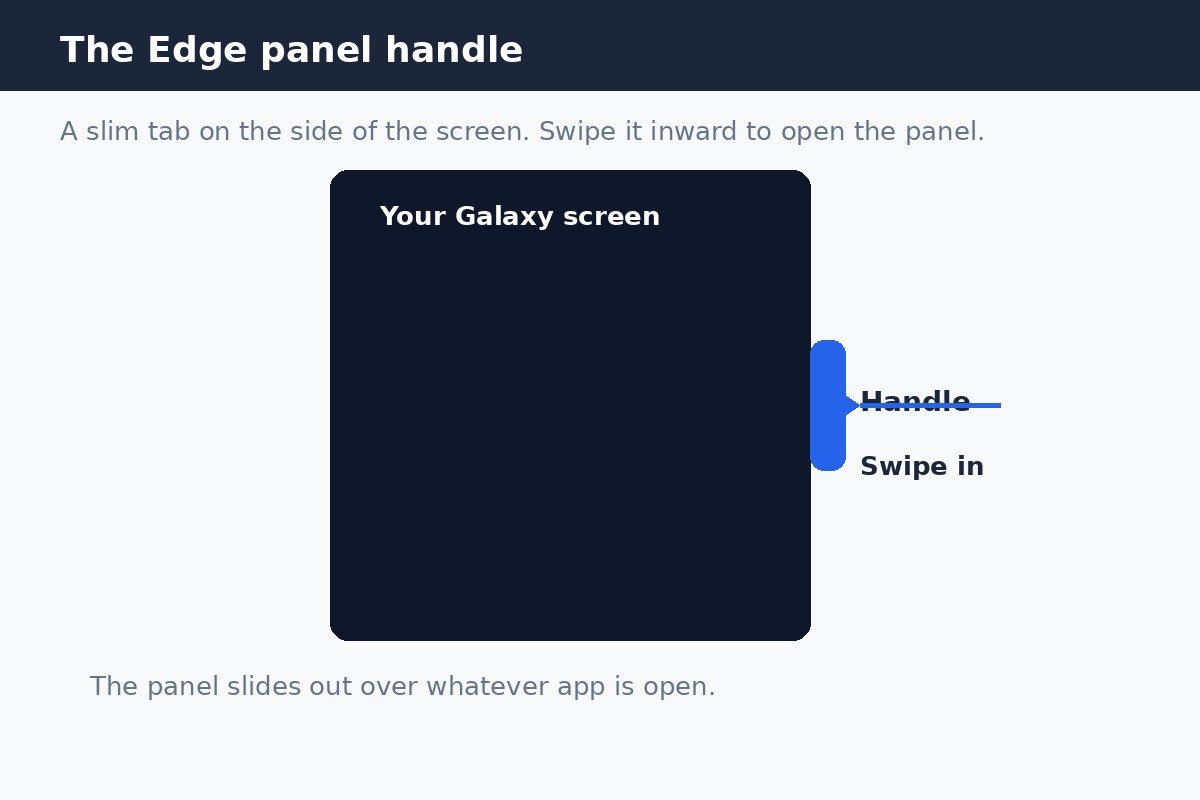
The feature is handy when you use it on purpose, and annoying when you trigger it by accident, for example while reaching across the screen or holding the phone one-handed. That accidental trigger is the most common reason people turn it off. Before you switch it off, it is worth knowing that the handle and the panels are controlled separately. Turning off Edge panels removes both. Customising the handle, covered below, keeps the panels while making accidental swipes much rarer.
Turn Edge panels off completely
- Open the Settings app on your Galaxy phone.
- Tap Display.
- Tap Edge panels.
- Tap the toggle at the top of the screen to switch Edge panels off.
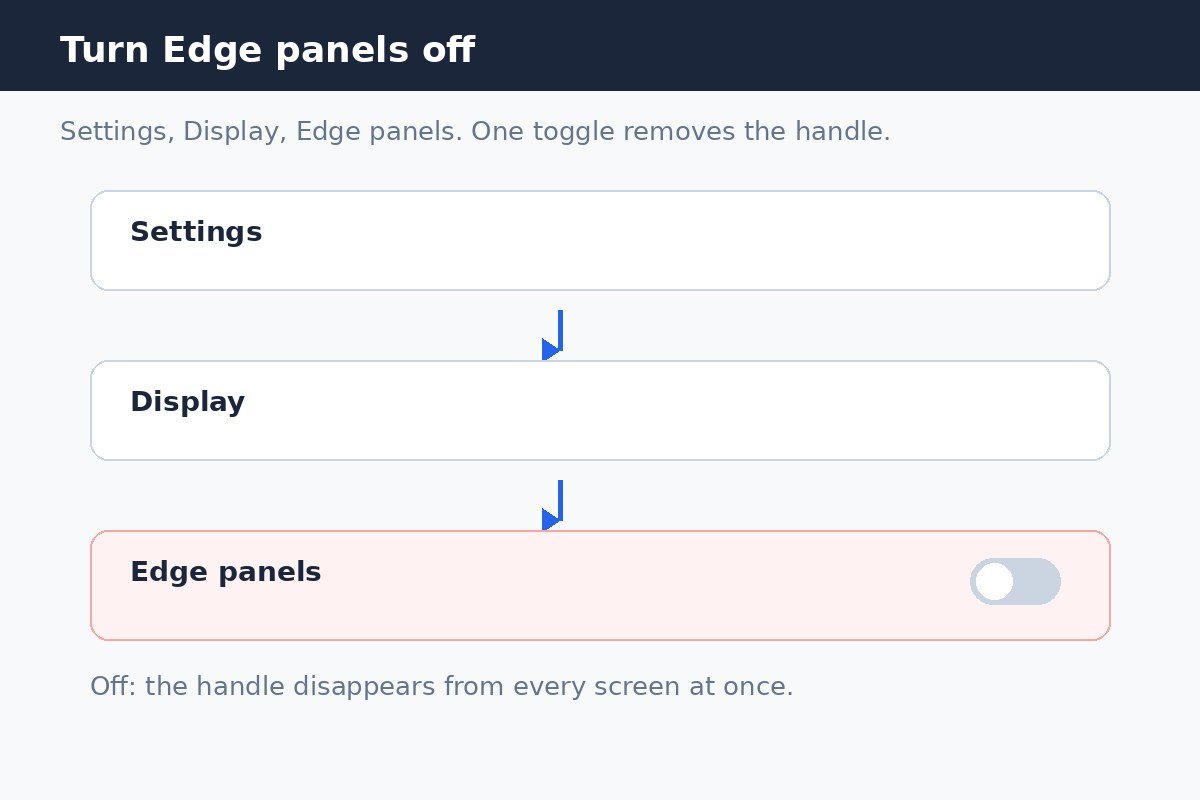
The handle disappears from every screen immediately, including the home screen and apps. Your panel layout is not deleted in the sense that matters: switching the toggle back on restores the feature, and you can set up your panels again from the same screen. To turn Edge panels back on, repeat the steps above and switch the toggle on.
On older One UI versions the same setting may sit under an Edge screen heading rather than directly under Display, and some models label it slightly differently. If you cannot find it by scrolling, use the search box at the top of Settings and search for Edge panels. That search works across One UI versions and takes you straight to the right page.
Keep Edge panels, but stop the accidental swipes
If you use the panels sometimes but not often enough to tolerate the handle, adjust the handle instead of switching the feature off. All of these options live on the same Edge panels page, under Handle.
| Change | What it does | Best for |
|---|---|---|
| Position | Moves the handle to the left or right edge, and up or down the side | A handle that sits under your thumb |
| Size | Makes the handle narrower or shorter | A handle you keep brushing by accident |
| Transparency | Makes the handle fainter against the screen edge | A handle that distracts you visually |
| Lock handle position | Stops the handle drifting as you swipe | A handle that keeps moving out of reach |
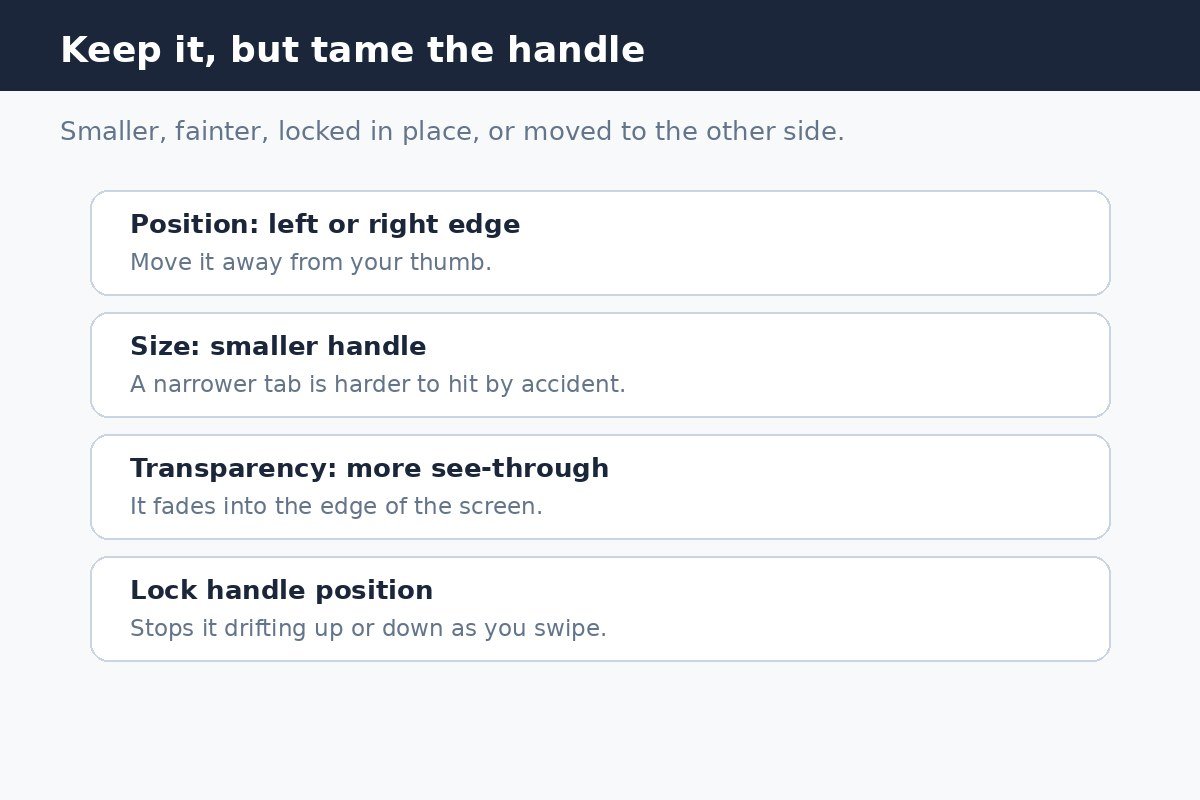
A smaller, fainter handle on the edge you use less often is usually enough to end the accidental opens. Combine that with locking the handle position, and the tab stays exactly where you put it. If accidental opens continue after these changes, turning the feature off is still the cleanest answer, and it takes only a few seconds.
Choose which panels appear
On the Edge panels page, tap Panels to see the panels available on your phone, such as Apps, People, Tasks, Weather, Tools, Clipboard, and Reminder. Tick only the panels you actually use. Fewer panels mean less swiping to reach the one you want, and a shorter panel list is easier to manage. Extra panels can also be downloaded from the Galaxy Store, though availability varies by One UI version and model.
To edit what sits inside a panel, open the panel itself and use its edit control, usually a pencil icon. There you can add or remove app shortcuts, contacts, and tools. A panel that holds only your five most used apps is far more useful than one crowded with defaults you never tap.
A second handle that is not Edge panels
If you turned Edge panels off and a side handle is still there, it probably belongs to a different feature: One Hand Operation Plus, a module inside Samsung Good Lock. That module adds its own gesture handles to the left and right edges of the screen for one-handed shortcuts such as back, recent apps, and notifications. Turning off Edge panels never affects it.
- Open Good Lock on your Galaxy phone. If it is not installed, it is available from the Galaxy Store, though availability varies by region and model.
- Open the One Hand Operation Plus module.
- Turn off the left handle, the right handle, or the module itself, depending on which handles you still see.
Check both features before concluding that the toggle failed. Edge panels and One Hand Operation Plus handles look similar at a glance, but they live in different settings and must be switched off separately.
Turn Edge panels back on
Open Settings, tap Display, tap Edge panels, and switch the toggle back on. The handle returns to the side of the screen, and your chosen panels are available again from the same page. If the handle does not reappear, restart the phone once, then recheck the toggle.
Edge panels should work for you, not interrupt you. Switch the feature off if you never use it, tame the handle if you use it sometimes, and check Good Lock if a stray handle survives. Any of those three fixes takes under a minute.

- How to Turn Off Edge Panels on Your Samsung Galaxy Phone - October 31, 2026
- How to Stop Your Samsung Galaxy From Suggesting Apps in the Share Menu - October 30, 2026
- How to Change the Default Messaging App on Android 16 - October 28, 2026