
Background App Refresh lets apps fetch new content while you are not using them, so your news feed, inbox, and maps are up to date when you open them. The price is battery and mobile data spent on apps you may not care about. You do not have to choose between all on and all off. The iPhone gives you three levels of control, and the per-app level is the one most people should use.
The three levels, and which one fits you
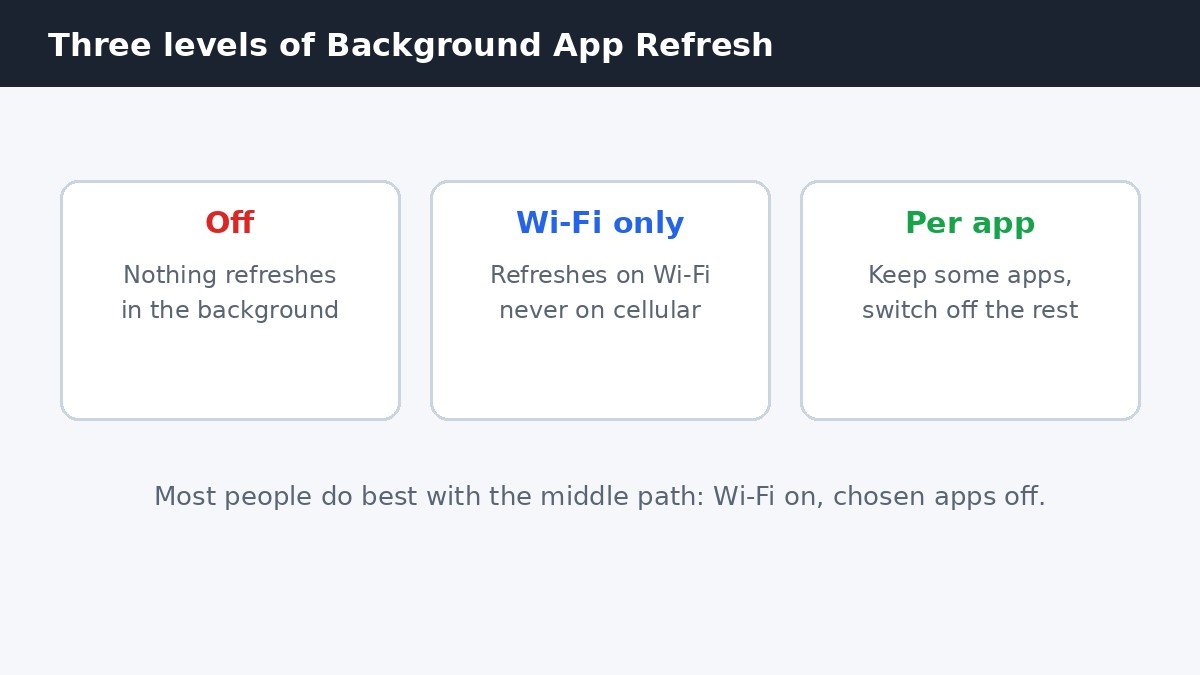
| Setting | What happens | Best for |
|---|---|---|
| Off | No app refreshes in the background at all | Maximum battery and data savings, if you accept stale content on opening |
| Wi-Fi | Apps refresh only on Wi-Fi, never on cellular data | Limited mobile data plans, where battery matters less than data |
| Per app | Main setting stays on, single apps switched off | Most people: keep refresh where it helps, cut it where it does not |
If you only remember one thing from this guide, make it the third row. Turning everything off saves the most battery, but it also means your mail, maps, and messaging apps load fresh content only after you open them. Turning off refresh for the apps you barely use gets you most of the savings with none of the annoyance.
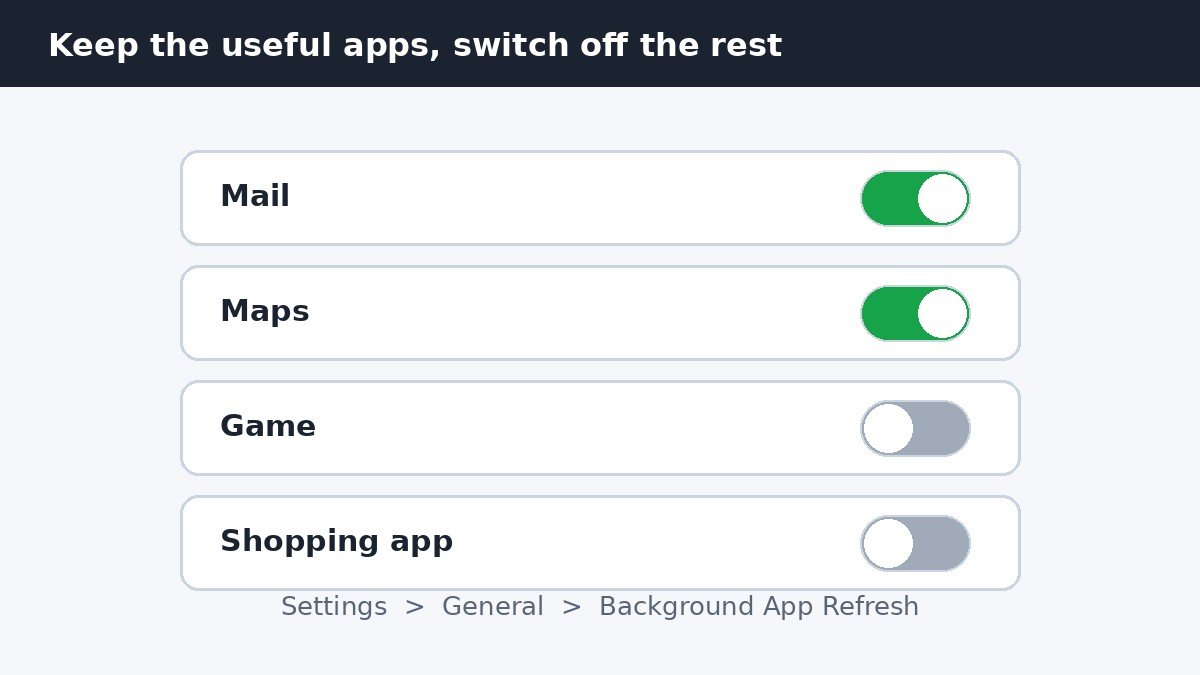
Turn off Background App Refresh for specific apps
- Open Settings.
- Tap General.
- Tap Background App Refresh. You will see a main setting at the top and a list of apps below it, each with its own switch.
- Leave the main setting on Wi-Fi or Wi-Fi & Cellular Data.
- Switch off every app you do not need fresh in the background.
The switch takes effect at once, with no restart. The app still works normally when you open it. It simply stops checking for new content while it sits unused.
Which apps to keep, and which to cut
A useful rule: keep refresh for apps where stale content costs you something, and cut it where freshness buys you nothing.
- Keep it on: Mail, if you rely on new messages arriving promptly; Maps and navigation, which need current traffic and position data; messaging apps, where delayed content is a real problem; weather widgets you actually check.
- Switch it off: Games, which have no reason to fetch content while you are away; shopping apps, whose background fetches mostly serve promotions; news apps you open once a day anyway; social apps you check on your own schedule, not theirs.
If you are unsure which apps are the worst offenders, look first instead of guessing. Open Settings, tap Battery, and check which apps show significant Background Activity. Those are your best candidates for switching off, and you can recheck the same screen a day later to see the change.
Turn it off for every app, or limit it to Wi-Fi
For the blanket options, follow the same path, then tap the Background App Refresh row at the top of the screen and choose Off or Wi-Fi. Off is the biggest saving and the bluntest tool: every app waits until you open it. Wi-Fi is the middle ground for people whose real concern is a cellular data allowance rather than battery life. You can reverse either choice at any time from the same screen, and your per-app switches are remembered separately.
Two traps that catch almost everyone
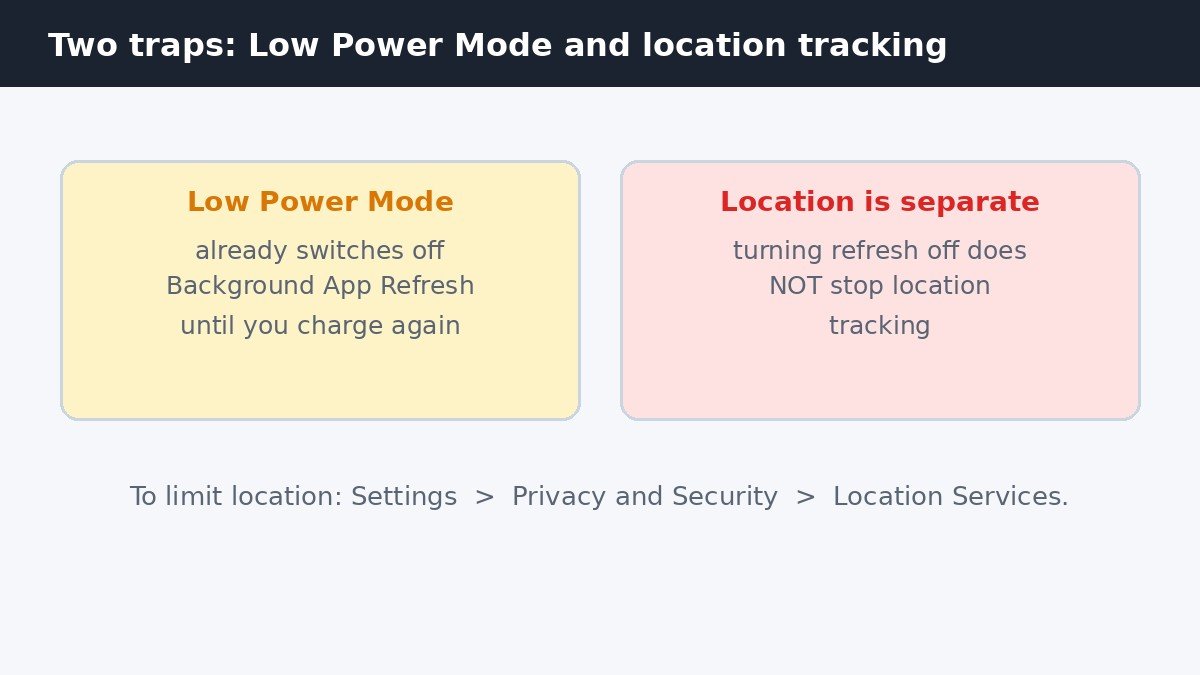
First, Low Power Mode already disables Background App Refresh. If you switch Low Power Mode on, refresh stops across the board until you charge the phone again, and your manual settings return once it switches off. If refresh seems to have stopped working on its own, check whether Low Power Mode is on before you start changing switches.
Second, turning off Background App Refresh does not stop location tracking. Those are separate permissions. An app with refresh off can still record your location if its Location Services permission allows it. To limit that, go to Settings, then Privacy and Security, then Location Services, and set each app to Never, Ask Next Time, or While Using the App as appropriate. Confusing the two settings is common, and it leads people to believe they have stopped tracking when they have only stopped background fetching.
One last reassurance: turning off refresh does not turn off notifications. Alerts for new messages still arrive through Apple’s push system, which is separate from background fetching. Your phone simply stops spending battery and data preparing content for apps you have not opened, and that is a trade most people are glad to make for the apps they rarely use.

- How to Turn Off Background App Refresh on iPhone, Per App - November 2, 2026
- How to Fix Bluetooth Audio Stutter and Lag on Windows 11 - November 1, 2026
- How to Turn Off the Recommended Section in Windows 11 - October 31, 2026