
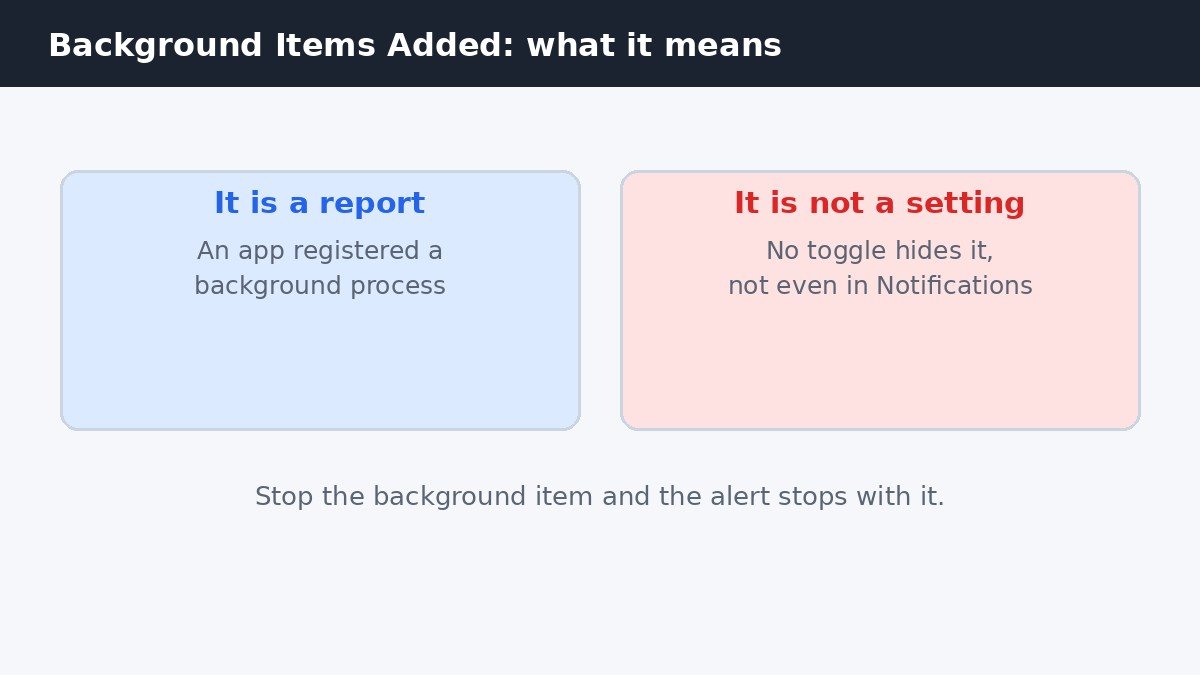
Every time you install a new app, macOS shows a small alert: Background Items Added. It looks like a setting you can switch off, but there is no switch for it, not even in Notifications. The alert is macOS telling you an app has registered something to run in the background. The only way to stop the alerts is to stop the app from running in the background, and this guide shows you how.
What the notification is telling you
Since macOS Ventura, every app that registers a background process triggers this notification the first time it does so. A background process is a small helper that runs without opening the app window: it checks for updates, syncs files, or watches for new messages. The notification is a security feature, not a bug. Apple added it so you can see when software starts running quietly in the background, and that is why there is no toggle to hide it. Searching Notification settings for it wastes time, because the alert is a symptom of a background item, not a notification category.
If the same app triggers the alert again after you already dealt with it, the app is re-registering its background item, usually after an update. That case has its own fix further down. First, learn the two lists that control what runs at sign-in, because they are easy to confuse.
Open at Login and background activity are two different lists
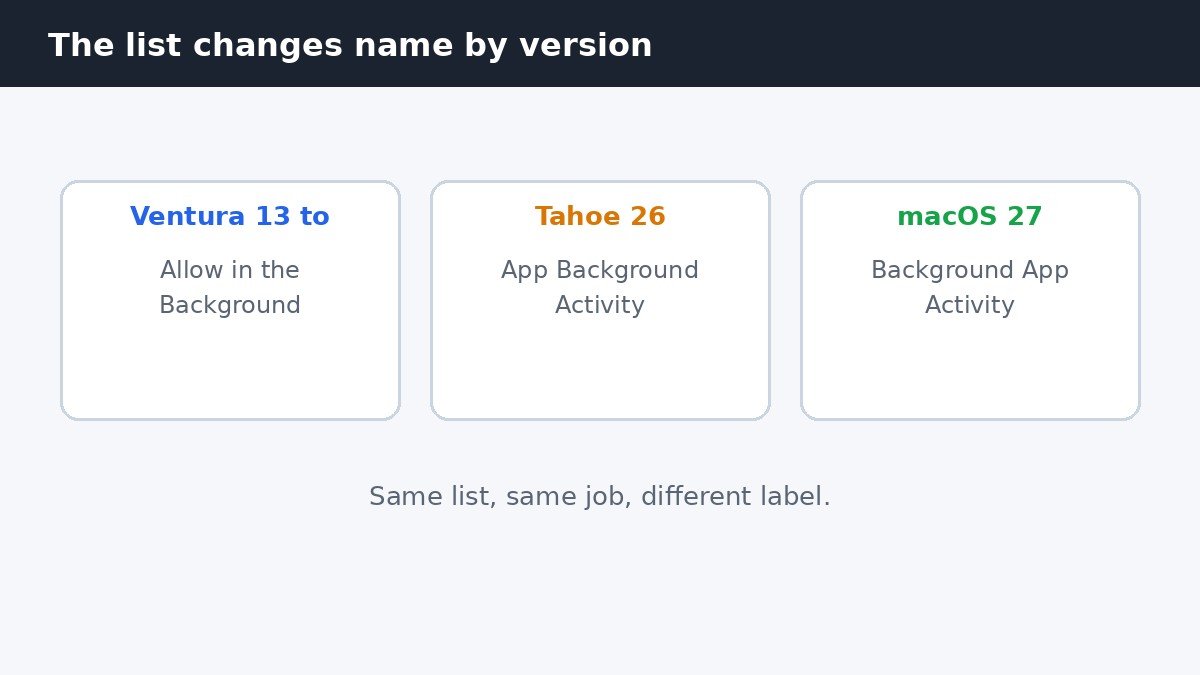
Both lists live in the same place: click the Apple menu, open System Settings, click General in the sidebar, then open Login Items and Extensions. The first list, Open at Login, holds apps that open a window when you sign in. The second list controls helpers that run without opening anything. The second list changes its name by macOS version: it is called Allow in the Background on Ventura 13 through Sequoia 15, App Background Activity on Tahoe 26, and Background App Activity on macOS 27. Same list, same job, different label.
| Kind of startup item | What it does | Where to manage it |
|---|---|---|
| Open at Login | Opens the app window at sign-in | Login Items and Extensions, minus button |
| Background App Activity | Runs a helper with no window | Login Items and Extensions, switch per app |
| Launch agents | System-level helpers from apps | Library, LaunchAgents folder |
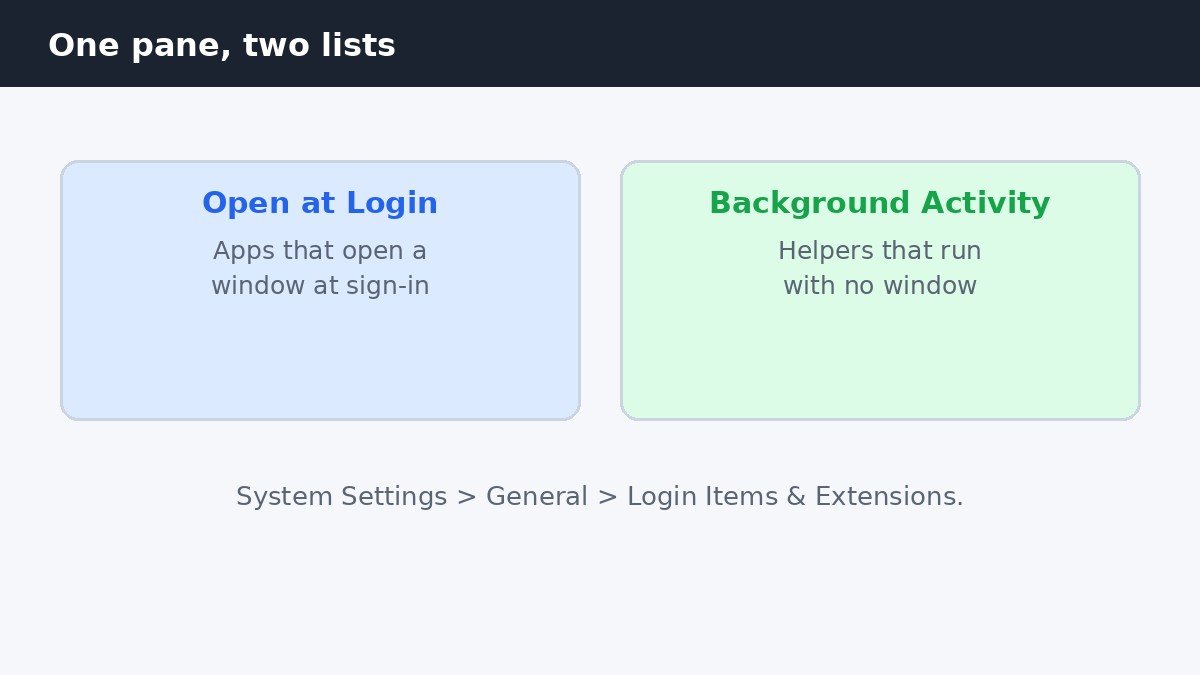
Removing an app from Open at Login does not stop its background helper, and switching off the helper does not stop the app opening at sign-in. If an app keeps triggering the notification, you usually need to deal with the background list, not the login list.
Remove an app from Open at Login
- Open System Settings, click General, then Login Items and Extensions.
- Under Open at Login, select the app you do not want opening at sign-in.
- Click the minus button below the list.
- Restart your Mac and check that the app no longer opens on its own.
Removing an app here does not uninstall it or delete its files. It only stops macOS opening it when you sign in, and you can add it back with the plus button any time. If the app is in your Dock, you can also right-click its icon, hover over Options, and uncheck Open at Login.
Switch off an app’s background activity
- Open the same Login Items and Extensions pane.
- Find the app under Background App Activity, or Allow in the Background on older macOS versions.
- Turn its switch off.
- Restart your Mac and watch for the notification.
Turning a switch off stops that app syncing, checking for updates, and sending notifications until you open it again, so be careful which apps you switch off. Leave backup software, cloud storage, security tools, and hardware utilities switched on: a backup app that cannot run in the background cannot back anything up. Switch off only the apps you recognize and no longer need running all the time, such as a chat app you open manually or a streaming service you rarely use. Apple documents this pane in its change Login Items and Extensions settings support guide.
When an item keeps coming back
Some apps re-register their background item every time they update, so the notification returns no matter how many times you switch it off. First, open the app itself and look in its own settings for a launch at login or background option, because the app’s own switch is the one that stops it re-registering. If that fails, reset the whole background items database: open Terminal, type sfltool resetbtm, press Enter, then restart your Mac. This clears every background registration, and each app re-registers the next time you open it, so the notification may appear once more per app and then stop. As a last step, look in the Library folder in your home folder, open LaunchAgents, and remove the file belonging to the app. Never remove files starting with com.apple: those belong to macOS itself, and removing them can break the system.
Check that it worked
Restart your Mac and watch the notifications as it starts up. If nothing appears, the background item is gone. Install or update one app and watch for a single Background Items Added alert: that is normal, it means the system is still watching, and it confirms the alert itself was never the problem. If the same app alerts you again after a restart, go back to its own settings first, because the app is putting itself back.
The notification feels like a bug because it has no off switch, but it is doing its job: telling you something started running in the background. Once the app behind it is switched off, the alerts stop on their own, and the Mac starts up a little quieter too.

- How to Stop “Background Items Added” Notifications on Mac - November 6, 2026
- How to Turn Off Live Activities on the iPhone Lock Screen - November 5, 2026
- How to Stop Windows 11 From Rearranging App Windows When a Monitor Wakes Up - November 4, 2026