
Your iPhone keeps changing its own brightness. You set it where you like it, walk into a brighter room, and the screen jumps. Walk into a dark room and it drops again. The feature doing that is called Auto-Brightness, and it is on by default. The reason most people cannot turn it off is simple: the switch is not on the brightness screen. It lives two menus away, in Accessibility.
Where the switch actually lives
- Open the Settings app on your iPhone.
- Tap Accessibility.
- Tap Display and Text Size.
- Scroll down to Auto-Brightness, near the bottom of the page.
- Tap the switch to turn it off.
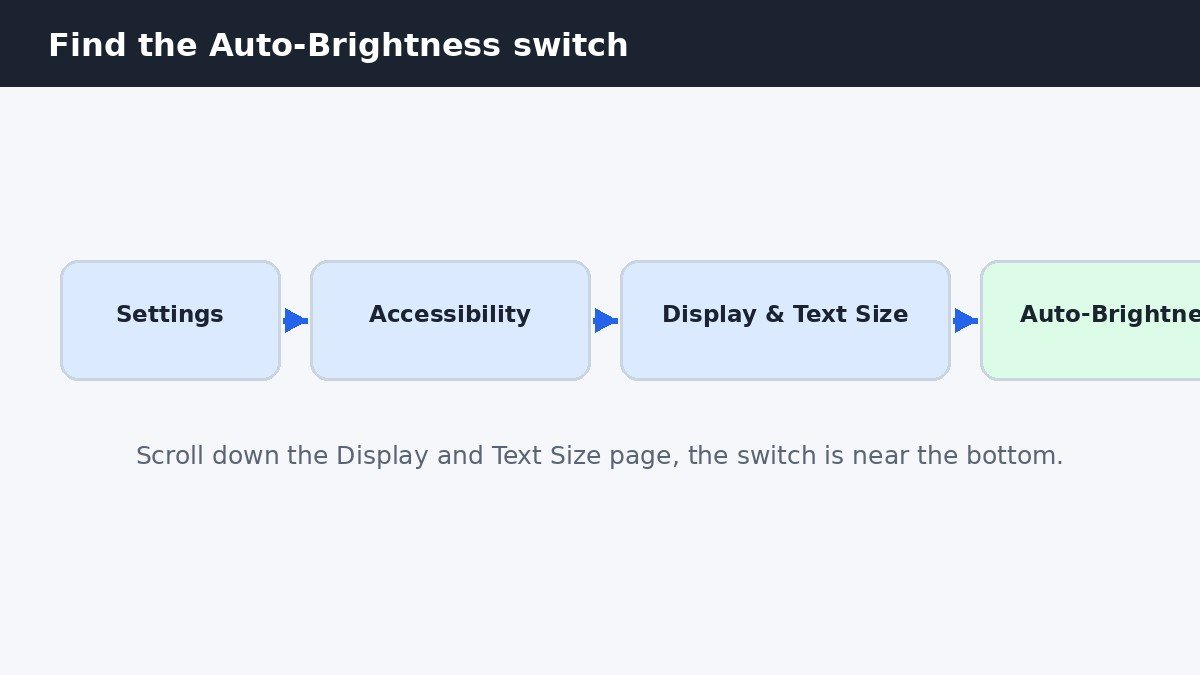
That is the whole job. The change takes effect immediately, with no restart, and the screen stays at whatever brightness you set until you move the slider yourself. The reason the switch sits in Accessibility is that Apple treats automatic brightness as a vision feature, not a display preference, which is why it hides among text size, bold text, and contrast options. The Display and Text Size page is long, so keep scrolling if you do not see Auto-Brightness straight away: it sits near the bottom of the list.
The fastest way there
If you do not want to tap through three menus, use the search field at the top of Settings instead. Open Settings, tap the search field, and type Auto-Brightness. The switch appears in the search results, and tapping it jumps straight to the right page. There is no Siri command, no Shortcut, and no Control Center button that toggles Auto-Brightness, so Settings is the only route.
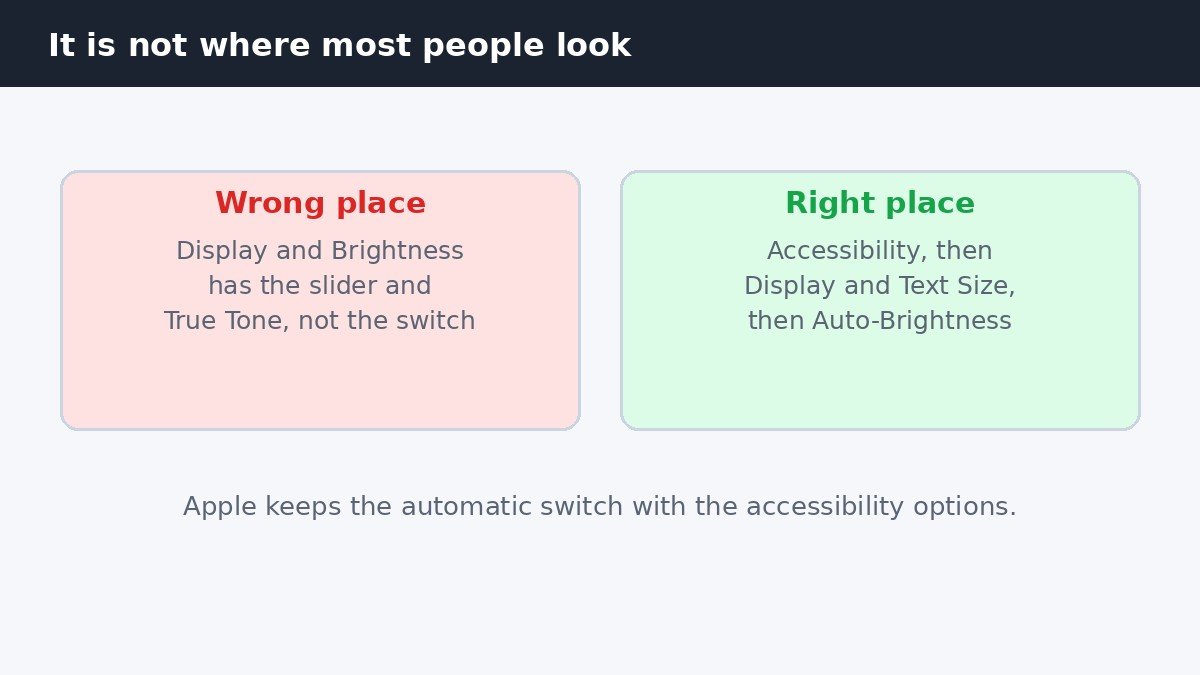
The most common wrong turn is Settings, then Display and Brightness. That screen has the manual brightness slider, True Tone, and Night Shift, but no Auto-Brightness switch, which is why so many people conclude the feature cannot be turned off at all. If you have already been there and found nothing, you were in the right app and the wrong menu. Go back one level, open Accessibility, and the switch is waiting at the bottom of the Display and Text Size page.
Set the brightness yourself after switching it off
With Auto-Brightness off, the screen stays exactly where you leave it, so you become the brightness control. The fastest way to adjust it is Control Center: swipe down from the top-right corner and drag the brightness slider up or down. The same slider lives in Settings, then Display and Brightness, at the top of the page. Neither of these sliders turns Auto-Brightness back on, so you can adjust freely without undoing the change. A practical habit is to pick a comfortable level indoors and nudge it up only when you step outside, rather than leaving the screen at full brightness all day. When the phone is locked and sitting on a table, a different display setting takes over: our guide to turning off StandBy mode on iPhone covers the full-screen clock that appears while the phone charges on its side.
Four things that still change the screen
Turning off Auto-Brightness stops the light sensor from moving the brightness, but it does not stop every change to the screen. Four other features can still dim or recolour the display, and each one has its own switch in a different place.
| Feature | What it does to the screen | Where to turn it off |
|---|---|---|
| True Tone | Warms or cools the colours with the room light | Settings, Display and Brightness |
| Night Shift | Warms the colours at night | Settings, Display and Brightness |
| Low Power Mode | Dims the screen to save battery | Settings, Battery |
| Heat dimming | Dims the screen to cool the phone down | Nowhere, it ends when the phone cools |
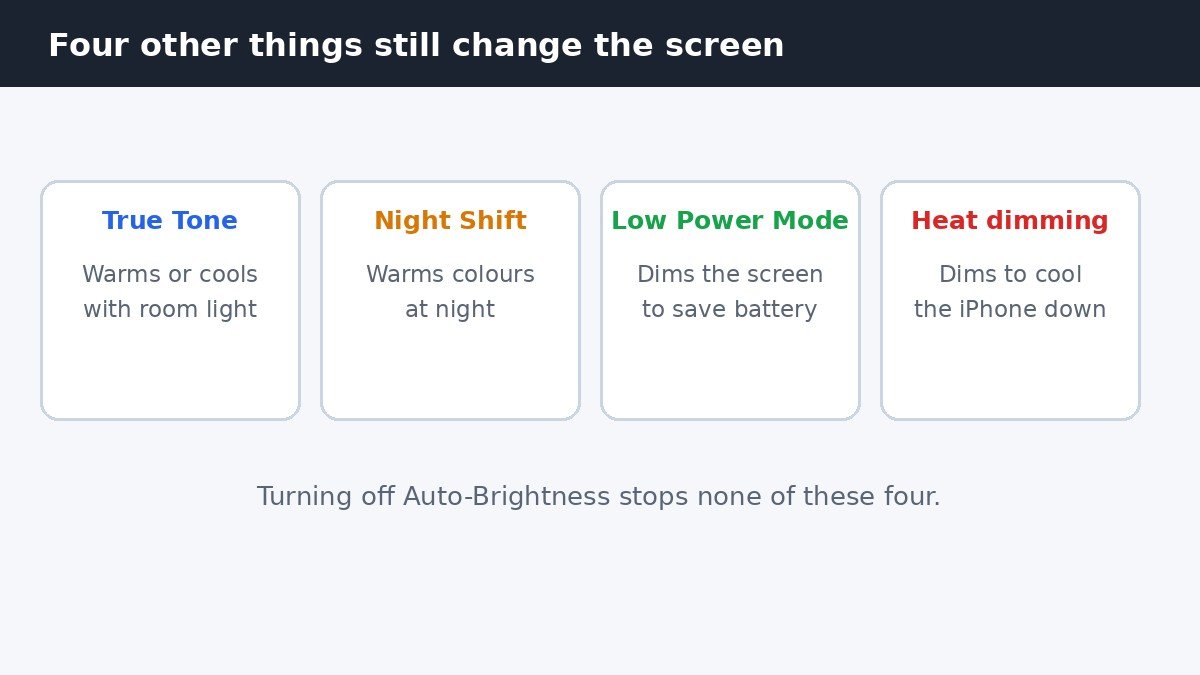
True Tone and Night Shift change the colour of the screen rather than its brightness, so they are easy to mistake for Auto-Brightness misbehaving. Low Power Mode dims the screen as part of saving battery, and it switches itself off when the phone charges past 80 percent. Heat dimming has no switch at all: when the iPhone gets too hot, it dims the display to protect itself, and the brightness comes back once the phone cools down. If the screen still dims after you turned Auto-Brightness off, work through this table before assuming the setting did not work.
The battery trade-off, in plain terms
Apple is upfront about the cost of turning Auto-Brightness off: it can use more battery. The reason is straightforward. With the feature on, the phone dims the screen in dark rooms, and the screen is the biggest power draw in the phone. With it off, a screen left at full brightness in a dark room burns power for nothing. The fix is a habit rather than a setting: keep the brightness at the lowest comfortable level indoors, and only raise it outdoors or in bright sunlight. If battery life is the real worry rather than brightness, the bigger wins are elsewhere, starting with the apps that refresh in the background: our guide to turning off Background App Refresh on iPhone covers the per-app switches that stop apps updating while you are not using them.
Older iPhones and turning it back on
These steps apply to iOS 26 and iOS 27, where the switch sits under Settings, then Accessibility, then Display and Text Size. On older versions of iOS the same switch lived under General, then Accessibility, then Display Accommodations, so a guide that mentions that path is simply out of date rather than wrong. If you ever want the automatic adjustment back, return to the same page and tap the switch on again. Nothing else is reset, no other setting changes, and you can switch it as often as you like. Apple documents the automatic brightness controls and the battery note in its guide to adjusting screen brightness and colour on iPhone.
Auto-Brightness is a useful feature that happens to live in the last place anyone looks for it. Once you know the switch sits in Accessibility instead of Display and Brightness, the whole job takes under a minute. Turn it off, set the brightness yourself, and check the four lookalikes if the screen still changes on its own.

- How to Turn Off Auto-Brightness on iPhone - November 7, 2026
- How to Turn Off Siri Suggestions on iPhone - November 6, 2026
- How to Change Screenshot Save Folder in Windows 11 - November 5, 2026