
If your Windows 11 PC is short on disk space, hibernation is one of the biggest single files hiding on the drive. The quick answer: open Terminal as an administrator and run powercfg /hibernate off. That deletes the hibernation file, called hiberfil.sys, and frees roughly 40 percent of your installed RAM in disk space. One catch first: turning hibernation off also turns off Fast Startup and hybrid sleep, so read the trade-offs below. If you want the space back without losing Fast Startup, the reduced type in the third section is the better choice.
Two different off switches, and only one really turns it off
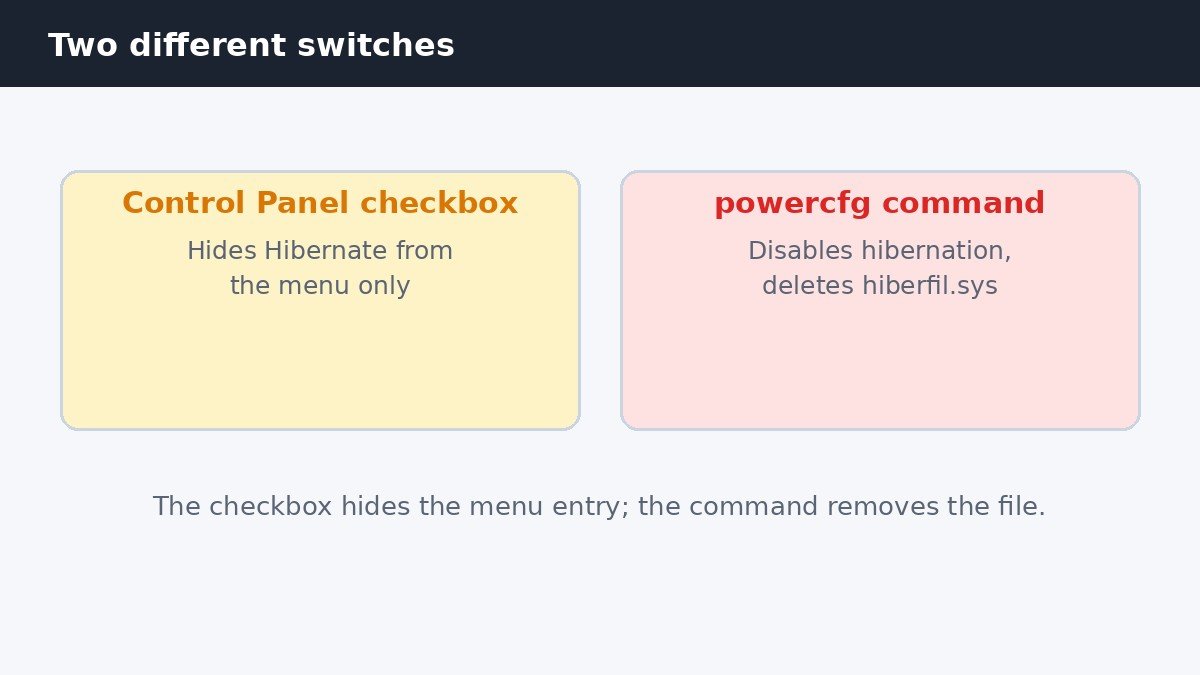
Most guides mix up two different things. The first is the Hibernate checkbox in Control Panel, under Power Options and Choose what the power buttons do. Clearing that box only hides Hibernate from the shutdown menu. It changes nothing else: hibernation stays enabled, and hiberfil.sys stays on the drive taking up the same space. It is a menu choice, not an off switch.
The second is the real switch, and it lives in the command line. Running powercfg /hibernate off as an administrator disables hibernation completely and deletes hiberfil.sys. That is the only way to reclaim the disk space, and the checkbox was never designed to do that job. Microsoft explains the differences between shut down, sleep, and hibernate on its support site, including when each one saves your work.
Turn hibernation off with one command
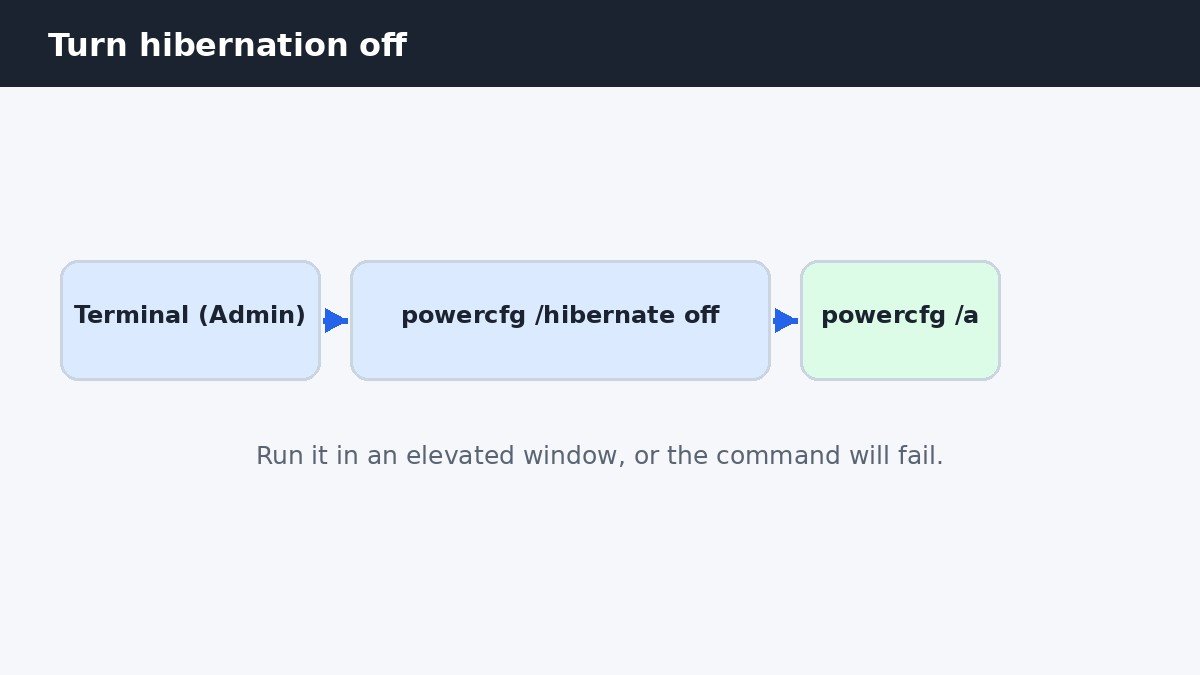
You need an administrator account for this, because a standard account cannot change power settings at this level. Right-click the Start button and choose Terminal (Admin). If your PC shows Command Prompt (Admin) instead, that works the same way. Select Yes on the permission prompt that appears.
Type powercfg /hibernate off and press Enter. The command runs silently, with no confirmation message. Close the window. No restart is needed, and the change takes effect right away. To confirm it worked, open Terminal as an administrator again and run powercfg /a. The report will list hibernation as unavailable, and Hibernate will be gone from the shutdown menu.
One warning matters here. Never delete hiberfil.sys by hand in File Explorer. The file is locked by Windows while hibernation is on, so the delete will fail, and forcing it can corrupt the power state. The command above is the safe way to remove it, because Windows deletes the file itself as part of switching hibernation off.
Keep Fast Startup and shrink the file instead
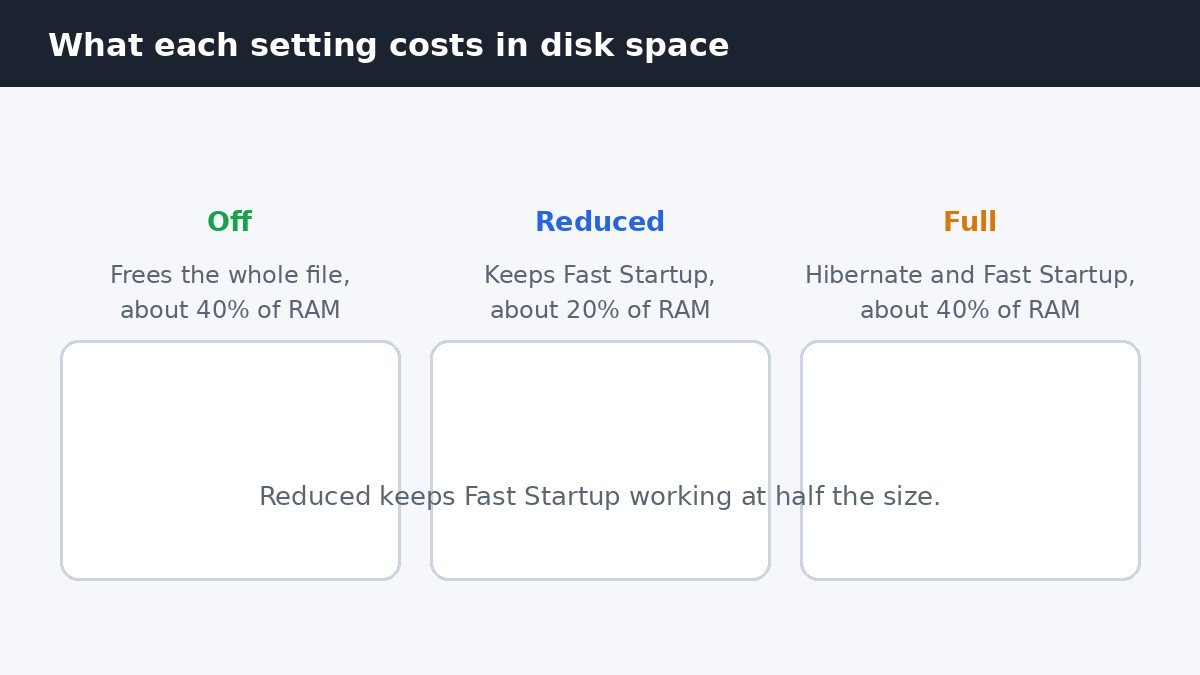
If the disk space matters but you still want quick boots, there is a middle ground. Windows lets you shrink the hibernation file instead of deleting it. Run powercfg /hibernate /type reduced as an administrator. This cuts hiberfil.sys down to about 20 percent of your installed RAM, roughly half its usual size, and Fast Startup keeps working, because Fast Startup only needs the reduced file to save the system state.
The trade-off is that full hibernation stops working with the reduced type. Your PC can still sleep, and it can still use Fast Startup at shutdown, but it can no longer hibernate, so a laptop that runs out of battery while asleep will lose unsaved work instead of saving it to disk first. On a desktop that stays plugged in, that rarely matters, so weigh that against how often the battery runs low.
To go back to full hibernation later, run powercfg /hibernate /type full as an administrator. The file grows back to its normal size, and hibernation works again.
What you lose when hibernation is off
Turning hibernation off has two side effects, and both come from the same cause. Fast Startup depends on hibernation, so switching hibernation off switches Fast Startup off too. Shutdowns become full shutdowns, and the next boot may take a little longer. If you rely on that quicker start, the reduced type in the section above is the better option, and this guide to turning off Fast Startup in Windows 11 explains the setting itself in detail.
The second side effect is hybrid sleep. With hibernation on, a sleeping PC can save its state to disk if the power is cut, so unsaved work survives. With hibernation off, sleep keeps everything in memory only, and a power cut during sleep means unsaved work is lost. Desktops on reliable power rarely notice this, but laptops with tired batteries do, so think about how you use sleep before you switch hibernation off.
Turn hibernation back on and check the state
Reversing the change is one command. Open Terminal as an administrator and run powercfg /hibernate on. Windows recreates hiberfil.sys at once, and Hibernate returns to the shutdown menu. No restart is needed. If you had used the reduced type, add powercfg /hibernate /type full to get the full file back.
After any of these changes, powercfg /a is the way to check what your PC can actually do. It lists every sleep state and whether it is available, so you can see whether hibernation is on, off, or reduced. If the report says hibernation is not available even after running the on command, check that you opened Terminal as an administrator, because the command fails silently without those rights.
| Setting | Hiberfil.sys size | Fast Startup | Full hibernation |
|---|---|---|---|
| Off | Deleted, 0 GB | Off | No |
| Reduced type | About 20 percent of RAM | On | No |
| Full type | About 40 percent of RAM | On | Yes |
Should you turn hibernation off?
It depends on the PC. A desktop with a small SSD and reliable power is the clearest yes: the space saving is real, often several gigabytes, and the downsides rarely bite when the machine never sleeps on battery. A laptop that travels, sleeps often, and sometimes runs the battery flat is the clearest no, because hibernation is the safety net that saves open work when the power runs out.
For most people in between, the reduced type is the sensible compromise. It frees about half the space, keeps Fast Startup working, and costs nothing except full hibernation, which many people never use. Whatever you choose, the change reverses in seconds.
Hibernation is a useful feature with a large file attached to it, and now the choice is yours rather than a default you never questioned. The Control Panel checkbox only hides the menu entry, while the powercfg command is the real switch, and the reduced type sits in between for people who want most of the space back without losing Fast Startup. Pick the setting that matches how you use your PC, check it with powercfg /a, and change it back any time.

- How to Turn Off Hibernation in Windows 11 - November 10, 2026
- How to Turn Off Copilot in Windows 11 - November 9, 2026
- How to Turn Off Live Captions in Windows 11 - November 8, 2026