
If you have ever swiped one page too far on your iPhone and landed in App Library, you may have wondered how to turn it off. The honest answer comes first: Apple does not offer a switch that disables App Library. It has been a built in part of iOS since iOS 14, and it stays at the end of your Home Screen pages on iOS 27 too.
That does not mean you are stuck with it. You can change where new apps go, move your apps back onto pages you control, and quiet the parts of App Library that bother you most. With a few minutes of setup, you may hardly ever see it again. This guide shows each step, and it also clears up the methods that do not work, so you do not waste time on them.
Can You Turn Off App Library on iPhone?
No. There is no setting in iOS that removes App Library or turns it off. Apple describes App Library as always available, and you reach it by swiping left past your last Home Screen page. It holds every app on your phone, sorted into categories such as Social and Productivity, with Suggestions and Recently Added at the top. Because it is part of the system, no toggle, reset, or third party app can delete it, and any guide that promises a hidden off switch is misleading you.
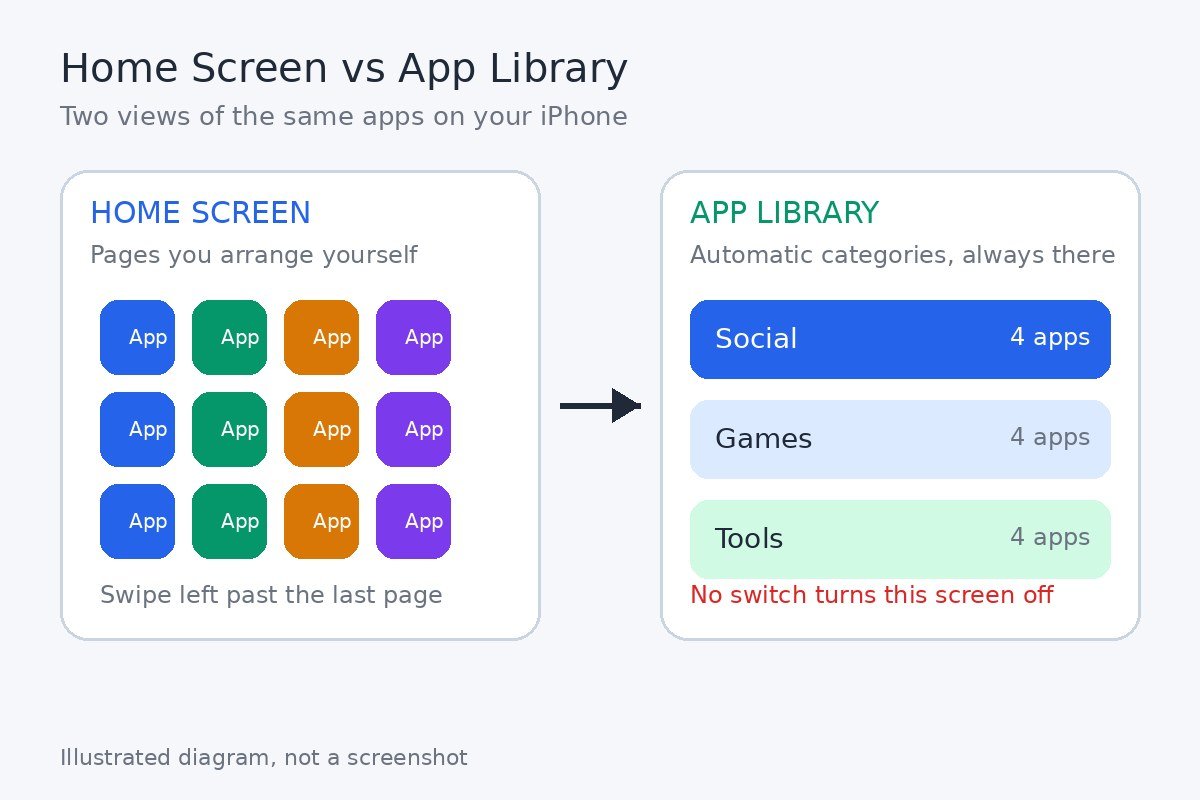
The good news is that App Library only shows up when you swipe to it. If your apps live on Home Screen pages and new downloads go there too, there is rarely a reason to visit it. The rest of this guide sets your phone up that way. Apple’s guide to using App Library on iPhone explains how it works and how to reach it, and it confirms that the screen is always there.
Send New Apps Straight to the Home Screen
The single most useful change is telling your iPhone where to put new downloads. When you install an app from the App Store, your iPhone can place it on a Home Screen page, or send it to App Library only. If new apps keep vanishing into App Library, this setting is the likely cause.
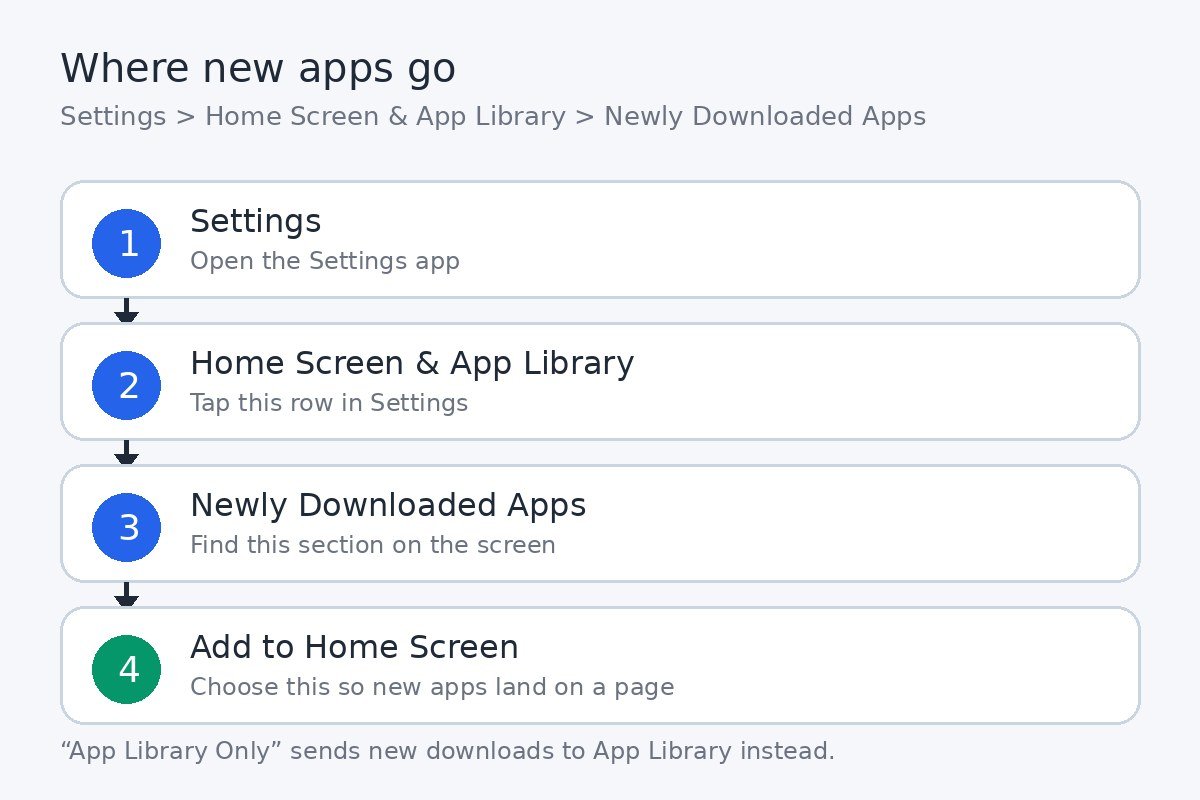
- Open the Settings app.
- Tap Home Screen & App Library.
- Under Newly Downloaded Apps, tap Add to Home Screen.
From now on, each app you download appears on a Home Screen page as well as in App Library. The change only affects downloads that come after you make it. Apps that are already sitting in App Library stay there until you move them, which the next section covers.
Bring Your Apps Back and Keep Your Pages Visible
The distance between you and App Library depends on how many Home Screen pages you keep. App Library always sits after your last page, so the more pages you keep visible, the more swipes it takes to reach it. Hiding a page does the opposite. Apple notes that hiding pages brings App Library closer to your first Home Screen page, so if your goal is to see it less, keep your pages shown.
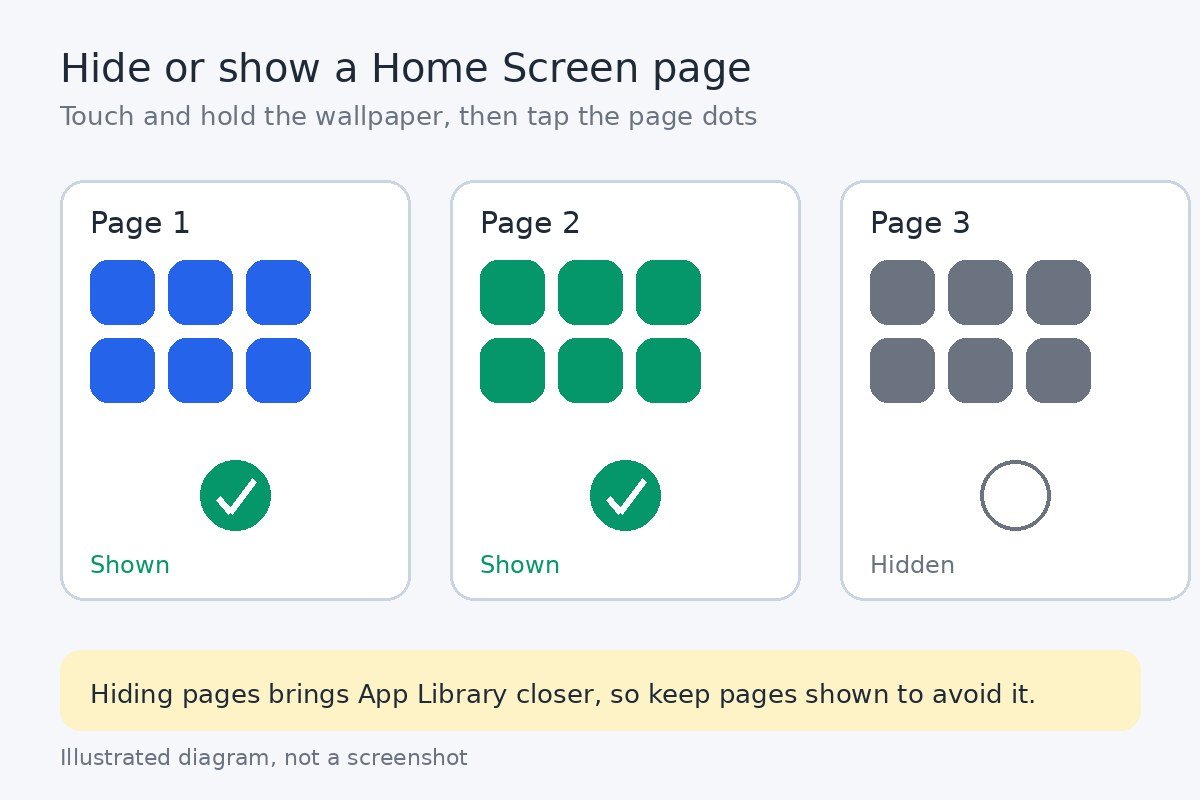
To hide or show a page, touch and hold the Home Screen wallpaper until the app icons begin to jiggle, then tap the dots at the bottom of the screen. Tap a checkmark below a page thumbnail to hide that page, or tap again to show it, then tap Done. If a page you use every day has gone missing, this screen is the first place to look.
For individual apps, open App Library, touch and hold the app until the icons begin to jiggle, then drag it onto a Home Screen page. Repeat that for the apps you open every day, and leave the rest in App Library where they do no harm. If your layout ever gets badly tangled, Settings, General, Transfer or Reset iPhone, Reset, Reset Home Screen Layout puts every app icon back on the Home Screen in alphabetical order. That reset also removes your folders and custom arrangement, so treat it as a fresh start rather than a quick fix.
Quiet the Badges and Suggestions That Annoy You
For many people, the real annoyance is not App Library itself but the red badge numbers and the Suggestions row at the top of it. Both can be calmed down. On the same Home Screen & App Library settings screen, Apple lists a switch called Show in App Library. Turn it off and notification badges stop appearing on apps inside App Library. Badges on your Home Screen pages are not affected.
The Suggestions row is driven by Siri Suggestions, which guess which apps you want next. If those guesses feel wrong or noisy, turning off Siri Suggestions on iPhone clears them from App Library and from other parts of the phone too.
The Recently Added section at the top of App Library shows your newest downloads. It fades on its own as you install more apps, and there is no switch to hide it, so the fix is simply to stop new apps going there in the first place, using the setting in the second section above.
Methods That Do Not Turn Off App Library
A lot of advice online promises a way to remove App Library. None of these methods takes it away, and some create new problems.
| Method | What really happens |
|---|---|
| Deleting App Library | There is nothing to delete. It is a system screen, not an app, so it has no delete option. |
| Screen Time limits | App limits can block an app, but they cannot block or hide the App Library screen itself. |
| Resetting the Home Screen layout | This restores your icons to the Home Screen, but App Library stays at the end of your pages. |
| Jailbreak tweaks | Unofficial tweaks claim to hide it, but they need system changes that can break updates and weaken security. |
If a method sounds too good to be true, it probably is. The workarounds in this guide are the ones Apple actually supports.
A Setup That Keeps App Library Out of Sight
Put the pieces together and your iPhone behaves almost like it did before App Library existed. Here is the setup in short.
- New downloads go to the Home Screen, using Settings, Home Screen & App Library, Add to Home Screen.
- Every Home Screen page stays visible, so App Library sits several swipes away.
- Daily apps are moved back onto pages, and the rest stay in App Library out of sight.
- Badges in App Library are off, and Siri Suggestions are off if the Suggestions row bothers you.
- Spotlight search opens apps by name, so swiping through pages is rarely needed.
Check back after a week. If an app still hides in App Library, it is usually because the download setting changed or a page was hidden by accident, and both take seconds to fix.
App Library is here to stay, and Apple gives no way to switch it off. That is the truth, and it is better to know it than to chase a setting that does not exist. With new apps landing on the Home Screen, your pages in order, and the noisy parts quieted, App Library becomes a screen you almost never visit, which is the closest thing to turning it off that iOS allows.

- How to Turn Off iPhone App Library (and What to Do Instead) - November 14, 2026
- How to Disable the Mail Dock Badge on Mac - November 13, 2026
- How to Hide Notification Previews on Mac Lock Screen - November 12, 2026