
If an app on your iPhone has asked whether it can track your activity, you have probably wondered what the safe answer is, and whether tapping one button is enough. The short version: there are two separate things you can do, and most people want the second one. You can answer each pop-up as it appears, or you can switch off the setting that lets apps ask in the first place. This guide covers both, plus how to undo a choice you already made. Everything here applies to iOS 27, and the steps have not changed since Apple introduced the tracking prompt in iOS 14.5.
The fastest fix: open Settings, tap Privacy and Security, tap Tracking, and switch off Allow Apps to Request to Track. The pop-ups stop at once, and any app that asks after that is treated as if you tapped Ask App Not to Track. If you have already allowed some apps to track you, your iPhone will ask whether those apps should stop tracking or keep the permission you gave them. Pick the option to ask them all to stop. That is the whole job for most people, and the rest of this guide explains what each choice does and what to check afterwards.
1. Pick the fix that matches your goal
People arrive at this setting from two different places, and the right fix depends on which one you are in. If one app just showed you the pop-up and you want to answer it well, that is a thirty-second job. If you are tired of the pop-ups and want them gone everywhere, that is the global switch. If you allowed tracking months ago and now regret it, that is the per-app list. Use this table to find your row, then jump to the section it points to.
| Your goal | What to do | Where to find it |
|---|---|---|
| Answer one pop-up from one app | Tap Ask App Not to Track | Section 3, in the pop-up itself |
| Stop the pop-ups for good | Switch off Allow Apps to Request to Track | Section 4, Settings, Privacy and Security, Tracking |
| Undo a permission you already gave | Switch that app off in the per-app list | Section 5, same Tracking screen |
| Stop Apple personalising its own ads | Switch off Personalized Ads | Section 6, Settings, Privacy and Security, Apple Advertising |
Notice what is not in the table: there is no step here that stops ads entirely, and there is no setting that stops an app from collecting data about what you do inside that app. Section 6 explains why, so you do not flip a switch, keep seeing ads, and conclude the setting is broken. It is not broken. It does a narrower job, and it does that job well.
2. What “tracking” means on your iPhone
Tracking, in the sense Apple uses the word, is when an app takes information that identifies you or your device and links it with information collected from other apps, websites, or other places owned by third parties, for targeted advertising or advertising measurement, or when that information is shared with data brokers. A shopping app noticing what you looked at inside its own store is not tracking. That same app following you into a news app and a browser to build a picture of your interests is tracking, and that is what the permission is about.
The main tool apps use for this is a number Apple gives your phone called the advertising identifier, usually shortened to IDFA. It is a random string that stays the same across apps, which is exactly what makes it useful for linking your activity from one app to another. When you refuse tracking, the app cannot read that identifier, and Apple also forbids the app from tracking you using other details that identify you, such as your email address. Windows has a parallel idea, a per-device advertising ID that apps and advertisers can use in the same way, and the fix on a PC follows the same logic. Our guide to turning off the advertising ID in Windows 11 covers that side if you want the same protection on your computer.
One more thing to know before you change anything: saying no to tracking never breaks an app. Apple says you can still use the full capabilities of an app regardless of whether you allow it to track your activity. If an app ever claims otherwise, or hides a feature behind the tracking prompt, that is the app’s own choice, not a limit of your iPhone.
3. Answer the pop-up when an app asks
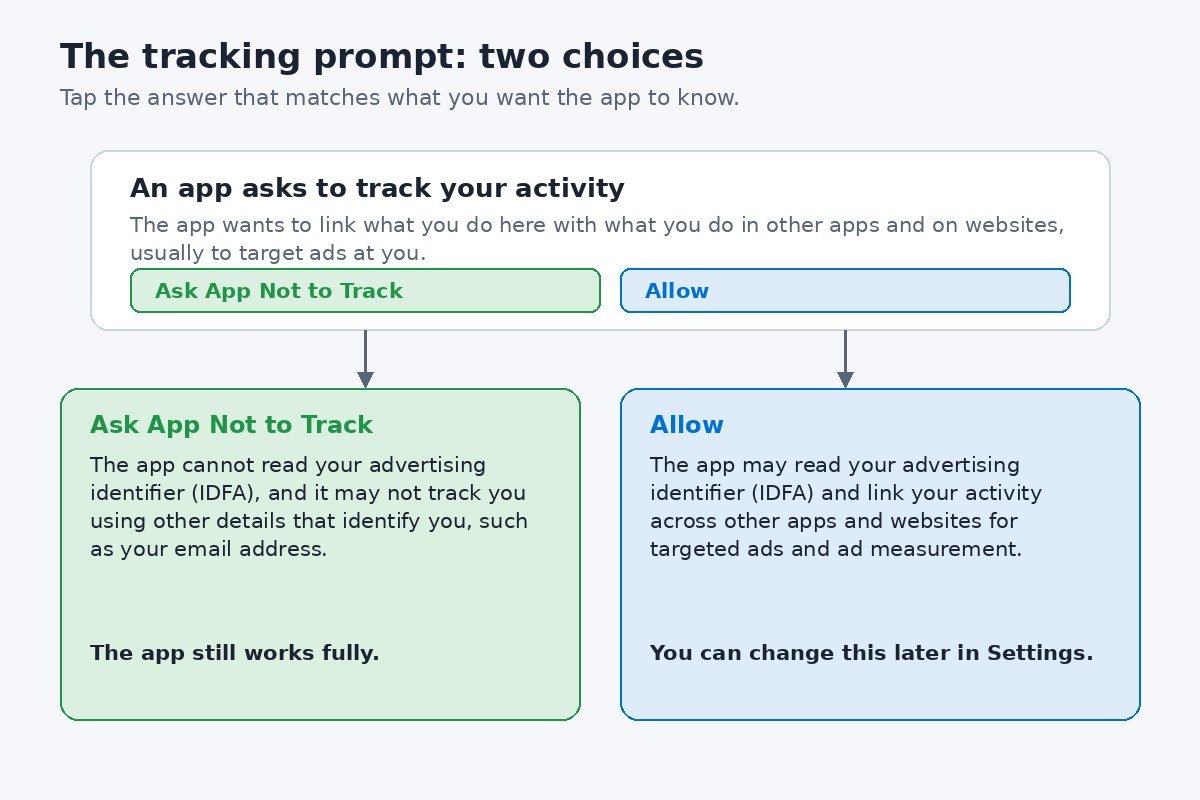
The first time an app wants to track you, it shows a small alert with the app’s name and a short message. Part of that message is written by the app’s developer, who can explain in their own words why they are asking. You get two buttons, and the choice is yours for that app only. Nothing you tap here changes the setting for any other app.
Tap Ask App Not to Track if you do not want this app following you across other apps and websites. The app loses access to your advertising identifier, it may not track you using other identifying details, and it keeps working normally. Tap Allow only if you trust the app with that information, for example a shopping app where you genuinely want ads matched to things you looked at. Either way, you can change your mind later from the Tracking screen in Settings, which is covered in section 5. Apple’s own page on what happens when an app asks to track your activity explains both choices in Apple’s words, including the IDFA detail.
4. Stop the pop-ups for good with the global switch
Answering pop-ups one at a time gets old fast, especially after you install several new apps in one week. The global switch ends the asking entirely. It lives in the same place as the per-app list, and it takes less than a minute to reach.
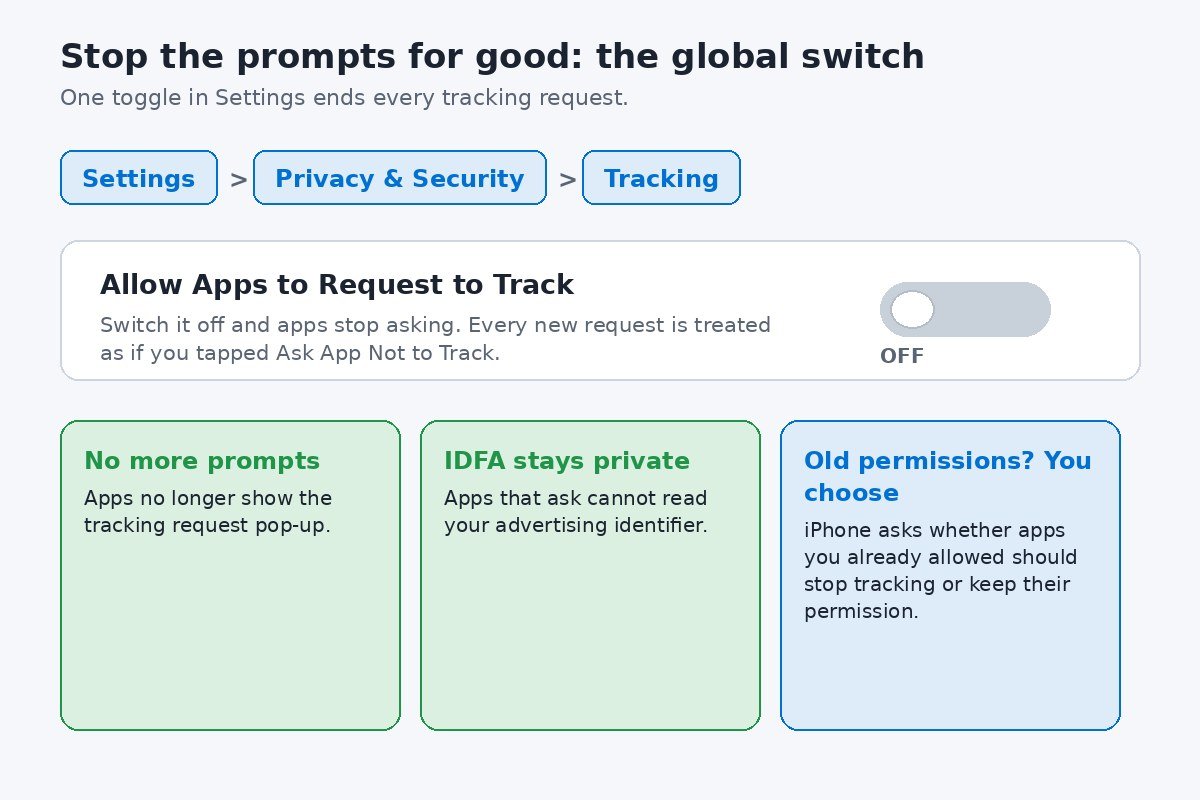
From that moment, apps no longer show you the tracking prompt. Any app that tries to ask while the switch is off is treated as if you tapped Ask App Not to Track, and it cannot read your advertising identifier. This is the part people most often misunderstand: turning off the switch does not, by itself, always clean up permissions you granted in the past. If you have already allowed some apps to track you, your iPhone gives you a choice at the moment you switch it off. You can ask all the apps you previously allowed to stop tracking, or you can let just those apps keep the permission you gave them. Choose the option to ask them all to stop, unless there is a specific app you want to keep allowing.
To check the switch worked, go back to Settings, then Privacy and Security, then Tracking. The main switch should be off, and any app listed below it should show its own switch off as well. If an app you allowed earlier still shows as on, switch it off by hand using the steps in the next section. New apps you install later will never ask while the switch stays off.
5. Change your mind about one app
The same Tracking screen holds a list of every app that has already asked you for tracking permission. Each one has its own switch, and changing one app never affects the others. This is the place to go when you allowed an app months ago and now want to take that permission back, or when you refused an app and later decide you trust it after all.
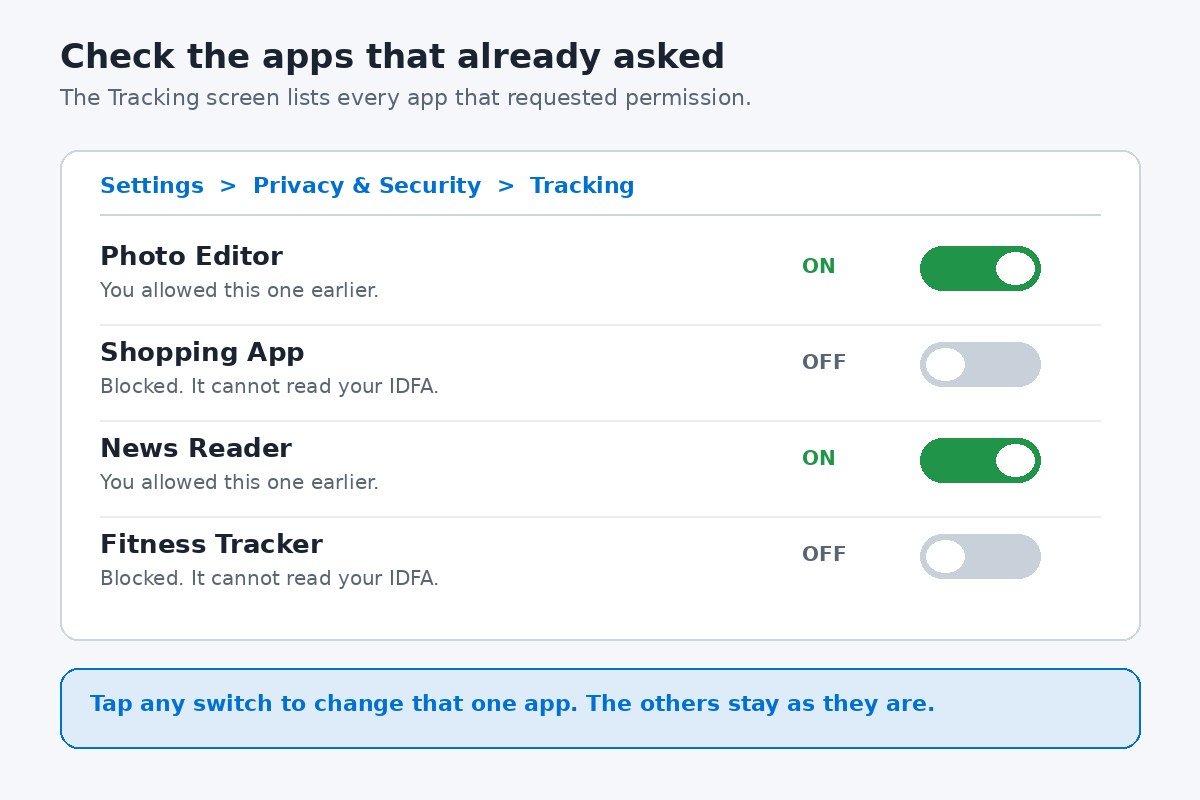
A few practical notes about this list. First, it only grows when an app asks, so it is normal for it to be short on a new iPhone and long on one you have used for years. Second, if the global switch from section 4 is off, new apps cannot ask, so they will never appear on the list either. Apple’s iPhone User Guide page on controlling app tracking permissions shows the same list and the same two steps, if you want to compare what you see on screen with Apple’s description.
6. What turning off tracking does not do
This is the section most guides skip, and it is the reason people come away thinking the setting failed. Turning off tracking stops apps from linking your activity across other apps and websites, and it stops them reading your advertising identifier. That is the whole job. It does not do the four things below, and knowing that now saves you a second round of confusion later.
If you want a broader privacy clean-up after this, the Tracking screen is a good starting point rather than the end of it. From Privacy and Security you can also open Location Services and App Privacy Report, which shows which apps have used your location, photos, camera and microphone recently. Those are separate settings with their own switches, and they are worth a look on their own.
7. If the switch is greyed out and will not move
Sometimes the Allow Apps to Request to Track switch is greyed out and cannot be turned on. In most cases that is not a fault, and it is not something you need to fix. Apple lists four situations where the setting cannot be turned on, and in all of them the switch is effectively locked off, which already blocks tracking.
If none of those four applies and the switch is still greyed out, check Settings, then Screen Time, then Content and Privacy Restrictions. A restriction set there, whether by you, a parent, or a device management profile, can also lock privacy settings. On a personal phone with no restrictions and an account older than three days, the switch should move freely.
8. Questions people ask after turning it off
Will apps stop working? No. Apple says you can still use the full capabilities of an app whether or not you allow it to track you. A free app that depends on ads stays free and keeps showing ads, just less personalised ones.
Can I turn tracking back on? Yes, at any time. Go back to Settings, then Privacy and Security, then Tracking, and switch Allow Apps to Request to Track back on. Apps will start showing the prompt again the next time they want permission, and you can answer each one as it appears.
Does this work on iPad too? Yes. The same setting exists on iPad, under the same path, Settings, then Privacy and Security, then Tracking. Apple TV has it as well, under Settings, then General, then Privacy and Security, then Tracking.
Does it stop Facebook or Google tracking me? Partly. It stops those apps reading your advertising identifier and linking your activity across other apps and websites. It does not stop them knowing what you do inside their own apps, or linking activity through your signed-in account. The switch is one layer of privacy, not a complete block.
Why did an app still ask me after I switched it off? It should not have. If you still see a prompt, first check that the global switch is actually off, using the check at the end of section 4. A prompt can also appear if the app asks about something else, such as notifications or location, which uses a similar-looking alert but is a different permission entirely.
The two actions in this guide solve two different annoyances, and that is the whole trick to remember. Answering the pop-up decides what one app may know. Switching off Allow Apps to Request to Track decides whether any app gets to ask at all. Set the global switch once, check the per-app list for anything you allowed earlier, and leave the rest alone. Your iPhone will stop asking, your advertising identifier stays private, and the apps you actually use keep working exactly as they did before.

- How to Turn Off App Tracking on iPhone - November 20, 2026
- How to Turn Off AirPlay Receiver on Mac - November 19, 2026
- How to Turn Off Check In on iPhone - November 18, 2026