
Remote Desktop lets you sit at one computer and use another one as if you were in front of it: open files on the home PC from a laptop in another room, run a program that only lives on the office desktop, or fix a family member’s computer without driving over. On Windows 11 the setup takes about ten minutes.
The short version: the PC you want to reach must run Windows 11 Pro, Enterprise, or Education, with Remote Desktop switched on in Settings. Then connect with Remote Desktop Connection on Windows, or with Windows App on a Mac, phone, or tablet. This guide walks through each step, then covers connecting over the internet and the Home alternatives.
First, the rule that decides everything: the host must run Pro
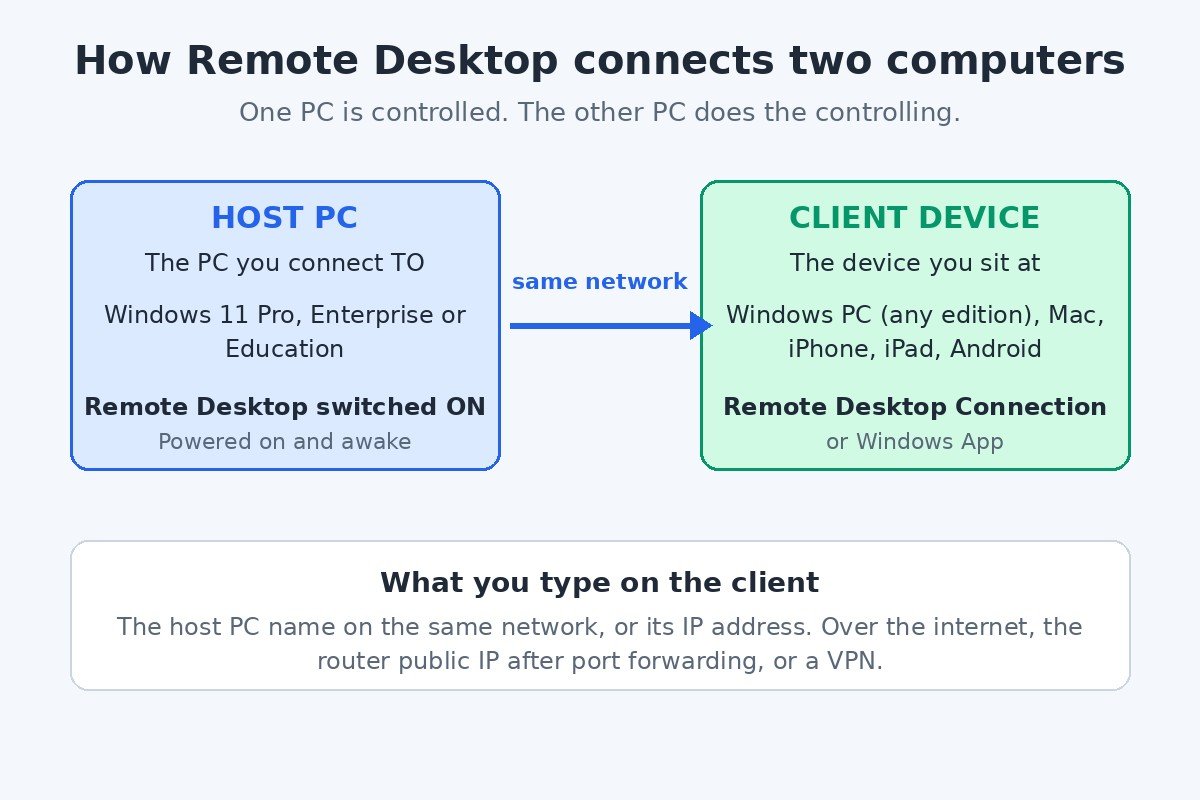
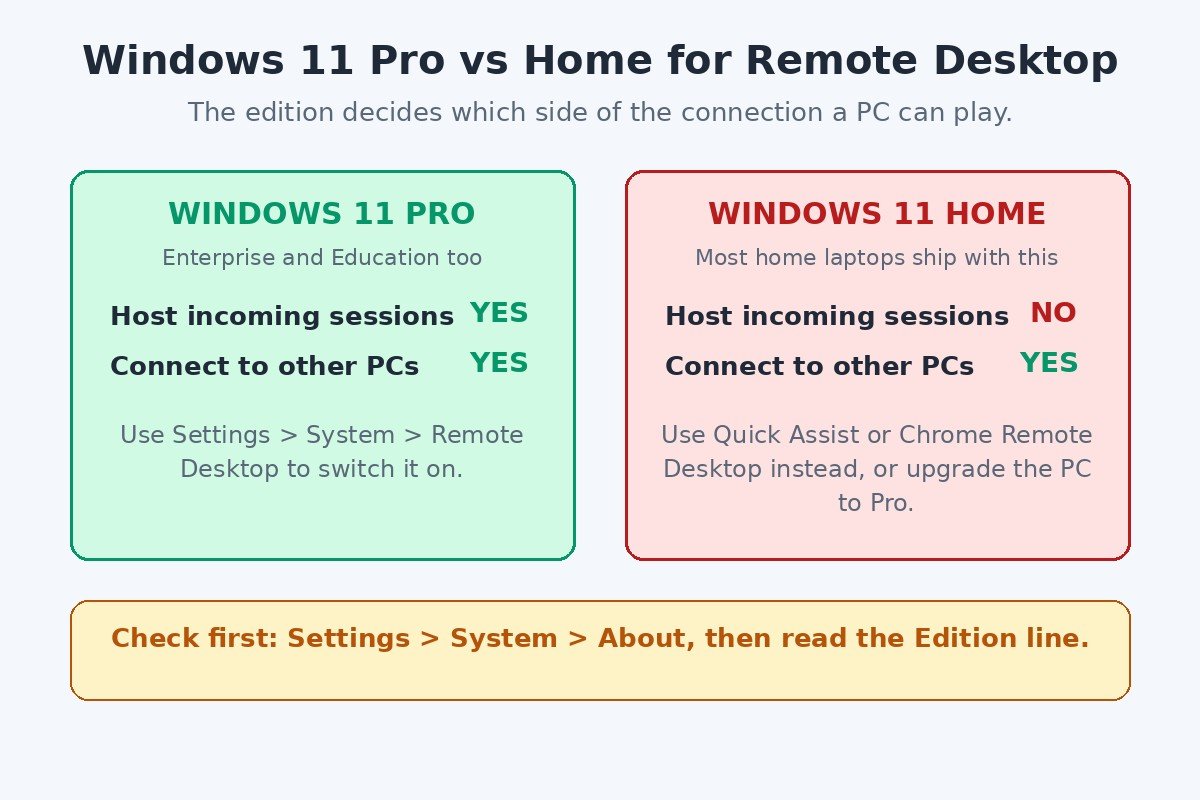
Every Remote Desktop connection has two sides. The host is the PC you want to control. The client is the device you sit at, and it can be almost anything, including a PC running Windows 11 Home, a Mac, or a phone. The host is picky: it must run Windows 11 Pro, Enterprise, or Education. A Home PC cannot accept incoming Remote Desktop connections. Microsoft states this in its documentation, and it is the most common reason a first setup fails.
That is why this guide starts with the edition check. Five minutes confirming the edition saves an hour of following steps that were never going to work on a Home PC. If the PC you want to reach runs Home, skip ahead to the Home alternatives.
| Role | What it means | Edition needed |
|---|---|---|
| Host | The PC you connect to and control | Windows 11 Pro, Enterprise, or Education |
| Client | The device you sit at while you connect | Any edition of Windows, including Home, or a Mac, phone, or tablet |
What changed in 2026: stop downloading the old Remote Desktop app
Most Remote Desktop guides ranking today were written years ago, and they all point at the same app: the Microsoft Remote Desktop app from the Microsoft Store. That app is gone. Microsoft ended support for it on May 27, 2025 and removed it from the Store.
Its replacement is Windows App, Microsoft’s client for Windows 365, Azure Virtual Desktop, and Microsoft Dev Box. But for a direct connection to a home or office PC, Windows App is not yet the tool on a Windows client: Microsoft’s guidance tells people connecting to a remote PC to keep using the built-in Remote Desktop Connection app for now. On a Mac, iPhone, iPad, or Android device, it is the current client. So on Windows, use Remote Desktop Connection; on a Mac or a phone or tablet, install Windows App.
Step 1: Check the edition on the PC you want to reach
Do this while sitting at the PC you want to control, signed in with an administrator account. You need administrator rights to change the Remote Desktop setting later, so sort that out now rather than halfway through.
- Select Start, then Settings, then System, then About.
- Under Windows specifications, read the Edition line. If it reads Pro, Enterprise, or Education, carry on with Step 2. If it reads Home, jump to the Home section below.
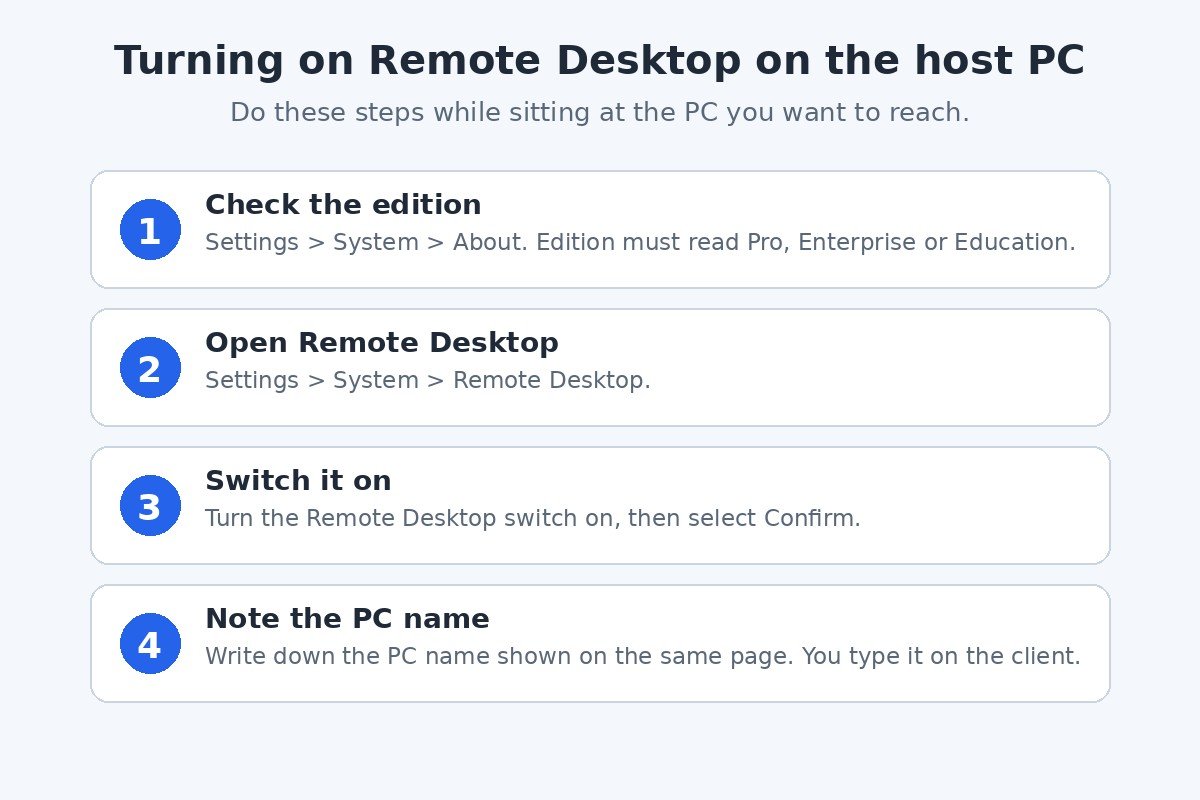
- Also note the Device name near the top of the same page: that is the PC name you will type on the client later.
Step 2: Turn on Remote Desktop on the host
With the edition confirmed, switching Remote Desktop on takes less than a minute. These steps match the current Windows 11 layout, including version 26H2, and they follow the path Microsoft documents in its own setup guide.
- Select Start, select Settings, then select System.
- Select Remote Desktop in the list on the System page.
- Turn the Remote Desktop switch to On, then select Confirm in the pop-up that appears.
- On the same page, check that Require devices to use Network Level Authentication to connect is turned on, and leave it on. It makes the connecting device sign in before a session starts, and Microsoft recommends it.
Turning the switch on also opens the Windows Firewall rule Remote Desktop needs, so you normally do not have to touch firewall settings. If the PC runs a third-party security suite, that software may ask you to allow Remote Desktop separately. One more setting causes more failed connections than any other: the PC has to be awake. A sleeping or powered-off PC cannot answer, so set the sleep timer to Never under Settings, then System, then Power and battery.
Step 3: Decide who else is allowed to connect
Members of the Administrators group on the host PC can connect as soon as Remote Desktop is on. To let anyone else in, open the same settings page, select Remote Desktop users, select Add, type the username, then select OK. Every account with remote access needs a strong, unique password, because Remote Desktop puts the PC’s login screen on the network.
Step 4: Connect from another Windows PC on the same network
This is the everyday case: both computers are on the same home or office network. Get this working first, even if your real goal is connecting over the internet. A connection that works locally but fails from outside tells you the setup is fine and the problem is in the router.
- On the client PC, select Start, type Remote Desktop Connection, and open the app. You can also press the Windows key + R, type mstsc, and press Enter.
- In the Computer box, type the host PC name you noted in Step 1, then select Connect.
- Enter the username and password of an account that is allowed to connect to the host, then select OK. If a certificate warning appears on the first connection, read it. On your own home network, accepting it is normal.
The host’s screen should now fill a window on the client, and the mouse and keyboard control the host as if you were sitting at it. When you are done, close the window or sign out from inside the remote session. If the PC name does not work, use the host’s IP address instead: on the host, open Settings, then Network and internet, then Wi-Fi or Ethernet, and read the IPv4 address. If the name works, use the name, since it stays valid even if the router hands the host a different IP address later.
Step 5: Connect from a Mac, iPhone, iPad, or Android device
The host still has to run Pro, Enterprise, or Education, but the device you connect from can be a Mac, an iPhone, an iPad, or an Android phone or tablet. On these devices the current client is Windows App. Install it from the App Store or Google Play, open it, add a remote PC from the Devices tab, enter the host PC name or IP address, then tap the saved PC and sign in.
Connecting over the internet: a separate job, done after the local connection works
Everything so far works when both devices share a network. Connecting from outside that network needs one extra layer, because a home router blocks incoming connections by default. Get the local connection working first, then add the internet path on top of it. Microsoft documents two ways: port forwarding, or a VPN.
The safer route: a VPN
A VPN puts the client onto the home network as if it were plugged into the router, and then Remote Desktop works exactly as it does at home. Nothing on the router needs opening, and the PC is never exposed to the public internet. Microsoft states plainly that a VPN is preferable to opening the PC to the internet.
The direct route: port forwarding
Port forwarding tells the router to send incoming traffic on one port to the host PC. Remote Desktop uses port 3389 by default. The steps differ on every router, but the shape is the same: find the host’s internal IP address, sign in to the router’s admin page, and create a rule that forwards external port 3389 to that internal IP address on port 3389, using TCP. Then connect from outside with the router’s public IP address. Microsoft’s own guide to reaching a PC from outside its network covers the same pieces.
Three details make port forwarding reliable. First, give the host a static internal IP address, or the router may hand it a different address later and the rule will point at the wrong PC. Second, a public IP address can change, so a dynamic DNS service gives the connection a stable name. Third, if the router lets you restrict which source addresses may use the rule, limit it to the network you connect from.
The honest warning is that port forwarding opens the PC to the internet, and Microsoft says that is not recommended. An open Remote Desktop port is scanned constantly by automated systems looking for weak passwords. If port forwarding is the only option, keep Network Level Authentication on, use a long unique password, and consider changing the external port from 3389. If that sounds like more risk than the task is worth, use the VPN route, or Chrome Remote Desktop below.
If the PC you want to reach runs Windows 11 Home
A Home PC cannot host Remote Desktop, and that is the end of the built-in route. Open Settings, then System, then Remote Desktop on a Home PC, and Windows shows a message saying the Home edition does not support Remote Desktop, instead of the on/off switch.
| Option | Best for | What you need |
|---|---|---|
| Quick Assist | Helping someone once | Built into Windows, helper signs in with a Microsoft account |
| Chrome Remote Desktop | Reaching your own PC any time | Chrome, a Google account, and a PIN you choose |
| Upgrade to Windows 11 Pro | Full Remote Desktop hosting | A Pro licence, then the steps above |
Quick Assist: the built-in helper for one-off sessions
Quick Assist is built into Windows 11 for helping a family member with a problem right now. Both people must be at their PCs, and the person being helped approves the session. The helper opens it with Ctrl + Windows key + Q, selects Help someone, and signs in with a Microsoft account. It shows a six-digit code, which the helper reads out. The person being helped opens Quick Assist the same way, types in the code, selects Submit, then selects Allow. It cannot reach an empty PC, so it is a helping tool, not a Remote Desktop replacement. One safety rule: never read a Quick Assist code to someone who contacted you first.
Chrome Remote Desktop: regular access to your own Home PC
Chrome Remote Desktop is Google’s free remote access service, and it works on Windows 11 Home with no upgrade and no router changes. On the Home PC, open Chrome, go to remotedesktop.google.com/access, and set up remote access. That installs a small host component and asks you to name the computer and set a PIN of at least six numbers. After that, open the same page on any device, sign in with the same Google account, pick the PC, enter the PIN, and the desktop opens. It works over the internet too.
Upgrading the PC to Windows 11 Pro
If the PC needs to host built-in Remote Desktop sessions, upgrading to Windows 11 Pro is the only Microsoft-supported way to get there. Open Settings, then System, then Activation, and follow the upgrade option there, to buy the Pro upgrade in the Microsoft Store, or enter a Pro product key you already own. The Remote Desktop switch then appears in Settings.
When it does not connect: the fixes that solve most failures
A failed connection usually has a simple cause. Start with the basics: the host must be on, awake, and connected to the network. Then check Remote Desktop is still on, and the account is allowed to connect. Then check the address: a mistyped PC name is the usual error, and trying the host’s IP address tells you whether the name or the network is at fault. If the client cannot find the computer, the site’s guide to the Remote Desktop cannot find the computer error covers those checks. If the client finds the PC but the connection fails, the guide to fixing RDP when it cannot connect to the remote computer covers the eight most common causes.
Two more checks catch the rest. If a third-party security suite runs on the host, check that it allows Remote Desktop through its own firewall. And if the client is old, check Network Level Authentication: the host requires it by default, and a client without it cannot connect until it is updated. Turning NLA off is a last resort.
Keeping Remote Desktop safe once it is switched on
Remote Desktop is safe at home when it is set up properly, and risky when it is not. Keep Network Level Authentication turned on. Give every remote account a strong, unique password. Only enable Remote Desktop on trusted networks. Keep Windows updated. If the PC is only reached over the local network, leave the router alone. Over the internet, prefer a VPN over an open port. Turn Remote Desktop off when it is no longer needed.
Once the first connection works, Remote Desktop fades into the background. Check the edition first, switch it on, connect by name on the home network, and only open it to the internet through a VPN or a carefully guarded port rule. If the PC runs Home, Quick Assist or Chrome Remote Desktop gets the job done without an upgrade.

- How to Use Remote Desktop on Windows 11 (Step-by-Step Guide) - November 25, 2026
- How to Turn Off Get Tips and Suggestions in Windows 11 [Fix] - November 24, 2026
- How to Change Mouse Scroll Settings on Windows 11 (Step-by-Step Guide) - November 23, 2026