
Running an AI model on your own PC sounds like a job for a server room, but Ollama turns it into a normal install. Download the app from the official site, run one command, and a model downloads to your computer and answers your questions without sending them to a cloud service. This guide covers the official installer only, a sizing table for late 2026 models, the cloud tag trap, and how to add a chat window once the terminal works.
What Ollama does on your PC
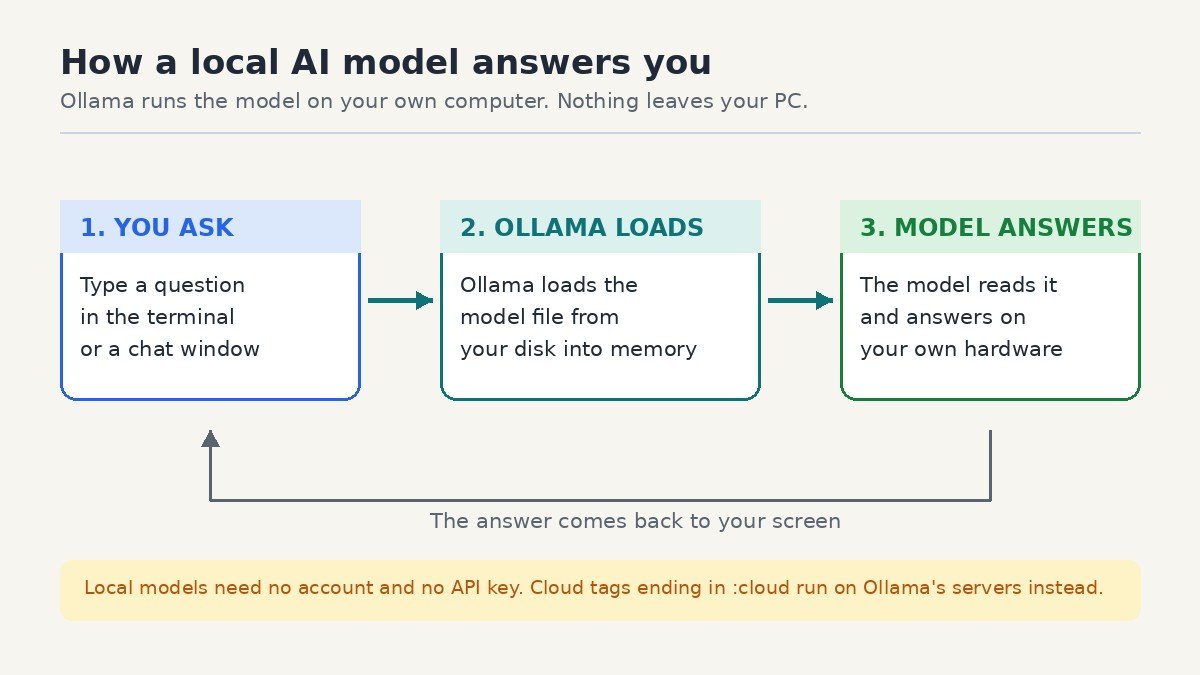
Ollama is a free program that downloads open-weight AI models and runs them on your own hardware. It works as a small local server plus a command line tool. When you ask a question, the request goes to that server on your own machine, the model reads it, and the answer comes back from your own hardware. Your prompts stay on your computer when you run a local model, and that privacy is the main reason people bother with this setup at all.
Ollama runs on Windows, macOS, and Linux, and the same commands work on all three. The model is the part that matters most. It is a large file, several gigabytes at least, and it has to fit in your memory before it can answer anything. That is why this guide starts with sizing, not with the download button.
Check your PC before you install anything
A quick check now saves a failed download later. Ollama’s own documentation lists these requirements, and they are short.
- Windows: Windows 10 22H2 or newer, Home or Pro. If you have an NVIDIA card, the driver needs to be version 551.61 or newer. AMD cards need a ROCm v7 driver stack, or a Vulkan-capable Radeon driver.
- Mac: macOS Sonoma (version 14) or newer. Apple M series Macs get CPU and GPU support. Intel Macs run on the CPU only.
- Linux: a modern 64-bit distribution. NVIDIA cards need compute capability 5.0 or higher and driver version 550 or newer.
- Disk space: the Ollama app itself needs at least 4 GB. Models need much more on top of that, from about 1 GB for the smallest to 65 GB for the largest in the table below.
Then find out how much memory your machine has, because that number decides which models you can run. On Windows, open Task Manager, click Performance, and read the memory figure and the GPU memory figure. On a Mac, click the Apple menu, then About This Mac. On Linux, run free -h in a terminal. Write the numbers down. You need them for the next section.
Pick a model that fits your hardware
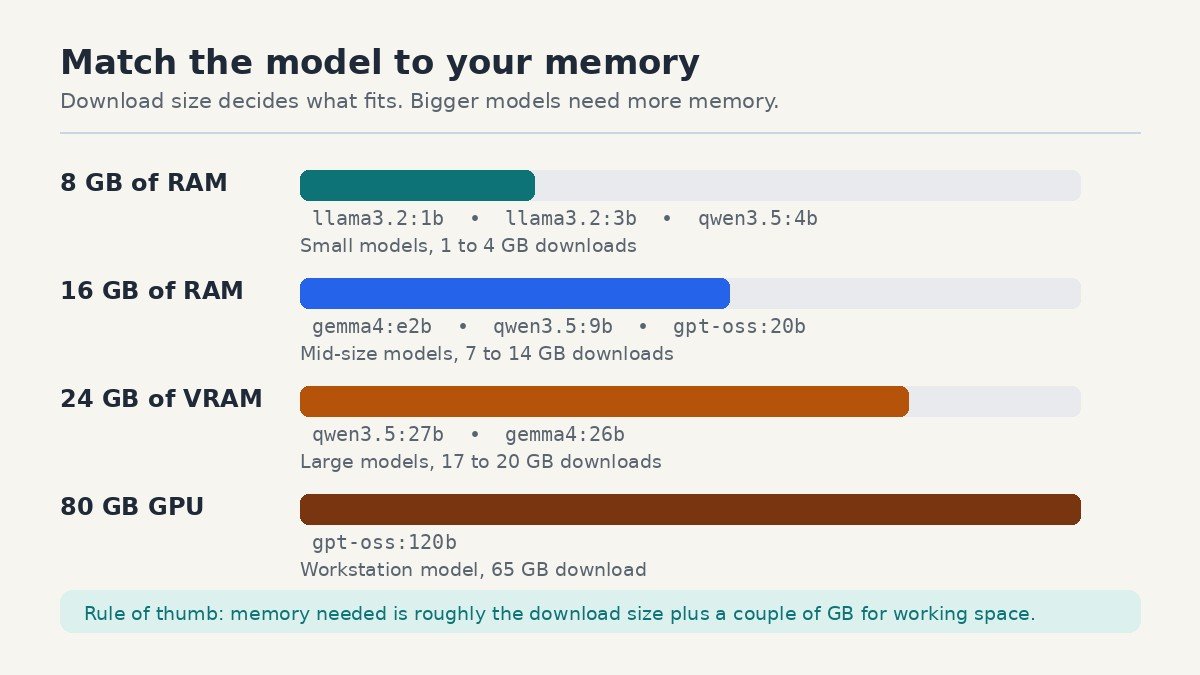
The download size decides everything. A model has to load into memory before it can work, so the memory you need is roughly the download size plus a couple of gigabytes of working space. Longer conversations cost more memory too, because Ollama keeps the conversation in a context window. The default window is 4,096 tokens, and raising it needs more memory, so the figures below assume the default.
These are current late 2026 models, with download sizes taken from Ollama’s own library pages on 26 November 2026. The memory column is a planning figure, not a benchmark, and it leaves headroom for the operating system and the context window.
| Model | Command | Download size | Memory to run | Best for |
|---|---|---|---|---|
| llama3.2:1b | ollama run llama3.2:1b | 1.3 GB | 8 GB RAM | Fast answers on any laptop |
| llama3.2:3b | ollama run llama3.2 | 2.0 GB | 8 GB RAM | Everyday chat on a basic laptop |
| qwen3.5:4b | ollama run qwen3.5:4b | 3.3 to 4.0 GB | 8 GB RAM | A stronger all-rounder on 8 GB machines |
| gemma4:e2b | ollama run gemma4:e2b | About 7.2 GB | 8 GB VRAM or unified memory | Text and image input on a modest PC |
| qwen3.5:9b | ollama run qwen3.5:9b | 6.6 to 7.6 GB | 16 GB RAM, or 12 GB VRAM | The quality jump for 16 GB machines |
| gpt-oss:20b | ollama run gpt-oss:20b | 14 GB | 16 GB memory | Reasoning and tool use |
| qwen3.5:27b | ollama run qwen3.5:27b | 17 to 20 GB | 24 GB VRAM, or 32 GB RAM | Strong writing and image understanding |
| gpt-oss:120b | ollama run gpt-oss:120b | 65 GB | A single 80 GB GPU | Near-frontier reasoning on workstation hardware |
Start at the top of the table, not the bottom. A 3B model that answers in a second beats a 27B model that crawls because it spilled out of your graphics memory into system RAM. You can always download a bigger model later, and deleting one is a single command. Two notes: gemma4:e2b is the model in Ollama’s own quickstart, with a download of about 7.2 GB and a recommendation of 8 GB of available VRAM or unified memory on a Mac. And gpt-oss is OpenAI’s open-weight family, with the 20B version built to run on systems with as little as 16 GB of memory.
Watch out for the cloud tag trap
Ollama now lists cloud models right next to local ones, and this is where new users get caught. A cloud model name ends in :cloud, for example gemma4:cloud or gpt-oss:20b-cloud. Those models run on Ollama’s servers, not on your PC. They need a sign-in and usage credits or a paid plan, and your prompts go to Ollama’s servers. That is the opposite of what this guide sets up.
Before you run any model, read the tag. If it ends in :cloud, it does not download and it does not run locally. Stick to the plain tags in the table above. To offer local models only, turn the cloud features off with OLLAMA_NO_CLOUD=1, or add disable_ollama_cloud to the server settings file at ~/.ollama/server.json. That step is optional, and most people can skip it once they know what the tag means.
Install Ollama from the official source only
Download Ollama from ollama.com and nowhere else. Some tutorials route the Windows installer through third-party file download sites, and that is a real trust problem: a copy from another site can be tampered with, and there is no reason to use one when the official installer is one click away. The official download page gives you every route below.
Windows
Open Ollama’s download page and get OllamaSetup.exe. Run it. The installer puts Ollama in your user account and does not need administrator rights. Ollama then runs in the background, and the ollama command becomes available in PowerShell, Command Prompt, or Windows Terminal.
If you prefer the command line, open PowerShell and run the official one-line installer instead:
irm https://ollama.com/install.ps1 | iexMac
Download Ollama.dmg from the same download page, open it, and drag Ollama into your Applications folder. Open the app. On first start it checks that the ollama command is in your path and offers to add it if it is missing. The terminal route works too:
curl -fsSL https://ollama.com/install.sh | shLinux
Run the official install script in a terminal:
curl -fsSL https://ollama.com/install.sh | shOn most distributions the installer registers Ollama as a service that starts on its own. If it does not start, run ollama serve in a terminal. For updates, Windows and macOS update themselves through the tray or menu bar icon, by choosing Restart to update. On Linux, run the install script again.
Run your first model
With Ollama installed, one command does the rest. This example uses gemma4:e2b, the model from Ollama’s own quickstart, because it fits the 8 GB machines most readers have:
ollama run gemma4:e2bThe first run downloads the model, about 7.2 GB, so it takes a while depending on your connection. Then a chat prompt opens in the terminal. Type a question and press Enter. Type /bye to leave. That is the whole first run: nothing else to configure, no account to create, no key to paste.
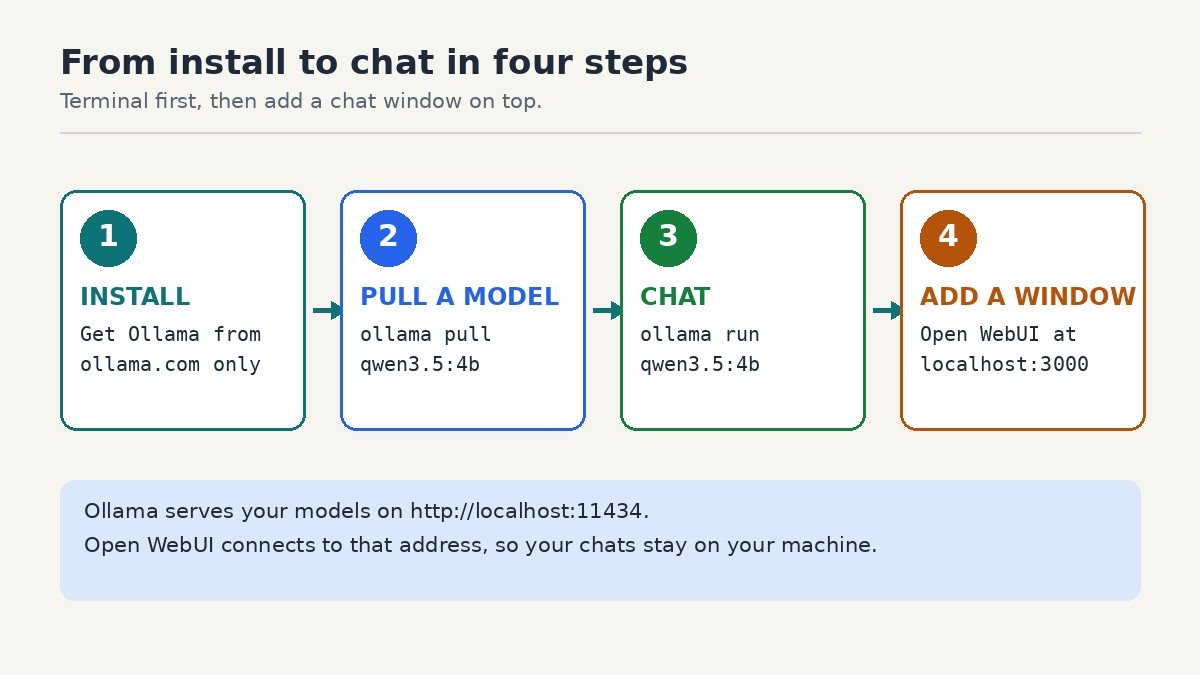
To try a different model, swap the tag. To download a model without starting a chat, use ollama pull first, then run it when you are ready:
ollama pull qwen3.5:4b
ollama run qwen3.5:4b
Run ollama list at any time to see the models on your machine and how much disk space each one takes. Models are stored in ~/.ollama/models on macOS, C:\Users\%username%\.ollama\models on Windows, and /usr/share/ollama/.ollama/models on Linux. If your main drive is short on space, set the OLLAMA_MODELS environment variable to a folder on a larger drive before you pull anything.
Add a proper chat interface
The terminal chat works, but most people want a normal chat window with history and a model picker. You have two good routes, and the built-in one takes about a minute.
Option 1: The Ollama app itself
On macOS, open the Ollama app and select Apps. From there you can connect Claude or ChatGPT Desktop and use your Ollama models inside them. Choose which models the apps can use under Settings, then Apps. Ollama also ships a launch command for coding agents: ollama launch claude, ollama launch codex, and ollama launch opencode start the matching agent with your local models, installing the agent first if it is missing.
Option 2: Open WebUI, a full chat window in your browser
Open WebUI is a free, open source chat interface that talks to Ollama through its local API on port 11434. It gives you a ChatGPT-style window in your browser, with chat history, a model picker, and document uploads, while everything still runs on your machine. It needs Docker, so install Docker Desktop first if you do not have it. Then run this single command in a terminal:
docker run -d -p 3000:8080 --add-host=host.docker.internal:host-gateway -v open-webui:/app/backend/data -e WEBUI_SECRET_KEY=your-secret-key --name open-webui --restart always ghcr.io/open-webui/open-webui:mainBefore you run it, generate a secret key with openssl rand -hex 32 and put the result in place of your-secret-key. The key keeps you signed in: without a fixed key, every time the container is recreated, everyone gets logged out. Open http://localhost:3000 in your browser and create the first account. That account becomes the administrator. Your downloaded models should appear in the model picker. If they do not, check that Ollama is running first, then restart the container with docker restart open-webui.
On Linux, run the container with --network=host and set OLLAMA_BASE_URL=http://127.0.0.1:11434 instead of using the --add-host flag.
Everyday commands worth knowing
Once the first chat works, these are the only commands most people need day to day:
ollama listshows the models on your machine and their sizes.ollama pull <model>downloads a model without starting a chat.ollama run <model>starts a chat with a model.ollama psshows which models are loaded in memory right now, and whether each one runs on the GPU or the CPU.ollama stop <model>unloads a model at once. Ollama otherwise keeps a model loaded for five minutes after you stop using it, so the next question starts faster.ollama rm <model>deletes a model and frees the disk space it used.ollama servestarts the server by hand, which is mainly needed on Linux.
Inside a chat, /set parameter num_ctx 4096 changes the context window for that session, and /bye leaves. The local server listens on http://localhost:11434, the address other apps use to reach your models.
When a model is slow or will not load
Most problems with local models come down to memory, and the fix is usually a smaller model rather than a setting.
- Replies crawl along word by word. The model has probably spilled out of your graphics memory into system RAM. Run
ollama psand look at the Processor column. If it says CPU, or a split between CPU and GPU, the model is too big for your graphics card. Drop to the next smaller tag in the table. - Ollama refuses to load the model at all. Pick the next smaller size. A model that is bigger than your available memory cannot load, and no setting changes that.
- Long chats get slower. The context window grows as the conversation goes on, and a longer window needs more memory. Start a fresh chat with
ollama runinstead of piling more turns onto an old one. - The first answer is slow, then it speeds up. That is normal. The model loads into memory on the first question, and later questions reuse it for five minutes before Ollama unloads it.
- Ollama cannot find your NVIDIA GPU after your Linux PC wakes from sleep. Reload the driver module with
sudo rmmod nvidia_uvm && sudo modprobe nvidia_uvm, then start Ollama again.
Local models vs cloud AI assistants
Running a model locally trades raw power for privacy and control. A local model answers offline, costs nothing per question, and never sends your prompts to a company server. The trade is that the biggest local models still trail the flagship cloud models, and your hardware sets the ceiling on what you can run. Cloud assistants run much larger models on company servers, and they keep adding agent features that a local model on a laptop cannot match. Our guide to Google Gemini Agent explains what one of those cloud assistants can do and who gets it, which is a useful comparison before you decide how much of your AI use should stay local.
The practical split is simple: keep private work local, and use a cloud assistant for jobs that need the biggest model. Ollama can sit next to a cloud service on the same machine, and its cloud tags are there if you ever want them, as long as you choose them on purpose and not by accident.
What to try next
That is the full loop: the official installer, a model sized to your memory, a first chat in the terminal, and a proper chat window on top. Start with the smallest model that fits comfortably, get used to how it answers, and only download a bigger one when you know what the small one cannot do. Your PC is already the server, and the model files on your disk are the whole setup.

- How to Run Local AI Models on Your PC With Ollama (Step-by-Step Guide) - November 26, 2026
- How to Use Remote Desktop on Windows 11 (Step-by-Step Guide) - November 25, 2026
- How to Turn Off Get Tips and Suggestions in Windows 11 [Fix] - November 24, 2026