
Your PC was asleep when you left the room. Hours later the fan is spinning, the screen is glowing, and nobody touched it. Something specific asked Windows to wake up, and Windows keeps a record of what it was.
Start by asking Windows what woke it
Most guides hand you a flat list of settings to turn off, which often turns off something useful, like waking the PC with the keyboard. Find the culprit first, then fix only that one thing. The diagnosis takes about two minutes.
Open an elevated terminal. Right-click the Start button and choose Terminal (Admin), or Command Prompt (Admin) on older builds. Click Yes if Windows asks for permission.
Run this command as soon as you can after an unexpected wake:
powercfg /lastwakeThis reports what ended the most recent sleep. The output names a wake source, usually a device such as a mouse or a network adapter, or a timer set by a scheduled task. Write down whatever it names, because that name decides which section you need. If it says the wake source count is 0, or names nothing, a wake timer or a maintenance task was usually responsible.
Next, list the timers armed and waiting to wake the PC:
powercfg /waketimersEach entry shows the time it will fire and the reason behind it, normally a scheduled task path such as a backup job, an update task, or Automatic Maintenance. If the list is empty, the wake came from a device instead.
Finally, list every device that has permission to wake the PC:
powercfg /devicequery wake_armedOn most desktops this list is short: the keyboard, the mouse, and the network adapter. A device being on this list does not prove it caused the last wake. It only means it is allowed to.
| Command | What it tells you | When to use it |
|---|---|---|
| powercfg /lastwake | What ended the most recent sleep | Right after an unexpected wake |
| powercfg /waketimers | Which timers are armed, and which task set each one | When the PC wakes at a regular time |
| powercfg /devicequery wake_armed | Which devices are allowed to wake the PC | When a mouse, keyboard, or network adapter is suspected |
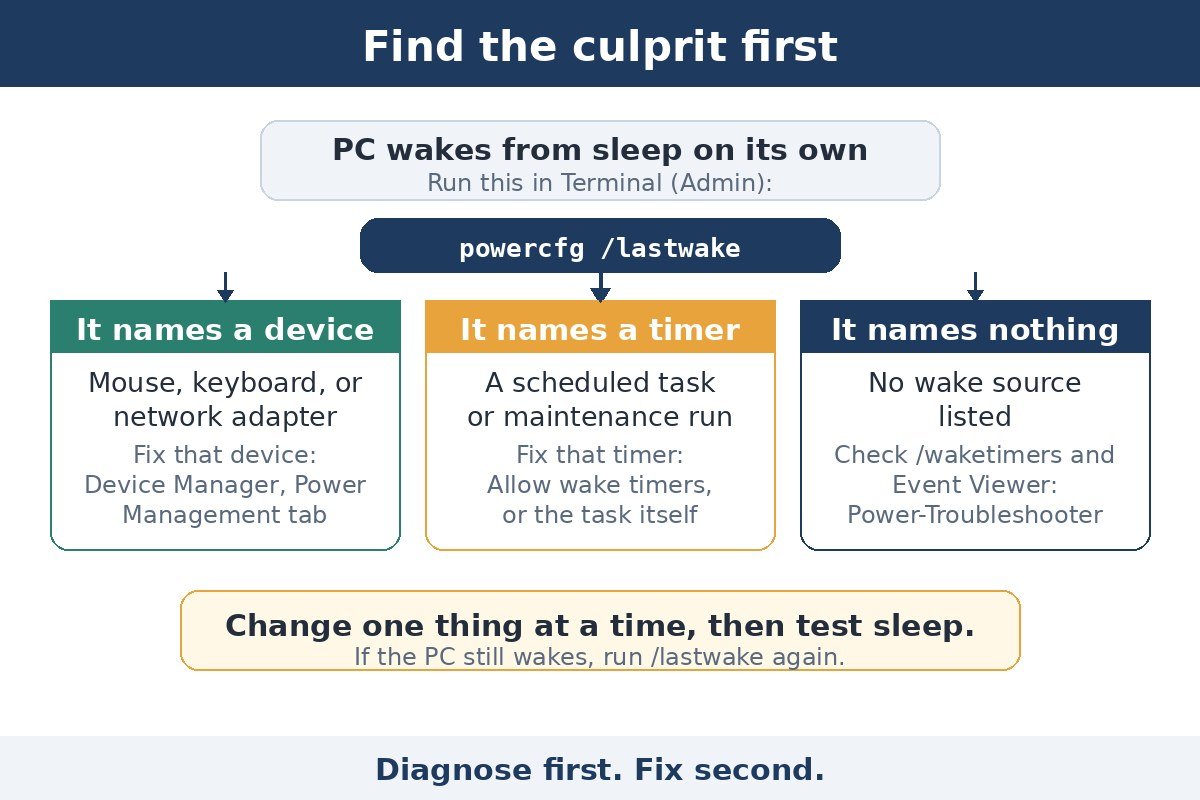
If you missed the window and /lastwake no longer shows the event, Event Viewer keeps a longer history. Open Event Viewer, go to Windows Logs, then System, and filter by the source Power-Troubleshooter. The Wake Source line in each entry names the trigger.
If the culprit is a mouse, keyboard, or USB device
A twitchy mouse is the most common device culprit. A wireless mouse on a desk that vibrates when someone walks past, a pet brushing against it, or a receiver picking up stray movement can all send a wake signal. The same goes for a keyboard with a key that sticks slightly.
Open Device Manager by right-clicking the Start button and choosing Device Manager. Expand Mice and other pointing devices, right-click your mouse, and choose Properties. Open the Power Management tab and clear the box labelled Allow this device to wake the computer, then click OK. No restart is needed. Repeat the steps for the keyboard under Keyboards, or for a USB hub under Universal Serial Bus controllers, if /lastwake pointed there.
Some devices have no Power Management tab, which means their driver does not offer wake control. If you see several entries with similar names, such as two HID Keyboard Device entries, change each one that has the tab. Think before you clear the keyboard box: if you wake the PC by pressing a key, clearing it means only the power button or the mouse will wake it. Many people keep keyboard wake on and turn off mouse wake only.
You can make the same change from the terminal, using the exact device name from the wake_armed list, in quotes:
powercfg /devicedisablewake "HID-compliant mouse"Replace the name in quotes with the name your PC reported. To restore wake permission later, use powercfg /deviceenableawake with the same name. Microsoft documents both commands in its powercfg command-line reference. Change one device at a time.
When the display wakes, Windows can shuffle open windows between monitors. If your windows jump around after a wake, our guide to stopping Windows 11 from rearranging app windows when the monitor wakes covers that fix step by step.
If the culprit is the network adapter
A network adapter can wake the PC in response to ordinary traffic on your home network, such as a router checking which devices are present. This is called Wake on LAN. It is a real feature: it lets you wake a PC remotely, for example to reach files on it from another room. The problem is that many adapters arrive with wake enabled for any traffic, not just a deliberate wake signal.
Open Device Manager, expand Network adapters, right-click your adapter, and choose Properties. If you have both wired Ethernet and Wi-Fi adapters, check both. On the Power Management tab you have two choices. Clear Allow this device to wake the computer entirely to stop all network wakes. Or keep the box ticked and also tick Only allow a magic packet to wake the computer. A magic packet is a wake-up message sent deliberately, so ordinary traffic no longer wakes the PC, but a real remote wake still works.
Check the Advanced tab too, and look for a property called Wake on Magic Packet. If it is present, set it to Enabled when you use the magic packet option, since the two settings work together. If it is missing, your adapter does not expose it, and the Power Management tab settings are enough. Clearing network wake does not affect normal networking.
If the culprit is a wake timer
A wake timer is a request from Windows or an app to wake the PC. If your PC wakes at roughly the same hour every night, a timer is almost certainly the cause, and /waketimers will have named the task behind it. Timers come from backup software, antivirus scans, and Windows itself.
The broadest control sits in the advanced power settings. Open Settings, go to System, then Power and battery, and open Additional power settings. Click Change plan settings next to your active plan, then Change advanced power settings. Expand Sleep, then expand Allow wake timers, and set both On battery and Plugged in to Disable. Click Apply, then OK. This setting is stored separately for each power plan, so check it on each plan you use. There is also a middle choice, Important Wake Timers Only, which blocks ordinary timers while allowing ones Windows marks as important.
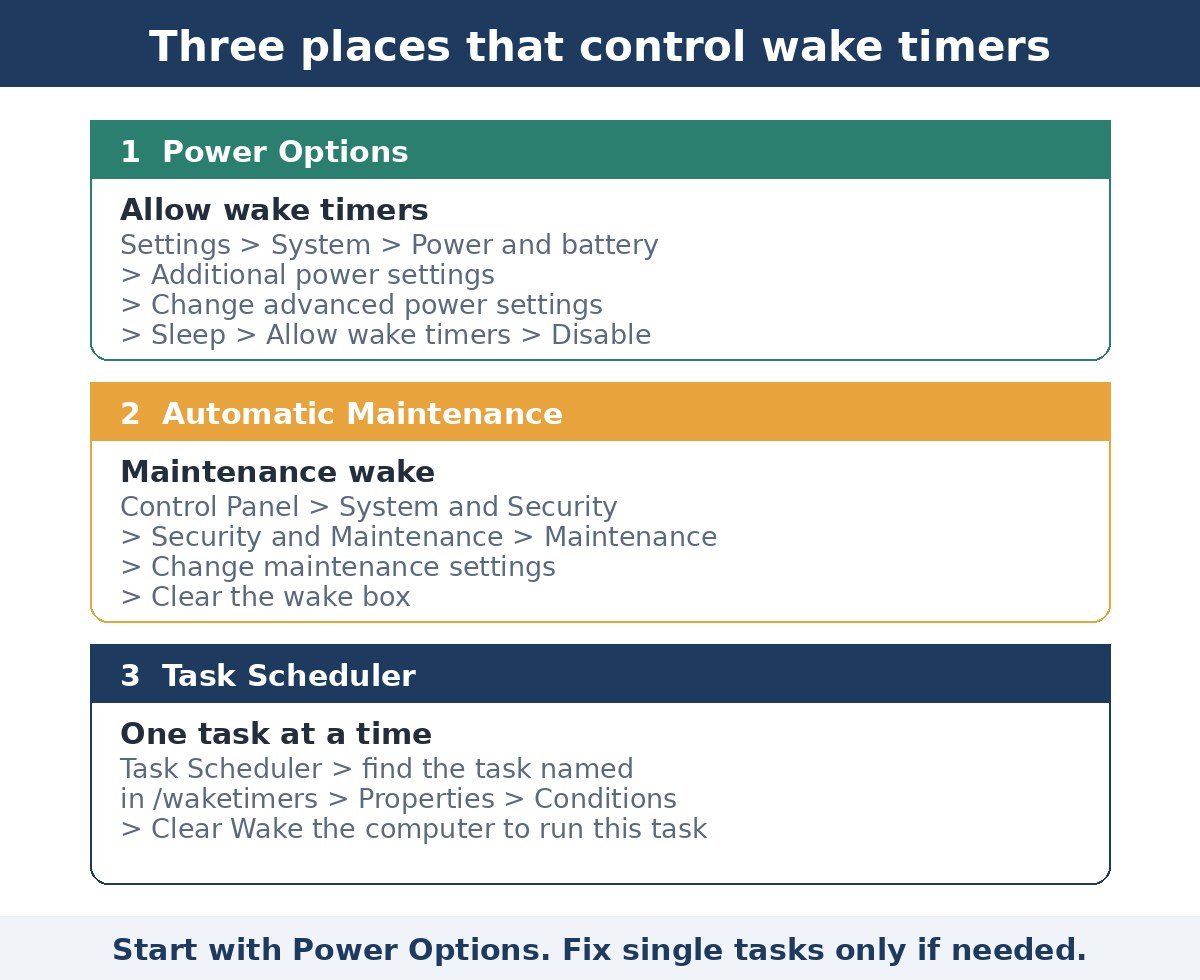
Disabling wake timers in Power Options does not override every task, because individual tasks can carry their own wake permission. Open Task Scheduler by typing Task Scheduler in Start search. The Reason line in your /waketimers output is a task path, such as a path under Microsoft, then Windows, then a folder like UpdateOrchestrator. Navigate to that folder in the left pane, right-click the task, and choose Properties. Open the Conditions tab and clear the box labelled Wake the computer to run this task, then click OK. Clearing it only stops the wake.
Be careful with tasks you do not recognise. Some system tasks wake the PC for a reason, such as installing a security update, and clearing the wrong one can delay something you actually want. Change one task at a time, note what you changed, and test sleep for a night before changing the next one. If a task keeps re-enabling its own wake permission after an app update, the lasting fix is inside that app: look for a schedule setting there.
If Windows Update or Automatic Maintenance is the cause
Two built-in Windows routines wake more PCs than anything else. The first is Automatic Maintenance, a daily housekeeping run covering security scans, software updates, and system diagnostics. It runs while the PC is idle, prefers AC power, and by default is allowed to wake the PC, with a default time of 2:00 a.m. If your PC wakes around 2 a.m. and /waketimers names the Maintenance Activator, this is your culprit.
To change it, open Control Panel, go to System and Security, then Security and Maintenance. Expand Maintenance and click Change maintenance settings. Clear the box labelled Allow scheduled maintenance to wake up my computer at the scheduled time, then click OK. You can also pick a different daily time on the same screen, such as early evening, when the PC is normally on but idle. Turning off the wake permission does not turn off maintenance itself.
The second routine is Windows Update. After an update is installed and waiting for a restart, Windows can wake the PC to finish the job. Open Settings, go to Windows Update, then Advanced options, and turn off the option to wake the device to finish setting up updates after a restart. Restarting promptly after an update notice appears keeps the delay short.
Newer laptops: when the usual fixes do not fully work
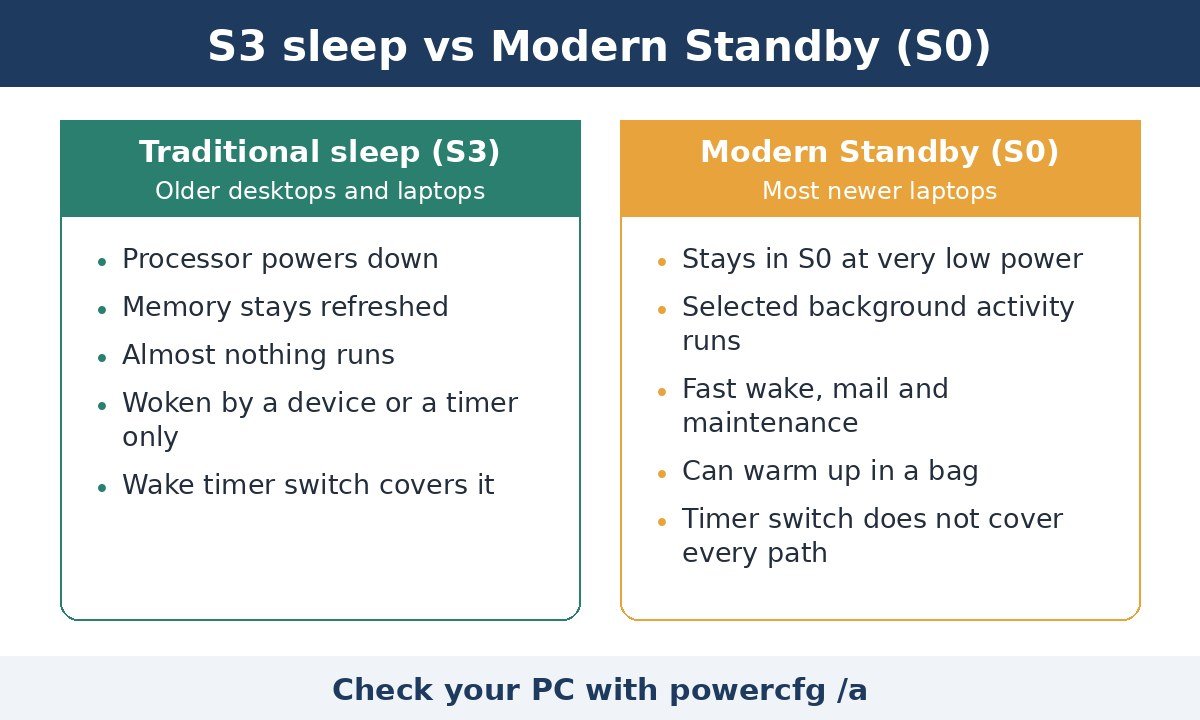
Most modern laptops use Modern Standby, which Microsoft calls S0 low-power idle, instead of the traditional S3 sleep older PCs use. On an S3 machine, sleep is a deep suspended state: the processor powers down, memory stays refreshed, and almost nothing runs until a permitted device or timer wakes it. On a Modern Standby machine, the system stays in the S0 working state family at a very low power level, and selected background activity is allowed to run. That is what gives these laptops instant wake.
The difference matters because a Modern Standby laptop is not simply asleep in the old sense. It can wake its screen or spin up its fan for a maintenance task, a network event, or an app allowed to run in the background, and the usual wake timer switch does not cover every one of those paths. That is why some laptops still get warm in a bag even after wake timers are disabled. Check which model your PC uses with one command:
powercfg /aIf the output lists Standby (S0 Low Power Idle), your PC uses Modern Standby. If it lists Standby (S3), it uses traditional sleep. Microsoft documents both models in its Modern Standby versus S3 overview. The two models are a hardware and firmware decision, not a setting you can switch in Windows, so advice that tells you to turn off Modern Standby with a registry change should be treated with care.
On a Modern Standby laptop, the fixes above still help, with one extra diagnostic. Run powercfg /sleepstudy from an elevated terminal. This produces a report showing what the laptop did during each standby session: which apps and devices were active, how much battery each one used, and when the screen turned on. If one app shows up session after session with high battery use, that app is the problem: turn off its background activity, or close it before shutting the lid. As a fallback, hibernate is the reliable option for a laptop that will sit in a bag. Hibernate saves the session to disk and powers the machine down properly. If Hibernate is missing from the Start menu, an administrator can enable it with powercfg /hibernate on.
Still waking up? Work through this checklist
If you have worked through the culprit your diagnosis named and the PC still wakes, the cause is usually one of the following. Go through them one at a time, testing sleep after each change.
| Symptom | Likely culprit | What to try |
|---|---|---|
| Wakes at the same time every night | A scheduled task or maintenance run | Check powercfg /waketimers, then clear the task wake box |
| Wakes when anything moves on the desk | Mouse or USB device | Clear the mouse wake box in Device Manager |
| Wakes after network activity | Network adapter Wake on LAN | Allow magic packet only, or clear network wake |
| Laptop warm in a bag, battery drained | Modern Standby background activity | Check powercfg /sleepstudy, or use Hibernate |
| Wakes right after shutdown, not sleep | Shutdown behaviour, not sleep | Check fast startup and firmware wake settings |
Check the firmware settings as well. Restart the PC and enter the BIOS or UEFI setup, usually by pressing Delete, F2, or Escape during startup, and look under power management for Wake on LAN, wake on RTC alarm, or a scheduled power-on option. A firmware wake setting can bring the PC up even when Windows is configured correctly.
If the PC seems to wake right after you shut it down, rather than after sleep, the cause may sit in how shutdown itself works. Fast startup changes what a shutdown does, and it is worth ruling out first. Our guide to turning off fast startup in Windows 11 walks through that setting and explains when it helps.
Driver updates are the last routine check. A network adapter or chipset driver with a wake bug can defeat every setting. Visit your PC maker or motherboard maker support page, look for chipset and network driver updates for your exact model, and install them. Avoid driver updater tools that promise to scan and fix everything at once. After a driver update, run powercfg /devicequery wake_armed once more to confirm the armed list looks the way you expect.
The one-change rule
A PC that wakes on its own always has a reason, and Windows records that reason if you ask soon enough. Run powercfg /lastwake after the next unexpected wake, read the name it gives you, and fix only that trigger. If it names a device, take away that device wake permission. If it names a timer, find the task behind it and clear its wake box. If it names nothing, check /waketimers and the Power-Troubleshooter log. Most of these wakes are fixed by a single checkbox, once you know which checkbox to look for.

- How to Stop a PC From Waking Up From Sleep on Its Own [Fix] - November 28, 2026
- How to Install Ubuntu 24.04 LTS Step by Step (Dual-Boot Guide) - November 27, 2026
- How to Run Local AI Models on Your PC With Ollama (Step-by-Step Guide) - November 26, 2026