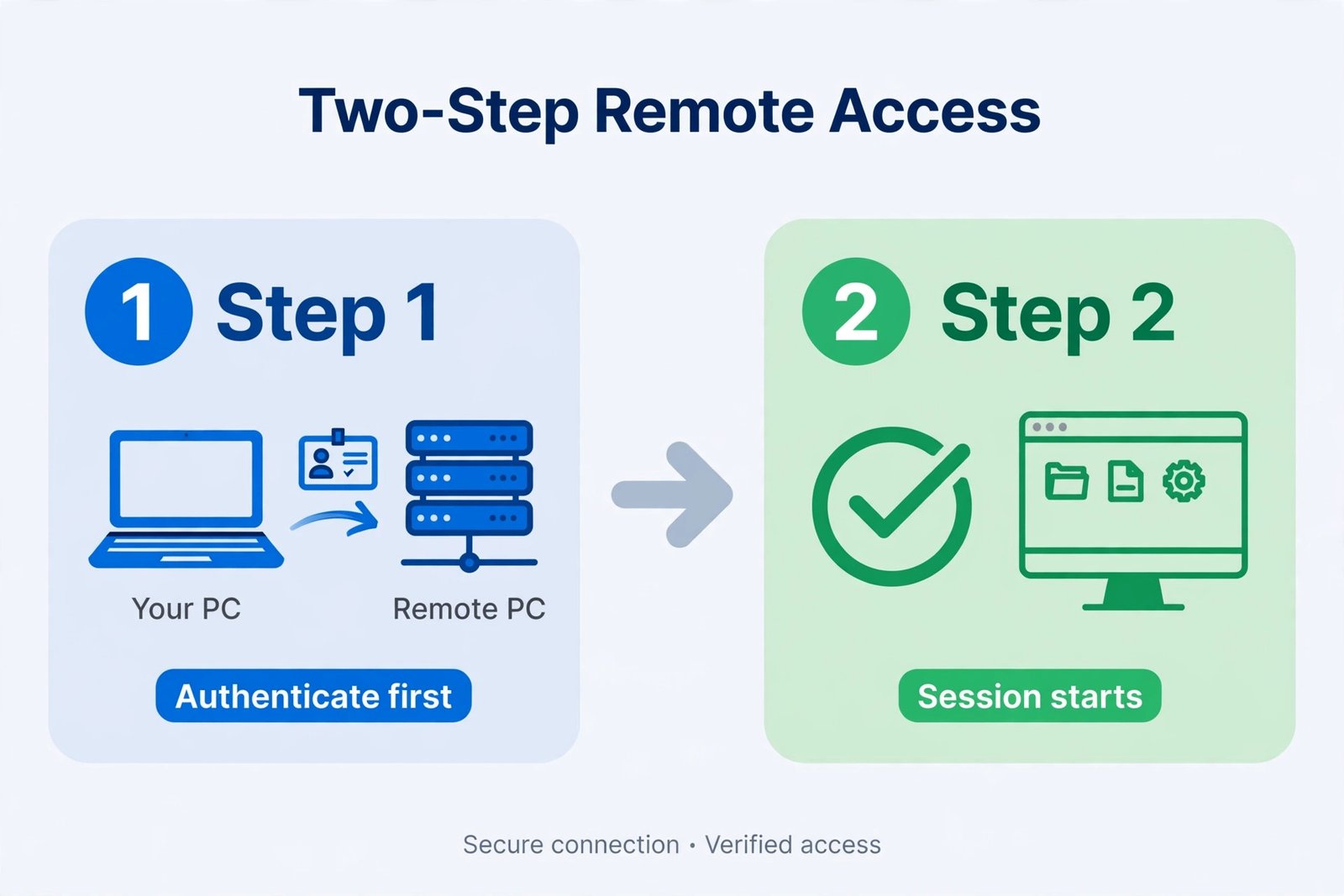
Network Level Authentication (NLA) is a security feature that requires you to authenticate before establishing a Remote Desktop Protocol (RDP) connection. When you see “the remote computer requires network level authentication,” it means your device can’t connect because either your computer doesn’t support NLA or your credentials aren’t being recognized early enough in the connection process.
This error appears most often when you’re trying to connect to Windows servers or other computers remotely. The frustration comes from the fact that you might have the correct password, but Windows blocks you before you get to the login screen.
The main causes are:
Your computer is running an outdated Windows version that doesn’t support NLA. The remote computer has NLA enabled but your system can’t complete the authentication handshake. Your credentials are being passed incorrectly to the remote system. You’re missing necessary updates on your local machine. Network connectivity issues are preventing proper authentication negotiation.

Quick Fix: Enable Network Level Authentication on Your Computer
If your local computer doesn’t support NLA, you need to enable it first. Here’s the straightforward approach:
For Windows 10 and Windows 11
- Open the Start menu and search for “Remote Desktop Connection”
- Click the application to launch it
- Click “Show Options” to expand the advanced settings
- Go to the “Advanced” tab
- Look for “Connect from anywhere” settings
- Ensure Network Level Authentication is checked if available
- Try connecting again to the remote computer
For Windows Server Systems
- Press the Windows key and R together
- Type “mstsc.exe” and press Enter
- Enter the remote computer’s IP address or hostname
- Click “Connect”
- When prompted, enter your credentials
The difference with servers is that they often have stricter security requirements. If you’re connecting to a server that requires NLA and your computer doesn’t support it, you’ll get blocked immediately.
Disable NLA on the Remote Computer (If You Have Local Access)
Sometimes the fastest solution is disabling NLA on the remote computer itself. This works only if you have physical access or local administrator privileges.
Step-by-Step Instructions
- On the remote computer, right-click “This PC” or “My Computer”
- Select “Properties”
- Click “Advanced system settings” on the left sidebar
- Go to the “Remote” tab
- In the “Remote Desktop” section, uncheck “Allow connections only from computers running Remote Desktop with Network Level Authentication”
- Click “Apply” and then “OK”
This disables NLA requirements for that specific computer. Remote Desktop connections will now work from older systems that don’t support NLA.
Important Security Note
Disabling NLA reduces security. Your computer becomes more vulnerable to certain types of attacks. Only disable it if you trust your network completely. If you’re on a corporate network, check with your IT department first.
Update Your Windows System
Outdated Windows installations often lack NLA support. Microsoft released updates to improve Remote Desktop compatibility.
How to Check and Install Updates
- Open Settings (Windows key + I)
- Click “Update & Security”
- Click “Check for updates”
- Install all available updates
- Restart your computer when prompted
- Try Remote Desktop connection again
Windows 7 and older versions have limited or no NLA support. If you’re still running these systems, updating to Windows 10 or Windows 11 is the real solution. Windows 7 is no longer supported by Microsoft anyway, so upgrading benefits your security overall.
Verify Your Credentials and Network Connection
Sometimes the error isn’t about NLA support. It’s about how your credentials are being sent or how your network is configured.
Check Your Credentials
- Make sure you’re using the correct username and password
- If the remote computer is on a domain, use the format “DOMAIN\username”
- If it’s a local account, use “computername\username”
- Verify that your password doesn’t have special characters that might cause issues
- Test by logging in locally to the remote computer with the same credentials
Test Network Connectivity
- Open Command Prompt on your local computer
- Type “ping [remote-computer-ip-address]”
- If you get responses, your network connection works
- If you get “Request timed out,” your computer can’t reach the remote device
- Check your firewall settings and router configuration
Port 3389 is the default port for RDP. If your firewall is blocking this port, Remote Desktop won’t work. Most corporate firewalls allow it internally.
Update Remote Desktop Client
Your Remote Desktop application itself might be outdated. Microsoft regularly releases updates for the RDP client.
Update From Microsoft Store
- Open the Microsoft Store app
- Search for “Remote Desktop”
- Click the official Remote Desktop app by Microsoft
- If an update is available, click “Get” or “Update”
- Wait for installation to complete
- Relaunch the application
You can also download the latest version directly from Microsoft’s official site. The modern Remote Desktop client (version 10 and above) has better NLA support and handles authentication more reliably.
Check Group Policy Settings (Windows Pro/Enterprise)
If you’re using Windows Pro, Enterprise, or Education editions, Group Policy controls NLA settings.
Access Group Policy Editor
- Press Windows key + R
- Type “gpedit.msc” and press Enter
- Navigate to: Computer Configuration > Administrative Templates > Windows Components > Remote Desktop Services > Remote Desktop Session Host > Security
- Look for “Require use of specific security layer for remote (RDP) connections”
- If it’s set to “SSL” or “TLS,” change it to “Negotiate”
- Click “Apply” and “OK”
The Group Policy settings override individual user preferences. If someone configured these incorrectly, connections will fail even with proper credentials.
Troubleshoot on the Remote Computer Side
If you have access to the remote computer, make sure Remote Desktop is actually enabled.
Enable Remote Desktop
- Right-click “This PC” and select “Properties”
- Click “Advanced system settings”
- Go to the “Remote” tab
- Check “Allow remote connections to this computer”
- Uncheck “Allow connections only from computers running Remote Desktop with Network Level Authentication” (if you want to allow older clients)
- Click “Apply” and “OK”
Some Windows installations have Remote Desktop disabled by default. If it’s not enabled, no client can connect regardless of NLA support.
Check Remote Desktop Service Status
- Press Windows key + R
- Type “services.msc” and press Enter
- Look for “Remote Desktop Services” in the list
- Right-click it and select “Properties”
- Check that “Startup type” is set to “Automatic”
- Click “Start” if the service isn’t running
- Click “OK”
The RDP service must be running for any remote connections to work. If it’s disabled or stopped, you’ll get connection errors.
Use Alternative Remote Access Methods
If you can’t resolve the NLA issue, you have other options for remote access.
SSH for Windows
Windows 10 and later include OpenSSH support. This is more secure and doesn’t have the same authentication issues.
- Open Settings > Apps > Apps and features
- Click “Optional features”
- Search for “OpenSSH Server”
- Click “Install”
- Use an SSH client to connect instead
Third-Party Remote Desktop Solutions
Applications like TeamViewer, AnyDesk, or Chrome Remote Desktop don’t rely on NLA. They work across different Windows versions and operating systems. These are good temporary solutions while you troubleshoot.
Comparison of NLA Solutions
| Solution | Difficulty | Security | Best For |
|---|---|---|---|
| Enable NLA on local computer | Easy | High | Modern Windows versions |
| Disable NLA on remote computer | Easy | Medium | Trusted networks |
| Update Windows | Medium | High | Long-term stability |
| Update Remote Desktop client | Easy | High | All systems |
| Use SSH alternative | Medium | High | Linux/Modern systems |
| Third-party software | Easy | Varies | Quick temporary fix |
Choose the solution that matches your situation. If you’re on an updated modern system, enabling NLA support is usually sufficient. If you’re stuck with older hardware, disabling NLA or using alternatives makes more sense.
Network Configuration for Remote Desktop
Your network setup can block Remote Desktop connections even with proper NLA support.
Configure Your Router
- Log into your router’s admin panel
- Find the Port Forwarding section
- Forward port 3389 to your computer’s internal IP address
- Save and restart the router
This allows external connections through your internet. For internal corporate networks, IT usually handles this.
Firewall Rules
Windows Firewall might block Remote Desktop by default.
- Open Windows Defender Firewall
- Click “Allow an app through firewall”
- Find “Remote Desktop” in the list
- Check both “Private” and “Public” boxes if needed
- Click “OK”
Third-party firewalls like Kaspersky or Norton also block RDP. Check their settings and whitelist port 3389.
Common NLA Error Messages Explained
| Error Message | Meaning | Solution |
|---|---|---|
| “Remote computer requires NLA” | Your system doesn’t support it | Update Windows or disable NLA on remote |
| “Authentication failed” | Credentials are incorrect or NLA negotiation failed | Verify credentials and check Group Policy |
| “Cannot connect to remote computer” | Network or service issue | Check connectivity and verify RDP service is running |
| “Access denied” | Permissions issue | Ensure user account is in Remote Desktop Users group |
| “This computer can’t connect to the remote computer” | Various issues including NLA | Try all troubleshooting steps sequentially |
Prevention: Best Practices for Remote Desktop Security
Set up Remote Desktop correctly from the start to avoid these problems.
Security Recommendations
Use strong, unique passwords for remote accounts. Change the default RDP port (3389) to something non-standard. Use VPN for remote connections instead of exposing RDP directly to the internet. Keep Windows and RDP clients updated automatically. Use NLA when possible, but disable it only if necessary. Limit Remote Desktop access to specific user groups. Monitor remote login attempts for suspicious activity.
These practices protect your computer while keeping Remote Desktop functional.
FAQ
What Does Network Level Authentication Actually Do?
Network Level Authentication adds an extra security layer before the Remote Desktop login screen appears. Your credentials are verified at the network level first. If they fail, the connection closes immediately without consuming server resources. This prevents certain denial-of-service attacks and credential-stuffing attempts.
Can I Use Remote Desktop Without NLA?
Yes. You can disable NLA on the remote computer if you have local access. The connection will work from any version of Windows. However, this reduces security. Only do this on trusted networks.
Why Does My Windows 7 Computer Can’t Support NLA?
Windows 7 released before NLA became standard. While later Service Packs added support, many Windows 7 systems never received these updates. Upgrading to Windows 10 or 11 is the proper solution since Windows 7 is obsolete anyway.
How Do I Know If My Remote Computer Has NLA Enabled?
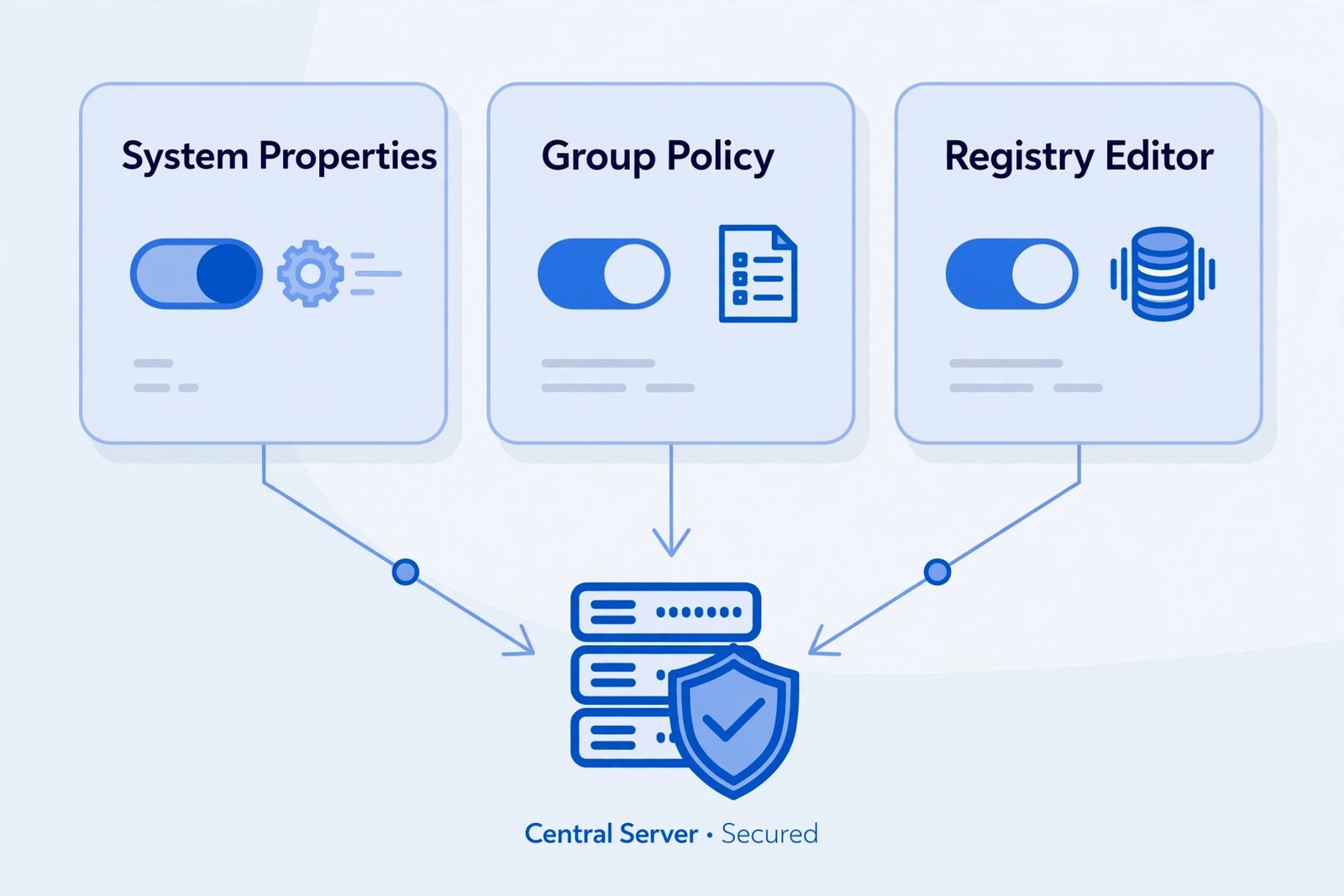
If you can’t connect and get the NLA error message, it’s enabled. You can also check by accessing the System Properties on the remote computer and looking at the Remote Desktop settings. If you see the NLA checkbox, that’s where it’s configured.
Is Using Remote Desktop Without NLA Safe for Home Networks?
It’s safer than exposing it to the internet, but still risky. Even on home networks, someone could gain access if they’re on the same network. Use a VPN for additional protection, or only disable NLA temporarily when needed.
Conclusion
The “remote computer requires network level authentication” error has several solutions, and you usually don’t need to be technical to fix it. Start by checking whether your local Windows installation is updated and supports NLA. If it does, the connection usually works after verifying your credentials.
If you’re stuck with older hardware that doesn’t support NLA, disabling it on the remote computer is quick and straightforward. For security-conscious setups or environments where you can’t modify the remote computer, updating your local system or using alternative remote access methods works well.
Most importantly, understand that NLA is a security feature, not a bug. When you disable it, you’re trading security for compatibility. Make that choice consciously, especially on networks where multiple people have access.
Test your connection after each change. Sometimes the issue combines multiple factors, and fixing one thing doesn’t solve everything. Work through the steps methodically, and you’ll identify exactly what’s preventing your connection.
Remote Desktop is incredibly useful when it works. These solutions get you back to productive remote access quickly and safely.
- Fix “StartTLS Is Required to Send Email” Error (SMTP Configuration) - January 11, 2026
- Fix: RDP Can’t Connect to Remote Computer (8 Solutions) - January 11, 2026
- Fix “Sysprep Was Not Able to Validate Your Windows Installation” Error: Complete Solution Guide - January 11, 2026