The “Remote Desktop can’t find the computer” error stops you from connecting to another computer on your network. This happens when Remote Desktop Protocol (RDP) can’t locate or reach the target machine. You’ll see this message when you try to connect, and the connection fails immediately.
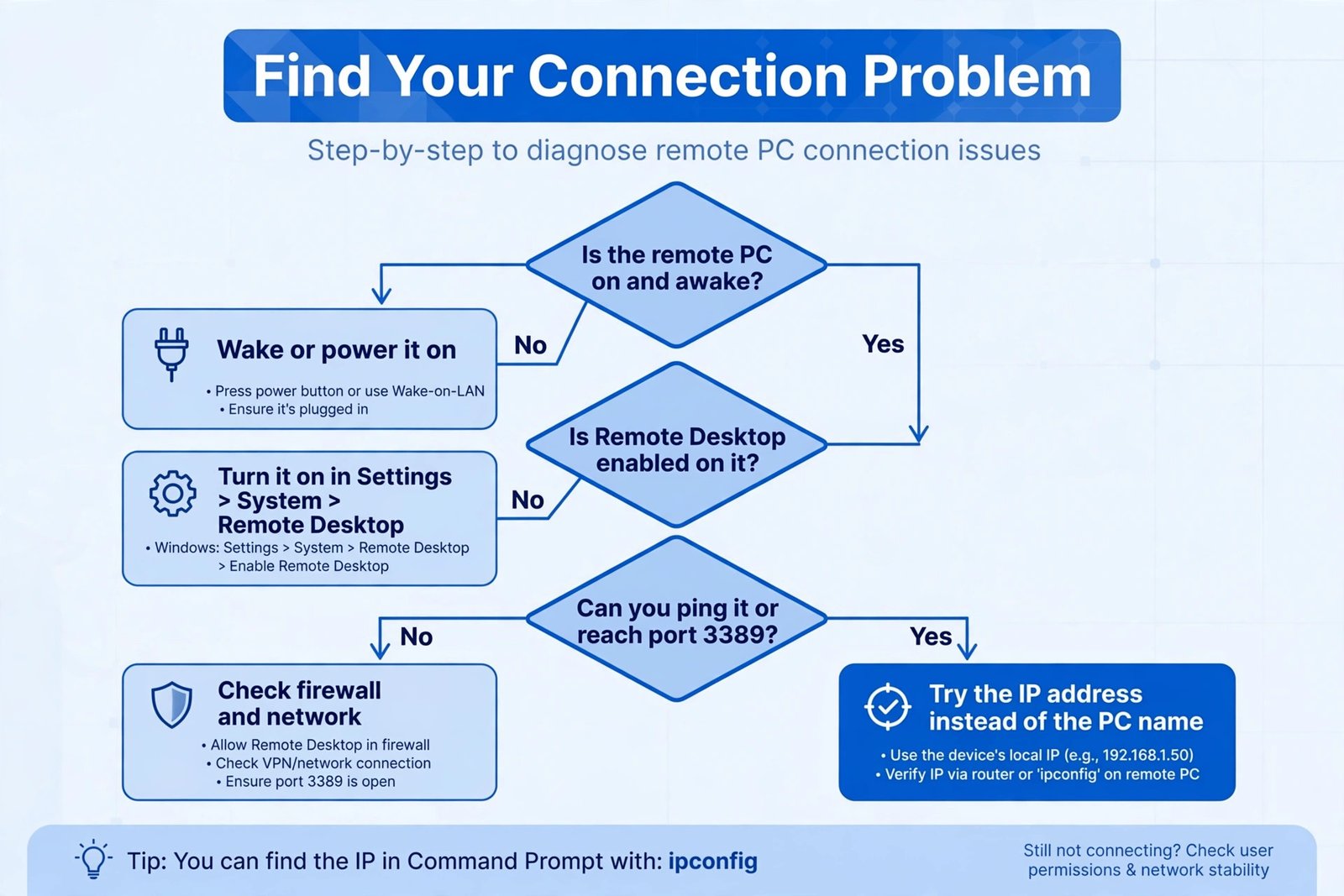
This error occurs for several reasons. The computer name might be wrong. The remote PC might be offline. Network connectivity could be broken. Firewall settings might block the connection. The remote computer might have RDP disabled. Windows Defender or antivirus software could interfere. Network discovery might be turned off.
The good news? Most fixes are straightforward and take minutes to complete.

Step 1: Verify the Computer Name or IP Address
This is the most common cause. You need the exact name or IP address of the computer you’re trying to reach.
Finding the Correct Computer Name
On the remote computer, follow these steps:
- Right-click “This PC” or “My Computer”
- Select “Properties”
- Look for “Computer name” under the System section
- Note down the exact name with correct capitalization
You can also use the command prompt:
- Press Windows + R
- Type “cmd” and press Enter
- Type “hostname” and press Enter
- The computer name appears immediately
Copy this name exactly. One wrong letter breaks the connection.
Finding the IP Address
The IP address is more reliable than the computer name over some networks.
- Press Windows + R
- Type “cmd” and press Enter
- Type “ipconfig” and press Enter
- Find the line “IPv4 Address”
- Write down the number (looks like 192.168.1.100)
Try connecting using the IP address instead of the name. Many users find this works when the name doesn’t.
Step 2: Check If the Remote Computer Is Actually On
This seems obvious, but many people overlook it.
Make sure the remote computer is powered on and connected to the network. A sleeping computer won’t accept Remote Desktop connections. Most computers in sleep mode also won’t respond.
If you can’t physically check the computer, try pinging it:
- Press Windows + R
- Type “cmd” and press Enter
- Type “ping 192.168.1.100” (use the actual IP address)
- Press Enter
If you see “Reply from” messages, the computer is on and reachable. If you see “Request timed out” or “Destination host unreachable,” the computer is off or not on the network.
Step 3: Enable Remote Desktop on the Target Computer
The remote computer must have Remote Desktop enabled. Without it, no connection is possible.
Enable Remote Desktop in Windows 11 and Windows 10
- Right-click “This PC” or “My Computer”
- Select “Properties”
- Click “Remote Desktop” (you might need to scroll down)
- Toggle “Enable Remote Desktop” to ON
- Windows shows a warning about network visibility
- Click “Confirm” to proceed
When you enable Remote Desktop, Windows remembers your setting. It stays enabled until you turn it off.
For Windows 10 (Alternate Method)
- Press Windows + R
- Type “SystemPropertiesRemote” and press Enter
- The System Properties window opens to the Remote tab
- Select “Allow remote connections to this computer”
- Click “Apply” then “OK”
For Windows Home Edition
Windows Home editions don’t support Remote Desktop as a server. You can only connect from a Home computer to another device, not receive connections. If you have Windows Home, you need to upgrade to Pro or Enterprise to be the target computer.
You can still use Remote Desktop to connect to other computers. Just not the other way around.
Step 4: Configure Your Firewall
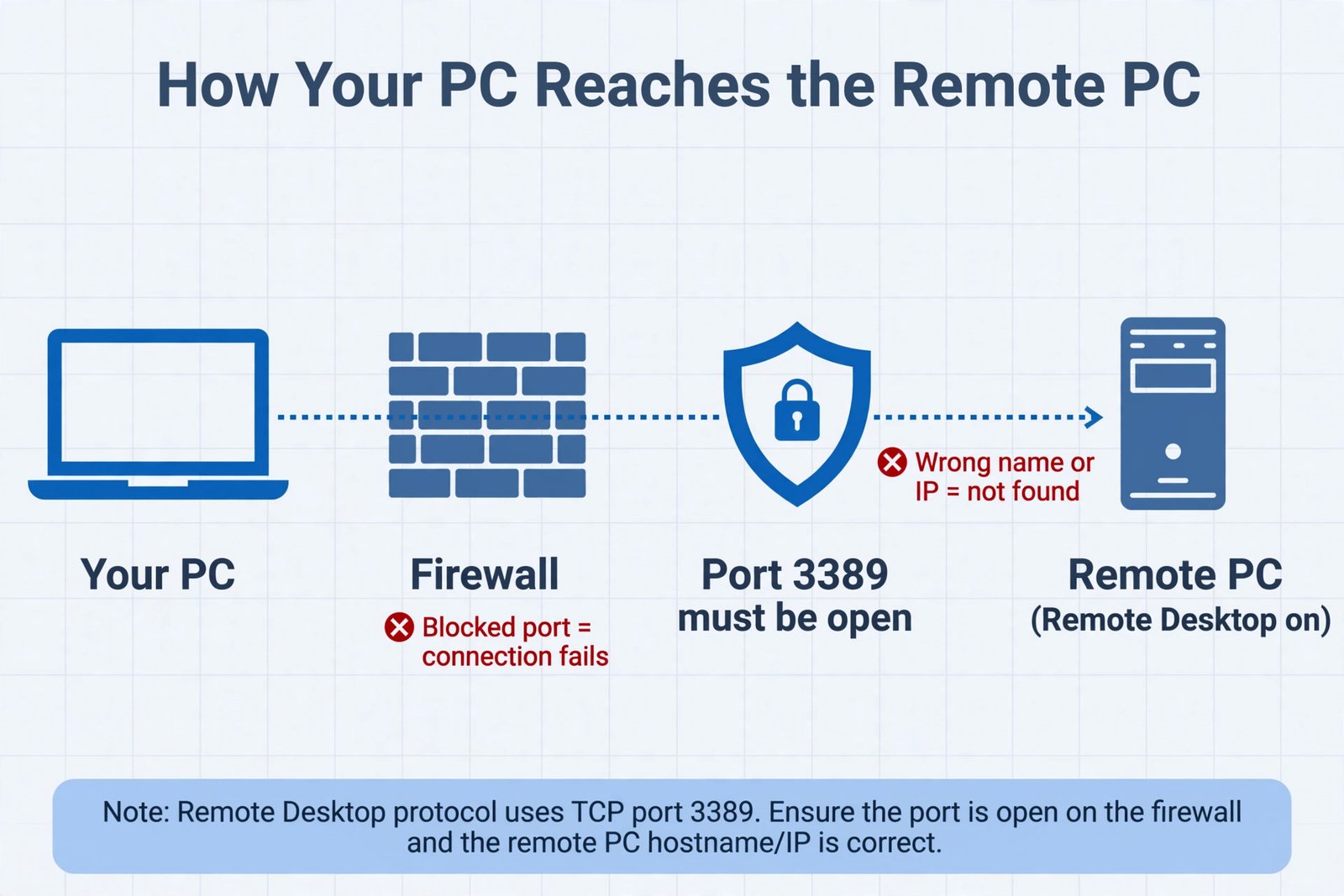
The Windows Defender Firewall might block Remote Desktop connections even when everything else is set up correctly.
Allow Remote Desktop Through Windows Defender Firewall
- Press Windows + R
- Type “wf.msc” and press Enter
- The Windows Defender Firewall with Advanced Security opens
- Click “Inbound Rules” on the left side
- Look for rules named “Remote Desktop” in the list
- Right-click each Remote Desktop rule
- Select “Enable Rule”
If you don’t see any Remote Desktop rules, create a new one:
- Right-click “Inbound Rules”
- Select “New Rule”
- Choose “Predefined”
- Select “Remote Desktop” from the dropdown
- Click “Next”
- Keep default selections and click “Next”
- Select “Allow the connection”
- Click “Finish”
Some people disable Windows Defender Firewall entirely. Don’t do this. Just enable the specific rules you need.
Third-Party Firewall Rules
If you use Norton, McAfee, ZoneAlarm, or another firewall, you need to add Remote Desktop rules there too. Check your firewall software’s help documentation. The process varies by product.
Router Firewall
If you’re connecting across the internet (not just on your local network), your router might block the connection. Log into your router settings and look for port forwarding. Remote Desktop typically uses port 3389. You may need to forward this port to your remote computer’s internal IP address.
Only do this if you need remote access from outside your home or office. Local network connections usually don’t require router changes.
Step 5: Turn On Network Discovery
Network discovery helps computers find each other on the network. When it’s off, name resolution fails.
Enable Network Discovery in Windows 11 and Windows 10
- Press Windows + I to open Settings
- Go to “Network & Internet”
- Select “Advanced Network Settings”
- Click “Advanced Sharing Options”
- Find “Network Discovery” section
- Select “Turn on network discovery”
- Click “Save Changes”
Do this on both computers. The computer you’re connecting from needs network discovery on. The computer you’re connecting to also needs it.
Windows might ask for admin permission. Click “Yes” to proceed.
Wait for Network Discovery to Activate
After enabling, wait 30 seconds before trying to connect. Windows needs time to broadcast the computer on the network.
Step 6: Use the Full Computer Name Format
Sometimes, just the computer name isn’t enough. You might need to use the full format.
Try these formats in order:
- Just the computer name:
BEDROOM-PC - With domain:
BEDROOM-PC.localdomain - IP address:
192.168.1.100 - With username:
BEDROOM-PC\username
If the computer is on a company network with Active Directory, ask your IT department for the full domain name.
Step 7: Check Network Connectivity
Both computers need to be on the same network or have a valid network path between them.
For Same Network (Local Connection)
- Open Command Prompt on your computer
- Type “ipconfig” and press Enter
- Note your IPv4 Address and Subnet Mask
- Do the same on the remote computer
- Both computers should have similar IP addresses (like 192.168.1.X)
If one computer has an IP starting with 169.254, it doesn’t have proper network connectivity. That computer can’t connect.
Test Network Connectivity
- Press Windows + R
- Type “cmd” and press Enter
- Type “ping [remote-computer-ip]”
- Press Enter
You should see replies. If you see “Request timed out,” the computers can’t reach each other over the network.
Check WiFi Connection
If either computer uses WiFi, make sure both are connected to the same network. A computer connected to one WiFi network can’t reach a computer on a different WiFi network.
Step 8: Restart the Remote Desktop Service
Sometimes the RDP service gets stuck and needs a restart.
Restart RDP Service on the Remote Computer
- Press Windows + R
- Type “services.msc” and press Enter
- Scroll down to find “Remote Desktop Services”
- Right-click it
- Select “Restart”
- Wait for the service to stop and start again
This usually takes 10 seconds. After the restart, try connecting again.
Step 9: Disable VPN Temporarily
If you use a VPN, it might interfere with local network connections.
Try disconnecting from your VPN before attempting the Remote Desktop connection. This is especially true for VPN software that changes your routing.
If the connection works without VPN but fails with VPN on, you might need to configure VPN settings to allow local network access. Most VPN clients have a “Split Tunneling” or “Allow Local Network” option.
Step 10: Update Network Drivers
Outdated network drivers can cause connection issues.
- Press Windows + R
- Type “devmgmt.msc” and press Enter
- Expand “Network adapters”
- Right-click your network adapter
- Select “Update driver”
- Choose “Search automatically for updated driver software”
- Wait for Windows to search and install updates
- Restart your computer if prompted
After the restart, try connecting to the remote computer again.
Common Scenarios and Solutions
Scenario 1: Computer Was Recently Renamed
After renaming a computer, RDP might still use the old name. Windows caches the old name in some locations.
Solution: Restart both computers. Clear your connection history in Remote Desktop Connection. Then try connecting with the new name.
Scenario 2: Computer Is on a Different Subnet
Your company network might have multiple subnets. A computer on subnet A can’t reach a computer on subnet B without special routing.
Solution: Try using the IP address instead of the computer name. Ask your network administrator if you need to configure routing.
Scenario 3: Multiple Network Adapters
Some computers have multiple network adapters. Remote Desktop might try to use the wrong one.
Solution: Specify the IP address of the correct adapter. Find it with “ipconfig” command and use that exact IP address.
Scenario 4: Recently Changed Network from Public to Private
Windows treats public and private networks differently. Devices on public networks won’t accept Remote Desktop connections.
Solution: On the remote computer, go to Settings > Network & Internet > Status. Click on your network. Make sure it shows “Private” not “Public.”
Scenario 5: Using Remote Desktop Over the Internet
Connecting through the internet requires extra setup beyond local network connections.
Solution: You need to set up port forwarding on your router. Or use Windows Remote Assistance instead, which doesn’t require port forwarding. Alternatively, use third-party tools like TeamViewer or AnyDesk.
Table: Quick Troubleshooting Reference
| Issue | Solution | Time Required |
|---|---|---|
| Wrong computer name | Verify exact name using hostname command | 2 minutes |
| Computer is off | Power on the remote computer | 1 minute |
| RDP disabled | Enable Remote Desktop in System Properties | 1 minute |
| Firewall blocking | Allow RDP through Windows Defender Firewall | 3 minutes |
| Network unreachable | Check both computers on same network using ipconfig | 2 minutes |
| DNS not resolving | Use IP address instead of computer name | 1 minute |
| RDP service stuck | Restart Remote Desktop Services | 2 minutes |
| Old cached connection | Clear RDP history and retry | 1 minute |
Preventing This Error in the Future
Once you get Remote Desktop working, keep it that way with these practices.
Document Everything
Write down the correct computer name and IP address. Store it somewhere you can find it. A spreadsheet or notebook works fine.
Use Static IP Addresses
If the remote computer keeps getting different IP addresses from DHCP, consider assigning it a static IP. Static IPs never change, making future connections more reliable.
To set a static IP, go to your router settings or set it on the computer itself in Network Settings > Advanced > IP Settings.
Create a Shortcut
In Remote Desktop Connection, save your connection settings. Click “Save As” and give it a meaningful name. Next time, just open the saved file instead of typing everything again.
Keep Remote Desktop Updated
Windows updates include Remote Desktop improvements and security fixes. Keep Windows Update turned on. Don’t skip updates.
Test Connections Regularly
If you depend on remote access, test it monthly. A working connection today might fail months later due to system changes.
Conclusion
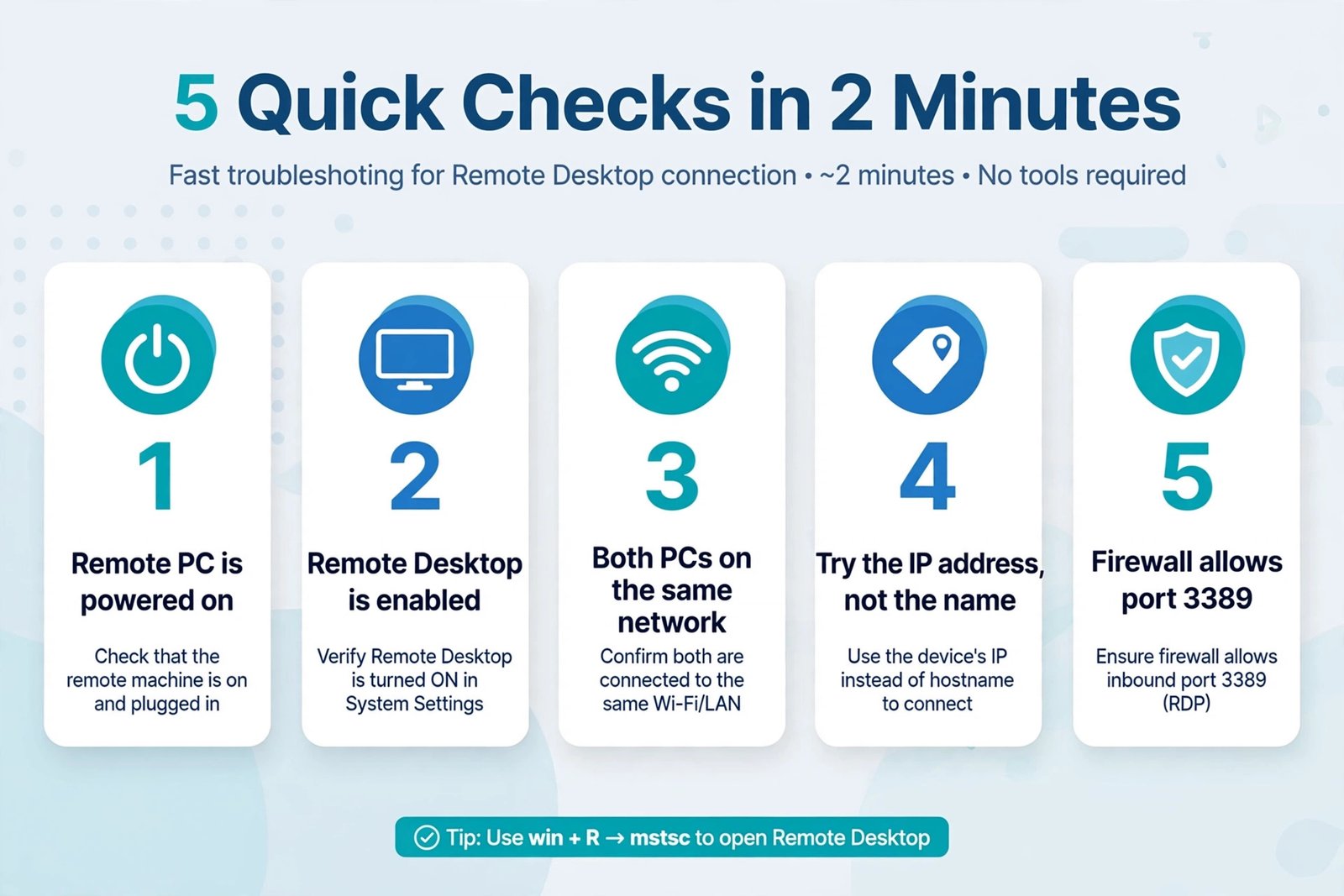
The “Remote Desktop can’t find the computer” error usually comes from simple issues. Start with verifying the computer name or IP address. Check that the remote computer is on and has Remote Desktop enabled. Configure your firewall correctly. Make sure both computers are on the same network.
Most people solve this error within 10 minutes using the first three steps. The remaining steps handle less common problems.
Work through each step in order. When one works, you’ve found your solution. If none work, you might be dealing with a network infrastructure issue requiring your IT department’s help.
Remote Desktop is powerful for managing computers from anywhere. Once you fix this error, you’ll have reliable access to your remote machines.
FAQs
What’s the difference between “can’t find the computer” and “can’t connect to the computer”?
“Can’t find the computer” means Windows couldn’t locate the computer on the network. “Can’t connect” usually means the computer was found but rejected the connection. Different problems cause each error, so solutions differ. Check the exact error message to pick the right fix.
Can I use Remote Desktop if the computers are on different networks?
Yes, but you need additional setup. You can use a VPN to connect both networks first. Or you can set up port forwarding on your router. For beginners, third-party tools like TeamViewer are simpler. They handle the network complexity for you.
Why does Remote Desktop work sometimes but not other times?
Intermittent failures usually mean the remote computer is going to sleep. Check power settings on the remote computer. Set it to never sleep. Or set it to sleep only after many hours of inactivity. Some network changes also cause intermittent failures. Restarting the remote computer often fixes this.
Is Remote Desktop secure for internet use?
Remote Desktop uses encryption, which is good. However, exposing RDP to the internet creates security risks if your password is weak or you don’t keep Windows updated. For internet access, consider a VPN connection first. Or use alternative tools designed for remote access over the internet. Always use strong, unique passwords.
Will Remote Desktop work on a guest network?
Probably not. Guest networks isolate devices from each other for security. Your computer and the remote computer might both be on the guest network but unable to see each other. Use your main network if both devices support it. If only the guest network is available, try third-party remote access tools that use internet connections instead of local networks.
- Fix: Gmail Not Updating or Syncing on iPhone (7 Solutions That Actually Work) - January 14, 2026
- Fix “Processing of Group Policy Failed” Error in Windows: Complete Guide - January 14, 2026
- Fix “Remote Desktop Can’t Find the Computer” Error in Windows: Complete Guide - January 13, 2026