
The CredSSP encryption oracle remediation error happens when your Remote Desktop Connection can’t establish a secure connection with another computer. This security update blocks older, less secure encryption methods. To fix it, you need to update your Windows system, change group policy settings, or adjust CredSSP protocol settings on either your local or remote computer.
The most effective solution depends on whether you control both computers involved in the connection.
What Is CredSSP and Why Does This Error Occur?
CredSSP stands for Credential Security Support Provider. It’s the protocol that handles secure credential transmission when you connect to another computer using Remote Desktop. Think of it as a security guard checking that passwords and login information travel safely between computers.
Microsoft released security updates to fix vulnerabilities in CredSSP. These updates made the protocol more restrictive. If your local computer or the remote computer has the update but the other doesn’t, they can’t agree on encryption standards. The result is the “Encryption Oracle Remediation” error.
Why This Error Matters
This isn’t a minor inconvenience. CredSSP vulnerabilities could allow attackers to steal your credentials. The error blocks the connection because accepting weaker encryption would expose you to risk. Your system is protecting you, even if it feels frustrating.
However, once you understand the fix, you can resolve it in minutes.
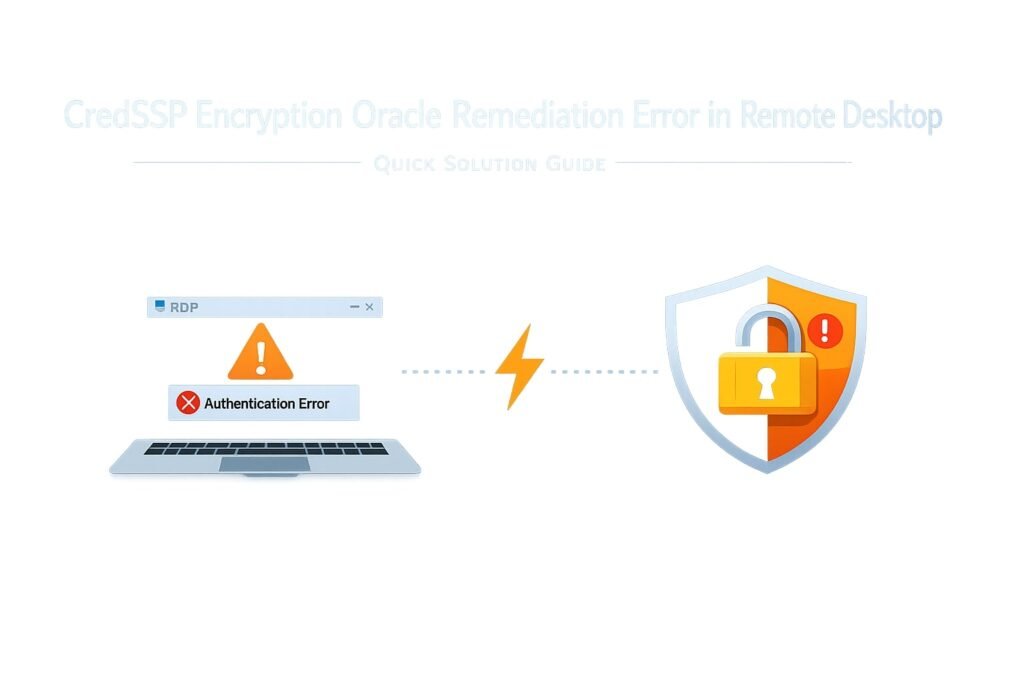
Understanding the Error Message Variations
You might see slightly different error messages depending on your situation.
Common versions include:
- “An authentication error has occurred. The function requested is not supported.”
- “The remote computer requires Network Level Authentication, which your computer does not support.”
- “This could be due to CredSSP encryption oracle remediation.”
- “The server has rejected the client attempt to establish a session.”
All of these trace back to the same root cause: mismatched CredSSP security levels between computers.
Solution 1: Update Windows (Recommended First Step)
This is the safest and most permanent fix. Updating Windows patches the CredSSP vulnerability on your system.
How to Check Your Current Windows Version
- Press Windows key + R
- Type “winver” and press Enter
- Check your Windows version number
How to Update Windows
For Windows 10 and 11:
- Click the Start menu
- Type “Windows Update”
- Click “Check for updates”
- Install all available updates
- Restart your computer when prompted
- Check for updates again until none remain
Important: Sometimes you need to restart and check multiple times. Microsoft releases updates in batches.
After updating, test your Remote Desktop connection immediately. This resolves the issue for many users.
Why This Works
Updates include the latest CredSSP protocol handler. Your updated computer can now communicate securely with both newer and older systems within reasonable security boundaries.
Solution 2: Update the Remote Computer
If you’re the one trying to connect and this doesn’t work, the problem might be on the other end.
Contact the person who manages the remote computer. Ask them to:
- Check Windows Update on their computer
- Install all available security updates
- Restart their system
- Allow you to try connecting again
This is ideal when both computers can be updated. It’s the most secure approach because both systems get the latest protection.
Solution 3: Modify Group Policy Settings (Windows Pro and Enterprise Only)
If you can’t wait for updates or you’re in an environment with restricted update policies, you can adjust how CredSSP behaves.
Note: This method only works on Windows Pro, Enterprise, or Education editions. Home editions don’t have Group Policy.
Steps to Access Group Policy
- Press Windows key + R
- Type “gpedit.msc” and press Enter
- Navigate to: Computer Configuration > Administrative Templates > System > Credentials Delegation
Two Key Settings to Modify
Setting 1: Encryption Oracle Remediation
- Double-click “Encryption Oracle Remediation”
- Select “Enabled”
- In the dropdown box, choose one of these options:
- “Vulnerable” (least secure, use only temporarily)
- “Mitigated” (medium security)
- “Force Updated” (requires updated systems)
- Click OK
Setting 2: Allow Delegating Saved Credentials with NTLM-only Server Authentication
- Double-click the setting with this long name
- Select “Enabled”
- Click OK
After making these changes, restart your computer. Test your Remote Desktop connection.
Understanding Your Options
| Option | Security Level | When to Use | Risks |
|---|---|---|---|
| Force Updated | Highest | Both computers updated | May block older systems |
| Mitigated | Medium | Mixed environments | Some older systems blocked |
| Vulnerable | Lowest | Temporary troubleshooting | Exposes you to known attacks |
Use “Vulnerable” only as a last resort while you plan permanent fixes. Don’t leave it on long-term.
Solution 4: Registry Edit (Advanced Alternative)
If Group Policy isn’t available, you can edit the Windows Registry directly. This accomplishes similar changes.
Warning: Incorrect registry edits can damage Windows. Only try this if you’re comfortable with the Registry Editor.
Steps for Registry Modification
- Press Windows key + R
- Type “regedit” and press Enter
- Navigate to: HKEY_LOCAL_MACHINE > SOFTWARE > Microsoft > Windows > CurrentVersion > Policies > System > CredSSP > Parameters
- If you don’t see “Parameters,” right-click “CredSSP” and create a new key named “Parameters”
- Right-click in the empty space and select “New > DWORD (32-bit) Value”
- Name it “AllowEncryptionOracle”
- Set the value to one of these:
- 0 = Force Updated (most secure)
- 1 = Mitigated
- 2 = Vulnerable (temporary only)
- Restart your computer
This achieves the same result as Group Policy changes but works on any Windows edition.
Solution 5: Disable Network Level Authentication (Last Resort)
Network Level Authentication is an extra security layer. Turning it off can sometimes resolve connection issues, but it reduces security.
Only do this temporarily while troubleshooting.
On Your Local Computer (Windows 10/11)
- Type “Remote Desktop Connection” in the Start menu
- Click the application
- Click “Show Options”
- Go to the “Advanced” tab
- Uncheck “Allow me to save credentials”
- Go to the “Experience” tab
- Look for Network Level Authentication checkbox and uncheck it if it’s checked
- Try connecting again
On the Remote Computer
If you have access to the remote computer:
- Search “System” in Start menu
- Click “Remote Desktop” settings
- Look for “Require the use of Network Level Authentication to connect”
- Uncheck this option
- Restart the remote computer
This is less secure but can confirm whether CredSSP is truly the issue.
Solution 6: Use Remote Assistance Instead of Remote Desktop
If Remote Desktop won’t work and you need immediate access, try Remote Assistance as a temporary workaround.
Remote Assistance works differently and doesn’t use the same CredSSP authentication method.
To start Remote Assistance:
- On the remote computer, press Windows key + R
- Type “msra” and press Enter
- Click “Invite someone you trust to help you”
- Send the invitation file to yourself or the connecting user
- Accept the connection on your end
This isn’t a permanent fix, but it buys you time while you implement proper solutions.
Preventive Measures for the Future
Once you’ve fixed the error, protect yourself going forward.
Keep Windows Updated
Enable automatic updates:
- Press Windows key + R
- Type “services.msc”
- Find “Windows Update”
- Right-click and select “Properties”
- Set “Startup type” to “Automatic”
Automatic updates prevent most CredSSP issues before they start.
Maintain Consistent Update Schedules
If you manage multiple computers:
- Update all systems on a regular schedule (monthly is ideal)
- Test Remote Desktop connections after each update cycle
- Document which systems have which updates
- Create a simple spreadsheet or checklist
Use Updated Systems for Critical Tasks
If some of your computers update and others don’t:
- Don’t use outdated systems for sensitive Remote Desktop connections
- Prioritize updating systems you use for remote access
- Plan retirement dates for very old computers
Document Your CredSSP Configuration
Keep notes about any policy changes you’ve made:
- Record which computers have modified CredSSP settings
- Note the date of changes
- Explain why you made those changes
- Plan when to reverse temporary changes
This prevents forgotten configuration issues months later.
Troubleshooting When Nothing Works
If you’ve tried multiple solutions and still can’t connect, dig deeper.
Verify Connectivity First
Before blaming CredSSP, confirm basic network access:
- Open Command Prompt
- Type “ping [remote-computer-name]” or “ping [IP-address]”
- If you get response, network access works
- If “Request timed out,” the remote computer isn’t reachable
Fix network connectivity first. CredSSP problems only matter if computers can actually communicate.
Check Remote Desktop Is Enabled
On the remote computer:
- Open Settings
- Click “System”
- Click “Remote Desktop”
- Ensure “Enable Remote Desktop” is toggled ON
- Note the computer’s network name and IP address
Many connection failures happen because Remote Desktop simply isn’t turned on.
Review Event Viewer Logs
Event Viewer shows detailed error information:
- Press Windows key + R
- Type “eventvwr.msc”
- Click “Windows Logs” > “System”
- Look for recent errors with “CredSSP,” “RDP,” or “Remote”
- Note any error codes and messages
Error codes point directly to the real problem. Search the exact error code online for specific solutions.
Test with Different User Accounts
Sometimes account-specific settings cause issues:
- Try connecting with a different user account
- Use a local account instead of a domain account if possible
- Check if the user has permission for Remote Desktop access
If connection works with one account but not another, the issue is permissions or account configuration, not CredSSP.
Temporarily Disable Firewall (Testing Only)
Windows Defender Firewall might block Remote Desktop:
- Press Windows key + R
- Type “wf.msc”
- Click “Windows Defender Firewall with Advanced Security”
- Click “Windows Defender Firewall Properties”
- Set all three profiles to “Off” temporarily
- Try connecting again
If this works, the firewall blocks Remote Desktop. Re-enable the firewall and create specific rules for Remote Desktop instead of leaving it off.
Step-by-Step Quick Reference Table
Use this table if you’re in a hurry and need the fastest path to a solution.
| Your Situation | Best Solution | Time Required | Skill Level |
|---|---|---|---|
| Both computers are yours | Update Windows on both | 30-60 minutes | Beginner |
| Can’t update remote computer | Modify Group Policy | 5 minutes | Intermediate |
| Home Edition Windows | Registry edit | 10 minutes | Intermediate |
| Need immediate access | Use Remote Assistance | 5 minutes | Beginner |
| Still having issues | Check Event Viewer | 15 minutes | Intermediate |
How CredSSP Updates Work
Understanding the mechanics helps you make better decisions about which fix to use.
The Three-Layer Security Process
Layer 1: Initial Connection
Your computer contacts the remote computer. They exchange initial information about what security standards each supports.
Layer 2: Credential Encryption
Your password and username get encrypted using a method both computers agree on. Older systems use weaker encryption. Newer systems demand stronger encryption.
Layer 3: Verification
The remote computer verifies your credentials are legitimate before granting access.
If there’s a mismatch in Layer 2, the connection fails with the CredSSP encryption oracle error.
Why Microsoft Made This Change
The original vulnerability let attackers decrypt credentials even when they weren’t supposed to have access. Think of it like a locked box with a master key—hackers found the master key.
Microsoft’s fix is like changing the locks so the old master key doesn’t work anymore. Older computers still have the old locks. Newer computers have new locks. When they try to work together, the keys don’t match.
Real-World Scenarios
These examples show how different situations require different solutions.
Scenario 1: Home User Connecting to Work Computer
You’re at home trying to access your work computer. Your work computer updated last month. Your home computer hasn’t updated recently.
Best fix: Update your home computer through Windows Update. This is safest because you control both computers and both become secure.
Time: 45 minutes including restart time.
Scenario 2: Corporate IT Needs to Support Remote Users
You manage 200 computers across a company. Some users can’t connect remotely. You can’t control when their personal computers update.
Best fix: Set company policy on your managed computers to “Mitigated” CredSSP mode. This allows connections from most systems while still blocking obviously dangerous old machines.
Time: 30 minutes to implement across network.
Scenario 3: Contractor Needs Access to Specific Server
You need temporary access to a single server run by another organization. That server hasn’t updated in months due to compatibility concerns.
Best fix: Request the server administrator enable “Vulnerable” mode temporarily (with a deadline), or use Remote Assistance instead.
Time: Depends on the other organization’s policies.
Scenario 4: Multiple Systems With Mixed Update Status
You have three computers: one new laptop, one 5-year-old desktop, and one server. They’re not all on the same update schedule.
Best fix: Update all three to the same Windows version if possible. If that’s impossible, set the server to “Mitigated” mode so both old and new systems can connect.
Time: 2-3 hours to align all systems.
Security Considerations You Should Know
Fixing this error involves security decisions. Understand the tradeoffs.
The Security Hierarchy
- Most Secure: All systems updated, default CredSSP settings
- Reasonably Secure: Updated systems plus one “Mitigated” system
- Concerning: Using “Vulnerable” mode even temporarily
- Risky: Disabling Network Level Authentication long-term
- Dangerous: Leaving systems unpatched indefinitely
Where you land on this hierarchy depends on your risk tolerance and control over your systems.
What “Vulnerable” Mode Actually Means
When you set CredSSP to “Vulnerable,” you’re accepting that credentials could potentially be decrypted by someone on the network. This doesn’t mean it will definitely happen. It means the protection is weaker.
Use it only when:
- You’re on a trusted network (not public WiFi)
- You have a deadline to update
- You’re not transmitting highly sensitive information
- You intend to fix it within days, not weeks
Long-Term Risk Management
If you manage systems:
- Never accept “Vulnerable” as permanent
- Budget for regular update cycles (monthly minimum)
- Retire systems that can’t update
- Test updates on a small group first
- Plan your update schedule around your business needs
Systems that can’t be updated are liabilities. Eventually, you’ll need to replace them.
When to Call Professional Help
Some situations require IT expertise beyond this guide.
Call an IT professional if:
- You’ve tried all solutions and still can’t connect
- You’re managing a corporate network and need to configure this at scale
- You’re seeing unusual error codes that don’t match common CredSSP issues
- You need to connect to mission-critical systems and can’t afford mistakes
- You’re uncomfortable editing the registry or Group Policy
Professional IT support costs money upfront but prevents expensive failures later.
What Information to Give an IT Professional
Provide this information to save time and money:
- Your exact Windows version (from winver command)
- The remote computer’s Windows version
- The complete error message you’re seeing
- Any Event Viewer error codes
- What fixes you’ve already attempted
- Whether this worked before and when it stopped
The more specific you are, the faster they can help.
Frequently Asked Questions
Why did this problem suddenly appear?
Likely because Windows Update installed the CredSSP security update on one computer but not the other. If systems were working together before and suddenly stopped, an update is the first suspect. Check your Windows Update history to confirm when updates installed.
Is it safe to use “Vulnerable” mode permanently?
No. Using “Vulnerable” mode permanently leaves you exposed to credential theft. It’s a temporary fix only while you implement permanent solutions. Set a deadline to update systems or implement proper fixes within two weeks maximum.
Can I use Remote Desktop without CredSSP?
Remote Desktop relies on CredSSP for secure credential handling. You can disable Network Level Authentication, which uses CredSSP, but the protocol still operates underneath. Your best option is fixing the underlying CredSSP issue rather than trying to bypass it entirely.
Do I need to restart after changing Group Policy settings?
Yes. Group Policy changes don’t take effect until you restart your computer. After modifying any CredSSP settings in Group Policy, restart immediately and test your connection.
Will updating Windows solve all my Remote Desktop problems?
Updating solves CredSSP-specific issues, but Remote Desktop has other potential problems: firewall blocking, network connectivity, wrong credentials, Remote Desktop not enabled on the remote computer, etc. If updating doesn’t work, check those other factors using the troubleshooting section of this guide.
Summary and Next Steps
The CredSSP encryption oracle remediation error is a security protection that blocks insecure connections. It’s frustrating but intentional.
Your action plan:
- Start here: Update Windows on your local computer through Windows Update
- If that doesn’t work: Update the remote computer too
- If updates aren’t available: Use Group Policy or Registry changes to allow “Mitigated” connections
- If you need immediate access: Use Remote Assistance temporarily
- Make it permanent: Set up automatic Windows updates so this doesn’t happen again
Most users solve this in under an hour by following these steps in order. The few who encounter complications have already tried the basic fixes, so they’re ready for professional help.
The error exists to protect your security. Once you understand that, fixing it becomes straightforward. You’re not fighting against unnecessary restrictions—you’re working with security measures that actually matter.
Start with the Windows Update and see how far that takes you.

- How to Clear Cache on Windows 11: Quick Guide in 2026 - February 23, 2026
- Top 10 Trending AI Apps in 2026 You Should Actually Be Using - February 22, 2026
- Top 10 AI Based Resume Makers in 2026 That Actually Get You Hired - February 22, 2026